If you have ever had one Chrome tab blasting a trailer like it is auditioning for an action movie while another tab whispers through a podcast like it is sharing state secrets, you already know the problem: browser audio can get chaotic fast. One minute you are working peacefully. The next, a meeting tab, a music tab, a YouTube tab, and a news site with autoplay are all competing for the title of “Most Annoying Sound in the Room.”
The good news is that getting better audio control in Chrome is absolutely possible. The slightly less glamorous news is that Chrome itself does not really give you a slick, built-in per-tab volume mixer in the way many people imagine. Instead, you usually get that feature by combining Chrome’s built-in mute and sound controls with the right extension. In plain English: yes, you can get a volume mixer experience for Chrome tabs, but you will probably need a little help from the Chrome Web Store.
This guide breaks down what actually works, what does not, and how to set up a Chrome tab volume mixer without turning your browser into a junk drawer full of questionable add-ons. We will also cover Windows and Mac options, troubleshooting tips, and real-world examples so you can stop fighting your tabs and get back to being the calm, organized audio wizard you were meant to be.
What People Mean by a “Volume Mixer for Chrome Tabs”
When most users search for a volume mixer for Chrome tabs, they are usually looking for one of three things:
- A way to lower one noisy tab without lowering the entire browser
- A way to boost a quiet tab, such as a low-volume lecture or podcast
- A way to mute one tab while keeping sound on in another
That sounds simple enough, but browser audio is a little weird. Operating systems like Windows usually see Chrome as one app. So while Windows can let you lower Chrome as a whole, it does not normally separate your browser into twenty tiny sliders for twenty different tabs. That is why users end up looking for Chrome tab audio control tools, per-tab volume extensions, and browser sound boosters.
Can Chrome Do This Natively?
Sort of, but not completely.
Chrome does include some useful audio controls out of the box. You can mute a site, spot which tab is making noise by looking for the speaker icon, and use Chrome’s media controls to find and manage active playback more easily. Those features are handy, but they are not the same thing as a true tab-by-tab volume slider.
So if your goal is, “I want Tab A at 20%, Tab B at 60%, and Tab C boosted because the speaker recorded their entire webinar from inside a cereal box,” you will usually need an extension.
What Chrome’s built-in sound controls can do
- Mute a noisy site or tab quickly
- Show which tab is currently playing audio
- Let you manage site sound permissions
- Help you keep video playing in picture-in-picture while you browse
What Chrome’s built-in controls usually cannot do
- Give every tab its own permanent volume slider
- Save custom volume levels for each open tab in a true mixer interface
- Offer a native browser-wide dashboard for balancing multiple audio tabs at once
The Easiest Way to Get a Volume Mixer for Chrome Tabs
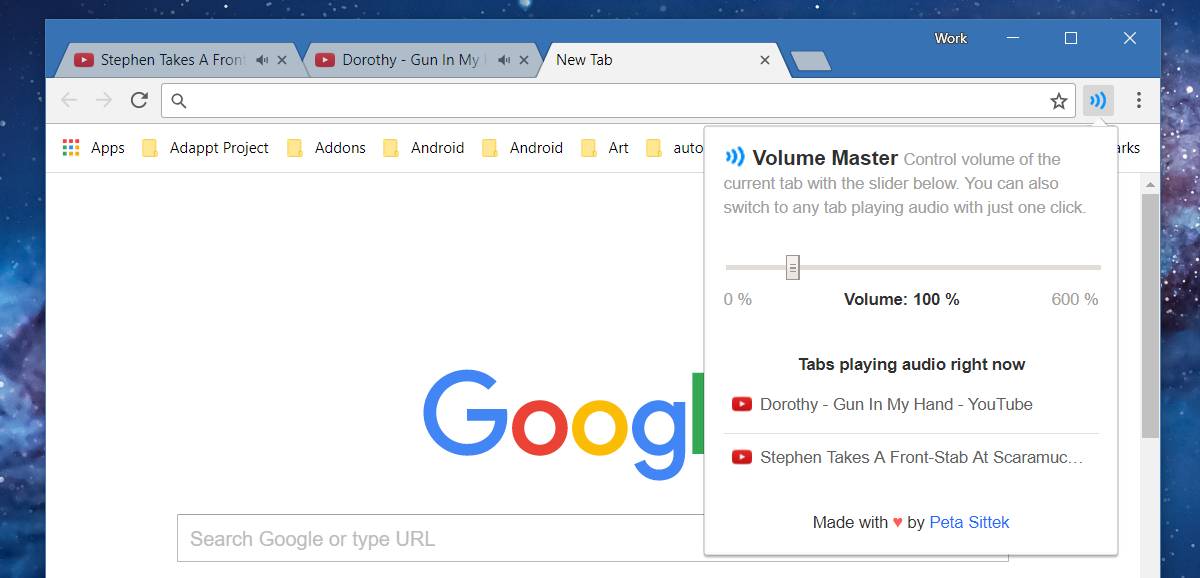
The simplest solution is to install a Chrome extension designed for per-tab audio control. These tools usually add a small icon near the address bar. Click it, and you can adjust the volume for the current tab or switch between audio-playing tabs from one small control panel.
Popular examples in the Chrome Web Store include tools with names like Volume Master, Volume Control, and Mute Tab. Some focus on boosting audio, some focus on individual tab control, and some mainly restore easier muting behavior. You do not need to install all of them. In fact, please do not. Running multiple audio extensions at once is a great way to create the kind of confusion normally reserved for group texts and family vacation planning.
How to install a Chrome tab volume extension
- Open the Chrome Web Store.
- Search for terms like volume mixer for Chrome tabs, tab volume control, or Chrome audio control.
- Open an extension listing and read the description carefully.
- Check reviews, update history, and whether the extension explains its permissions clearly.
- Click Add to Chrome.
- Pin the extension to your toolbar so it is easy to access.
- Play audio in one or more tabs and test the slider.
What to look for in a good extension
- Per-tab control: Make sure the extension specifically says it controls individual tabs, not just the whole browser.
- Simple interface: You want one click, one slider, less drama.
- Reasonable permissions: If an extension asks for broad access, understand why.
- Recent maintenance: A tool updated recently is usually a safer bet than one that looks like it has been asleep since the early streaming era.
- Good performance: Audio tools should not turn Chrome into a sluggish mess.
How to Use a Chrome Tab Volume Mixer After Installation
Once your extension is installed, the typical workflow is very straightforward. Start playing audio in the tab you want to control. Click the extension icon. Drag the slider up or down. Some extensions let you go above 100%, which can help with very quiet content. That sounds amazing until you realize “boost” and “distortion” are sometimes roommates. Use the extra headroom carefully.
Here is a realistic example:
- Your YouTube music tab is at 35%
- Your Zoom or Meet tab stays around 80%
- Your news site gets muted because autoplay videos have tested your patience for the last time
That is basically the Chrome tab volume mixer dream: separate control, less irritation, more sanity.
Windows Volume Mixer vs. Chrome Tab Volume Mixer
If you are on Windows, you already have a built-in Volume Mixer. It is useful, but it solves a different problem.
Windows Volume Mixer lets you control the audio level for apps. So you can turn Chrome down without lowering Spotify, or raise Chrome without changing your system sounds. That is great if Chrome as a whole is too loud or too quiet. It is not great if one Chrome tab is screaming while another is whispering, because Windows usually treats Chrome as one single app.
How to use Windows Volume Mixer with Chrome
- Right-click the speaker icon on the taskbar.
- Open sound settings or Volume Mixer.
- Find Chrome under the list of apps.
- Adjust Chrome’s overall app volume.
This is worth doing if all Chrome audio is off-balance. But if your problem is inside Chrome, between tabs, you still want an extension for true per-tab control.
What About Mac?
Mac users face a similar situation. macOS gives you system-level volume controls, and websites like YouTube or Netflix often include their own in-player volume sliders. Safari also offers convenient tab muting behavior. But if you want a real Chrome tab mixer on a Mac, you will usually still end up using a browser extension.
So yes, the situation is basically the same: Chrome tab-level sound control is usually extension territory, not a built-in browser feature.
How to Choose the Best Chrome Volume Mixer Extension
There is no single perfect extension for everyone, because people use Chrome audio in very different ways. A student watching lecture replays has different needs than a remote worker living inside five meeting tabs and a lo-fi playlist.
Choose a booster-style extension if you:
- Watch quiet videos or podcasts
- Need more than the site’s default player volume
- Want fast access to a single-tab slider
Choose a mixer-style extension if you:
- Regularly juggle multiple sound-producing tabs
- Need individual controls from one popup panel
- Prefer organization over raw volume boosting
Choose a muting-focused extension if you:
- Mainly want one-click silence
- Need to mute individual tabs quickly
- Do not care much about precise audio levels
Important Safety Tips Before Installing Extensions
Browser extensions can be incredibly useful, but they are not magical little elves. They can also be intrusive, unstable, or overly nosy if you install them carelessly. Before adding a Chrome volume control extension, check what permissions it asks for and whether it explains those permissions clearly.
A good rule of thumb is simple: if an extension wants broad access to all websites you visit, make sure that makes sense for the feature. Then see whether Chrome lets you limit that extension to specific sites or only when you click it. That extra step can reduce how much access the extension has.
Also, avoid piling on multiple audio tools. One extension for tab volume is helpful. Three different boosters, one equalizer, and a mystery sound enhancer you installed at 1:00 a.m. because the icon looked cool? That is how bugs are born.
Troubleshooting When Chrome Tab Volume Control Is Not Working
If your new Chrome volume mixer is not behaving, do not panic. The problem is usually one of a few familiar suspects.
1. The tab is muted at the site level
Right-click the tab and see whether the site is muted. If it is, unmute it first. An extension cannot do much if the site has already been silenced elsewhere.
2. Windows or Mac volume is too low
Check your system sound settings. If Chrome is turned down in Windows Volume Mixer, your extension may seem broken when it is actually being overruled by the operating system.
3. The website has its own player volume
YouTube, Spotify web player, webinar platforms, and streaming sites often include their own volume controls. Make sure those are not set too low.
4. Two audio extensions are fighting each other
Disable any duplicate sound-related extensions and test again. Too many sound tools can create weird behavior, delayed audio, or missing controls.
5. Chrome needs a fresh start
Close and reopen Chrome. If that fails, update Chrome. If the issue still lingers, remove and reinstall the extension.
6. The sound is distorted after boosting
This is common when pushing audio above normal levels. Reduce the boost, raise your speaker or headphone volume slightly, and aim for balance instead of brute force.
Best Practices for Everyday Use
Once your Chrome tab volume mixer is up and running, a few habits can make the whole experience smoother:
- Pin your audio extension so it is always one click away
- Keep only one tab booster installed at a time
- Use tab muting for surprise audio and sliders for everything else
- Lower noisy background tabs instead of muting everything in frustration
- Review extension permissions occasionally, especially after updates
- Uninstall tools you no longer use
Is It Worth Getting a Volume Mixer for Chrome Tabs?
Absolutely, if you spend a lot of time in Chrome.
A Chrome tab volume mixer can make your browser feel dramatically more civilized. It is one of those little quality-of-life improvements that sounds minor until you try it. Then suddenly you wonder how you ever survived listening to a quiet tutorial in one tab while an ad in another tab tried to reenact a stadium concert.
If your goal is cleaner multitasking, better control during work, or simply fewer surprise sound attacks, a good tab volume extension is worth it. Just pick one carefully, keep permissions in mind, and do not confuse “volume booster” with “license to melt your speakers.”
Experiences Using a Volume Mixer for Chrome Tabs in Real Life
Using a volume mixer for Chrome tabs tends to feel small on day one and essential by day three. At first, it seems like one of those nice-to-have browser tweaks, something in the same category as a better dark mode or a prettier new tab page. Then real life happens. You open a work dashboard, a YouTube tutorial, a music stream, a chat app, and a random article with an embedded video that starts talking before you even know where the sound came from. Suddenly, that little tab volume slider becomes the hero of the afternoon.
One of the best experiences comes from multitasking. Imagine listening to a low-key instrumental playlist while working, then jumping into a training video without pausing the music entirely. With a Chrome tab volume mixer, you can dip the music down just enough to keep your brain happy while still hearing the presenter clearly. It feels less like wrestling your computer and more like conducting a tiny orchestra where every tab knows its place.
It also helps in remote work situations. Meeting platforms are not always consistent. One coworker sounds crystal clear, another sounds like they are calling from inside a wind tunnel, and the screen-share video somehow comes through louder than both. A tab volume control tool gives you a faster fix than constantly adjusting your entire system volume. You can manage the loud tab without making everything else in your digital life louder too.
Students and researchers can benefit just as much. A lecture tab might need a boost, while a second tab with ambient focus music should stay low. Meanwhile, a dictionary pronunciation tool or text-to-speech page may need to stay available without interrupting the rest of your setup. In those moments, per-tab control feels less like a luxury and more like a basic productivity feature Chrome forgot to build properly.
There is also the simple joy of shutting down nonsense quickly. A tab volume mixer is wonderful for taming autoplay videos, overenthusiastic ads, and the occasional webpage that seems determined to begin shouting the second it loads. Instead of muting your whole laptop like you are responding to a fire alarm, you can quiet the one guilty tab and move on with your dignity intact.
That said, the experience is best when kept simple. People who install one solid extension and use it mainly for volume balancing usually have a smoother time than people who stack boosters, equalizers, sound enhancers, and mystery productivity tools like they are building a browser Franken-audio lab. The sweet spot is usually one trustworthy extension, sensible settings, and a quick check of permissions now and then.
Over time, users often end up developing their own audio routine. Maybe your music tab lives around 30%, your meeting tab stays high, and video tutorials get a small boost. Maybe you mute tabs aggressively and use sliders only for work. Maybe you just want to keep your sanity while twelve tabs fight for your ears. However you use it, a Chrome tab volume mixer usually delivers the same result: less friction, more control, and fewer moments of yelling, “Where is that sound coming from?” at your screen like it personally offended you.
Conclusion
If you want a true volume mixer for Chrome tabs, the most reliable approach is to use Chrome’s built-in mute and sound settings for basic control, then add one carefully chosen extension for real per-tab volume adjustment. Windows Volume Mixer can help at the app level, and website players can help at the page level, but tab-by-tab sound balancing in Chrome usually comes from an extension.
The setup is easy, the payoff is immediate, and the improvement to everyday browsing is surprisingly big. Once you can turn down one noisy tab without sacrificing every other sound in your browser, Chrome becomes far less chaotic and far more usable. Which, frankly, is something all of our open tabs could use.