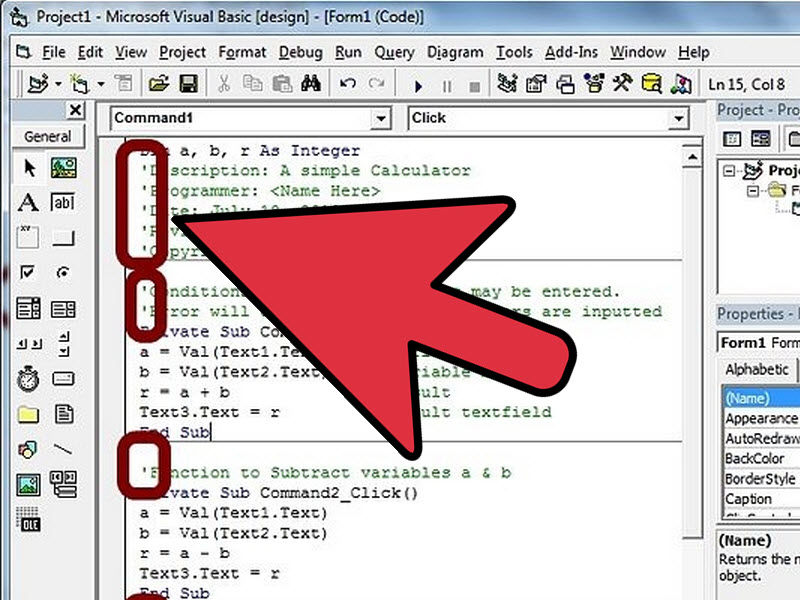
Writing code without comments is like leaving yourself a treasure map with no landmarks: technically possible, but future you may not appreciate the adventure. In Visual Basic, comments are simple notes that explain what your code does, why it does it, or why you made a particular decision. They are ignored by the compiler or interpreter, which means they do not change how the program runs. Their job is to help humans, not machines.
Whether you are working in VB.NET, VBA inside Excel, Access, or Word, or maintaining older Visual Basic code, comments make your projects easier to read, debug, update, and share. The good news? Adding comments in Visual Basic is wonderfully simple. You mostly use an apostrophe, and yes, that tiny little mark carries a surprising amount of responsibility.
This guide explains how to add comments in Visual Basic in 4 steps, with clear examples, practical tips, and best practices that help your code look professional instead of like a mysterious spellbook from 1998.
What Are Comments in Visual Basic?
Comments in Visual Basic are plain-text notes placed inside your code. They can describe the purpose of a procedure, explain a tricky calculation, mark a temporary test, or remind you why a certain line exists. Visual Basic ignores comments when running the program, so they are safe to use for explanation and documentation.
The most common Visual Basic comment symbol is the apostrophe character: '. Anything after that apostrophe on the same line becomes a comment. For example:
You can also place a comment after a statement on the same line:
Visual Basic also supports the older Rem keyword, short for “remark.” It still works, but the apostrophe is shorter, cleaner, and more commonly used in modern code.
Why Comments Matter in Visual Basic Programming
Good comments save time. They help you understand your own work after a few weeks, help teammates review your logic, and make debugging less painful. A useful comment answers the question, “Why is this code here?” rather than simply repeating what the code already says.
For example, this comment is not very helpful:
The code already tells us that. A better comment explains the reason:
That small difference turns a dull label into useful context. Great comments are not decoration. They are road signs.
How to Add Comments in Visual Basic: 4 Steps
Step 1: Use an Apostrophe for a Single-Line Comment
The easiest way to add comments in Visual Basic is to type an apostrophe before your comment text. Visual Basic treats everything after the apostrophe as a comment until the end of that line.
This is the most common comment style in Visual Basic. It works in VB.NET and VBA, and it is perfect for short explanations. You can place the comment on its own line above the code, which is usually best when the explanation applies to a block of logic.
Use single-line comments to describe the purpose of a function, explain a variable, label a section, or leave a reminder. For example:
Notice that the comment explains the purpose of the variable, not just its type. Your goal is not to narrate every keystroke. Your goal is to make the next reader smarter, faster.
Step 2: Add Inline Comments When You Need Quick Context
An inline comment appears after a line of code. It is useful when a short explanation fits neatly beside the statement.
Inline comments are handy, but they should be used carefully. If the comment becomes long, place it on the line above instead. Long inline comments can make code harder to read, especially on smaller screens.
Here is a cleaner version:
Inline comments work best for quick notes, business rules, or values that may not be obvious. For instance, a tax rate, rounding rule, or special condition may deserve a short explanation.
The key is balance. Too few comments can make code cryptic. Too many comments can make code noisy. Think of comments as seasoning: helpful in the right amount, weird when dumped everywhere.
Step 3: Comment Multiple Lines One Line at a Time
Visual Basic does not use block comments like /* ... */ in languages such as JavaScript, Java, or C#. Instead, you comment multiple lines by placing an apostrophe at the beginning of each line.
When you need to temporarily disable several lines of code during testing, you can also turn those lines into comments:
This is called “commenting out” code. It is useful while debugging because you can temporarily stop a line from running without deleting it. Later, you can remove the apostrophes to activate the code again.
If you are using the Visual Studio editor, you can usually select multiple lines and use the Comment and Uncomment commands from the toolbar or keyboard shortcuts. In many Visual Studio setups, Ctrl + K, Ctrl + C comments selected lines, and Ctrl + K, Ctrl + U uncomments them. In the VBA editor, the Edit toolbar includes Comment Block and Uncomment Block buttons, which are helpful when working with Excel macros or Access modules.
Still, do not leave large blocks of dead code sitting in a project forever. Temporary comments are fine during testing. Long-term graveyards of old code are not fine. Version control exists so your source files do not have to become museums.
Step 4: Use XML Documentation Comments in VB.NET
In VB.NET, you can write XML documentation comments using three apostrophes: '''. These comments are designed to document classes, methods, properties, parameters, and return values. They can also help tools generate API documentation.
Here is a simple example:
This style is especially useful for reusable code, libraries, team projects, and professional applications. When done properly, XML comments can appear in IntelliSense, making your code easier to understand while other developers are using it.
Use XML documentation comments when you want to describe what a public method does, what its parameters mean, what it returns, and what exceptions or special behaviors developers should know about. For private helper code, regular apostrophe comments are often enough.
Visual Basic Comment Syntax: Quick Reference
Apostrophe Comment
This is the preferred and most common way to add a comment in Visual Basic.
Inline Comment
This is useful for short explanations placed after a statement.
REM Comment
The Rem keyword still works, but most developers prefer the apostrophe because it is shorter and easier to read.
XML Documentation Comment
This is mainly used in VB.NET for structured documentation.
Best Practices for Writing Visual Basic Comments
Explain Why, Not Just What
Code usually shows what is happening. Comments should explain why it is happening. A comment like ' Loop through records may not add much if the loop is obvious. A better comment might explain why certain records are skipped or why the loop must run in a specific order.
Keep Comments Close to the Code They Explain
A comment should sit near the code it describes. If your comment is five screens away from the related logic, it becomes more of a scavenger hunt than documentation.
Update Comments When Code Changes
Outdated comments are worse than no comments because they confidently tell the wrong story. When you change a formula, rename a variable, or update a business rule, review nearby comments too. Your code and comments should agree like a well-rehearsed duo, not argue like relatives at Thanksgiving.
Avoid Commenting the Obvious
Do not write comments that merely repeat the code. For example:
That comment adds nothing. A more useful version might be:
Use Clear Variable and Procedure Names
Good naming reduces the need for excessive comments. A function named CalculateSalesTax is clearer than one named DoStuff. Comments should support readable code, not rescue confusing code from the swamp.
Common Mistakes When Adding Comments in Visual Basic
Mistake 1: Using Comments as a Substitute for Clean Code
If your code needs a paragraph of explanation for every line, the code may need refactoring. Break complex logic into smaller procedures, use meaningful names, and then add comments where context is still needed.
Mistake 2: Leaving Temporary Debug Comments Forever
Commenting out code is helpful during testing, but old disabled code can confuse future maintenance. Before publishing or committing your work, remove unnecessary commented-out experiments.
Mistake 3: Writing Vague Comments
A comment like ' Fix issue is not very useful. What issue? Why was it fixed this way? A better comment gives context:
Mistake 4: Forgetting That Apostrophes Inside Strings Are Not Comments
Visual Basic does not treat an apostrophe inside quotation marks as a comment marker. For example:
The apostrophe in Don't is part of the string, not the start of a comment. That is good news for contractions and bad news only if you were hoping your sentence would secretly become documentation.
When Should You Add Comments in Visual Basic?
Add comments when the code contains business rules, assumptions, workarounds, complex formulas, unusual decisions, temporary debugging notes, or anything that may not be obvious to another developer. Comments are also useful at the beginning of a procedure to summarize its purpose.
Here is a practical example:
This comment explains the business rule behind the condition. Without it, another developer might wonder why the number 5 appears in the logic.
In general, comment the reason behind decisions, not the mechanics of simple syntax. Your comments should make maintenance easier, not turn your code into a novel with semicolons missing.
Visual Basic Comments in VBA vs. VB.NET
Visual Basic for Applications and VB.NET share the basic apostrophe comment style, but they are used in different environments. VBA is commonly used for automation in Microsoft Office applications such as Excel, Access, Word, and Outlook. VB.NET is used for building applications on the .NET platform.
In VBA, comments are often used to explain macros, worksheet automation, user forms, and business calculations. In VB.NET, comments may appear in desktop apps, web apps, class libraries, services, and enterprise projects. VB.NET also supports XML documentation comments, which are more structured and useful for API-style documentation.
Here is a VBA-style example:
Here is a VB.NET-style example:
The syntax looks similar, but the project type and tools may differ. The core idea remains the same: write comments that help humans understand your code faster.
Practical Example: Commenting a Simple Visual Basic Procedure
Let’s look at a small example that uses clean comments without overdoing it:
This example shows comments doing useful work. They explain the purpose of the function, the reason for the discount, and the meaning of the tax calculation. They do not explain obvious syntax such as Return or Dim. That is the sweet spot.
Extra Experience: What Real Projects Teach You About Visual Basic Comments
After working with Visual Basic code in real projects, one lesson becomes clear: comments are most valuable when they capture decisions, not decorations. Beginners often comment every line because they are trying to prove they understand the syntax. That is natural. But as projects grow, the best comments become more selective. They explain rules, exceptions, and the kind of “why did we do this?” information that code alone cannot always express.
For example, imagine an Excel VBA macro that imports customer orders from a spreadsheet. At first, the code may look simple: open a file, read rows, validate data, and save results. But then real life arrives wearing muddy boots. One supplier sends dates in a different format. Another leaves blank cells in the shipping column. Someone in accounting asks for totals to be rounded before tax instead of after tax. Without comments, these decisions become invisible. Six months later, another person may “clean up” the code and accidentally remove a workaround that was solving a real business problem.
A helpful comment in that situation might say:
That comment is useful because it explains the reason behind the code. It prevents a future developer from assuming the manual parsing is unnecessary. In other words, the comment protects knowledge that would otherwise live only in someone’s memory, and memory is a terrible filing cabinet.
Another experience from maintaining Visual Basic projects is that comments should be reviewed during debugging. Many programmers inspect the executable code but forget to inspect the nearby notes. If a comment says a function applies a 5% discount but the code applies 7%, something is wrong. Either the code changed and the comment did not, or the comment is revealing a bug. Treat mismatched comments as warning signs.
It is also smart to use comments before making risky edits. When updating an older Visual Basic procedure, you can temporarily comment out a line, test the behavior, and then decide whether to remove or restore it. This is safer than deleting code immediately. However, once testing is complete, clean up the temporary comments. Leaving old experiments everywhere makes the project harder to trust.
In team environments, comments also reduce repeated questions. A clear XML documentation comment on a public method can tell another developer what inputs are expected and what result comes back. That means fewer interruptions, fewer misunderstandings, and fewer “quick calls” that somehow become forty-minute archaeology sessions.
The best practical rule is simple: write comments for the next person who opens the file. Sometimes that person is a teammate. Sometimes that person is a client. Very often, that person is you, slightly older, slightly busier, and wondering why past you thought a variable named x2FinalMaybe was acceptable. Be kind to that future person. Add useful comments.
Conclusion
Adding comments in Visual Basic is easy, but writing good comments takes judgment. Use an apostrophe for standard single-line and inline comments, place an apostrophe on each line for multi-line notes, use editor tools to comment or uncomment blocks faster, and use XML documentation comments in VB.NET when documenting public code. The best comments explain purpose, assumptions, business rules, and unusual decisions.
Remember: comments should make your code easier to maintain, not louder. Clear names, simple procedures, and thoughtful notes work together. When you use comments wisely, your Visual Basic code becomes friendlier, more professional, and much less likely to make future developers whisper, “Who wrote this?” into the void.
Note: This article is written for educational and web publishing purposes. The examples are simplified so beginners can understand the comment syntax and apply it in real Visual Basic projects.