“Unlock Amazon Fire Stick” sounds like you are about to pull a tiny magic sword from behind the TV and become the rightful ruler of the living room. In reality, unlocking a Fire Stick usually means making the device more flexible: adjusting settings, enabling developer options where available, installing trusted apps, improving privacy, cleaning up storage, and getting more value from a small streaming stick that already does a lot.
But let’s clear the fog before anyone trips over the HDMI cable: unlocking a Fire Stick does not mean stealing movies, bypassing paid services, or installing shady apps that promise “every channel ever for free.” That path is less “smart streaming” and more “congratulations, your TV now has malware with subtitles.” The smart way to unlock an Amazon Fire Stick is legal, safe, and practical.
This guide explains what unlocking really means, what you can and cannot do, how to customize your Fire TV experience, and how to keep your device from becoming a digital raccoon rummaging through suspicious APKs at 2 a.m.
What Does It Mean to Unlock an Amazon Fire Stick?
For many people, “unlocking” a Fire Stick means opening up features that are not obvious when the device comes out of the box. The Amazon Fire Stick is designed around the Amazon Appstore, Prime Video, Alexa, and popular streaming services like Netflix, Hulu, Disney+, Max, YouTube, and live TV apps. Most users can install apps directly from the built-in app store and never touch advanced settings.
However, some owners want more control. They may want to install a legal media player, use a VPN app, manage privacy settings, improve performance, connect through ADB for development, or sideload an app that is not listed in the Amazon Appstore. That is where the term “unlock” usually appears.
Legal unlocking vs. risky unlocking
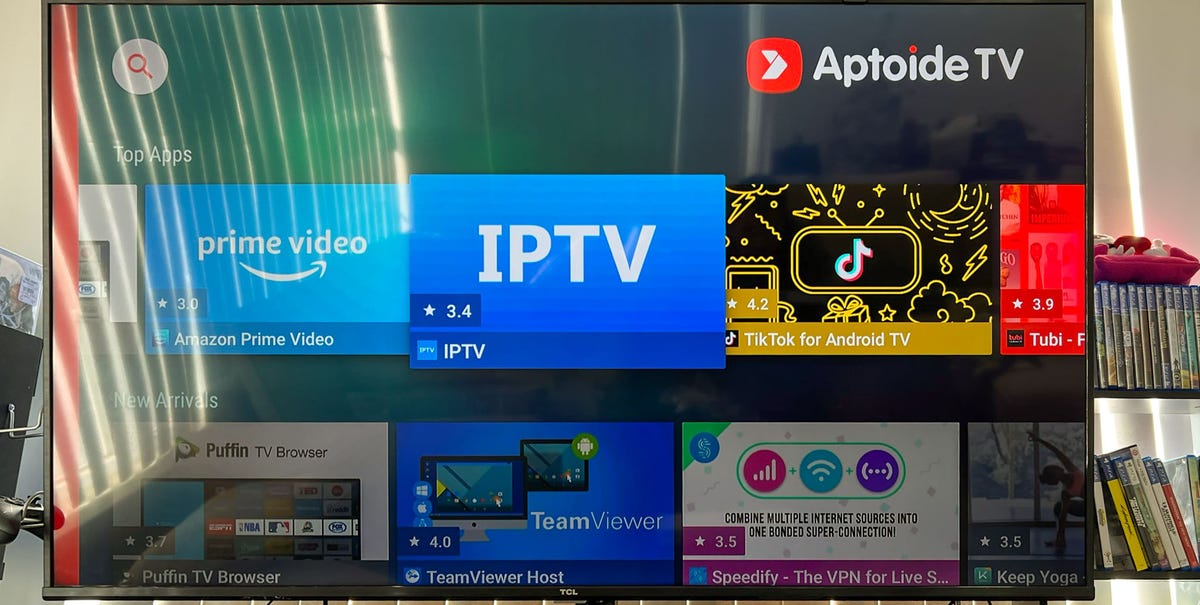
Legal unlocking focuses on customization and control. Risky unlocking focuses on pirated streaming apps, illegal IPTV services, fake “free cable” packages, and unknown downloads from websites that look like they were built during a thunderstorm. The difference matters because illegal streaming can violate copyright law, expose you to scams, and install software that collects personal data.
A good rule: if an app promises brand-new movies, premium sports, and hundreds of paid channels for free with no subscription, your eyebrows should leave your face and file a complaint.
Can Every Fire Stick Be Unlocked?
Not every Fire TV device offers the same level of flexibility. Older Fire TV Stick models running Fire OS, which is based on Android, have commonly allowed sideloading through settings such as Developer Options, ADB Debugging, and permission to install unknown apps. Newer Fire TV devices may have tighter restrictions, especially models moving toward Amazon’s newer Vega OS environment.
This matters because many online guides were written for older Fire OS devices. If your menu does not match a tutorial, the tutorial may be outdated, your software version may have changed, or your device may not support the same feature. The Fire Stick world is like a drawer full of remote controls: similar at first glance, surprisingly different when you press the wrong button.
Before You Unlock: Safety First
Before changing settings, take a minute to protect your device and your account. Your Fire Stick is connected to your Amazon profile, payment methods, viewing habits, Wi-Fi network, and sometimes smart home devices. That makes security more important than people realize.
1. Use your Amazon account wisely
Make sure your Amazon account has a strong password and two-step verification. If children use the TV, turn on parental controls and purchase PIN protection. This helps prevent accidental app purchases, mature content access, and the classic “why did my child rent six dinosaur documentaries?” moment.
2. Update your Fire Stick
Go to your Fire TV settings and check for software updates. Updates can improve performance, fix bugs, and patch security problems. Unlocking an outdated device is like installing a fancy new lock on a door that is already hanging sideways.
3. Know what you are installing
Only install apps from trusted sources. The Amazon Appstore is the safest option because apps are reviewed before being listed. If you sideload, choose official developer websites or well-known legitimate providers. Avoid mystery APK sites, “modded” apps, cracked premium services, and anything that asks for permissions it clearly does not need.
How to Unlock Amazon Fire Stick Safely
The exact steps may vary depending on your Fire TV model and software version, but the general process below reflects the safe, legal approach.
Step 1: Install apps from the Amazon Appstore first
Before sideloading anything, search the Amazon Appstore. From the Fire TV home screen, choose the app search option, type the app name, select the correct result, and choose “Get” or “Download.” Many streaming apps, VPN apps, media players, music apps, fitness apps, and news apps are already available there.
This is the easiest and safest way to expand your Fire Stick. It also keeps app updates simple. Nobody wants to manually update six apps with a remote control. That is not entertainment; that is finger yoga.
Step 2: Enable Developer Options where available
On compatible Fire OS devices, Developer Options may allow ADB Debugging and app installation permissions. Typically, you can find this area under:
Settings > My Fire TV > Developer Options
On some devices, Developer Options may be hidden until you open the “About” section and select the device name several times. After that, Developer Options may appear. If it does not appear, your device model or software version may not support the same controls.
ADB Debugging is mainly intended for developers and advanced users. You do not need it for normal streaming. If you enable it for a specific task, turn it off afterward. Leaving advanced access open all the time is like leaving your garage door open because you might need a screwdriver next Thursday.
Step 3: Allow installation only for trusted apps
Some Fire TV versions let you grant “Install Unknown Apps” permission to a specific app, such as a downloader or file manager. This permission should not be treated like a party invitation for every app on the device. Give it only to the tool you trust, use it for the installation you need, and turn it off when finished.
This app-by-app permission model is safer than allowing unknown sources everywhere. It reduces the chance that a random app can quietly install something behind your back.
Step 4: Use legal sideloading only
Sideloading means installing an app from outside the default app store. It is not automatically illegal. Developers, testers, privacy-focused users, and media enthusiasts may use sideloading for legitimate reasons. For example, someone may install a legal open-source media player, a beta app from a known developer, or a regional app not yet listed in the Amazon Appstore.
The key is the source. If you cannot identify who made the app, what it does, why it needs certain permissions, and whether it is legal, do not install it. Your Fire Stick is small, but it is not disposable. Treat it like a real computer, because that is essentially what it is.
What You Can Do After Unlocking a Fire Stick
When done correctly, unlocking can make your Fire Stick more useful without turning it into a copyright crime scene. Here are the best legal improvements.
Customize your streaming setup
You can organize apps, remove unused ones, and prioritize the services you actually watch. If your home screen has three apps you love and twenty apps you opened once during a free trial in 2021, it is time for a cleanup.
Use a VPN for privacy
A reputable VPN can help protect privacy on public or shared networks and may provide safer browsing when used responsibly. Choose a trusted VPN provider with a clear privacy policy, strong reviews, and a Fire TV app if available. A VPN should not be used as a magic cloak for illegal streaming. It is a privacy tool, not a “get out of consequences” coupon.
Install legal media players
Some users unlock their Fire Stick to play personal media files from a home server or local network. This is perfectly reasonable when you own the content or have the right to use it. It can turn the Fire Stick into a simple home media hub.
Improve privacy settings
Review your Fire TV privacy options, advertising preferences, app permissions, voice data settings, and parental controls. These settings are easy to ignore, but they can meaningfully improve your experience. A few minutes in the settings menu can save you from oversharing data or receiving recommendations that make your TV think you are a completely different person.
Clean up storage and cache
Fire Sticks have limited storage. Too many apps, cached files, and old data can slow things down. Go to:
Settings > Applications > Manage Installed Applications
From there, you can clear cache, uninstall apps, force stop misbehaving apps, or clear data when necessary. Clearing cache is usually safe. Clearing data resets the app, so use that option carefully.
What Not to Do When Unlocking a Fire Stick
Unlocking a Fire Stick has a “looks easy, can go wrong quickly” quality. Here are the mistakes to avoid.
Do not install piracy apps
Illegal streaming apps may offer premium content for free, but they can expose you to malware, scams, unreliable streams, fake updates, intrusive ads, and legal risk. They also harm the creators, crews, athletes, journalists, musicians, and production teams behind the content.
Do not buy “fully loaded” Fire Sticks
A “fully loaded” Fire Stick sold by a random online seller often means it has questionable apps preinstalled. You may not know what was added, what permissions were granted, or whether the device has been tampered with. Buying one is like adopting a raccoon because the listing said “pre-trained cat.”
Do not ignore app permissions
If a basic video app asks for access to unnecessary features, be skeptical. App permissions are not decorative. They determine what an app can access and potentially misuse.
Do not leave debugging on
ADB Debugging can be useful for developers, but most users should keep it off unless actively using it. Turning off advanced access after setup helps reduce risk.
Is Unlocking a Fire Stick the Same as Jailbreaking?
People often use “jailbreak” and “unlock” interchangeably, but with Fire Stick devices, the term is usually misleading. Traditional jailbreaking often means exploiting a device to bypass manufacturer restrictions at a deep system level. On many Fire OS Fire Stick models, users are not hacking the system; they are simply enabling existing settings that Amazon included for development or app installation control.
So, when someone says “jailbreak Fire Stick,” they may simply mean “turn on developer options and sideload apps.” That phrase became popular because it sounds dramatic. “I adjusted installation permissions on my streaming device” does not exactly make anyone feel like a cyberpunk hero.
Common Problems After Unlocking a Fire Stick
The app will not install
Check whether your device supports sideloading, whether the file is compatible with Fire OS, whether the download completed, and whether you have enough storage. Some newer devices may not allow traditional sideloading at all.
The Fire Stick is running slowly
Uninstall apps you do not use, clear cache, restart the device, and avoid running too many background services. Fire Sticks are affordable streaming devices, not NASA workstations with an HDMI plug.
The app opens but crashes
The app may be outdated, incompatible, poorly designed for TV navigation, or missing required services. Apps made for phones do not always work well on a TV interface.
You cannot find Developer Options
Your Fire TV software may hide Developer Options until activated through the About screen, or your model may not support the feature in the same way. Newer Fire TV devices may limit sideloading more heavily than older Fire OS models.
Best Legal Ways to Get More From Your Fire Stick
If your goal is more content, you do not need sketchy apps. Try free, legal streaming services supported by ads, library-linked services, network apps, YouTube, Prime Video channels, and official live TV platforms. Many legal apps offer free movies, local news, documentaries, classic TV, sports highlights, music videos, and niche channels.
If your goal is better performance, focus on app cleanup, cache management, software updates, and a strong Wi-Fi connection. A Fire Stick connected to weak Wi-Fi will perform like it is streaming through a potato. Move your router closer, use a stronger band when available, or consider an Ethernet adapter if your model supports it.
If your goal is privacy, review settings, limit app permissions, choose trusted apps, and use strong account security. Privacy is not one switch; it is a habit.
Real-World Experience: What Unlocking a Fire Stick Actually Feels Like
The first time someone tries to unlock an Amazon Fire Stick, the experience usually begins with confidence and ends with fifteen browser tabs, two remotes, and the phrase, “Where did Developer Options go?” That is normal. Fire TV menus change over time, and online tutorials age quickly. One guide says “Device,” another says “My Fire TV,” another says “click About seven times,” and suddenly your evening entertainment has become a treasure hunt hosted by a plastic rectangle.
In practical use, the biggest improvement does not come from installing a mountain of third-party apps. It comes from understanding the device. Once you know how to manage installed applications, clear cache, check storage, update software, and control permissions, the Fire Stick becomes much less mysterious. It starts feeling like a tool instead of a tiny black box that sometimes freezes during the best part of a movie.
A common experience is that people unlock the device expecting a dramatic transformation. They imagine the Fire Stick will suddenly become a premium entertainment command center with secret powers. What actually happens is more modest but more useful: apps load better after cleanup, the home screen feels less chaotic, legal media tools work more smoothly, and privacy settings are easier to control. It is not fireworks. It is better plumbing. And honestly, better plumbing matters when your Saturday night depends on whether the app opens before the popcorn gets cold.
Another lesson is that not every sideloaded app is worth the trouble. Some apps look promising but are awkward on a TV screen because they were designed for touchscreens. A phone app that works beautifully with your thumb can become a clumsy mess when controlled by a remote. You move right, it goes down. You press select, it opens a menu from another dimension. This is why Fire TV-optimized apps are usually better, even if the sideloaded version technically installs.
Security is also more noticeable after unlocking. When you start granting installation permissions, you become responsible for decisions the app store normally handles for you. That can be empowering, but it also means you need to slow down. Read app names carefully. Avoid copycat downloads. Do not install random files from social media links. If a website throws three pop-ups, two fake download buttons, and a flashing warning that your device is infected, close it. Your Fire Stick does not need that kind of drama.
From a household perspective, unlocking also makes parental controls more important. A customized Fire Stick may include more apps, more sign-ins, and more ways for children or guests to open content. Setting a PIN for purchases and mature content is a simple step that prevents awkward surprises. Nobody wants to explain why the family TV now recommends horror movies because one cousin visited for the weekend and treated the remote like a personality test.
The best experience comes from treating unlocking as maintenance plus responsible customization. Install only what you need. Remove what you do not use. Keep official apps when possible. Turn off advanced permissions after using them. Restart the device occasionally. Check privacy settings every now and then. This approach keeps the Fire Stick fast, legal, and less annoying.
In the end, unlocking an Amazon Fire Stick is less about breaking barriers and more about becoming a smarter owner. You are not defeating the device; you are learning how it works. And once you do, your streaming setup feels cleaner, safer, and more personal. That is the kind of unlock that actually pays off.
Conclusion
Unlocking an Amazon Fire Stick can be useful when it is done legally and carefully. You can customize your apps, manage privacy, improve performance, use trusted tools, and get more control over your streaming setup. The safest path is simple: use the Amazon Appstore first, update your device, avoid illegal streaming apps, be careful with sideloading, and turn off advanced permissions when you do not need them.
A Fire Stick is powerful for its size, but it is not magic. Treat it like a connected device with real security responsibilities. Unlock the useful features, skip the shady shortcuts, and your living room will thank you by not buffering during the big scene.
Note: This article focuses on legal Fire Stick customization, privacy, performance, and safe app management. It does not recommend piracy, illegal IPTV services, cracked apps, or unauthorized access to paid content.