Every major Apple software update arrives with the same emotional cycle: excitement, curiosity, mild panic, and the quiet fear that your favorite button has moved three pixels to the left. With iOS 15 and iPadOS 15, Apple did not completely reinvent the iPhone or iPad. Instead, it focused on making everyday tasks feel smoother, smarter, and less chaotic.
The best new features in iOS 15 and iPadOS 15 are not just flashy tricks for a keynote stage. They are practical upgrades: better FaceTime calls, smarter notifications, Focus modes, Live Text, improved Safari browsing, richer Maps, stronger privacy tools, and iPad productivity features that finally make the tablet feel more like a serious work machine instead of a very expensive rectangle for watching cooking videos.
This guide breaks down the most useful iOS 15 features and iPadOS 15 features, explains how they work, and shows why they still matter for users who want a cleaner, faster, more personal Apple experience.
Why iOS 15 and iPadOS 15 Matter
iOS 15 and iPadOS 15 were refinement updates, but that does not mean they were boring. Apple improved the areas people touch every day: communication, concentration, browsing, notes, multitasking, privacy, and visual intelligence. The result was a software generation that felt less like a shiny gadget parade and more like a personal assistant quietly cleaning the room before guests arrive.
For iPhone users, iOS 15 made the device better at helping people stay connected without being buried alive under notifications. For iPad users, iPadOS 15 added long-requested productivity tools, including a better multitasking menu, Home Screen widgets, App Library, and Quick Note. Together, these updates made Apple devices feel more flexible and more aware of how people actually use them.
FaceTime Gets a Serious Upgrade
FaceTime received one of the biggest makeovers in iOS 15. Before this update, FaceTime was simple and reliable, but it sometimes felt like the digital equivalent of talking through a shiny mailbox slot. iOS 15 made calls feel more natural with spatial audio, voice isolation, wide spectrum audio, grid view, Portrait mode, FaceTime links, and SharePlay support.
FaceTime Links Make Calls More Flexible
One of the most practical changes was the ability to create FaceTime links. Instead of calling someone immediately and hoping they were not holding soup, users could schedule or share a link through Messages, Mail, Calendar, or other apps. Even better, people using Android or Windows devices could join through a supported web browser.
This made FaceTime feel less like an Apple-only club with a velvet rope and more like a modern video meeting tool. It was especially helpful for family calls, remote work check-ins, study groups, and anyone trying to coordinate people across different devices.
SharePlay Turns FaceTime Into a Shared Room
SharePlay became one of the most talked-about features of the iOS 15 era. With SharePlay, users could watch supported video content, listen to music, share screens, and enjoy synchronized playback during FaceTime calls. It arrived with iOS 15.1 and iPadOS 15.1, but it belongs firmly to the iOS 15 feature family.
Imagine watching a movie with a friend in another city, pausing at the same time, laughing at the same terrible plot twist, and debating whether the villain’s plan makes any sense. That is SharePlay’s charm. It turns FaceTime from a video call into a shared digital couch.
Focus Mode Helps You Fight Notification Chaos
Focus mode may be the most practical iOS 15 feature for anyone whose phone behaves like an overexcited toddler with a bell. Focus lets users create custom notification profiles for different situations, such as Work, Personal, Sleep, Fitness, Gaming, Reading, or custom routines.
Instead of choosing between “all notifications” and “do not disturb me unless the building is on fire,” Focus gives users more control. You can allow messages from specific people, permit only certain apps, hide Home Screen pages, and let others know in Messages that your notifications are silenced.
Real-Life Example: Work Focus
A Work Focus can allow Slack, Mail, Calendar, and calls from coworkers while muting social apps and shopping alerts. This means your phone can support your productivity instead of tempting you into a 37-minute investigation of sneakers you were never going to buy.
Real-Life Example: Personal Focus
A Personal Focus can flip the rules. Work apps go quiet, family and friends come through, and your evening stops feeling like an extension of your inbox. Since Focus settings can sync across Apple devices, turning it on from an iPhone can also affect an iPad or Mac signed into the same Apple ID.
Notifications Become Smarter and Cleaner
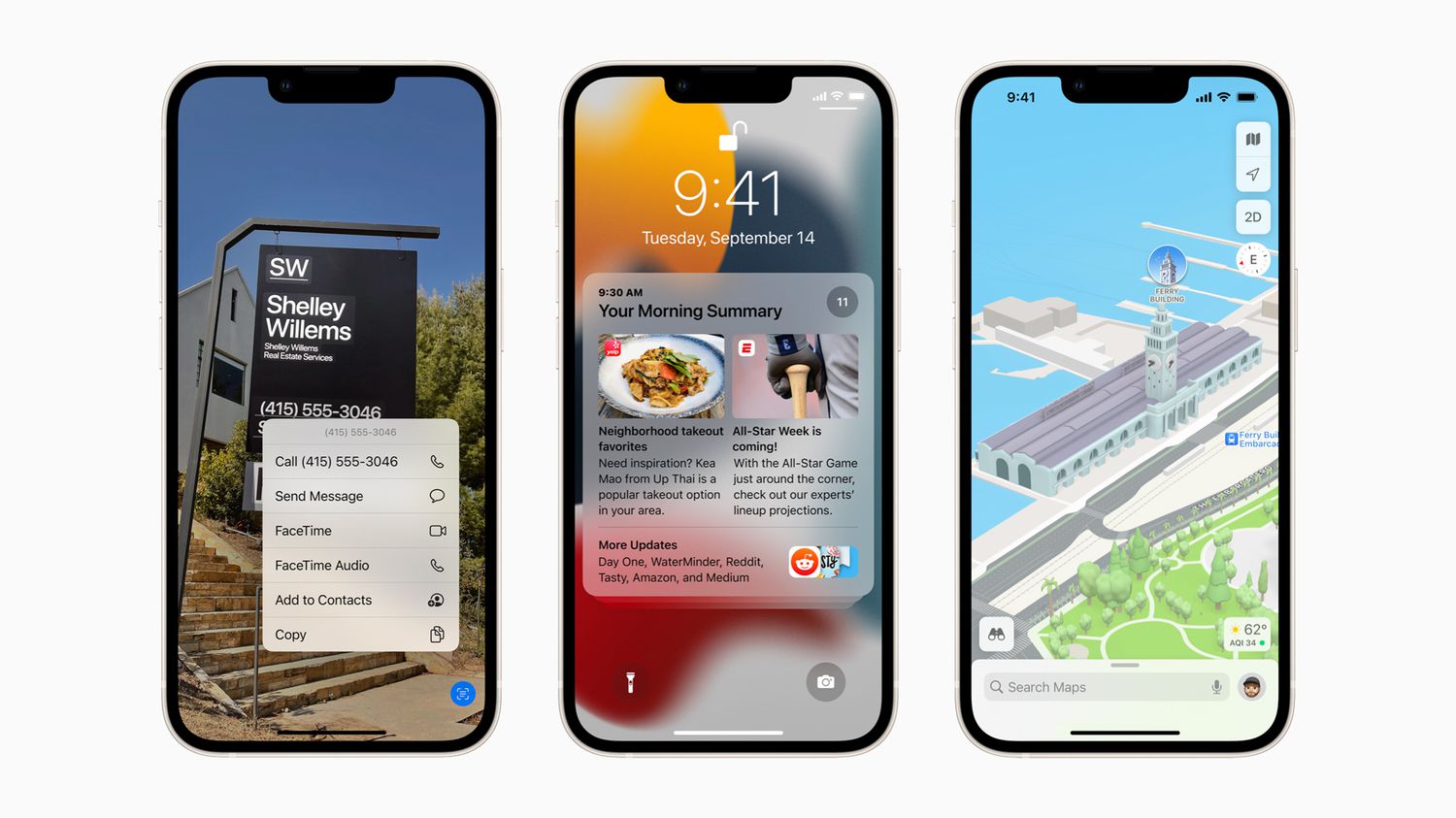
iOS 15 redesigned notifications with larger app icons, contact photos for people, and a more organized Notification Summary. The goal was simple: make alerts easier to scan and less likely to hijack your entire day.
Notification Summary collects lower-priority alerts and delivers them at chosen times. Instead of receiving every app notification the moment it happens, you can bundle non-urgent updates into a morning or evening summary. Delivery alerts, direct messages, and time-sensitive notifications can still appear immediately, while less important updates wait their turn like civilized adults.
This feature is especially useful for news apps, shopping apps, games, and social platforms that believe every tiny update deserves a marching band.
Live Text Makes Your Camera Smarter
Live Text is one of the most impressive iOS 15 features because it turns ordinary photos into useful information. Using on-device intelligence, iPhone and iPad can recognize text in images, screenshots, Safari images, and the camera view.
That means you can point the camera at a restaurant menu, business card, sign, handwritten note, or Wi-Fi password and interact with the text. You can copy it, paste it, translate it, look it up, call a phone number, open an address, or search the web.
Why Live Text Feels Magical
Live Text saves tiny moments of friction. Instead of manually typing a tracking number, you can copy it from a screenshot. Instead of squinting at a photo of a flyer, you can select the event date. Instead of typing a long Wi-Fi password from a sticky note, you can let your camera do the heavy lifting.
It is the kind of feature that sounds minor until you use it once. Then suddenly every printed sign in the world looks like selectable text, and you begin to wonder why reality did not ship with copy and paste earlier.
Safari Gets Tab Groups and a New Design
Safari in iOS 15 introduced a redesigned browsing experience, including a new tab bar design and Tab Groups. The bottom tab bar was controversial at first because muscle memory is a powerful beast. Many users opened Safari, saw the address bar at the bottom, and briefly wondered if their phone had been assembled upside down.
But the idea behind the change made sense: on larger iPhones, placing controls near the bottom can make one-handed browsing easier. Apple also allowed users to switch back to a more traditional top address bar style, which was a smart move for anyone who likes innovation but not surprises before coffee.
Tab Groups Are Great for Research
Tab Groups help organize browsing sessions. You can create a group for work research, vacation planning, recipes, shopping comparisons, or school assignments. Instead of keeping 47 tabs open in one chaotic pile, Safari lets you separate them into neat collections.
For iPad users, this is particularly useful. The larger screen makes Safari feel more like a desktop browser, and Tab Groups make it easier to move between projects without losing your place.
Maps Becomes More Detailed and Useful
Apple Maps received a major visual and functional upgrade in iOS 15. In supported cities, Maps added richer details, improved roads, elevation, landmarks, crosswalks, bike lanes, turn lanes, and a three-dimensional city experience. Walking directions also gained augmented reality guidance in some areas.
For drivers, the improved road details made navigation easier to understand. For pedestrians, AR walking directions helped reduce that classic city sidewalk ritual: spinning in a slow circle while pretending you know which way north is.
Transit Improvements
iOS 15 also improved public transit information. Users could pin favorite transit lines, receive notifications when it was time to get off, and see nearby stations more easily. These changes made Maps more helpful for commuters and travelers who rely on buses, trains, and subways.
Weather Looks Better and Tells You More
The Weather app in iOS 15 became much more visually informative. Apple added full-screen weather maps, richer animations, improved layouts, and more detailed displays for conditions such as precipitation, air quality, and temperature.
Instead of feeling like a plain forecast list, Weather became more like a small dashboard. Rain animations looked dramatic, storm information was easier to understand, and the overall design felt modern without becoming confusing.
For everyday users, the best part was simple: you could glance at the app and understand the day faster. Is it raining? Is it humid? Is the sky planning something rude? Weather made those answers easier to see.
Wallet Adds More Everyday Usefulness
Apple Wallet expanded in iOS 15 with support for more types of digital keys and identification features in supported regions and situations. The broader idea was clear: Apple wanted Wallet to become a secure home for more than payment cards and boarding passes.
Digital keys could support use cases such as compatible home locks, hotel rooms, office badges, and car keys. Availability depended on location, hardware, and partner support, but the direction was important. iOS 15 pushed the iPhone closer to replacing the bulky keychain that sounds like a janitor convention in your pocket.
Privacy Features Become More Transparent
Apple continued its privacy push in iOS 15 and iPadOS 15. Mail Privacy Protection helped limit email tracking by hiding IP addresses and making it harder for senders to know when an email was opened. App Privacy Report gave users a clearer view of how apps accessed permissions such as location, camera, microphone, photos, and contacts.
Siri also gained more on-device processing for many requests on supported devices, which improved speed and privacy. For users, these changes meant more visibility and control. You did not need to be a cybersecurity expert in a black hoodie to understand which apps were touching sensitive data.
Shared With You Keeps Recommendations in One Place
Shared With You is one of those features that quietly improves daily life. When someone sends you links, photos, songs, TV shows, or news articles in Messages, supported apps can surface that content later in relevant sections.
For example, a friend might send an article while you are busy. Later, Safari can show it in Shared With You. Photos, Music, Apple TV, Podcasts, and News also gained similar integrations. This reduces the familiar problem of remembering that someone sent you something interesting, then digging through a message thread like an archaeologist with thumbs.
iPadOS 15 Makes the iPad More Productive
While iOS 15 improved the iPhone experience, iPadOS 15 focused heavily on productivity. Apple added a new multitasking menu, better keyboard shortcuts, Home Screen widgets, App Library, Quick Note, and improvements to Notes and Translate.
A Better Multitasking Menu
Before iPadOS 15, multitasking on iPad was powerful but not always obvious. Many users did not know Split View or Slide Over existed, and those who did sometimes felt like they were performing a secret handshake with the Dock.
iPadOS 15 added a multitasking menu at the top of apps. With a tap, users could enter full screen, Split View, or Slide Over. The system also made it easier to access the Home Screen while setting up Split View, which helped users choose the second app more naturally.
The Shelf Helps With Multi-Window Apps
The new shelf made it easier to manage multiple windows within apps such as Safari, Mail, Notes, and Pages. Instead of losing track of open windows, users could preview and switch between them more easily.
For students, writers, designers, and business users, this made the iPad feel more capable. You could keep research in Safari, notes in Notes, and a document in Pages without feeling like the device was hiding your work behind a curtain.
Widgets and App Library Finally Feel Right on iPad
iPadOS 15 brought Home Screen widgets that could be placed among apps, not just tucked away in a side column. This was a major improvement because the iPad’s large display was practically begging for richer customization.
Widgets for Calendar, Photos, Files, Weather, Notes, and other apps could turn the Home Screen into a dashboard. A student might keep Calendar, Notes, and Files widgets ready for class. A creative professional might use Photos, Reminders, and project-management widgets. A casual user might display Weather, Music, and a photo widget featuring a dog who clearly pays no rent.
App Library also arrived on iPad, automatically organizing apps into categories and making them accessible from the Dock. This helped reduce Home Screen clutter and made it easier to find apps without swiping through page after page.
Quick Note Is an iPadOS 15 Standout
Quick Note may be the best productivity feature in iPadOS 15. Users can start a note from almost anywhere, including over apps and websites. On supported iPads, a swipe from the corner with Apple Pencil can open a floating note instantly.
This is perfect for capturing ideas, copying links, writing reminders, saving quotes, or taking notes during research. Quick Note can also remember context from certain apps and websites, making it easier to return to the source later.
For writers, students, researchers, and serial idea-havers, Quick Note feels like finally having a digital sticky note that does not fall behind the desk and disappear until 2032.
Translate Comes to iPad
iPadOS 15 introduced the Translate app to iPad, along with systemwide translation features. Users could translate text in apps, conversations, and supported content. This was especially useful on the iPad’s larger screen, where reading, writing, studying, and browsing often happen side by side.
For travelers, language learners, and international teams, Translate made iPad more helpful as a communication and study tool. Combined with Live Text, it became easier to translate text from images, menus, signs, screenshots, and documents.
Which iOS 15 and iPadOS 15 Features Are the Best?
The best features depend on how you use your device, but a few stand above the rest. Focus mode is the most useful for daily sanity. Live Text is the most magical. FaceTime links and SharePlay are the most social. Safari Tab Groups are best for research. Quick Note is the iPad productivity champion. The improved multitasking menu is the feature many iPad users needed most, even if they did not know what to call it.
For casual users, the biggest wins are cleaner notifications, better FaceTime, improved Weather, and Live Text. For professionals and students, the biggest wins are Focus, Quick Note, Safari Tab Groups, iPad multitasking, and systemwide translation.
500-Word Experience Addendum: What Using iOS 15 and iPadOS 15 Actually Feels Like
Using iOS 15 and iPadOS 15 in daily life feels less like switching to a brand-new device and more like realizing your old device quietly went to productivity school. The changes are not always loud, but they show up in small moments throughout the day.
The first feature that tends to change habits is Focus mode. At first, it may feel like another settings menu you promise to explore and then ignore forever. But once you create a Work Focus or Sleep Focus, the difference is immediate. Your phone stops acting like every notification is equally important. A calendar alert can still come through, but random app promotions stay quiet. That alone makes the iPhone feel calmer.
Live Text is the feature that produces the most “wait, that worked?” moments. Taking a photo of a printed page and copying a paragraph from it feels futuristic in the most practical way. It is helpful for addresses, phone numbers, recipes, serial numbers, school notes, receipts, and Wi-Fi passwords. It also makes screenshots more useful because the text inside them is no longer trapped like a tiny digital hostage.
FaceTime improvements are also easy to appreciate. Grid view makes group calls easier to follow, Portrait mode hides background clutter, and FaceTime links make planning calls less awkward. SharePlay is more situational, but when it works, it feels personal. Watching a show, listening to music, or sharing a screen during a call can make long-distance conversations warmer and more natural.
On iPad, the biggest everyday upgrade is multitasking. The new multitasking menu lowers the learning curve. Split View and Slide Over become easier to discover, which matters because a feature is only powerful if people can actually find it. Quick Note is even better. It turns the iPad into a fast capture tool for ideas, links, and research. If you use Apple Pencil, it feels especially natural, almost like pulling a notepad out of thin air.
Safari Tab Groups take some time to become a habit, but they are excellent for organizing projects. A recipe group, work group, shopping group, and travel group can keep browsing sessions from becoming one endless pile of forgotten tabs. The iPad benefits even more because Safari feels closer to desktop browsing.
The main downside is that not every feature feels equally polished for every person. Some users may prefer the old Safari layout. Some advanced iPad users may still want more desktop-class window control. Some privacy features require users to understand what they do before they feel valuable. Still, the overall experience is positive. iOS 15 and iPadOS 15 make Apple devices feel smarter, quieter, and more organized. They do not scream for attention. They simply remove friction, and that is often the best kind of upgrade.