Minecraft Education Edition is already a classroom powerhouse. It has blocks, biomes, collaboration, coding, chemistry, NPCs, lessons, and just enough creepers to keep everyone awake after lunch. But sooner or later, students and teachers ask the big question: Can you use mods on Minecraft Education Edition?
The answer is yesbut with an important caveat. In Minecraft Education, “mods” usually means Bedrock-style Add-Ons, not traditional Java Edition mods. That difference matters because Minecraft Education is built on the Bedrock platform, while many famous Minecraft mods were made for Java Edition. So if you are dreaming of installing a giant Java modpack with 300 dragons, seven dimension portals, and a toaster that fights zombies, take a deep breath. Minecraft Education plays by different rules.
This guide explains how mods work in Minecraft Education Edition, what types of add-ons are safest to use, how teachers can install and manage them, and how to avoid turning a perfectly good classroom world into a digital bowl of spaghetti.
What Are Mods on Minecraft Education Edition?
In everyday Minecraft language, a mod is any custom content that changes the game. It may add new blocks, mobs, tools, textures, lessons, worlds, structures, or gameplay rules. In Minecraft Education Edition, the most reliable term is Add-Ons. These are content packages designed to modify the look, sound, or behavior of a world.
Add-Ons can be simple or surprisingly powerful. A resource pack may change textures, models, sounds, or visual elements. A behavior pack can change how entities act, how items work, what loot drops, what recipes exist, or how mobs interact with the world. When a resource pack and behavior pack work together, they can feel very much like a “mod,” even though they are technically built for the Bedrock-style add-on system.
Mods vs. Add-Ons: The Classroom-Friendly Difference
Traditional Java mods often require a mod loader such as Forge or Fabric. Minecraft Education does not work that way. It is designed for school environments, managed devices, student accounts, and stable classroom use. That means teachers should focus on files and content made for Minecraft Education or Bedrock-compatible Minecraft, such as:
- .mcworld files for complete worlds
- .mcpack files for resource packs or behavior packs
- .mcaddon files that may include both resource and behavior packs
- Official Minecraft Education Add-Ons and lesson worlds
This distinction saves time, protects student work, and reduces the risk of compatibility issues. Java mods may be amazing, but Minecraft Education usually looks at them like a substitute teacher looking at a room full of paper airplanes: absolutely not today.
Can You Install Mods on Minecraft Education Edition?
You can install and use certain add-ons and custom worlds in Minecraft Education Edition, especially when they are built for Minecraft Education or Bedrock-style gameplay. However, not every Minecraft mod will work. The safest approach is to use official Minecraft Education Add-Ons, trusted educational content, or Bedrock-compatible packs that are appropriate for classroom use.
Minecraft Education now includes official Add-Ons that help teachers customize gameplay for curriculum-driven lessons. These Add-Ons can include number blocks, NPC looks, structures, tools, dice, probability activities, and themed learning assets. For educators, that is the sweet spot: creative customization without needing to become a full-time software engineer in a creeper costume.
What Works Best?
The most reliable content for Minecraft Education includes:
- Official Minecraft Education Add-Ons
- Official lesson worlds from the Minecraft Education library
- Bedrock-compatible resource packs
- Bedrock-compatible behavior packs
- Student-created packs made with approved classroom tools
- Code Builder projects using MakeCode, Python, or JavaScript
What Usually Does Not Work?
Many Java Edition mods do not work in Minecraft Education. Large Java modpacks, Forge mods, Fabric mods, Java shaders, and desktop executable installers are not appropriate for Minecraft Education classrooms. Even if a download page claims a mod works everywhere, do not assume it will work in Education Edition. “Works everywhere” is the internet’s favorite way of saying “good luck, brave traveler.”
Types of Mods and Add-Ons for Minecraft Education
Before installing anything, it helps to understand the main categories of Minecraft Education mods and add-ons. Each type serves a different purpose, and choosing the right one makes lessons smoother.
1. Resource Packs
Resource packs change the way Minecraft looks or sounds. They may replace textures, adjust models, add custom sounds, or create a themed environment. For example, a history teacher could use a resource pack that gives a world an ancient civilization style, while an art teacher might use one to study color, texture, and visual design.
Resource packs are usually less risky than behavior packs because they often change appearance rather than gameplay mechanics. However, they can still cause confusion if students see different textures than the teacher expects, so test them before class.
2. Behavior Packs
Behavior packs change how the game functions. They can modify mob behavior, item rules, recipes, loot tables, entity actions, and world interactions. A behavior pack might make an animal act differently, add a custom tool, or change how a lesson challenge works.
Behavior packs are powerful, but they require more caution. A small error in a behavior pack can make a world unstable or break a lesson objective. Always test behavior packs in a copied world before using them with students.
3. Add-On Bundles
An add-on bundle may include both a resource pack and a behavior pack. This is common when custom gameplay needs custom visuals. For example, if an add-on introduces a new tool, the behavior pack may define how the tool works while the resource pack defines how it looks.
4. Custom Worlds
Custom worlds are often the easiest way to bring “modded” content into Minecraft Education. Instead of adding a pack to a blank world, teachers import a complete world that already includes the structures, settings, activities, and sometimes add-ons needed for the lesson.
For classroom use, custom worlds are wonderful because they reduce setup time. The teacher can import the world, check the objectives, make a backup, and begin. It is the Minecraft equivalent of receiving a fully assembled bookshelf instead of a box of mystery screws.
5. Code Builder Projects
Minecraft Education includes Code Builder, which lets students code inside the game. This is not a traditional mod system, but it can create mod-like experiences. Students can use block-based coding, JavaScript, or Python to automate builds, control the Agent, create challenges, and explore computer science concepts.
For schools, Code Builder is one of the best ways to “mod” Minecraft Education safely because it turns customization into a learning activity. Students do not just consume mods; they learn how logic, commands, loops, functions, and debugging work.
How to Install Mods on Minecraft Education Edition
The exact installation steps depend on the file type and device. Still, the general process is similar across Windows, Mac, Chromebook, and iPad environments.
Step 1: Update Minecraft Education
Start by making sure Minecraft Education is updated. Add-ons may fail if the pack was built for a newer version than the one installed on school devices. If your class uses managed devices, ask the IT administrator to confirm the current version before lesson day.
Step 2: Choose a Safe Add-On or World
Use official Minecraft Education resources whenever possible. They are more likely to be classroom-ready, age-appropriate, and compatible. If you use third-party Bedrock add-ons, check the file type, reviews, date, and permissions. Avoid anything that requires an unknown installer, executable file, browser extension, or suspicious “download manager.”
Step 3: Back Up Your World
Before adding anything new, export or copy your existing world. Minecraft Education allows users to manage worlds, make copies, and export them as .mcworld files. This matters because add-ons can change world behavior. If something breaks, a backup turns a disaster into a five-minute inconvenience instead of a full-scale blocky tragedy.
Step 4: Import the File
For a .mcworld file, open Minecraft Education, choose Play, select Import, and locate the file on your device. For .mcpack or .mcaddon files, many devices allow you to open the file directly with Minecraft Education. Once imported, the content may appear in your world list or in the resource and behavior pack sections of world settings.
Step 5: Activate Resource and Behavior Packs
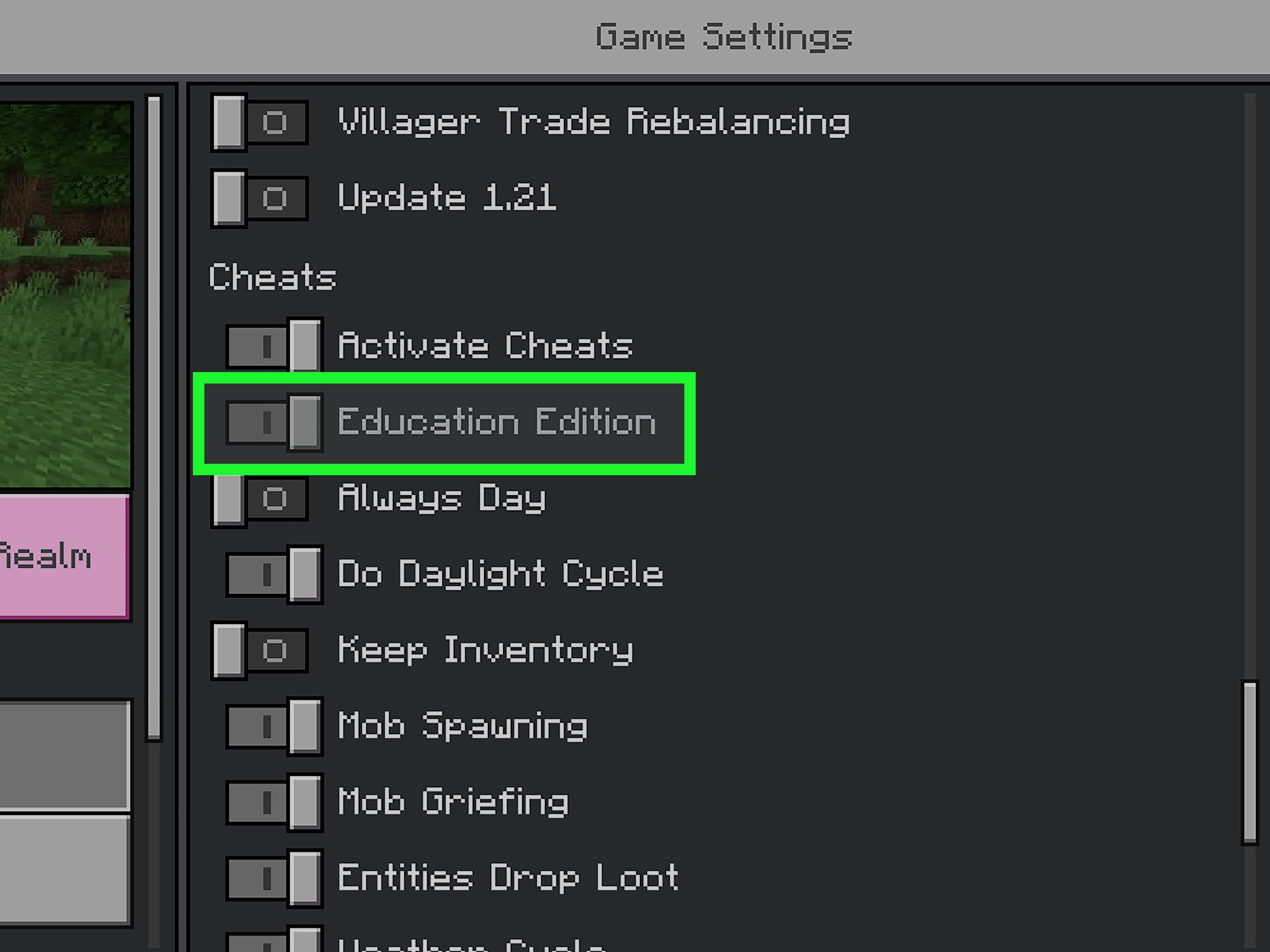
If the add-on is not already attached to a world, create or edit a world and open its settings. Look for resource packs and behavior packs, then activate the correct packs. Some add-ons require both packs to be enabled. If the behavior pack depends on the resource pack and the resource pack is missing, the add-on may not work correctly.
Step 6: Test Before Students Join
Open the world as the host and test the main activity. Check whether custom blocks appear, mobs behave properly, NPCs load, structures import, and lesson objectives still make sense. If multiplayer is part of the lesson, test with a second account or student device before the full class joins.
Best Classroom Uses for Minecraft Education Mods
Mods and add-ons are not just for making Minecraft “cooler.” Used well, they can deepen learning. The trick is matching the add-on to a clear objective instead of installing random content because a student said, “Trust me, this one has laser chickens.”
Math and Probability
Dice tools, number blocks, and probability packs can help students visualize abstract math ideas. Instead of only writing fractions or probability tables, students can build experiments, collect results, and discuss patterns inside the world.
History and Social Studies
Structure packs and NPC packs can turn a simple world into an ancient city, a trade route, a civic planning simulation, or a museum walk. Students can role-play historical figures, design settlements, or explain how geography shaped a civilization.
Science and Chemistry
Minecraft Education already includes chemistry-related learning features, and add-ons can extend science lessons through models, labs, ecosystems, or engineering challenges. Teachers can create simulations where students observe, predict, test, and revise.
Language Arts and Storytelling
NPC packs, custom skins, signs, books, and themed worlds can support narrative writing. Students can build a setting, create characters, design conflict, and walk classmates through the story. It is much harder to say “I had no ideas” when your protagonist is standing next to a castle and a suspiciously dramatic pig.
Computer Science
Code Builder makes Minecraft Education especially useful for programming. Students can write Python or JavaScript commands, automate repetitive tasks, create patterns, control the Agent, and debug their own logic. This turns mod-like creativity into practical coding practice.
Safety Tips Before Using Third-Party Mods
Because Minecraft Education is often used with students, safety matters. A fun add-on is not worth risking privacy, device security, or classroom stability.
Check the File Type
Stick with Minecraft content files such as .mcworld, .mcpack, and .mcaddon. Be cautious with .exe, .zip files from unknown sources, or downloads that ask students to install unrelated software.
Review Content First
Open the add-on privately before using it in class. Check language, visuals, weapons, horror content, pop-culture references, and anything that may not fit school policy. “It looked fine on the download page” is not a classroom management strategy.
Use a Test World
Never test a new behavior pack on a world students have spent weeks building. Create a copy or a blank test world first. This protects student work and gives you time to find problems before thirty students are asking why the cows have unionized.
Coordinate With IT
Schools often manage apps, permissions, downloads, storage, and network access. If students cannot import files, join hosted worlds, or access shared folders, the issue may be device management rather than Minecraft itself.
Common Problems and How to Fix Them
The Add-On Imports but Does Not Work
Check whether both the resource pack and behavior pack are activated. Some add-ons need experimental settings or specific world settings. Also confirm that the pack version matches your installed Minecraft Education version.
The World Will Not Export
Remove special characters or punctuation from the world title. Keep names simple, such as “Ancient Rome Lesson 1” or “Fraction City Copy.” Clean file names prevent many avoidable headaches.
Students Cannot Join the World
Make sure multiplayer is enabled in the world settings and that students are using the correct join code. In some environments, students must be on approved accounts or networks. If multiplayer fails, restart Minecraft Education on both the host and student devices before trying again.
The Game Lags After Installing an Add-On
Large textures, complex mobs, too many entities, or heavy behavior scripts can slow devices. Use lighter packs for older Chromebooks or tablets. In class, reliable performance beats flashy features every time.
Should Teachers Let Students Install Mods?
Students love customization, but unrestricted mod installation can quickly become chaotic. A better model is guided choice. Teachers can provide a small list of approved add-ons, let students evaluate them, and connect their choices to learning goals.
For example, students might compare two resource packs for a history project and explain which one better supports the time period. Or they might design a simple behavior change and describe how it affects gameplay. This approach teaches digital literacy, design thinking, and responsible technology use.
Creating Your Own Add-Ons
Advanced students and teachers can create their own Bedrock-style add-ons. A basic add-on usually includes folders, JSON files, a manifest file, and assets such as textures or sound files. Resource packs handle visuals and sounds, while behavior packs handle gameplay logic.
This is an excellent path for students who enjoy coding, game design, art, or systems thinking. Creating an add-on teaches structure, dependencies, testing, version control, and debugging. It also teaches humility, because one missing comma in a JSON file can humble even the most confident eighth grader.
Practical Experience: What Using Mods in Minecraft Education Feels Like
Using mods on Minecraft Education Edition is most successful when it feels less like “installing random cool stuff” and more like preparing a hands-on learning environment. The best experiences usually begin with a simple goal. A teacher may want students to explore ancient architecture, practice coordinates, understand ecosystems, learn loops in Python, or build a model of a sustainable city. Once the goal is clear, the right add-on becomes a tool instead of a distraction.
One common classroom experience is importing a custom world for a lesson. This is often smoother than building everything from scratch. A teacher can download a world, import it, walk through the spawn area, read any instructions, and make a copy for safety. When students join, the world already has structure. There may be NPCs giving directions, signs explaining tasks, or buildings that support the lesson. This saves time, especially in short class periods where ten minutes of setup can feel like half the day.
Another useful experience is adding a resource pack to change the mood of a project. For example, a medieval-style texture pack can make a social studies build feel more immersive. A science-themed pack can make a lab world easier to understand. Students often respond strongly to visual changes. When the world looks different, they immediately feel like the activity is special. That small emotional boost can increase focus, participation, and curiosity.
Behavior packs require more testing, but they can create memorable learning moments. Imagine a biology activity where animals respond differently in certain habitats, or a math game where custom tools help students generate random outcomes. These changes make the world interactive in ways a worksheet cannot. However, behavior packs can also create surprises. A mob may spawn too often, an item may not work, or a student may discover a loophole faster than the teacher can say “please stop launching chickens.” That is why a test world is essential.
From a student perspective, Minecraft Education mods can make learning feel personal. Students like seeing new blocks, new structures, and new mechanics because it gives them a sense of discovery. They are not only completing an assignment; they are exploring a system. When teachers ask students to explain how an add-on changes the world, the conversation becomes richer. Students begin using words like cause, effect, design, limitation, rule, and evidence.
The biggest lesson from real classroom use is this: start small. One well-chosen add-on is better than ten flashy packs competing for attention. Keep a clean backup, test everything, write simple instructions, and connect every modded feature to the learning objective. Minecraft Education is already engaging. Mods and add-ons should sharpen that engagement, not bury the lesson under digital confetti.
Conclusion
Mods on Minecraft Education Edition can be powerful, creative, and genuinely useful for learningas long as you understand what “mods” means in this version of Minecraft. Instead of Java modpacks, focus on Minecraft Education Add-Ons, Bedrock-compatible resource packs, behavior packs, custom worlds, and Code Builder projects.
For teachers, the best strategy is simple: use trusted sources, test everything, back up worlds, and connect each add-on to a clear learning goal. For students, mods can open the door to design, coding, storytelling, and problem-solving. Used wisely, they turn Minecraft Education from a block-building sandbox into a flexible classroom laboratory. Used recklessly, they turn it into a troubleshooting festival with zombies. Choose wisely.
Note: For web publishing, review all add-ons for compatibility, student safety, school policy, and licensing before recommending downloads to readers.