Some Instagram messages deserve a short life. Maybe you are sending a goofy inside joke, a quick reaction, a sensitive detail, or a photo that does not need to live in your chat history forever like an embarrassing yearbook picture. That is exactly where Instagram Vanish Mode comes in.
Vanish Mode is a disappearing-message feature inside Instagram Direct Messages. When it is turned on, messages sent in that chat disappear after they are seen and the chat is closed or Vanish Mode is turned off. It is not a magic invisibility cloak, and it definitely is not a license to share anything reckless, but it is useful when you want a conversation to feel more temporary.
In this guide, you will learn how to turn on Vanish Mode on Instagram in 5 quick steps, how to turn it off, why it may not appear for your account, what happens when someone takes a screenshot, and how to use it safely without treating it like a secret government bunker. Spoiler: the bunker has windows.
What Is Vanish Mode on Instagram?
Vanish Mode on Instagram is a feature that lets users send disappearing messages in a one-on-one Instagram chat. Texts, photos, videos, stickers, GIFs, voice messages, and reactions sent while Vanish Mode is active can disappear after the recipient views them and the conversation is closed.
Think of it as Instagram’s “this conversation does not need a permanent scrapbook” option. Regular Instagram DMs stay in the chat unless someone unsends or deletes them from their side. Vanish Mode messages are designed to be temporary from the start.
How Vanish Mode Works
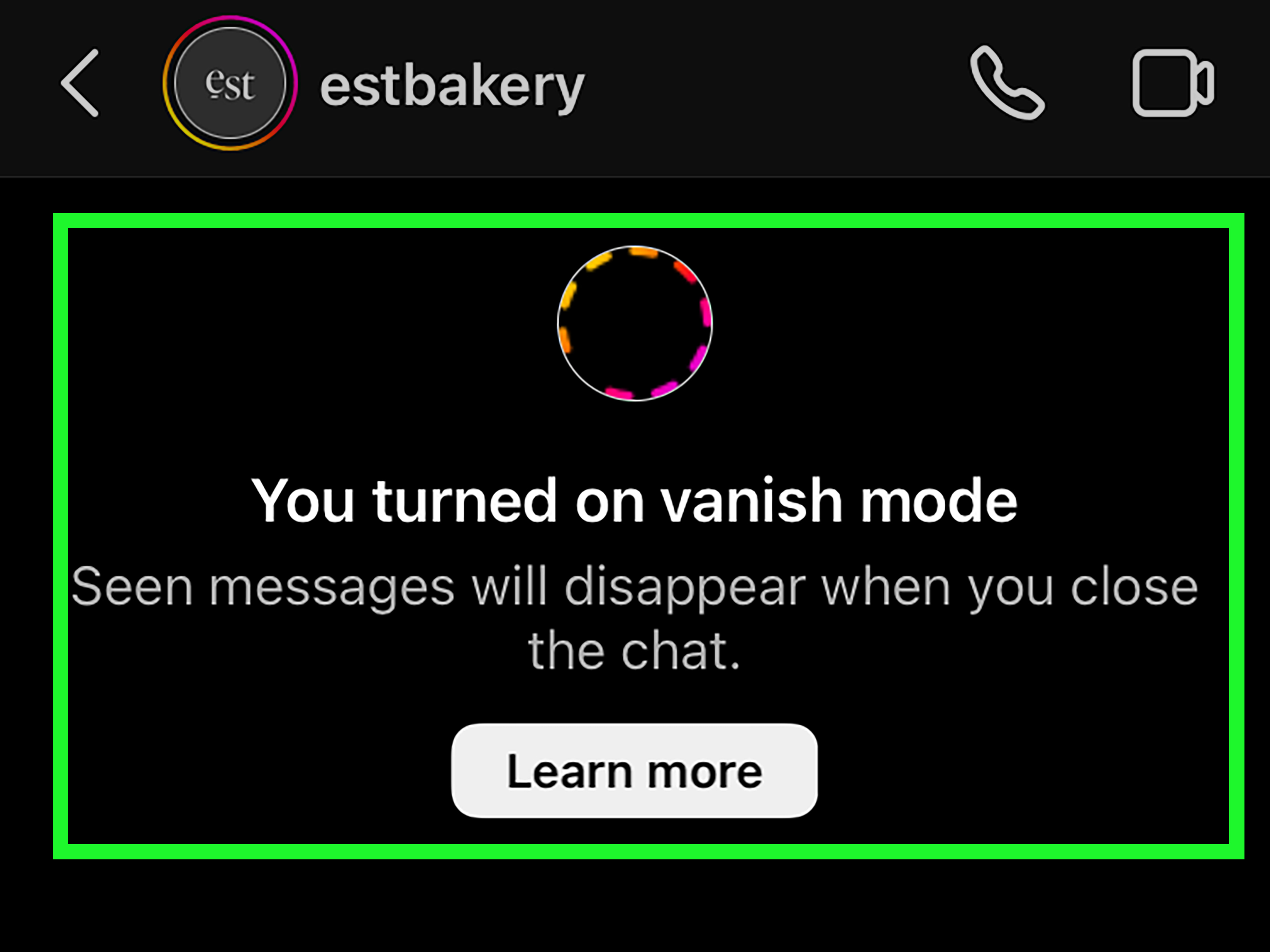
When you turn on Vanish Mode in a chat, Instagram changes the conversation into a disappearing-message space. The screen may become darker, and Instagram will usually show a notice that Vanish Mode is active. Both people in the chat can see that it has been turned on, so it is not a secret switch you can quietly flip without the other person knowing.
Messages sent before Vanish Mode was activated usually remain in the normal chat. The disappearing rule applies to messages sent while Vanish Mode is active. Once someone leaves the chat or turns off the feature, the temporary messages vanish from the conversation.
How to Turn On Vanish Mode on Instagram in 5 Quick Steps
Ready to make a message disappear faster than your motivation after opening a full email inbox? Follow these five simple steps.
Step 1: Open the Instagram App
Start by opening the Instagram app on your iPhone or Android device. Make sure you are logged in to the correct account. If you manage multiple profiles, double-check that you are using the one where you want to send the disappearing message.
It is also smart to update the Instagram app before trying Vanish Mode. Instagram features can look slightly different depending on your app version, device, region, and account type. If your app has not been updated since the era of low-rise jeans, give it a refresh.
Step 2: Go to Your Direct Messages
Tap the message icon, usually located in the top-right corner or along the bottom navigation area, depending on your version of Instagram. This opens your Direct Messages inbox.
From here, you can choose an existing conversation or start a new chat with someone. Vanish Mode is generally used in private, one-on-one conversations rather than public comments or feed posts.
Step 3: Open the Chat You Want to Use
Select the conversation where you want to turn on Vanish Mode. This should be a chat with someone you trust. That word matters: trust. Vanish Mode makes messages temporary, but it does not guarantee absolute privacy.
The other person may still take a screenshot, record their screen, use another device to photograph the conversation, or remember what you said with the accuracy of someone saving receipts for a courtroom drama. Use Vanish Mode thoughtfully.
Step 4: Swipe Up From the Bottom of the Chat
Inside the conversation, place your finger near the bottom of the chat screen and swipe up. Keep swiping until Instagram shows a prompt such as “Release to turn on Vanish Mode.” Then release your finger.
If the feature is available in your chat, Instagram will activate Vanish Mode. The chat background may turn dark, and you should see a message confirming that disappearing messages are now active.
Step 5: Send Your Message
Now you can type and send messages as you normally would. While Vanish Mode is on, new messages in that conversation are treated as temporary. When the recipient views them and leaves the chat, or when Vanish Mode is turned off, those messages disappear.
That is it. Five steps. No secret handshake, no advanced settings maze, no need to summon the social media spirits.
How to Turn Off Vanish Mode on Instagram
Turning off Vanish Mode is just as easy as turning it on. Open the same chat and swipe up from the bottom again. Release when Instagram shows the prompt to turn off Vanish Mode.
Once Vanish Mode is off, the conversation returns to normal. New messages will behave like regular Instagram DMs and remain visible unless someone unsends them or deletes the conversation from their own inbox.
Can the Other Person Turn It Off?
Yes. Either person in the chat can usually turn Vanish Mode off. This is important because Vanish Mode is not a private setting that only affects your side of the conversation. It changes how the chat works for both people.
If someone turns it off, the temporary session ends. You should see a notice inside the chat so you know the conversation is back to regular messaging.
What Happens When You Use Vanish Mode?
Vanish Mode is simple, but it helps to understand the details before using it. Here is what typically happens when it is active.
Messages Disappear After Being Viewed
The main feature of Vanish Mode is that messages disappear after they are viewed and the chat is closed. This makes it useful for casual, temporary exchanges that do not need to stay in your inbox forever.
For example, you might use it for a quick surprise party detail, a silly meme, a personal update, or a short-lived thought that does not need to become part of your permanent Instagram museum.
Both People Know Vanish Mode Is On
Instagram does not let Vanish Mode operate like a secret trapdoor. When it is turned on, both participants can see that the chat has entered a disappearing-message mode.
This transparency is helpful because it prevents confusion. Nobody wants to send a thoughtful paragraph and then discover it vanished like a sock in the laundry dimension.
Screenshot Alerts May Appear
If someone takes a screenshot or screen recording of a Vanish Mode message, Instagram may notify the other person. This is one of the biggest differences between Vanish Mode and regular Instagram DMs.
However, screenshot notifications are not perfect protection. Someone could use a second phone, camera, or other workaround. The safest rule is simple: never send something in Vanish Mode that would seriously harm you if saved or shared.
Why You May Not See Vanish Mode on Instagram
If you tried the steps above and nothing happened, do not panic. Your phone is not judging you. There are several reasons Vanish Mode might not appear.
Your Instagram App Needs an Update
Older app versions may not show the latest messaging features. Open the App Store or Google Play Store and check for an Instagram update. After updating, close and reopen the app, then try again.
The Feature May Not Be Available in Your Region
Instagram sometimes rolls out messaging features by country or region. In some areas, the feature may appear as “disappearing messages” instead of “Vanish Mode,” or it may include slightly different wording and controls.
You May Be in the Wrong Type of Chat
Vanish Mode is generally designed for one-on-one conversations. It may not work in group chats, message requests, chats with certain accounts, or conversations where Instagram’s messaging features are limited.
The Other Account May Have Restrictions
If you are trying to use Vanish Mode with someone who has privacy settings, age-related protections, message restrictions, or account limitations enabled, the feature may not be available in that conversation.
There May Be a Temporary App Glitch
Instagram glitches happen. The app occasionally acts like it just woke up from a nap and forgot where it put the buttons. Try closing and reopening Instagram, restarting your phone, clearing the app cache on Android, or reinstalling the app if the problem continues.
Is Vanish Mode Private?
Vanish Mode adds a layer of privacy, but it is not the same as total security. Messages disappear from the chat interface, but that does not mean you should use it for highly sensitive information such as passwords, financial details, private documents, legal information, or anything that could create major problems if captured.
Instagram can still maintain systems for safety, reporting, and abuse prevention. Also, users may report Vanish Mode messages for a limited time after they disappear, which helps Instagram review harmful content when necessary.
Good Uses for Vanish Mode
Vanish Mode can be helpful for casual, temporary, low-risk messages. For example, it may work well for planning a surprise, sending a quick joke, sharing a short-lived reaction, or keeping your inbox cleaner when a conversation does not need to be saved.
It is also useful for people who dislike cluttered message histories. If your DM inbox already looks like a digital storage unit, Vanish Mode can help prevent small conversations from piling up.
Bad Uses for Vanish Mode
Do not use Vanish Mode to send anything illegal, harmful, threatening, harassing, or deeply private. Disappearing messages can still be reported, captured, remembered, or misused.
A good test is this: if you would panic if the message appeared in a screenshot, do not send it. Vanish Mode is a convenience feature, not a force field.
Vanish Mode vs. Disappearing Photos and Videos
Instagram also lets users send disappearing photos and videos in Direct Messages. These are not always the same thing as turning on Vanish Mode for the entire chat.
A disappearing photo or video may be sent with options such as view once, allow replay, or keep in chat, depending on the current Instagram interface. Vanish Mode, on the other hand, changes the chat environment so messages sent during that session are temporary.
Both features are designed for temporary sharing, but they work differently. If you only want one photo or video to disappear, use Instagram’s disappearing media options. If you want the whole conversation to feel temporary for a while, use Vanish Mode.
Tips for Using Vanish Mode Safely
Vanish Mode can be fun and useful, but smart habits matter. Here are practical tips to keep your disappearing chats from becoming a disappearing headache.
Use It Only With People You Trust
Temporary messages still depend on human behavior. If the other person is likely to screenshot, gossip, twist your words, or treat your privacy like a group project, Vanish Mode will not fix that.
Do Not Share Passwords or Financial Details
Never send passwords, bank details, verification codes, private identification numbers, or sensitive work information through Vanish Mode. Use secure password managers and official communication channels for important data.
Watch for Screenshot Notices
If Instagram notifies you that someone captured the chat, take it seriously. It may be harmless, but it is a sign that your temporary message may no longer be temporary.
Report Harmful Messages Quickly
If someone uses Vanish Mode to send harassment, threats, scams, explicit content without consent, or abusive messages, report it as soon as possible. Do not assume that disappearing content cannot be reported.
Keep Your App Updated
Messaging features change often. Updating Instagram helps ensure you have the latest interface, security improvements, bug fixes, and privacy tools.
Common Problems and Quick Fixes
Vanish Mode Will Not Turn On
Update Instagram, restart the app, check your internet connection, and make sure you are using a one-on-one chat. If it still does not work, the feature may not be available for that conversation or region.
The Swipe Gesture Does Nothing
Try swiping from slightly higher above the message box and hold until you see the prompt. Some users release too quickly, which cancels the gesture before Instagram activates the feature.
Vanish Mode Turned On by Accident
No drama. Open the chat, swipe up again, and release to turn it off. Congratulations, you survived an accidental Instagram feature discovery.
Messages Disappeared Before You Expected
That is usually how the feature is designed to work. Vanish Mode messages are temporary and may disappear after they are viewed, after someone leaves the chat, or when the mode is turned off.
Frequently Asked Questions About Instagram Vanish Mode
Can You Recover Vanish Mode Messages?
In most normal user situations, once Vanish Mode messages disappear from the chat, you cannot simply bring them back. If the message involved abuse or safety concerns, use Instagram’s reporting tools as soon as possible.
Does Vanish Mode Work on Desktop?
Vanish Mode is primarily designed for the Instagram mobile app. The desktop version of Instagram may not offer the same messaging controls or gestures.
Can You Use Vanish Mode in Group Chats?
Vanish Mode is generally intended for one-on-one chats. If you are in a group conversation, you may not see the option.
Does Vanish Mode Delete Old Messages?
Vanish Mode usually affects messages sent after it is turned on. Regular messages sent before activating it typically remain in the normal chat history.
Will Someone Know If I Turn On Vanish Mode?
Yes. The other person can see when Vanish Mode is active. Instagram is not subtle about it, which is good because disappearing messages should be clear to both people.
Real-Life Experiences: What Using Vanish Mode Actually Feels Like
Using Vanish Mode for the first time can feel a little dramatic. You swipe up, the chat changes, and suddenly your conversation has the energy of a spy movie, except the mission is probably sending a meme about lunch. The feature is easy to use, but the experience depends heavily on why you are using it and who you are chatting with.
One common experience is using Vanish Mode for surprise planning. Imagine organizing a birthday dinner for a friend who occasionally borrows your phone to look at photos. A normal Instagram chat could spoil everything if they glance at your inbox. Vanish Mode gives you a cleaner way to discuss small details like the restaurant, arrival time, or gift ideas without leaving a long trail of messages.
Another practical experience is using it for quick, low-stakes conversations that do not need to be saved. Some chats are useful in the moment but irrelevant five minutes later. For example, a friend might send you a temporary address note, a quick outfit opinion, or a “which caption sounds less awkward?” question. Vanish Mode keeps these little exchanges from becoming permanent clutter.
That said, Vanish Mode can also create misunderstandings. Some people see disappearing messages and immediately wonder, “Why are we being secretive?” If you turn it on without context, the other person may read more into it than you intended. A simple explanation helps: “I’m turning this on because we’re planning the surprise,” or “This is just easier for temporary stuff.” Clear communication prevents the feature from feeling suspicious.
There is also the screenshot factor. The first time someone captures a Vanish Mode chat and Instagram sends a notification, it can feel awkward. Maybe they only wanted to save a funny line. Maybe they forgot the chat was temporary. Or maybe they were collecting receipts like a professional archivist. Either way, Vanish Mode reminds users that temporary does not always mean private. It is a helpful nudge to think before sending.
For creators, small business owners, and social media managers, Vanish Mode should be used carefully. It may be tempting for quick informal chats with collaborators, but it is usually not ideal for agreements, client instructions, payment details, campaign approvals, or customer service issues. Those conversations should stay documented. A disappearing message is great for a joke; it is not great for “Can you confirm the invoice amount?” unless you enjoy chaos with a side of confusion.
Parents and younger users should also treat Vanish Mode as a conversation starter about digital safety. The feature can be harmless, but it can also be misused by people who want messages to disappear after sending something inappropriate or manipulative. If a chat makes someone uncomfortable, they should leave the conversation, block or restrict the account if needed, and report harmful content quickly.
The best experience with Vanish Mode comes from using it intentionally. It is not something you need for every chat. Regular DMs are better for information you may want to revisit later, such as addresses, plans, links, recommendations, work details, or meaningful conversations. Vanish Mode is better for temporary, casual, and low-risk exchanges.
In short, Vanish Mode feels useful when it matches the moment. It is quick, simple, and a little fun. But like every privacy feature, it works best when paired with common sense. Instagram can help messages disappear from the chat, but it cannot make people trustworthy. Choose the conversation wisely, keep sensitive details out of DMs, and remember that anything sent online can potentially travel farther than expected.
Conclusion
Learning how to turn on Vanish Mode on Instagram in 5 quick steps is simple: open Instagram, go to Direct Messages, choose a chat, swipe up from the bottom, and start sending temporary messages. Turning it off is just as easyswipe up again inside the conversation.
Vanish Mode is useful for short-lived chats, surprise planning, casual jokes, temporary photos, and conversations that do not need to live forever in your message history. However, it is not foolproof privacy. Screenshots, screen recordings, reports, second devices, and simple human memory still exist. Use it with people you trust, avoid sharing sensitive details, and keep your Instagram app updated for the best experience.
Note: Instagram features, labels, and availability can change by app version, account type, device, and region. If Vanish Mode does not appear, update the app first and check whether your chat supports disappearing messages.