Editorial note: This guide is based on current Minecraft accessibility behavior and official platform accessibility settings for Windows, macOS, Xbox, PlayStation, iOS, Android, and Nintendo devices. Source links are not inserted so the article remains clean for web publishing.
If Minecraft has suddenly started reading every menu button, chat line, and system message out loud, congratulations: you have met the Minecraft Narrator. It is not a mysterious villager curse, a hostile mob, or your computer developing strong opinions about your inventory management. It is an accessibility feature designed to help players who benefit from text-to-speech, menu narration, and spoken chat feedback.
That said, when the narrator turns on by accident, it can feel like someone invited a very enthusiastic audiobook narrator into your mining session. You open Settings, it reads Settings. You hover over Play, it announces Play. You move one pixel to the left, and suddenly your speakers are giving a dramatic performance of the Minecraft interface.
The good news is simple: you can turn off the narrator in Minecraft on almost any platform through the Accessibility settings. On Minecraft: Java Edition, the fastest fix is usually the keyboard shortcut Ctrl + B. On Minecraft: Bedrock Edition, you will usually turn off Text-to-Speech for UI and Text-to-Speech for Chat. On consoles and mobile devices, you may also need to check the system screen reader, such as Xbox Narrator, PlayStation Screen Reader, iPhone VoiceOver, Android TalkBack, or Nintendo text-to-speech settings.
This guide walks through every major version and platform, with practical examples, troubleshooting tips, and a few “why is my game talking to me?” explanations along the way.
What Is the Minecraft Narrator?
The Minecraft Narrator is a text-to-speech feature that reads selected game text aloud. Depending on your edition and settings, it may read chat messages, system notifications, menu items, buttons, and other interface text. For many players, this is a genuinely useful accessibility tool. It can make Minecraft easier to navigate for people with low vision, reading difficulties, or players who prefer audio feedback while moving through menus.
In Minecraft: Java Edition, the narrator can usually be set to different modes such as Off, All, Chat, or System. These options control whether the narrator reads everything it supports, only chat messages, only system messages, or nothing at all.
In Minecraft: Bedrock Edition, narration is usually handled through text-to-speech options in the Accessibility menu. These may include settings for UI narration, chat narration, or device-based text-to-speech behavior. Because Bedrock runs on Windows, Xbox, PlayStation, Nintendo Switch, iPhone, iPad, Android, and more, the exact menu layout can vary slightly. The general path, however, stays friendly: Settings > Accessibility.
Quick Fix: Turn Off Narrator in Minecraft Java Edition
If you play Minecraft: Java Edition on Windows, macOS, or Linux, start here. Java Edition has the most famous narrator shortcut, and many players discover it accidentally while pressing keys during gameplay. One minute you are typing in chat, the next minute your game is narrating like it has been waiting all day for its big moment.
Method 1: Use the Keyboard Shortcut
On most Windows and Linux keyboards, press:
Ctrl + B
This toggles the Minecraft Narrator between its available modes. You may need to press the shortcut more than once until you hear or see that Narrator is set to Off.
On Mac, depending on your keyboard and Minecraft setup, the shortcut may use the Command key instead:
Command + B
If the shortcut does not work, do not panic. It may be disabled, intercepted by another app, or affected by keyboard layout. The menu method below is more reliable.
Method 2: Turn It Off in Accessibility Settings
- Launch Minecraft: Java Edition.
- From the main menu, select Options.
- Choose Accessibility Settings.
- Find the Narrator setting.
- Set it to Off.
This is the best method if you want the setting to stay off. While you are there, look for the narrator hotkey option. If you keep turning the narrator on by accident, disable the narrator shortcut so your keyboard stops betraying you during dramatic creeper encounters.
How to Turn Off Narrator in Minecraft Bedrock Edition
Minecraft: Bedrock Edition is the version used across many platforms, including Windows, Xbox, PlayStation, Nintendo Switch, Android, iPhone, and iPad. In Bedrock, the feature is usually not called simply “Narrator.” Instead, you will often see text-to-speech settings.
To turn off narrator-style reading in Bedrock Edition:
- Open Minecraft.
- Go to Settings.
- Select Accessibility.
- Turn off Text-to-Speech for UI.
- Turn off Text-to-Speech for Chat.
- If available, review any option related to Text-to-Speech with Device Settings or device screen reader behavior.
The important part is that Bedrock may separate menu narration from chat narration. If you only turn off one option, Minecraft may still talk. For example, turning off chat text-to-speech may stop multiplayer messages from being read aloud, but the game may still announce buttons and menus if UI narration remains enabled. For full silence, check both.
How to Turn Off Minecraft Narrator on Windows PC
On Windows, Minecraft can be affected by two different things: Minecraft’s own narrator settings and Windows Narrator. If the voice only happens inside Minecraft, use the Java or Bedrock steps above. If your entire computer is talking, Windows Narrator may be on.
Turn Off Minecraft Narrator First
For Java Edition, press Ctrl + B or go to Options > Accessibility Settings > Narrator > Off.
For Bedrock Edition, go to Settings > Accessibility and turn off Text-to-Speech for UI and Text-to-Speech for Chat.
Turn Off Windows Narrator If Needed
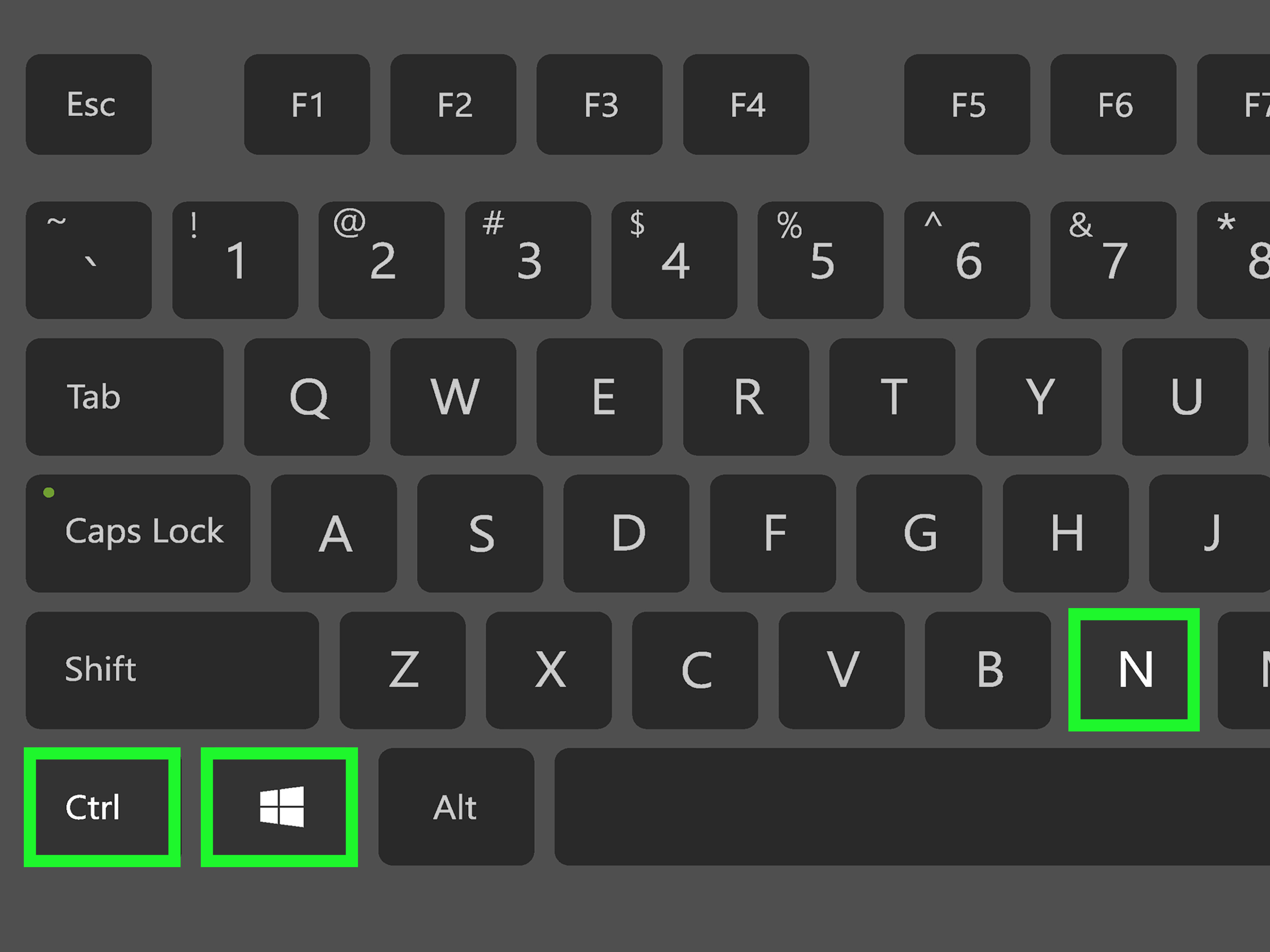
If Windows itself is reading menus, windows, and buttons, press:
Windows key + Ctrl + Enter
This shortcut starts or stops Windows Narrator on many modern Windows systems. You can also go to Settings > Accessibility > Narrator and toggle Narrator off.
This distinction matters. Minecraft’s narrator is like a parrot inside the game. Windows Narrator is like a parrot sitting on the whole computer. Different parrots, different off switches.
How to Turn Off Minecraft Narrator on Mac
On Mac, Minecraft: Java Edition may use its in-game narrator setting, while macOS may also use VoiceOver, Apple’s built-in screen reader. If the voice is limited to Minecraft, change Minecraft’s accessibility settings. If your Mac is reading everything outside the game too, check VoiceOver.
Turn Off Narrator in Minecraft Java Edition
- Open Minecraft: Java Edition.
- Click Options.
- Open Accessibility Settings.
- Set Narrator to Off.
You can also try Command + B if your setup supports it.
Turn Off macOS VoiceOver
If the Mac itself is speaking, try:
Command + F5
On some Macs, you can open the Accessibility Shortcuts panel with Option + Command + F5. You can also go to System Settings > Accessibility > VoiceOver and turn VoiceOver off.
How to Turn Off Minecraft Narrator on Xbox
On Xbox, Minecraft Bedrock uses in-game accessibility settings, but the console also has its own Narrator and game transcription settings. That means you may need to check two places.
Turn Off Text-to-Speech in Minecraft
- Open Minecraft on Xbox.
- Go to Settings.
- Select Accessibility.
- Turn off Text-to-Speech for UI.
- Turn off Text-to-Speech for Chat.
Turn Off Xbox Narrator
- Press the Xbox button to open the guide.
- Go to Profile & system.
- Open Settings.
- Select Accessibility.
- Choose Narrator.
- Turn Narrator off.
Some Xbox systems also allow a controller shortcut: press and hold the Xbox button until the controller vibrates, then press the Menu button. If you accidentally trigger that shortcut, yes, it can feel like your controller just opened a secret talking portal.
How to Turn Off Minecraft Narrator on PlayStation
On PlayStation, Minecraft Bedrock has in-game text-to-speech options, while the PS5 console has a system Screen Reader. Start with Minecraft, then check the console if the voice continues.
Turn Off Minecraft Text-to-Speech
- Open Minecraft.
- Go to Settings.
- Choose Accessibility.
- Turn off Text-to-Speech for UI.
- Turn off Text-to-Speech for Chat.
Turn Off PS5 Screen Reader
- From the PS5 home screen, open Settings.
- Select Accessibility.
- Open Screen Reader.
- Turn off Enable Screen Reader.
If narration happens in the PlayStation home menu, it is probably the PS5 Screen Reader. If narration only happens inside Minecraft, it is probably Minecraft’s text-to-speech setting. If both are on, you may get the deluxe commentary package nobody ordered.
How to Turn Off Minecraft Narrator on Nintendo Switch
On Nintendo Switch, Minecraft uses the Bedrock Edition settings. Open Minecraft, go to Settings > Accessibility, and turn off the text-to-speech options for UI and chat if they are available.
For Nintendo Switch 2 and supported system menus, Nintendo also offers text-to-speech accessibility features. If the system menu is speaking outside Minecraft, check your console’s accessibility settings. The exact options may depend on your system model and software version, so make sure the console is updated.
If Minecraft is the only thing talking, focus on the in-game Accessibility menu. If the HOME menu is talking too, check the console settings. This simple test saves time and prevents you from changing every setting in sight like a redstone engineer with too much coffee.
How to Turn Off Minecraft Narrator on iPhone and iPad
On iPhone and iPad, Minecraft Bedrock can use text-to-speech settings inside the game, while iOS and iPadOS can use VoiceOver at the system level.
Turn Off Minecraft Text-to-Speech
- Open Minecraft.
- Tap Settings.
- Go to Accessibility.
- Turn off Text-to-Speech for UI.
- Turn off Text-to-Speech for Chat.
Turn Off iPhone or iPad VoiceOver
If your whole device is speaking, go to Settings > Accessibility > VoiceOver and turn VoiceOver off. If you have an accessibility shortcut enabled, you may be able to triple-click the Side button or Home button to toggle VoiceOver.
Important: when VoiceOver is on, iPhone gestures work differently. You may need to tap once to select and double-tap to activate. If you are stuck, move slowly, listen to what is selected, and use the device accessibility shortcut if it has been configured.
How to Turn Off Minecraft Narrator on Android
On Android phones and tablets, Minecraft Bedrock has its own accessibility settings, while Android may also have TalkBack enabled. TalkBack is Android’s screen reader, and when it is on, it can change how taps and swipes behave.
Turn Off Minecraft Text-to-Speech
- Open Minecraft.
- Tap Settings.
- Open Accessibility.
- Turn off Text-to-Speech for UI.
- Turn off Text-to-Speech for Chat.
Turn Off Android TalkBack
If your Android device is speaking outside Minecraft, open Settings > Accessibility > TalkBack and turn TalkBack off. On many Android devices, you can also press and hold both volume buttons for a few seconds if the TalkBack shortcut is enabled.
Because Android menus vary by brand, Samsung, Google Pixel, OnePlus, and other devices may label items slightly differently. Look for Accessibility, TalkBack, Screen Reader, or Text-to-Speech.
How to Turn Off Narrator in Minecraft Education
Minecraft Education has accessibility features designed for classrooms, including menu UI narration and text-to-speech support. If narration is enabled there, check the Accessibility menu in Settings.
- Open Minecraft Education.
- Go to Settings.
- Select Accessibility.
- Turn off Enable UI Screen Reader.
- Review any option related to text-to-speech with device settings.
On shared school devices, narration may also be connected to platform accessibility settings. If the setting returns after restarting, ask the device administrator or teacher whether accessibility preferences are being managed by school policy.
Why Does Minecraft Narrator Keep Turning Back On?
If the narrator keeps returning like a zombie that found your front door, one of these issues is probably responsible.
1. The Keyboard Shortcut Is Still Enabled
In Java Edition, you may be pressing Ctrl + B accidentally. This can happen while typing, using shortcuts, recording gameplay, or switching windows. Disable the narrator hotkey in Accessibility Settings if available.
2. Your Device Screen Reader Is On
Minecraft may follow device accessibility settings, especially in Bedrock and Education versions. If Windows Narrator, macOS VoiceOver, Xbox Narrator, PS5 Screen Reader, iOS VoiceOver, or Android TalkBack is enabled, Minecraft may respond by enabling narration-related behavior.
3. Only One Text-to-Speech Option Was Disabled
In Bedrock Edition, turn off both UI and chat text-to-speech. If one remains enabled, Minecraft may still speak in some situations.
4. The Game Needs a Restart
After changing accessibility settings, close and reopen Minecraft. This is especially helpful on consoles and mobile devices, where settings sometimes behave better after a clean restart.
5. The Game Version Has a Bug
Accessibility features are updated over time. If narration behaves strangely, update Minecraft and your platform software. Bugs related to text-to-speech and menu narration have been fixed in past Bedrock updates, so staying current matters.
Does Turning Off Narrator Affect Gameplay?
For most players, turning off the narrator does not change core gameplay. You can still mine, craft, fight mobs, join servers, build suspiciously large dirt houses, and fall into lava with full confidence. What changes is the audio reading of text and interface elements.
However, players who rely on narration for accessibility should not turn it off unless they have another way to navigate menus and read chat. If the voice is too loud or too fast, adjusting speech volume, speed, or chat settings may be better than disabling the feature completely.
Best Settings for a Quiet Minecraft Experience
If your goal is peaceful gameplay without surprise narration, use this checklist:
- In Java Edition, set Narrator to Off.
- Disable the narrator hotkey if you keep triggering it accidentally.
- In Bedrock Edition, turn off Text-to-Speech for UI.
- Turn off Text-to-Speech for Chat if you do not want chat read aloud.
- Check system-level screen readers if narration continues outside Minecraft.
- Restart Minecraft after changing settings.
- Update the game if the setting does not save correctly.
This combination solves most narrator problems. It also keeps you from blaming innocent villagers, who already have enough public relations challenges with all the “hmm” sounds.
Troubleshooting: Minecraft Is Still Talking
If you turned everything off and Minecraft still narrates, work through the problem like a detective with a diamond pickaxe.
Check Where the Voice Happens
If the voice speaks only inside Minecraft, the cause is probably in-game Accessibility settings. If the voice speaks in the operating system menu, console dashboard, app switcher, or phone home screen, the cause is probably your device screen reader.
Check Chat Separately
If only multiplayer messages are being read aloud, chat text-to-speech is probably still on. Go back to Accessibility settings and look specifically for chat narration.
Check UI Separately
If menus and buttons are being read aloud but chat is quiet, UI text-to-speech is probably still on.
Check Controller or Keyboard Shortcuts
Some platforms allow quick accessibility shortcuts. These are useful, but they can also be triggered accidentally. If narration keeps returning, review shortcut settings on your device.
Reinstall Only as a Last Resort
You almost never need to reinstall Minecraft just to turn off the narrator. Try settings, shortcuts, restarts, and updates first. Reinstalling should be the “I have tried everything and the narrator is now part of my household” option.
Personal Experience: The Day Minecraft Started Commentating My Life
Anyone who has accidentally turned on the Minecraft narrator knows the emotional journey. First comes confusion. You click a button and a voice announces it. You move to another menu and the voice follows. You hover over Accessibility, and the game proudly reads it aloud, as if saying, “Yes, this is where I live now.”
The first time this happened to me, I thought I had opened a video in another browser tab. That is the modern computer user’s first survival instinct: blame the hidden tab. I muted the browser. Nothing changed. I checked Discord. Silent. I looked at Minecraft again, and the voice announced another menu item with the confidence of a tour guide who had memorized the building.
The funny part is that the narrator is not bad. It is actually a thoughtful feature. When used intentionally, it can make the game more accessible and easier to navigate. The problem is the accidental activation. Minecraft players press a lot of keys. We sprint, crouch, chat, open inventory, switch items, take screenshots, tab out, and panic-type when a creeper appears. Somewhere in that keyboard gymnastics routine, the narrator shortcut can get triggered.
On Java Edition, the Ctrl + B shortcut is usually the main suspect. It is quick, convenient, and also easy to press without meaning to if your hands are already hovering over half the keyboard. Once you know the shortcut, the fix takes seconds. Before you know it, though, it can feel like Minecraft has added a new mob called “The Announcer,” and its special attack is reading your settings menu at full volume.
Bedrock Edition adds another layer because it runs on so many devices. A friend playing on Xbox may have Minecraft text-to-speech turned off but Xbox Narrator turned on. Someone on mobile may disable Minecraft narration but still have VoiceOver or TalkBack active. A PlayStation player may turn off chat narration but still hear the PS5 Screen Reader in console menus. The trick is to figure out whether the voice belongs to Minecraft or the device.
My favorite troubleshooting method is the “home screen test.” Leave Minecraft and move around the device menu. If the voice keeps talking, it is probably the system screen reader. If it goes quiet outside the game, Minecraft is the source. This test is simple, fast, and much better than randomly flipping every setting like you are defusing a bomb made of menus.
Another lesson: check both UI and chat text-to-speech. Many players turn off one and wonder why Minecraft still talks. That is because UI narration and chat narration can be separate. UI narration reads menus and interface elements. Chat text-to-speech reads messages. If you want complete silence, both need to be off.
There is also a useful reminder here: accessibility features are not “annoying features.” They are helpful tools that become annoying only when they turn on unexpectedly for someone who does not need them. For players who rely on narration, screen readers, or text-to-speech, these settings can be the difference between struggling through menus and enjoying the game independently. So the goal is not to treat the narrator like a villain. The goal is to control it.
Once you understand where the settings live, the whole process becomes easy. Java players should remember Options > Accessibility Settings > Narrator > Off. Bedrock players should remember Settings > Accessibility > Text-to-Speech for UI and Chat > Off. Console and mobile players should remember to check system accessibility settings if the voice keeps going outside Minecraft.
After that, peace returns. The menus stop talking. The chat stops reading itself aloud. Your speakers go back to delivering the classic Minecraft soundtrack, block sounds, zombie groans, and the occasional deeply unfair creeper explosion. In other words, everything is normal again.
Conclusion
Turning off the narrator in Minecraft is usually quick once you know which version and platform you are using. In Java Edition, use Ctrl + B or go through Options > Accessibility Settings. In Bedrock Edition, open Settings > Accessibility and disable text-to-speech for both UI and chat. On consoles and mobile devices, check system screen readers if Minecraft keeps talking after the in-game settings are off.
The narrator is a valuable accessibility feature, but it should work on your terms. Whether you want full narration, chat-only reading, or blissful silence while you build your next cobblestone masterpiece, Minecraft gives you the tools to choose. And now, when the game starts narrating your every move, you know exactly where to send that voice: politely, firmly, and with no hard feelings, to the Off position.