Note: This article is written for general educational use and is based on current Snapchat behavior, official Snapchat Help information, and reputable technology guidance. Because Snapchat updates its interface often, button names may vary slightly between iPhone, Android, and Snapchat Web.
Introduction: The Tiny Gray Box That Starts Big Questions
Snapchat was built on the beautiful promise that your messages would vanish like a snack left unattended at a family gathering. You send a Chat, your friend reads it, and poofgone. At least, that is the idea. But then you open a conversation and see an old message still sitting there, highlighted in gray, looking suspiciously permanent. Suddenly, your casual “lol” from three weeks ago has become a digital museum exhibit.
If you are wondering how to tell if someone saved your messages on Snapchat, the answer is both simple and a little annoying: Snapchat shows saved messages in Chat, but it does not always put a giant neon sign over the person responsible. A saved message usually appears with a gray background, meaning either you, the other person, or someone in the Group Chat saved it. The trick is knowing how to check whether it was saved by you or by someone else.
This guide walks you through five clear steps to identify saved Snapchat messages, understand what the gray highlight means, avoid confusing saved messages with screenshots, and manage what you can actually control. No panic, no detective trench coat requiredalthough honestly, it would add flair.
What Does “Saved in Chat” Mean on Snapchat?
On Snapchat, a Chat message can normally disappear after it is viewed, after 24 hours, after 7 days, or never, depending on the conversation settings. However, users can also save individual messages inside a Chat. When a message is saved, it stays visible in the conversation instead of disappearing according to the normal deletion timer.
Saved messages may include text Chats, photos, videos, links, replies, or Snaps sent directly inside Chat. When something is saved, Snapchat usually highlights it with a gray background. That gray background is the main clue that the message has been saved.
Here is the important part: a gray saved message does not automatically mean the other person saved it. It means the message is saved in the conversation. You may have saved it, they may have saved it, or both of you may have saved it. In a Group Chat, any participant may be responsible.
How to Tell if Someone Saved Your Messages on Snapchat: 5 Steps
Step 1: Open the Snapchat Chat Conversation
Start by opening Snapchat and swiping right from the Camera screen to reach the Chat tab. Tap the conversation you want to check. This can be a one-on-one Chat or a Group Chat. If you are looking for a specific saved message, scroll through the conversation history and look for older messages that are still visible.
Normally, unsaved Snapchat messages disappear according to the Chat settings. So if a message from yesterday, last week, or three months ago is still hanging around like it pays rent, there is a good chance it has been saved.
Do not rely only on the age of the message, though. Some conversations are set to delete after 24 hours, 7 days, or never. A message staying visible does not always mean someone manually saved it. That is why the next step matters.
Step 2: Look for the Gray Highlight Around the Message
The easiest way to identify a saved Snapchat message is to look for a gray background or highlight behind the message bubble. This gray highlight is Snapchat’s visual way of saying, “This message has been saved in Chat.”
For example, imagine you sent, “Meet at 7?” and later the message appears with a gray background. That means the message has been saved. It will not disappear like a normal unsaved Chat unless everyone who saved it unsaves it or the sender deletes it where Snapchat allows deletion.
Gray highlighted messages are different from regular Chat bubbles. A normal Chat may appear briefly, then vanish depending on settings. A saved Chat remains visible and marked. Think of the gray background as a tiny sticky note placed on the conversation.
Step 3: Tap or Press the Message to See Whether You Saved It
Now comes the practical test. Tap or press and hold the gray highlighted message. If you saved the message yourself, Snapchat should give you an option to unsave it, or tapping may remove your save depending on your app version. If the gray highlight disappears after you unsave it, that usually means you were the one keeping it saved.
If you tap or unsave the message and it still remains gray, that usually means someone else has also saved it. In a one-on-one Chat, that “someone else” is the other person. In a Group Chat, it could be any member of the group.
Here is a simple example:
- You see a gray highlighted message.
- You tap it to unsave.
- The gray highlight disappears: you were likely the only person who saved it.
- The gray highlight stays: someone else likely saved it too.
This is one of the most useful ways to tell if someone saved your Snapchat message. It is not glamorous, but neither is checking whether you left your phone charger at school, and we all do what we must.
Step 4: Close and Reopen the Chat to Confirm
After you unsave a message, close the conversation and reopen it. If the message is gone or no longer highlighted, it was probably saved only by you. If it remains visible with the gray background, the other person may still have it saved.
This step is useful because Snapchat sometimes needs a moment to refresh. A weak connection, app lag, or an outdated version can make the Chat look unchanged for a few seconds. Closing and reopening the conversation gives Snapchat a chance to update the message state.
If the message still appears saved after you unsave it, do not assume the app is broken right away. It may simply mean the other person saved it. If you are in a Group Chat, the message can remain saved as long as any participant has saved it.
Step 5: Check Chat Settings and Ask Directly if Needed
To avoid confusion, check the Chat settings for that conversation. Press and hold the friend’s name or open the Chat profile, then look for Chat and notification settings. Depending on your version of Snapchat, you may see options related to deleting Chats after viewing, after 24 hours, after 7 days, or never.
If the conversation is set to “Never” delete, messages may stay visible without being individually saved in the same way. If it is set to delete after viewing or after 24 hours, saved messages are easier to spot because they stand out from the normal disappearing flow.
If you absolutely need to know who saved a message and the tap-to-unsave test does not answer it clearly, the most reliable option is to ask. Yes, asking can feel awkward. But it is still better than building a conspiracy board with red string because someone saved “haha true.”
Can You See Exactly Who Saved a Message on Snapchat?
In a one-on-one Chat, if you did not save the message and it remains saved, the other person likely saved it. In a Group Chat, it can be harder to know exactly who saved it because multiple people may interact with the same message. Snapchat’s interface may show some saved-by clues depending on the message type and app version, but it is not always as obvious as users expect.
The safest interpretation is this: gray means saved, but gray alone does not always identify the saver. You need to test whether your own save is responsible. If removing your save does not remove the gray highlight, someone else’s save is probably keeping it there.
Saved Messages vs. Screenshots: Do Not Mix Them Up
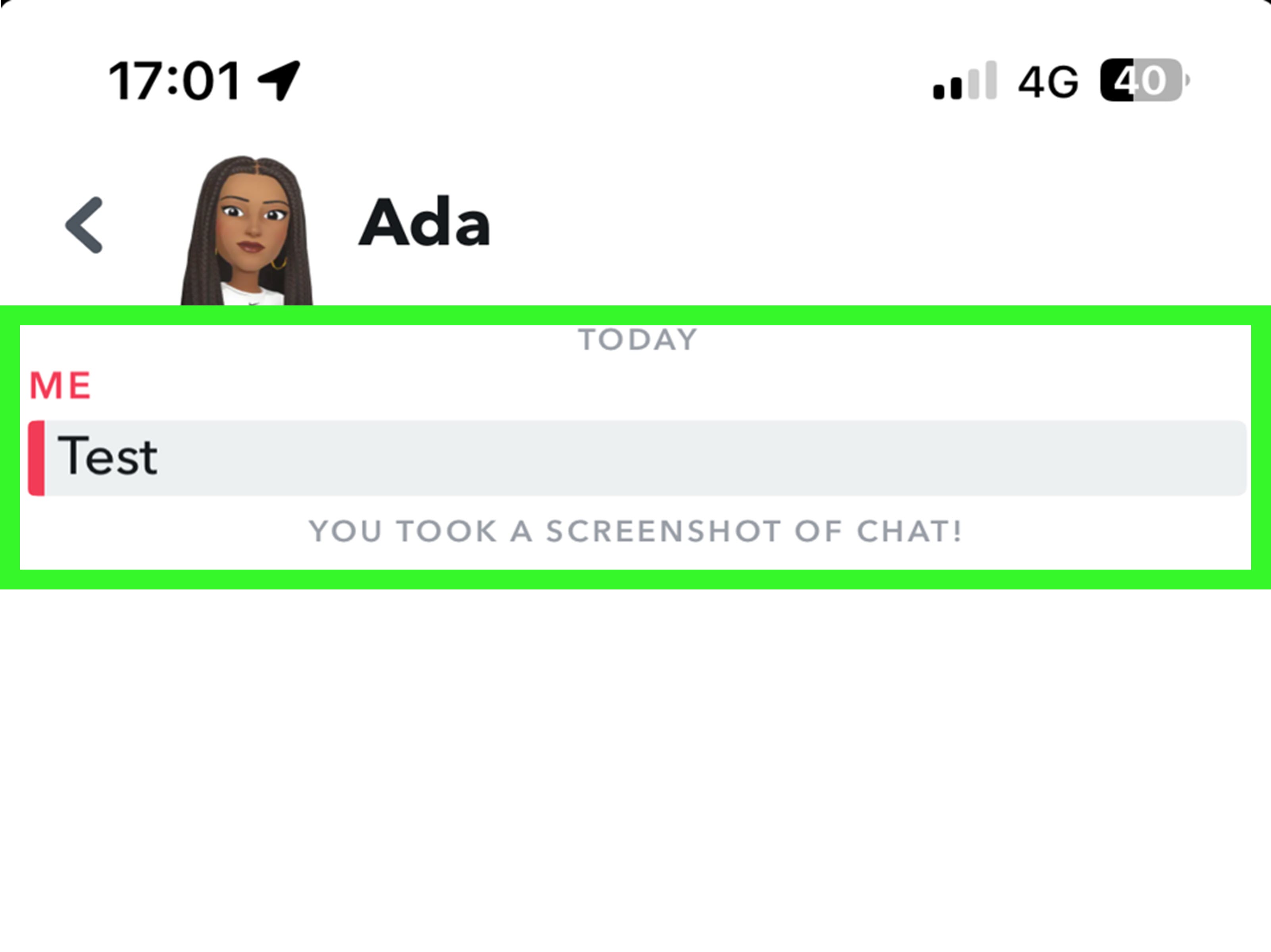
A saved message and a screenshot are not the same thing. A saved message stays inside Snapchat Chat. A screenshot captures the screen as an image on the user’s device. Snapchat usually alerts users when someone takes a screenshot of Chats, Snaps, or Stories, but saved messages are handled differently.
When someone saves a message in Chat, the message becomes visible to the people in that conversation. When someone takes a screenshot, Snapchat may display a notification inside the conversation or send an alert. The difference matters because a saved Chat can sometimes be unsaved, while a screenshot may already exist outside Snapchat.
In other words, saved messages are like putting a bookmark in the conversation. Screenshots are like photocopying the page and walking away with it. One is still inside the library; the other is in somebody’s backpack.
Can You Unsave a Message Someone Else Saved?
You can unsave messages that you saved. You generally cannot force another person to unsave a message they saved. If both of you saved the same message, you can remove your own save, but the message may remain visible because the other person’s save still exists.
If you sent the message, you may be able to delete it by pressing and holding the message and choosing the delete option. Snapchat may show the other person that a message was deleted. Also, deletion is not a magic time machine. Someone may have already seen the message, saved it, or captured it before you deleted it.
For this reason, the best Snapchat privacy rule is boring but powerful: do not send anything you would panic about seeing again. Snapchat feels temporary, but temporary does not mean impossible to save.
Why Are Some Snapchat Messages Saved Automatically?
Some messages may look saved or remain visible because of Chat settings, not because someone manually saved them. Snapchat allows users to adjust when Chats delete. In some conversations, messages may delete after viewing. In others, they may delete after 24 hours, after 7 days, or never.
That means you should not jump to conclusions the moment a message stays visible. First, check the gray highlight. Then test whether you saved it. Then review the Chat settings. This three-part check prevents unnecessary drama, and Snapchat already has enough drama without your phone becoming a courtroom.
What About Photos and Videos Saved in Chat?
Photos and videos sent in Chat may also be saved. Depending on how the Snap was sent and the current app design, saved media can appear differently from plain text. You may see a saved Snap, a saved photo, or a preview that remains in the Chat.
The same basic logic applies: if it remains visible and appears saved, someone has likely saved it in Chat. If you remove your own save and the media remains saved, another person may have saved it. For sensitive photos or videos, it is smart to assume the recipient could preserve them in some way, even if Snapchat offers disappearing features.
Can Clearing a Conversation Remove Saved Messages?
No, clearing a conversation from your Chat feed is not the same as deleting saved messages. Clearing a conversation usually removes the thread from your Chat list, making your feed look cleaner. It does not necessarily delete saved or sent content from the conversation.
This is a common mistake. Someone clears the Chat feed and thinks the saved messages are gone forever. Then the conversation reappears later, and there are the saved messages, sitting there like they never left. Clearing the feed is housekeeping; deleting or unsaving messages is content management.
How to Protect Your Privacy on Snapchat
Think Before You Send
Snapchat is casual, fast, and fun, which is exactly why people sometimes send messages too quickly. Before sending anything personal, ask yourself whether you would be comfortable if it were saved, shown later, or discussed out of context. If the answer is no, do not send it.
Review Saved Messages Regularly
Every so often, open important conversations and check for gray highlighted messages. You may discover that you accidentally saved things while tapping around. It happens. Thumbs are clumsy little chaos sticks.
Use Chat Settings Wisely
If you prefer conversations to disappear quickly, check that the Chat is not set to keep messages forever. Remember, though, conversation settings do not stop someone from saving, screenshotting, or using another device to capture content.
Delete What You Can, But Be Realistic
If you sent a message you regret, press and hold it and look for the delete option. This may remove the message from Chat, but Snapchat may show that something was deleted, and the recipient may have already seen or captured it.
Talk to the Person
If someone saved something you are uncomfortable with, ask them politely to unsave it. A simple “Hey, can you unsave that message?” is often better than silent stress. If they refuse, that tells you something useful about how much you should trust them with future messages.
Common Mistakes When Checking Saved Snapchat Messages
Mistake 1: Assuming Gray Always Means “They Saved It”
Gray means the message is saved. It does not always prove the other person saved it. You may have saved it yourself without realizing it.
Mistake 2: Confusing Saved Messages With Screenshots
A saved message remains in the Chat. A screenshot is a captured image. Snapchat treats these differently, so look for the right clue.
Mistake 3: Clearing the Chat Feed and Expecting Saved Content to Disappear
Clearing a conversation can tidy your Chat list, but it does not necessarily remove saved messages from the conversation itself.
Mistake 4: Forgetting About Group Chats
In Group Chats, more than one person can save a message. If a message stays saved after you unsave it, another group member may be responsible.
Mistake 5: Trusting Old Snapchat Tutorials Too Much
Snapchat changes menus and features regularly. Older tutorials may show outdated icons, colors, or button names. Use the overall logicgray highlight, unsave test, reopen Chatbut expect small interface differences.
Quick Answer: How Do You Know If Someone Saved Your Snapchat Message?
You can tell someone may have saved your Snapchat message if the message has a gray background and stays visible in the Chat. To check whether you saved it yourself, tap or press the message and try to unsave it. If the message loses its gray highlight or disappears, you were likely the only one who saved it. If it stays gray after you unsave it, the other personor someone in the Group Chatprobably saved it.
Extra Experience Section: Real-Life Lessons From Checking Saved Snapchat Messages
One of the most common experiences with Snapchat saved messages starts with total confusion. A person opens a Chat expecting everything to be gone, only to find a random old message still sitting there. Maybe it is a plan, a joke, a compliment, or a message that felt harmless in the moment but now looks oddly important because it survived the great disappearing-message purge.
At first, many users assume the other person saved it. That is understandable. Snapchat’s whole brand is built around disappearing content, so when something does not disappear, it feels like someone must have done something. But after testing the message, users often discover they saved it themselves by accident. A quick tap while scrolling, a long press while trying to copy text, or a half-awake thumb movement at midnight can save a message without the user remembering.
Another common situation happens in friendships and dating conversations. Someone notices that a sweet message is saved and wonders whether it means something. Did the other person save it because it mattered? Did they save it by mistake? Are they collecting evidence for an emotional scrapbook? The honest answer is: maybe. Saved messages can mean a lot, a little, or absolutely nothing. Context matters more than the gray box itself.
For example, if someone saves logistical messages like “The address is 123 Main Street” or “Homework is due Friday,” that is probably practical. If they save compliments, apologies, meaningful conversations, or personal details, they may be keeping them for emotional reasons. If they save every single message, they might simply prefer a permanent record of conversations. Some people treat Snapchat like a disappearing app; others treat it like texting with extra ghosts.
Group Chats create their own comedy. One person saves a message, everyone sees it lingering, and suddenly nobody knows who did it. A funny quote, embarrassing typo, or chaotic group plan can remain saved for weeks. In these cases, do not assume the quietest person saved it. Group Chat mysteries are rarely solved by vibes alone.
A useful habit is to check saved messages before clearing a conversation. Many users clear their Chat feed and later realize the saved content is still there when the conversation returns. Clearing the feed is like closing a drawer; it does not shred the papers inside. If privacy matters, open the Chat and review what is actually saved.
The biggest lesson is that Snapchat is not a privacy force field. It gives users tools for disappearing messages, but people still have ways to save, screenshot, remember, copy, or record what they see. That does not mean Snapchat is unsafe for normal conversations. It simply means users should treat it like any other messaging app: fun, fast, and convenient, but not magical.
If you notice someone saved your message and it bothers you, the best move is usually direct and calm. Say, “Can you unsave that?” Most reasonable people will understand. If they do not, that is a useful signal. Privacy is not just about settings; it is also about trust.
Conclusion
Learning how to tell if someone saved your messages on Snapchat is mostly about reading the gray highlight correctly. A gray message means it has been saved in Chat, but it does not always prove who saved it. Open the Chat, look for gray highlighted messages, tap or press to test whether you saved them, close and reopen the conversation, and check Chat settings if things still look confusing.
Snapchat is designed to feel temporary, but saved messages are a reminder that digital conversations can stick around. Use the five steps above, keep your privacy expectations realistic, and remember: the safest message is the one you would not mind seeing again later.