Discord is great when you want it. Discord is less great when it barges into your morning like an overly enthusiastic roommate who has already had coffee, two energy drinks, and opinions about your unread messages. If the app keeps launching every time you start your computer, the good news is that you can stop it without uninstalling anything, summoning a tech wizard, or entering a dramatic monologue into Terminal.
This guide walks through exactly how to stop Discord from opening on startup on both Windows and Mac. It also covers what to do if the setting does not stick, why the app keeps showing up in the first place, and how to keep your startup list from turning into a digital traffic jam. Whether you are using Discord for gaming, study groups, work communities, or just a suspiciously active friend group, these steps will help you take back control of your boot process.
The short version is simple: on Windows, you can usually disable Discord from inside the app or from your system’s startup settings. On Mac, you will remove it from Login Items. After that, Discord should wait politely until you open it yourself. Imagine that: boundaries.
Why Discord Opens on Startup
Discord usually launches automatically because it has been allowed to run at login. That setting can be enabled in the app itself, or it can be managed by the operating system. In some cases, people forget they turned it on months ago. In other cases, it arrives pre-enabled during setup, which is a sneaky little move that many communication apps love.
There is nothing unusual about this. Apps like Discord, Slack, Teams, Spotify, and cloud sync tools often try to start with your computer so they can deliver notifications immediately. That sounds helpful in theory. In practice, it often means your machine starts the day by loading a pile of apps you did not ask to see before breakfast.
Disabling Discord at startup does not delete your account, remove your servers, erase messages, or prevent you from using the app later. It simply tells your computer, “Let us not do this at 8:01 a.m. every single day.”
How to Stop Discord from Opening on Startup on Windows
If you use Discord on Windows, there are three practical ways to stop it from launching automatically. Start with the in-app setting because it is usually the cleanest fix. If that does not do the trick, move to Task Manager or Startup Apps in Windows settings.
Method 1: Turn Off Startup Inside Discord
- Open Discord.
- Click the gear icon next to your username to open User Settings.
- Scroll to Windows Settings.
- Find the option labeled Open Discord.
- Toggle it off.
This method is ideal because it tells Discord directly not to launch when Windows starts. If you mainly want the app installed but do not need it popping up every time you sign in, this is usually the best move.
Example: say you use Discord only at night to chat with gaming friends. There is no reason for it to start loading when you boot your laptop for school or work in the morning. Turning off Open Discord solves that neatly.
Method 2: Disable Discord in Task Manager
- Press Ctrl + Shift + Esc to open Task Manager.
- If needed, click More details.
- Open the Startup apps tab.
- Find Discord in the list.
- Select it and click Disable.
This is the classic Windows fix. It works well if you prefer managing startup behavior at the operating system level instead of inside each app. It also gives you a quick look at other apps that may be slowing down your login process.
Windows often shows a startup impact rating for apps, which helps you spot the biggest boot-time freeloaders. If Discord is not the only program launching itself, this is a great moment to clean house. Your computer may not throw you a parade, but it might start a little faster.
Method 3: Use Windows Startup Apps Settings
- Open Settings.
- Go to Apps.
- Select Startup.
- Find Discord.
- Switch it off.
This method is especially useful if you like a cleaner settings interface than Task Manager. It is also a handy way to review every startup-enabled app in one place. If you see half your software lineup trying to launch before you even open a browser, you have found the problem.
How to Stop Discord from Opening on Startup on Mac
On a Mac, Discord startup behavior is usually controlled through Login Items. That means the fix happens in macOS settings rather than inside Discord.
Remove Discord From Login Items
- Click the Apple menu.
- Open System Settings.
- Select General.
- Click Login Items & Extensions.
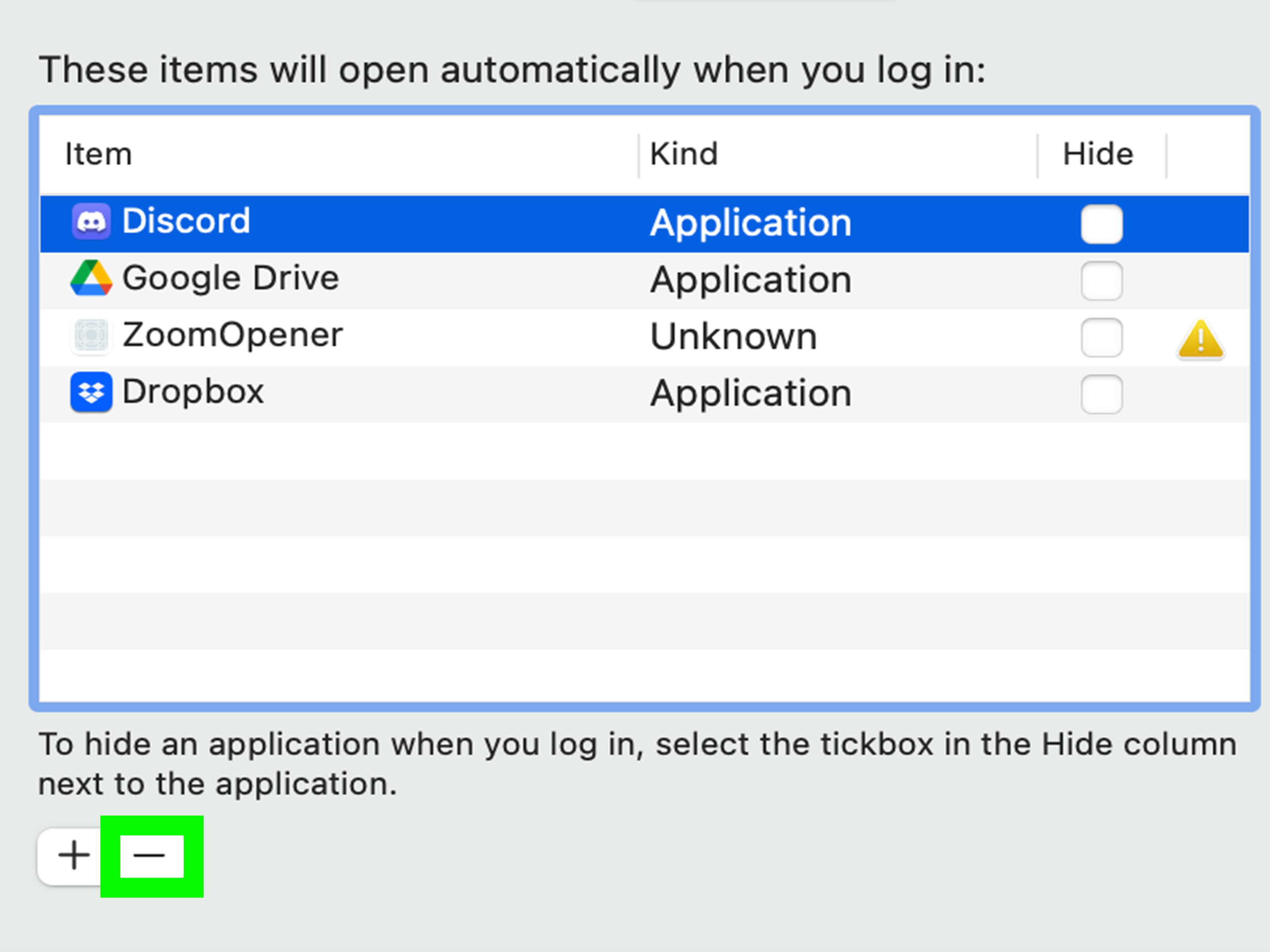
- Under Open at Login, find Discord.
- Select it and click the Remove button.
That should stop Discord from launching when you sign in. On most Macs, this is the only step you need. Once removed from Login Items, the app should stay put until you open it manually.
Here is a real-life example: maybe you use a MacBook for writing, class notes, or editing photos, and Discord is just there for occasional voice chat. Removing it from Login Items keeps your desktop from filling with app windows before you have even taken your first sip of coffee. A beautiful thing.
If Discord Still Reopens on a Mac
Sometimes the issue is not that Discord is in Login Items. Sometimes macOS is simply reopening apps and windows from your previous session. If that happens, check the restart or shutdown dialog and make sure Reopen windows when logging back in is not selected.
If you want to test whether startup items are the issue, macOS also lets you temporarily prevent items from opening by holding Shift while logging in. That is a useful troubleshooting trick when you want to see whether Discord is being launched by Login Items or by session restoration.
What to Do If Discord Still Opens at Startup
If you disabled the obvious setting and Discord still shows up like an uninvited brunch guest, work through the checklist below.
On Windows
- Check both Discord’s own Windows Settings and Task Manager > Startup apps.
- Restart your PC after changing the setting instead of just closing the app.
- Update Discord and Windows so you are not fighting an old bug.
- If the behavior keeps returning, uninstall and reinstall Discord, then disable startup again before moving on.
That last step sounds boring, but boring fixes are often the ones that work. Technology has a long, proud tradition of being dramatic for no reason.
On Mac
- Double-check System Settings > General > Login Items & Extensions.
- Restart your Mac and make sure Reopen windows when logging back in is unchecked.
- Try a login with the Shift key held down to temporarily suppress login items.
- If the app still returns, update Discord and macOS, then remove and reinstall Discord if needed.
The key point is this: if Discord still opens, the problem is usually not mysterious. It is almost always a startup permission, a restored session, or a stuck configuration that needs a reset.
Will Turning Off Discord Startup Affect Notifications?
Yes, but only in the most obvious way. If Discord is not running, it cannot show live desktop notifications. That is not a bug; that is how not-running works.
If you need instant alerts all day, keeping Discord at startup may make sense. But for many people, especially those who use Discord casually, manual launching is the better choice. You still get full access to everything when you open the app, just without the surprise appearance every time your computer boots.
A useful middle ground is this: disable startup, then pin Discord to your taskbar or dock. That way, it is one click away when you want it, but it is not helping itself to your startup routine like it pays rent.
Why This Small Change Can Make Your Computer Feel Better
Stopping one app from launching at startup will not magically turn an old laptop into a Formula 1 race car. But it can reduce clutter, save a bit of memory, and make sign-in feel less crowded. More importantly, it removes one more background distraction from the moment your desktop appears.
And startup habits add up. Discord alone may be fine. Discord plus Steam plus Slack plus Spotify plus cloud storage plus six “helpful” utilities? That is how computers end up needing a motivational speech just to reach the desktop.
Cleaning startup apps is one of those tiny maintenance tasks that feels unimpressive until you realize your system no longer launches a mini convention every time it turns on.
Common Mistakes People Make
1. Turning Off Notifications Instead of Startup
Notification settings control alerts, not launch behavior. If Discord is opening automatically, you need startup settings, not quieter pings.
2. Closing the App and Assuming It Is Fixed
Closing Discord now does not change what happens at the next login. Startup behavior has to be changed in Discord settings or your OS settings.
3. Forgetting There Are Separate System Controls
Windows and macOS both have their own startup management tools. Even if an app has an internal toggle, it is smart to check the operating system too.
4. Ignoring Session Restore on Mac
If Discord returns after a restart, it may be reopening because your last session is being restored, not because it is still an official login item.
Extra Experience Section: What This Feels Like in Real Life
A lot of people search for how to stop Discord from opening on startup after hitting the same mildly ridiculous moment: they turn on the computer to do one simple thing, and suddenly Discord appears before they have even opened a browser. Maybe they are about to join a class, start a work shift, or present something on screen. The last thing they need is a bright app window announcing that three servers are arguing about game balance and someone named “GoblinKing47” just posted a meme.
Students often run into this first. A laptop that is supposed to be for homework quietly turns into a notification machine because Discord launches at every sign-in. You open the computer to write a paper, and before the first sentence exists, your attention has already been mugged by a ping. Disabling startup does not make Discord disappear forever; it just puts the app back in its proper place, which is “available when needed,” not “bursting through the door every time the machine wakes up.”
Gamers have a slightly different experience. Many of them actually want Discord installed and ready, but not necessarily at every boot. Maybe they only play in the evening. Maybe they are troubleshooting performance on an older PC. Maybe they just got tired of seeing Discord, Steam, RGB software, launchers, overlays, and seventeen tiny helpers all pile on top of one another like a digital clown car. Turning Discord off at startup becomes part of a larger cleanup routine, and the result is often less visual clutter and a calmer boot sequence.
Mac users usually notice the problem in a quieter way. Instead of a big startup list, it feels like the app just keeps sneaking back. You remove Discord from Login Items, restart, and there it is again, smiling from the dock like it never got the memo. In many of those cases, the real culprit is session restore. Once people realize macOS can reopen windows from the last session, the mystery stops being spooky and starts being administrative. Not exciting, but very fixable.
There is also a work-from-home angle. Plenty of people use Discord for side projects, hobby groups, or private communities but do not want it launching on the same machine they use for meetings and spreadsheets. They want a startup routine that says “professional and focused,” not “someone just posted in #late-night-chaos.” Disabling auto-start is a simple boundary tool. Tiny setting, big emotional payoff.
The funny part is that this issue seems small until it happens every day. Then it becomes one of those pebbles in your shoe: not a catastrophe, just weirdly annoying. Fixing it usually takes less than two minutes, and once it is done, your computer feels a little more like yours again. That is why this topic keeps coming up. It is not only about speed. It is about control, routine, and not being greeted by Discord before you are emotionally prepared for the internet.
Conclusion
If Discord keeps opening on startup, the fix is straightforward once you know where to look. On Windows, disable Open Discord in the app or turn it off through Task Manager or Startup settings. On Mac, remove Discord from Login Items and make sure session restore is not reopening it.
You do not need to uninstall Discord, and you do not need to put up with it launching automatically forever. A couple of quick settings changes can make your computer start cleaner, calmer, and with significantly fewer surprise chat windows. That is a win for productivity, sanity, and anyone who prefers to choose when the chaos begins.