Note: This guide focuses on sharing an entire Google Calendar from an Android phone or tablet, not just inviting someone to one event. If you only need someone to attend a single meeting, add them as a guest to that event. If you want them to see your ongoing schedule, use one of the two methods below.
Sharing a Google Calendar on Android used to feel like trying to open a pickle jar with oven mitts on. You could view calendars, create events, accept invitations, and color-code your week into a tiny rainbow of responsibilitybut sharing the whole calendar often required a desktop browser. Thankfully, Google Calendar on Android has become much friendlier. Today, you can share a calendar directly from the Google Calendar app in many cases, and you can still use a mobile browser when you need advanced options like a public calendar link.
Whether you are coordinating soccer practice, managing a family calendar, publishing office hours, or helping your team avoid the dreaded “Can you do Tuesday? No? How about Thursday? Also no?” email chain, calendar sharing can save real time. The key is choosing the right sharing method and the right permission level. A shared calendar is convenient, but oversharing your schedule can reveal more than you intendeddoctor appointments, client names, travel plans, or that suspiciously recurring “busy” block every Friday at 3 p.m.
In this guide, you will learn two practical methods for sharing Google Calendar on Android: sharing with specific people from the Google Calendar app and sharing by link or public access through a browser. You will also learn what each permission level means, how to fix common problems, and how to avoid privacy mistakes.
Before You Share: Know What Kind of Access You Want to Give
Before tapping buttons like a caffeinated raccoon, pause for ten seconds and decide what the other person actually needs to see. Google Calendar sharing is not one-size-fits-all. You can let someone know only when you are busy, show full event details, allow them to edit events, or give them the power to manage sharing. That last option is powerful, so do not hand it out like free stickers.
The Main Google Calendar Permission Levels
See only free/busy is the safest option for many situations. The other person can see when you are unavailable, but they cannot see event names, locations, descriptions, or private details. This is great for coworkers, clients, study partners, and anyone who needs scheduling visibility without access to your life story.
See all event details lets the person view event titles, times, locations, and descriptions. Use this for family members, close collaborators, assistants, or teammates who genuinely need context. If you share a family calendar with “Dentist,” “Rent due,” and “Aunt Linda airport pickup,” this level makes sense.
Make changes to events allows the person to add, edit, and delete events on the shared calendar. This is useful for team calendars, household schedules, school clubs, volunteer groups, and shared project timelines. It is not ideal for your personal calendar unless you fully trust the person with your schedule.
Make changes and manage sharing gives the person the highest level of control. They can edit the calendar and manage who else has access. Use this only for co-owners, trusted administrators, or people who are officially responsible for maintaining the calendar.
Method 1: Share a Google Calendar from the Android App
The simplest method is to use the Google Calendar app on your Android phone. This is best when you want to share a calendar with specific people or groups by email address. It is also the cleanest option for private sharing because you can choose exactly who gets access.
When to Use This Method
Use the Android app method when you want to share your calendar with your spouse, roommate, coworker, assistant, family member, study group, or team. This method is also ideal when you do not want your calendar floating around the internet as a public link. In other words, if you know the people who need access, share directly with them.
Step-by-Step: Share with Specific People on Android
- Open the Google Calendar app on your Android phone or tablet.
- Tap the Menu icon in the top-left corner.
- Scroll down and tap Settings.
- Select the calendar you want to share. If you have several calendars, choose carefully. “Work,” “Family,” and “Personal Chaos” are not interchangeable.
- Find the Shared with section.
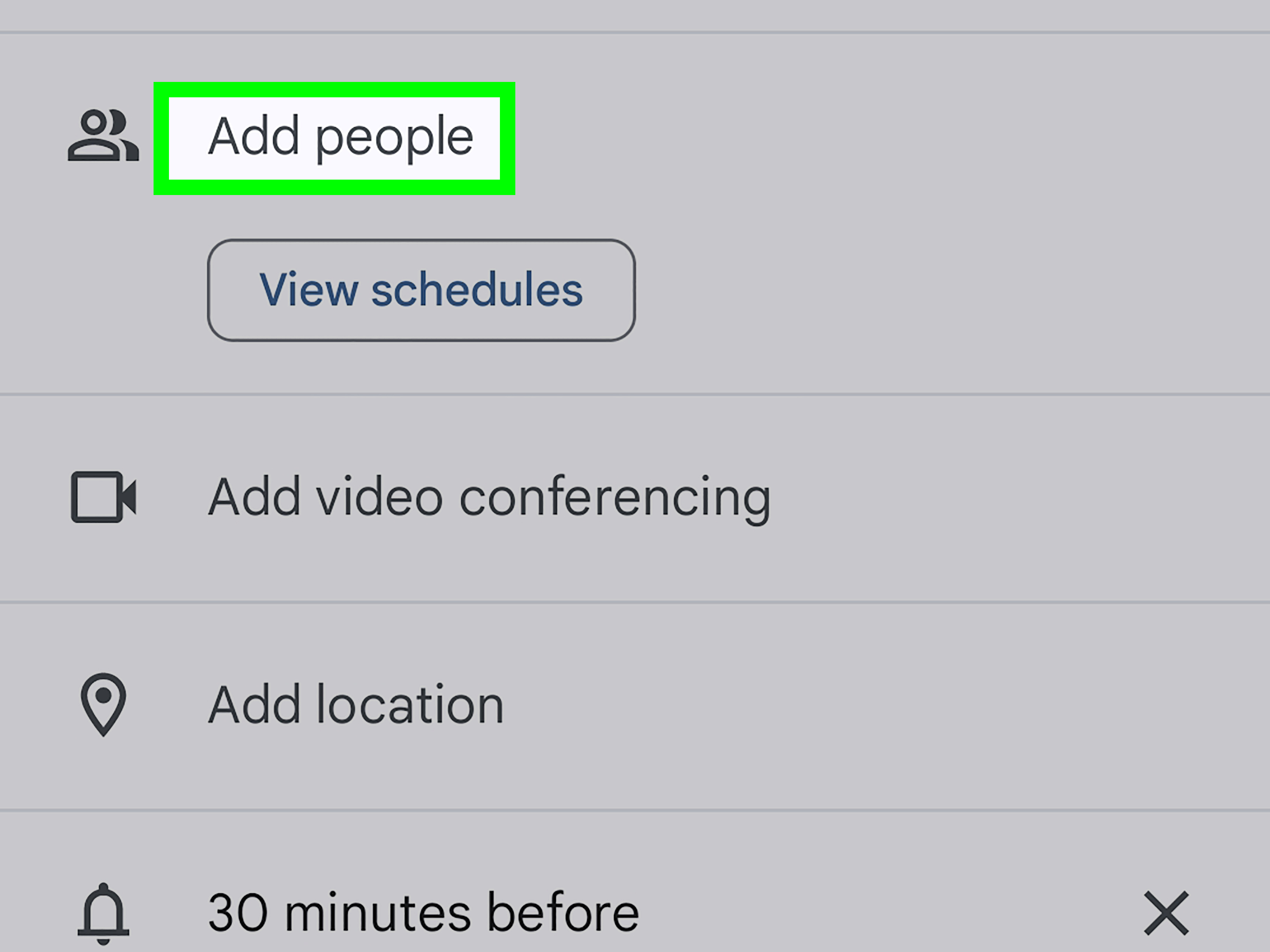
- Tap Add people or groups.
- Enter the email address, contact name, or Google Group you want to share with.
- Choose the permission level, such as See only free/busy or See all event details.
- Tap Save.
After you save the settings, Google sends the recipient an email invitation. The person must open that email and add the calendar to their own Google Calendar. If they never click the invitation, your calendar may not appear for them. This is one of the most common “it is shared but they cannot see it” problems.
Example: Sharing a Family Calendar
Imagine you created a calendar called “Family Schedule” for school events, grocery runs, soccer practice, doctor appointments, and weekend plans. You can share it with your partner and give them permission to make changes to events. You can share it with your teenager and choose “See all event details,” because they need to know when practice starts but do not necessarily need the power to delete the dentist appointment. Nice try, kid.
Example: Sharing a Work Availability Calendar
If you are sharing your personal work calendar with a client or contractor, “See only free/busy” is usually enough. They can tell when you are available without seeing internal meeting names, confidential client calls, or private appointments. This keeps scheduling smooth without turning your calendar into a documentary.
Method 2: Share a Google Calendar from an Android Browser
The second method uses a mobile browser like Chrome on Android. This is useful when you need sharing options that may be easier to manage from the full Google Calendar website, especially public access, shareable links, organization-wide settings, or detailed calendar integration options.
When to Use This Method
Use the browser method if you want to make a calendar public, copy a shareable calendar link, adjust access permissions for a work or school calendar, or manage settings that are easier to see on the full desktop version of Google Calendar. It is also a reliable backup if your Android app does not show the sharing option yet, your app is outdated, or your account settings are restricted.
Step-by-Step: Share Through Chrome on Android
- Open Chrome or another browser on your Android device.
- Go to calendar.google.com and sign in to the correct Google account.
- If the mobile version looks limited, open the browser menu and choose Desktop site.
- Find the My calendars section on the left side.
- Tap or hover near the calendar you want to share, then choose the three-dot menu.
- Select Settings and sharing.
- To share with specific people, go to Share with specific people or groups and add email addresses.
- To create broader access, go to Access permissions for events.
- Choose the appropriate visibility setting and permission level.
- Save or copy the link, depending on the option you select.
Using the desktop site on a phone can feel a little cramped, like trying to assemble furniture inside a closet. Zoom in, rotate your phone horizontally, and take your time. The browser method gives you more control, but the interface is not always as comfortable as the app.
How to Share a Public Google Calendar Link
If you want anyone with the link to view your calendar, you can make the calendar public. This is useful for community events, class schedules, church calendars, club meetings, public office hours, or business availability calendars. It is usually not a good idea for your main personal calendar.
- Open Google Calendar in your Android browser.
- Use Desktop site if needed.
- Go to Settings and sharing for the calendar.
- Open Access permissions for events.
- Check Make available to public.
- Choose whether people can see only free/busy information or all event details.
- Copy the shareable link and send it where needed.
Public sharing is powerful, but it deserves caution. If you choose “See all event details,” people may be able to view event names, locations, descriptions, and other information. For a public calendar, “See only free/busy” or a separate calendar created specifically for public events is often safer.
App Sharing vs. Browser Sharing: Which Method Is Better?
The Android app is better for quick, private sharing with specific people. It is clean, direct, and less likely to accidentally make your calendar public. If you are sharing with your spouse, assistant, friend, or coworker, start with the app.
The browser method is better for advanced sharing. If you need a public link, organization-wide settings, embed options, or more complete calendar controls, use Chrome and the desktop version of Google Calendar. It is not always elegant on a small screen, but it gets the job done.
For most users, the best answer is simple: use Method 1 for people you know and Method 2 for broader sharing or public calendars.
Important Privacy Tips Before Sharing Your Calendar
Do Not Publicly Share Your Main Personal Calendar
Your main calendar may contain more sensitive information than you realize. Event titles can reveal medical visits, business relationships, travel plans, personal routines, school schedules, or private reminders. If you need a public calendar, create a separate calendar just for public events.
Use Free/Busy for Professional Scheduling
When in doubt, choose “See only free/busy.” It gives people enough information to schedule around you without exposing details. This is especially helpful for work, consulting, tutoring, coaching, and client-facing appointments.
Mark Sensitive Events as Private
If your calendar is shared with people who can see event details, you can still mark individual events as private. This helps hide details for appointments that should not be widely visible. It is a good habit if you use one calendar for both work and personal life.
Review Shared Access Regularly
Every few months, check who has access to your calendars. Remove former coworkers, old roommates, past volunteers, inactive contractors, and anyone else who no longer needs visibility. Calendar access is easy to forget because it does not make noise. It just sits there quietly, like a digital houseplant with admin permissions.
How to Stop Sharing a Google Calendar on Android
If you shared your calendar with the wrong person or no longer want someone to have access, you can remove them. In the Android app, open Google Calendar, go to Menu, tap Settings, choose the calendar, then look under Shared with. Remove the person or group you no longer want to include.
In a browser, open Google Calendar, go to Settings and sharing, and remove people under the sharing section. If the calendar is public, turn off Make available to public. Remember that changes may not always appear instantly for everyone, so give it a little time to update.
Common Problems and Quick Fixes
The Person Cannot See the Calendar
Ask them to check their email invitation, including spam or trash folders. They may need to click the link in the email before the calendar appears. Also confirm that you used the correct email address. One missing letter can send your calendar invitation into the void, where it will probably attend meetings with all the lost socks.
The Sharing Option Is Missing
Update the Google Calendar app from the Google Play Store. If the option still does not appear, use the browser method. For work or school accounts, your administrator may restrict sharing, especially outside the organization.
The Wrong Calendar Was Shared
Open settings and check the calendar name. Many people have several calendars under one account, such as personal, birthdays, holidays, family, work, and subscribed calendars. Make sure you shared the calendar you actually intended to share.
Shared Events Are Showing Too Much Detail
Lower the permission level to “See only free/busy” or mark sensitive events as private. If the calendar is public with full event details, change the public permission or turn public sharing off completely.
A Work Calendar Will Not Share Externally
If you use Google Calendar through a company or school, the administrator can limit external sharing. You may not be able to override that setting yourself. In that case, contact your IT department or Google Workspace administrator.
Best Practices for Sharing Google Calendar on Android
Create separate calendars for different purposes. A family calendar, work availability calendar, public events calendar, and personal calendar should not all be the same calendar. Separation makes sharing safer and easier to manage.
Use clear event titles. “Meeting” is technically a title, but it is not very helpful. “Budget review with Alex” or “School pickup” gives shared users better context. For public calendars, keep titles professional and avoid personal details.
Choose the lowest permission that still solves the problem. If someone only needs to know when you are free, do not give them editing access. If someone only needs to view a public class schedule, do not share your personal calendar.
Explain what the calendar is for. When you share it, send a quick message: “I shared the family calendar so we can track school events and appointments. Please add schedule changes there.” A little context prevents confusion later.
Experience-Based Tips: What Sharing a Google Calendar on Android Is Really Like
In real life, the hardest part of sharing a Google Calendar on Android is rarely the tapping. The real challenge is deciding how much access is appropriate. Most people start by thinking, “I just want them to see my calendar,” but that sentence hides several different needs. Do they need to see when you are busy? Do they need event details? Do they need to add appointments? Do they need to manage the calendar for everyone? The answer changes the permission level.
One useful habit is to create a dedicated shared calendar instead of sharing your main calendar. For example, a household calendar can include school holidays, vet appointments, repair visits, bill due dates, and family plans. Your private calendar can still hold personal reminders, medical appointments, and work blocks. This setup keeps everyone organized without turning your entire life into a shared spreadsheet with feelings.
For work, a separate availability calendar can be even better. Consultants, freelancers, tutors, and small business owners often need to show when they are available without exposing client names or internal meetings. A free/busy view works well here. It tells people when not to schedule you, which is often all they need. Think of it as a polite digital “occupied” sign.
Another experience-based tip: do not assume the recipient knows what happened after you shared the calendar. Some people expect the calendar to magically appear. Others miss the email invitation. A quick follow-up helps: “I just shared the calendar with you. Please open the email from Google Calendar and add it.” That one sentence can save ten minutes of troubleshooting and three dramatic sighs.
Public calendar links are helpful, but they should be used with intention. They are excellent for community events, business workshops, school club schedules, religious services, public classes, and open office hours. They are not ideal for personal routines or private work calendars. If you need a public calendar, build one specifically for public viewing. Keep event descriptions short, useful, and free of private information.
It also helps to review shared access after life changes. Changed jobs? Remove old colleagues. Finished a volunteer project? Remove the group. Moved out of a shared apartment? Remove the former roommate unless you still want them to know when “buy trash bags” is happening. Calendar sharing is convenient precisely because it is quiet, but that quietness makes it easy to forget.
Finally, keep the Google Calendar app updated. Android features roll out over time, and older versions may not show the same sharing controls. If the app path does not match what you see, the browser method is your dependable backup. It may not be glamorous, but it worksand in calendar management, “works” beats “beautiful but missing the button” every time.
Conclusion
Sharing a Google Calendar on Android is now much easier than it used to be. For private sharing, open the Google Calendar app, go to the calendar settings, add people or groups, and choose the right permission level. For public links or advanced settings, use Google Calendar in an Android browser and switch to the desktop site if needed.
The smartest approach is to share the least amount of information necessary. Use free/busy for simple scheduling, full details for trusted collaborators, editing access for true calendar partners, and public links only for calendars designed to be public. With the right setup, your Android phone can become a tiny command center for family plans, team schedules, school events, and work availabilityminus the endless “What time works for you?” messages.