Removing a Microsoft account from Windows 11 sounds simple until Windows starts acting like a clingy roommate: “Are you sure you want to leave? What about OneDrive? What about your PIN? What about all the memories?” Relax. Whether you want to switch to a local account, remove someone else’s Microsoft account from your PC, disconnect a work or school account, or prepare a laptop for resale, this guide walks you through the safest and cleanest ways to do it.
The important thing is knowing what “remove” means. Removing a Microsoft account from Windows 11 does not automatically delete the online Microsoft account itself. In most cases, you are simply removing its connection to this device. Your Outlook email, OneDrive cloud files, Xbox profile, Microsoft Store purchases, and Microsoft 365 subscription can still exist online. Think of it as taking the house key back, not demolishing the house.
Before You Remove a Microsoft Account from Windows 11
Before you click anything dramatic, take a few minutes to prepare. Windows accounts often connect more than just a sign-in screen. They can be tied to OneDrive folder backup, Windows Hello PINs, Microsoft Store apps, synced settings, Edge profiles, email accounts, and device recovery options.
Check Whether You Are Removing the Current Account or Another User
If the Microsoft account is the one you currently use to sign in, the usual goal is to switch from a Microsoft account to a local account. This keeps your Windows profile but changes how you sign in. Your desktop, installed apps, and local files usually remain in place.
If the Microsoft account belongs to another person, such as an old family member profile, a former employee, or a roommate who left behind more digital fingerprints than coffee mugs, you can remove that user account from Settings > Accounts > Other users. Be careful: removing a user account can delete that person’s local files from the PC.
Make Sure You Have an Administrator Account
Windows 11 needs at least one administrator account to manage system settings, install software, remove users, and approve security prompts. If you remove the only administrator account, you can lock yourself out of important controls. Before deleting any account, create or confirm another administrator account.
To check, open Settings > Accounts > Other users. Select the account you plan to keep, choose Change account type, and make sure it is set to Administrator. If it says Standard User, upgrade it before removing the old Microsoft account.
Method 1: Switch Your Current Microsoft Account to a Local Account
This is the best method if you want to keep using the same Windows profile but stop signing in with a Microsoft account. Your PC will use a local username and password instead of your Microsoft email address.
Steps to Switch to a Local Account
- Press Windows + I to open Settings.
- Select Accounts.
- Choose Your info.
- Under account settings, select Sign in with a local account instead.
- Confirm your identity if Windows asks for your Microsoft account password or PIN.
- Create a local username, password, and password hint.
- Select Next, then choose Sign out and finish.
- Sign back in with the new local account credentials.
After this change, your Windows sign-in is local. You may still be signed in to Microsoft apps such as OneDrive, Outlook, Edge, or Microsoft Store separately. That is normal. Windows account sign-in and app sign-in are related, but they are not the same thing.
What Changes After Switching to a Local Account?
You gain more separation from Microsoft cloud services on that device. Your desktop no longer requires the Microsoft account for Windows sign-in. However, you may lose automatic syncing for some Windows settings, themes, saved preferences, and certain Microsoft services. OneDrive may continue syncing if it remains signed in, so check it separately if your goal is privacy or cleanup.
Also remember your new local password. Microsoft cannot reset a local account password the same way it can help with an online Microsoft account. A local account is a bit like a spare key hidden in a very clever place: useful, private, and deeply annoying if you forget where it is.
Method 2: Remove Another Microsoft Account from Windows 11
If the Microsoft account belongs to a different user profile, remove it from the Other users section. This is common when a computer has multiple profiles, an old employee account, a child account, or a previous owner’s login.
Steps to Remove Another User Account
- Sign in with an administrator account that you want to keep.
- Open Settings.
- Go to Accounts > Other users.
- Find the Microsoft account you want to remove.
- Select the account’s drop-down menu or options button.
- Choose Remove.
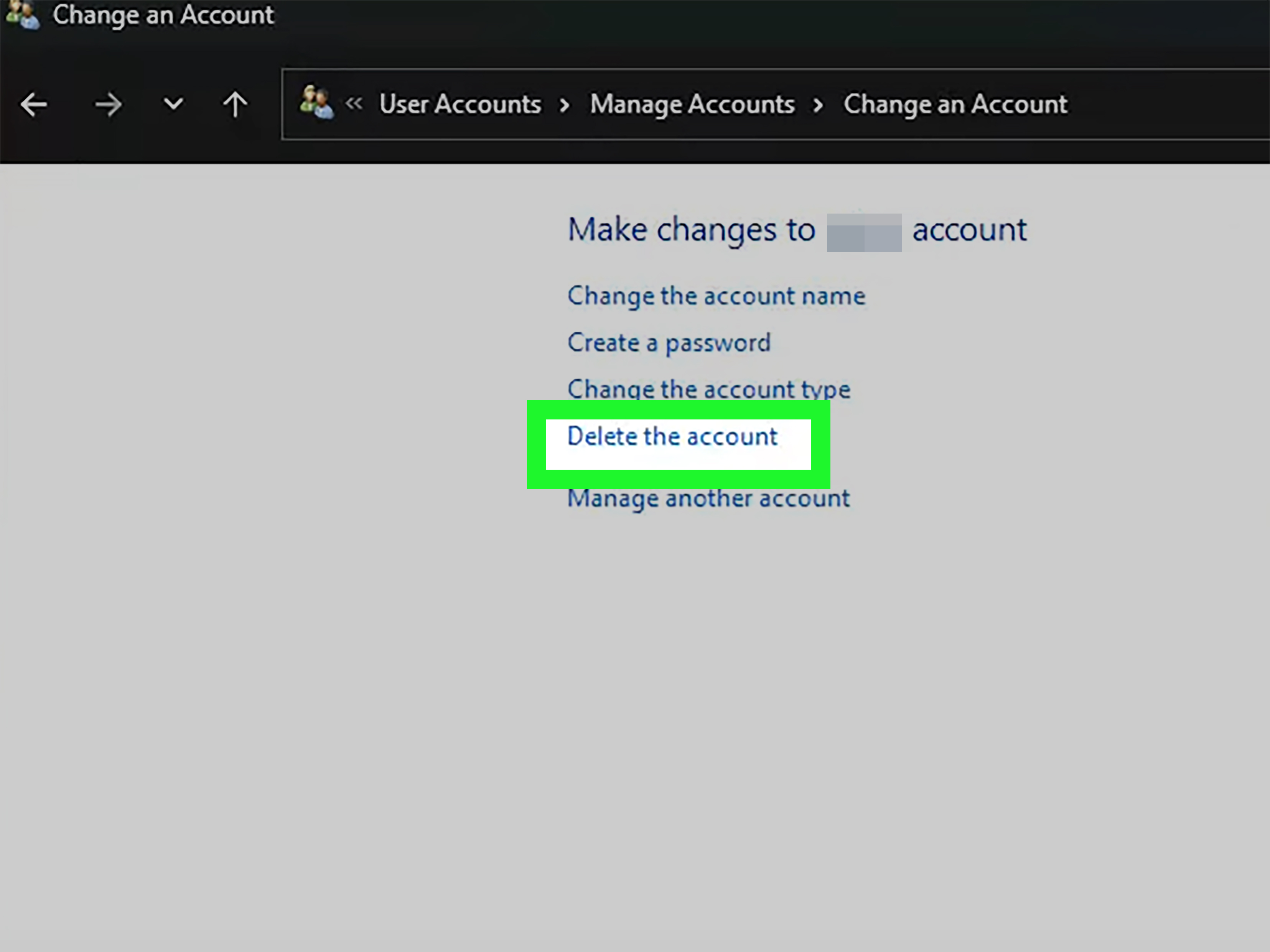
- When prompted, select Delete account and data if you are certain the files are no longer needed.
This removes the sign-in profile from the PC. It does not delete the person’s Microsoft account online. Their cloud email, OneDrive, Microsoft Rewards, Xbox profile, and subscriptions are still connected to their Microsoft account unless they manage or close that account separately.
Back Up the User Folder First
Before removing another user, check C:\Users for that person’s profile folder. If there are documents, downloads, photos, or desktop files that need to be saved, copy them to an external drive or another safe location. Windows is not sentimental when you confirm deletion. It will not pause and say, “But what about vacation_photo_final_FINAL2.jpg?”
Method 3: Remove a Microsoft Account Used by Apps
Sometimes a Microsoft account is not your Windows sign-in account. It may only be connected to Mail, Calendar, Microsoft Store, Edge, Office, or other apps. In that case, removing the Windows user profile is unnecessary. You only need to remove the app-level account.
Steps to Remove an App Account
- Open Settings.
- Go to Accounts.
- Select Email & accounts.
- Look under accounts used by email, calendar, contacts, or other apps.
- Select the Microsoft account you want to remove.
- Choose Manage or Remove, depending on what Windows displays.
- Confirm the removal.
This is useful when you see an old email address appearing in Microsoft Store, Outlook, widgets, Edge, or account pickers. Removing it from this section can reduce sign-in confusion, especially on shared PCs.
Method 4: Disconnect a Work or School Microsoft Account
Work and school accounts are different from personal Microsoft accounts. They are often connected to an organization’s Microsoft 365, Entra ID, device management, security policies, VPN settings, or business apps. If your PC was connected to a company or school, remove that account from the Access work or school area.
Steps to Disconnect a Work or School Account
- Open Settings.
- Select Accounts.
- Choose Access work or school.
- Select the work or school account.
- Click Disconnect.
- Confirm by choosing Yes.
If the device is managed by an organization, you may not be able to disconnect the account without administrator permission. In that case, contact the company or school IT department. Managed devices can include policies that control encryption, password rules, app installation, and remote wipe features.
Method 5: Unlink OneDrive from the Microsoft Account
Switching to a local account does not automatically stop OneDrive. If OneDrive is still signed in, it may continue syncing Desktop, Documents, Pictures, and other folders. For many people, this is the sneaky part. They remove the Microsoft account from Windows, then wonder why files are still marching into the cloud like tiny synchronized soldiers.
Steps to Unlink OneDrive
- Select the OneDrive cloud icon in the taskbar notification area.
- Click the Help & Settings gear icon.
- Select Settings.
- Go to the Account tab.
- Select Unlink this PC.
- Choose Unlink account to confirm.
After unlinking, cloud-only files may not be available offline unless they were downloaded to the PC. Open important folders before unlinking and confirm the files you need are actually stored locally. A small cloud icon beside a file usually means it may be online-only.
Method 6: Remove the PC from Your Microsoft Account Devices List
If you are selling, gifting, recycling, or retiring a Windows 11 PC, remove it from your Microsoft account devices list. This does not erase the computer by itself, but it helps clean up your online account dashboard and disconnects the device from your account record.
Steps to Remove the Device Online
- Go to your Microsoft account devices page in a web browser.
- Sign in with your Microsoft account.
- Find the Windows 11 PC you no longer use.
- Select Remove device or Unlink, depending on the device type and page section.
- Check the confirmation box and complete the removal.
This is especially helpful if you have owned several PCs over the years. Otherwise, your devices page can start looking like a museum exhibit titled “Laptops I Swore I Would Fix Someday.”
Method 7: Reset Windows 11 Before Selling or Giving Away the PC
If your goal is to remove your Microsoft account because someone else will own the PC, do not stop at account removal. Reset the device. A reset can remove your files, apps, settings, and account traces more thoroughly than simply deleting a user profile.
Steps to Reset Windows 11
- Back up anything you want to keep.
- Open Settings.
- Go to System > Recovery.
- Next to Reset this PC, select Reset PC.
- Choose Remove everything if the PC is leaving your possession.
- Follow the on-screen instructions.
For a personal reset, Keep my files may be enough. For resale, donation, or gifting, Remove everything is the safer choice. If Windows offers an option to clean the drive, use it when you want stronger protection against file recovery. It takes longer, but so does explaining to a stranger why your tax folder is still on the laptop.
Why You Might Not See “Sign in with a Local Account Instead”
Some users open Settings and cannot find the local account option. There are several possible reasons. You may already be using a local account. The PC may be managed by a workplace or school. The account may be restricted by family safety settings. Windows may also show different wording depending on version, edition, updates, and device configuration.
If the device is organization-managed, check Settings > Accounts > Access work or school. If a company or school account is connected, the organization may control some sign-in options. If the PC belongs to you personally, disconnect the work or school account only after confirming you no longer need access to business resources.
Microsoft Account vs. Local Account: Which Should You Use?
A Microsoft account is convenient. It can sync settings, connect OneDrive, simplify Microsoft Store downloads, help recover access, and integrate with Microsoft 365, Xbox, Edge, and Windows Backup. For many people, it is the smoothest option.
A local account is simpler and more private on the device. It does not require an online identity for Windows sign-in, and it gives you a cleaner separation from cloud services. It is a good choice for offline PCs, shared household computers, lab machines, privacy-focused users, and anyone who prefers fewer connected services.
The best choice depends on how you use your PC. If you rely on OneDrive and Microsoft 365 every day, a Microsoft account can save time. If you mainly use local files, third-party apps, or a work login, a local account may feel cleaner.
Troubleshooting Common Problems
Problem: Windows Asks for a Password You Forgot
If you are switching from a Microsoft account, Windows may ask you to verify your identity. Make sure you know your Microsoft account password, not just your Windows Hello PIN. A PIN unlocks the device, but your Microsoft password proves account ownership.
Problem: OneDrive Files Disappear After Unlinking
They may not be gone; they may be online. Sign in to OneDrive through a browser and check your cloud folders. Before unlinking in the future, right-click important folders and choose an option that keeps files on the device, if available.
Problem: You Cannot Remove an Account Because It Is the Only Administrator
Create another administrator account first. Go to Settings > Accounts > Other users, add a new user, then change that user’s account type to Administrator. Sign in to the new admin account and remove the old one from there.
Problem: A Work or School Account Keeps Coming Back
Your PC may be enrolled in device management. Disconnect from Access work or school, then check whether any organization apps or VPN tools re-add the account. If it is a company-owned device, contact IT instead of forcing changes.
Best Practices for a Clean Account Removal
For the cleanest result, handle account removal in layers. First, switch the Windows sign-in account to local if needed. Second, remove app-level Microsoft accounts from Email & accounts. Third, unlink OneDrive. Fourth, disconnect work or school accounts. Fifth, remove the PC from your online Microsoft devices list if you no longer own it.
This layered approach prevents half-removed setups. A half-removed account is like unplugging a toaster but leaving the bread inside: technically less risky, still not ideal.
Real-World Experience: What Usually Happens When Removing a Microsoft Account from Windows 11
In real use, removing a Microsoft account from Windows 11 is usually less dramatic than people expect. The biggest surprise is that there is not just one “Microsoft account” connection. There is the Windows sign-in account, the OneDrive account, the Microsoft Store account, the Edge profile, the Office account, the Mail or Outlook account, and sometimes a work or school account sitting in the background like it pays rent.
A common experience goes like this: someone buys a new laptop, signs in with a Microsoft account during setup because Windows strongly encourages it, then later realizes their Desktop and Documents folders are syncing to OneDrive. They switch to a local account and expect everything Microsoft-related to vanish. But OneDrive is still signed in. Edge may still show the same profile. Office may still activate through the subscription. That is not a bug; it is just how Microsoft separates Windows identity from app identity.
Another common situation happens with shared family PCs. A parent creates a Microsoft account profile for a child, then later wants to remove it. The safe move is to sign in as an administrator, check the child’s user folder, copy any school files or photos, and then remove the account from Other users. Skipping the backup step is where regret enters the chat wearing muddy shoes.
On work laptops, the experience can be different. A user may try to disconnect a business account and find that the button is missing, grayed out, or followed by scary management messages. That often means the PC is joined to an organization or controlled by device management policies. In that case, the account is not just an email login. It may be part of security compliance, encryption, app deployment, and access control. Forcing removal can break access to company resources, so IT should handle it.
For resale, the best experience is usually a full reset. Removing your Microsoft account from the sign-in screen is not enough if your browser history, downloads, cached files, Wi-Fi profiles, and app data remain behind. A reset with Remove everything is the cleaner route. Afterward, remove the device from your Microsoft account online. That two-step cleanup feels boring, but boring is exactly what you want when protecting personal data.
The most practical tip is to write down what you are trying to accomplish before starting. Do you want privacy on your current PC? Switch to a local account and unlink OneDrive. Do you want to remove another person? Create a backup and delete that user profile. Do you want to hand off the device? Reset it. Choosing the right goal prevents unnecessary clicks, and unnecessary clicks are how computers develop trust issues.
Conclusion
Learning how to remove a Microsoft account from Windows 11 is mostly about choosing the right kind of removal. If you still want to use the same PC profile, switch to a local account. If you want to remove another person, delete that user from Other users after backing up needed files. If the account belongs to work or school, disconnect it from Access work or school only when appropriate. If OneDrive is involved, unlink it separately. And if the PC is leaving your hands, reset Windows 11 and remove the device from your online Microsoft account.
The process is not difficult, but it rewards patience. Back up first, keep an administrator account, confirm what is local versus cloud-based, and do not assume one setting controls everything. Windows 11 may love Microsoft accounts, but with the right steps, you can still keep your PC tidy, private, and under your control.