Gmail labels are one of those features that look simple until your inbox turns into a digital junk drawer with 48 “important” categories, three versions of “Receipts,” and one mysterious label named “Stuff 2019.” The good news: Gmail labels are far more flexible than traditional folders. The slightly confusing news: “moving labels” in Gmail can mean several different things. You might want to move an email from one label to another, rename a label, nest a label under a parent label, hide labels from the sidebar, color-code them, or rebuild your entire label system so your inbox stops looking like a raccoon organized it during a thunderstorm.
This guide walks through how to move labels in Gmail, how to rename and organize them, how to use nested labels, how labels differ from folders, and how to build a practical Gmail organization system that works on desktop and mobile. Whether you use Gmail for school, work, freelancing, family admin, shopping, travel, or all of the above, a clean label structure can save time, reduce stress, and make old emails easier to find.
What Gmail Labels Actually Are
Before moving anything around, it helps to understand what Gmail labels are. In many email apps, a message lives inside one folder. Move it from “Inbox” to “Receipts,” and it leaves the inbox folder. Gmail works differently. Labels are more like tags than physical folders. A single email can have multiple labels at the same time, such as “Client,” “Invoices,” and “Taxes.” That is powerful because one message can appear in several useful places without needing duplicate copies.
For example, imagine you receive a hotel confirmation for a business trip. In a folder-based system, you might have to choose between “Travel,” “Receipts,” or “Work.” In Gmail, you can apply all three labels. Later, when tax season arrives, you can find it under “Receipts.” When planning the trip, you can find it under “Travel.” When checking project expenses, you can find it under “Work.” Gmail labels make email organization less like filing papers in one cabinet and more like adding smart sticky notes.
How to Move an Email From One Label to Another in Gmail
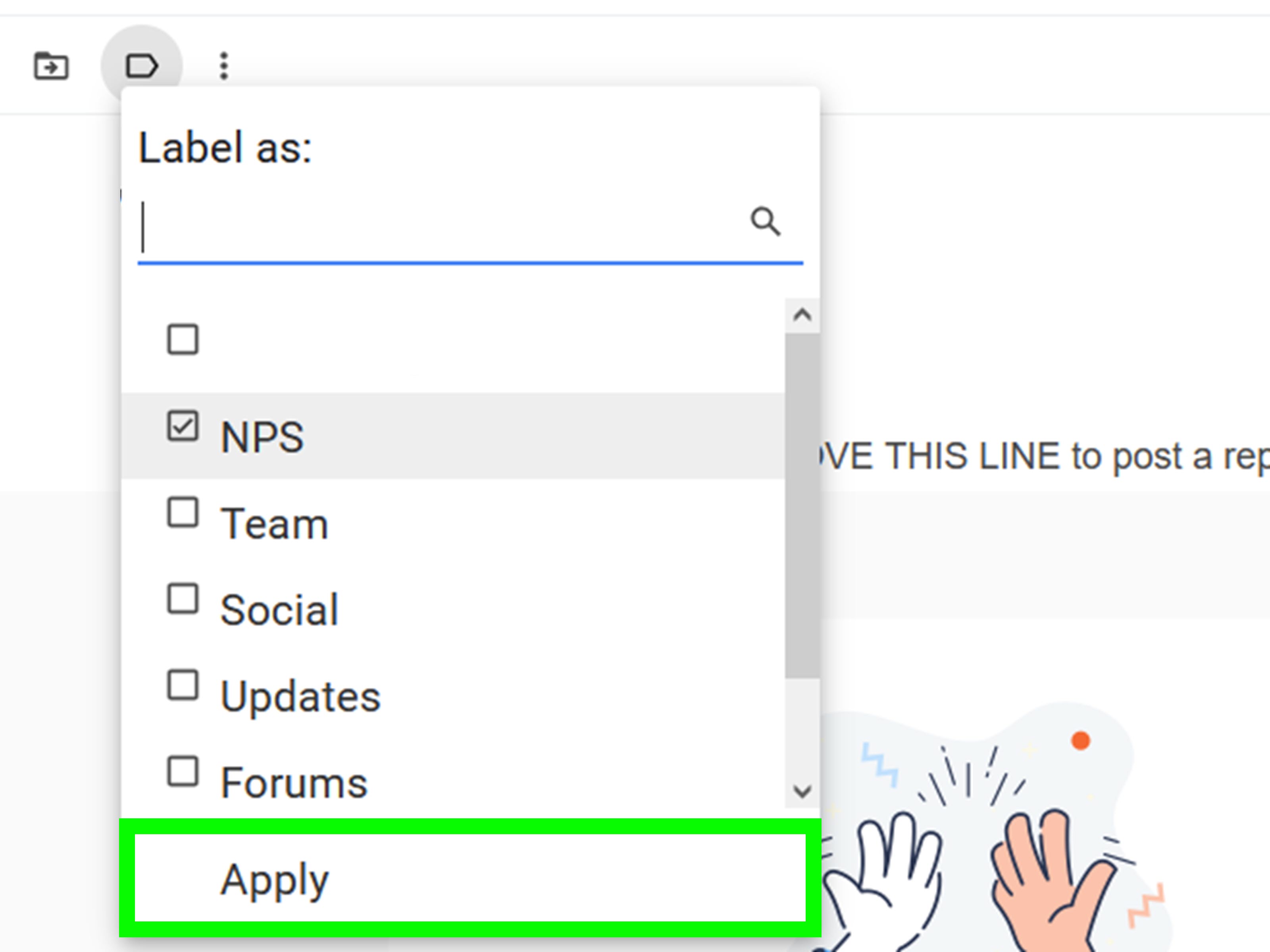
When most people ask how to move labels in Gmail, they actually mean how to move an email from one label to another. On desktop, open Gmail and select the email or conversation you want to organize. Click the label icon near the top toolbar. From there, uncheck the old label and check the new label. This removes the message from one label view and places it under another.
If you use the “Move to” button instead, Gmail behaves a little more like a traditional folder system. Choosing “Move to” usually removes the Inbox label and applies the destination label. This is useful when you want a message out of your inbox but still easy to find later. For instance, if a newsletter is useful but not urgent, move it to a “Read Later” label. Your inbox becomes calmer, and the message does not vanish into the email Bermuda Triangle.
Example: Moving Receipts Into a Finance Label
Let’s say your inbox contains several online shopping receipts. Select those messages, click the label icon, uncheck any incorrect labels, and apply a label named “Finance/Receipts.” If you want them out of the inbox, click “Archive” after labeling them. They will disappear from the main inbox but remain searchable under the label and in All Mail. This is one of the best Gmail organization habits: label first, archive second.
How to Rename a Label in Gmail
Renaming Gmail labels is helpful when your naming system has become messy. Maybe “Work Stuff” needs to become “Work,” or “Bills 2023” should become “Bills & Payments.” On desktop Gmail, look at the left sidebar, hover over the label name, click the three-dot menu, and choose the edit option. Enter the new name and save it.
Renaming a label does not delete the emails inside it. It simply changes the label name attached to those messages. That means you can safely clean up confusing names without losing anything. However, if you use filters that apply labels automatically, check those filters after renaming. Gmail usually keeps the label association, but it is still smart to review filters if your inbox organization depends on automation.
How to Nest Labels Under Other Labels
Nested labels are Gmail’s version of folders inside folders. For example, you can create a parent label named “Finance” and then nest labels under it such as “Taxes,” “Invoices,” “Receipts,” and “Banking.” In the sidebar, they appear as a structured group, which keeps your label list from stretching down the screen like a CVS receipt.
To create a nested label on desktop, open Gmail, go to the left sidebar, click “More” if needed, and choose “Create new label.” Enter the label name, then select the option to nest it under an existing label. You can also edit an existing label and place it under another label. This is the closest Gmail gets to traditional folder hierarchy, while still keeping the flexibility of labels.
Best Uses for Nested Labels
Nested labels work best for categories with clear subcategories. Good examples include “Clients > Client Name,” “School > Math,” “Travel > Flight Confirmations,” or “Home > Utilities.” Avoid nesting too deeply. If your Gmail label path looks like “Work > Projects > 2026 > Q2 > Client > Documents > Urgent > Maybe,” you have not organized your inbox; you have built a tiny bureaucratic maze.
Can You Drag and Drop Labels in Gmail?
Gmail lets you drag emails into labels in some desktop situations, but it does not provide a simple drag-and-drop method for manually rearranging the order of labels in the sidebar. Labels generally appear alphabetically, with system labels and visible labels controlled through settings. If you want certain labels to appear higher, use clear naming conventions such as numbers or prefixes.
For example, you might name your most important labels “01 Action,” “02 Waiting,” and “03 Receipts.” This is not glamorous, but neither is searching for a car insurance email at 11:47 p.m. when the renewal deadline is tomorrow. Prefixes make important labels easy to spot and reduce scrolling.
How to Show, Hide, or Remove Labels From the Gmail Sidebar
Moving labels is not only about changing where emails go. Sometimes it is about cleaning the sidebar so your eyes do not have to fight a battle every time you open Gmail. On desktop, click the gear icon, choose “See all settings,” and open the “Labels” tab. From there, you can show or hide labels in the label list and message list.
Hiding a label does not delete it. It only removes it from prominent view. This is useful for labels you need occasionally but not daily, such as “Old Projects,” “Warranty Info,” or “Archived Newsletters.” Deleting a label, on the other hand, removes the label itself from messages. The emails are not automatically deleted, but the organizational tag disappears. Before deleting a label, make sure you no longer need that grouping.
How to Change Gmail Label Colors
Color-coding labels can make Gmail faster to scan. On desktop, hover over a label in the left sidebar, click the three-dot menu, choose label color, and select a color. You can use built-in colors or create a custom color combination. A simple color system can help you spot urgent messages, finance-related emails, school messages, client work, or personal reminders.
However, do not turn your inbox into a birthday cake. Too many colors can become visual noise. A practical system might use red for urgent, blue for work, green for money, purple for personal projects, and gray for archives. The goal is quick recognition, not interior design awards.
How to Automatically Move Emails to Labels With Filters
Manual labeling works, but filters are where Gmail organization becomes truly useful. Filters can automatically apply labels based on sender, subject line, keywords, recipients, attachments, or other search criteria. For example, you can create a filter that labels all emails from your bank as “Finance,” all school updates as “School,” or all order confirmations as “Receipts.”
To create a filter on desktop, click the search options icon in the Gmail search bar. Enter your criteria, such as a sender email address or keyword, then choose “Create filter.” Select “Apply the label,” choose the label, and decide whether to apply the filter to matching existing conversations. You can also tell Gmail to skip the inbox, mark as read, star, forward, or delete matching messages.
Example: Auto-Labeling Newsletters
If newsletters crowd your inbox, create a label called “Newsletters.” Then make filters for common newsletter senders or use keywords like “unsubscribe.” Apply the “Newsletters” label and choose “Skip the Inbox” if you prefer reading them later. This turns your inbox from a shouting match into a calmer workspace.
How to Move Labels in Gmail on Android
On Android, you can add labels, move messages, and use label actions from the Gmail app. Open the Gmail app, touch and hold one or more messages, tap the three-dot menu, and choose “Label as” to apply labels. To move a message to another label, select the message, tap the three-dot menu, choose “Move to,” and pick the destination label.
Mobile Gmail is convenient for quick cleanup, but major label restructuring is usually easier on desktop. If you plan to rename labels, nest many labels, adjust visibility, or rebuild your system, use a computer. Your thumbs deserve a peaceful life.
How to Move Labels in Gmail on iPhone or iPad
On iPhone and iPad, Gmail lets you change labels from the app. Open Gmail, touch and hold a message, tap the three-dot menu, and choose the label option. You can check new labels and uncheck old labels, then save the change. The Gmail app also supports swipe actions, so you can customize swipes to move messages faster.
As with Android, mobile works best for daily maintenance. For deeper organization, desktop Gmail gives you more control and a larger screen. Think of mobile as the quick broom and desktop as the full garage-cleaning weekend.
Labels vs. Folders: Why Gmail Feels Different
The biggest Gmail confusion comes from the difference between labels and folders. In a traditional folder system, moving an email usually means placing it in one folder and removing it from another. In Gmail, an email can carry multiple labels at once. The Inbox itself is also a label. When you archive a message, Gmail removes the Inbox label but keeps the email in All Mail and under any custom labels you applied.
This is why an email can appear under “Inbox,” “Work,” and “Invoices” at the same time. It is not duplicated. It is one email with several labels. Once you understand this, Gmail becomes much less mysterious. The “Move to” button changes label behavior in a folder-like way, while the label icon gives you more precise tag control.
Smart Gmail Label Organization Ideas
A good Gmail label system should be simple enough that you actually use it. Start with broad categories, then add nested labels only where they solve a real problem. A useful structure might include “Action,” “Waiting,” “Finance,” “Work,” “Personal,” “Travel,” “Receipts,” and “Archive.” If you manage clients, create one parent label called “Clients” and nest client names underneath it.
For productivity, consider labels based on action rather than topic. “Reply Today,” “Waiting for Response,” and “Read Later” can be more useful than vague labels like “Important.” Everything feels important when you are tired, caffeinated, and avoiding a message that starts with “Just following up.”
A Practical Label System for Everyday Gmail Users
Try this simple setup:
- 01 Action: Emails that require a reply or task.
- 02 Waiting: Messages where someone else needs to respond.
- Finance: Bills, receipts, banking, tax documents, and invoices.
- Work: Job, client, team, or project-related messages.
- Personal: Family, appointments, hobbies, and personal admin.
- Read Later: Newsletters, articles, and non-urgent updates.
- Archive: Old but potentially useful conversations.
This system keeps the label list short while covering most daily needs. If one category grows too large, add nested labels later. Do not create 37 labels on day one. That is not organization; that is procrastination wearing a productivity hat.
Common Mistakes When Moving Labels in Gmail
The first mistake is deleting labels too quickly. Remember, deleting a label removes the tag from messages, even though the emails remain in Gmail. If you might need that grouping later, hide the label instead of deleting it.
The second mistake is making labels too specific. A label called “Amazon blue phone charger order March 2024” is probably unnecessary. Search can find that. Labels should group messages you return to often.
The third mistake is forgetting filters. If a filter keeps applying an old label, renaming or reorganizing labels may not fully solve the problem. Review filters under Gmail settings and update old rules.
The fourth mistake is using labels without archiving. If every labeled email remains in the inbox forever, your inbox still feels crowded. Label useful messages, then archive the ones that do not require immediate attention.
Troubleshooting: Why a Gmail Label Is Not Moving Correctly
If an email still appears under an old label, open the message and check which labels are attached. You may need to remove the old label manually. If a message returns to the inbox after being archived, someone may have replied to the conversation. Gmail brings archived conversations back to the inbox when new replies arrive.
If labels are not visible in the sidebar, check the Labels tab in settings. The label may be hidden. If colors or changes do not appear, refresh Gmail, try another browser, or disable extensions temporarily. Browser extensions can occasionally interfere with Gmail’s interface.
Experience-Based Tips: What Actually Works When Organizing Gmail Labels
After working with messy inboxes, the best Gmail label systems usually share one trait: they are boring. That is a compliment. A boring system is predictable. You know where receipts go. You know where client messages go. You know what requires action. You are not inventing a new category every time a new email arrives.
One practical experience is that labels should match behavior, not fantasy. Many people create labels for the person they wish they were: “Read Daily,” “Weekly Review,” “Career Growth,” “Courses,” “Someday,” and “Very Important Someday.” Two months later, every label is dusty. A better approach is to study what you actually search for. If you often search for invoices, create a Finance or Invoices label. If you often lose travel confirmations, create a Travel label. If you never revisit newsletters, do not build an elaborate newsletter library. Unsubscribe, filter, or archive them.
Another lesson: action labels beat topic labels when you are busy. A topic label tells you what an email is about. An action label tells you what to do next. “Client A” is useful, but “Reply Today” is more urgent. “School” is useful, but “Needs Signature” is clearer. When inbox pressure rises, action labels prevent important messages from hiding politely under beautiful categories.
A weekly label review also helps. Once a week, open “01 Action,” clear what you can, move waiting items into “02 Waiting,” and archive anything finished. This takes less time than a dramatic annual inbox cleanup, which usually begins with optimism and ends with snacks.
Color is helpful, but only when used sparingly. In real use, five label colors are easier to remember than fifteen. Red can mean urgent, green can mean money, blue can mean work, and gray can mean reference. Anything more complicated becomes another system to maintain. Gmail should reduce decisions, not create a tiny paint department inside your inbox.
Nested labels are best introduced slowly. Start with parent labels such as Work, Finance, Travel, and Personal. Only create sub-labels when a parent label becomes too crowded. For example, “Finance” might eventually need “Taxes,” “Receipts,” and “Invoices.” But if a label only has three emails, it probably does not need a sub-label yet.
Filters are the real time-savers. A good filter can quietly organize hundreds of messages over time. Bank alerts can go to Finance, delivery confirmations can go to Orders, and newsletters can go to Read Later. The trick is to avoid over-filtering. If you skip the inbox for important senders, you may miss something. Test filters with low-risk categories first, such as promotions, newsletters, and receipts.
The best experience-based rule is this: your Gmail label system should help future-you, not impress present-you. Future-you wants to find the warranty email, the flight confirmation, the invoice, the school update, or the message from a client without digging through 8,000 conversations. A clean label system is not about perfection. It is about making Gmail feel less like a crowded hallway and more like a desk where you can actually work.
Conclusion
Learning how to move labels in Gmail is really learning how Gmail thinks. Labels are not traditional folders; they are flexible tags that let one email belong to several useful categories. You can move messages between labels, rename labels, nest labels under parent labels, hide unused labels, color-code important categories, and automate organization with filters. Once you understand the difference between labeling, moving, and archiving, Gmail becomes much easier to manage.
The best Gmail organization system is simple, searchable, and realistic. Use broad labels, add nested labels only when needed, keep action labels near the top, and automate repetitive sorting with filters. Most importantly, do not let your label list become another clutter pile. Gmail labels should help you find messages faster, clear your inbox with confidence, and spend less time hunting for the one email you definitely saw three weeks ago.