The Windows 10 Start menu is one of those things you barely think aboutuntil it disappears, freezes, refuses to open, or suddenly looks like it borrowed clothes from another version of Windows. One minute you are calmly trying to open Settings, and the next you are staring at a blank taskbar like your computer has decided to become a minimalist art installation.
The good news: in most cases, you can get your Windows 10 Start menu back without reinstalling Windows or performing any dramatic keyboard-smashing rituals. The issue is usually caused by a stuck Windows Explorer process, a display or tablet mode setting, corrupted system files, a problematic update, a broken user profile, or a third-party customization tool that got a little too ambitious.
This guide walks you through 10 practical steps to restore the Windows 10 Start menu, fix a Start button that will not respond, bring back a missing taskbar, and repair common Start menu problems safely. Start with the simple fixes first. Many Start menu issues can be solved in a few minutes, and your PC may only need a gentle nudge rather than a full-blown rescue mission.
Why the Windows 10 Start Menu Disappears or Stops Working
Before jumping into the fixes, it helps to understand what might be happening. The Windows 10 Start menu is connected to several parts of the operating system, including Windows Explorer, system apps, account permissions, search indexing, settings, and visual shell components. When one of those pieces glitches, the Start menu can misbehave.
Common symptoms include the Start button doing nothing when clicked, the Start menu opening slowly, pinned apps disappearing, the taskbar vanishing, the Start menu appearing full-screen, or the menu not responding after a Windows update. In some cases, right-clicking the Start button still works while left-clicking does not. That clue usually means Windows is running, but the modern Start menu interface is stuck.
Now let’s bring it backpreferably before your patience files a complaint.
How to Get Your Windows 10 Start Menu Back: 10 Steps
1. Press the Windows Key and Check Whether the Start Menu Is Actually Hidden
Start with the obvious fix, because Windows has a long tradition of making simple problems look mysterious. Press the Windows key on your keyboard. If the Start menu opens, the problem may be with your mouse, taskbar position, touchpad, or Start button click behavior.
You can also press Ctrl + Esc, which often opens the Start menu even when the Windows key is not working. If either shortcut works, the Start menu is still alive. It may simply be hidden behind a taskbar issue or input problem.
If your taskbar is missing, move your mouse to the bottom, top, left, and right edges of the screen. The taskbar may be set to auto-hide or may have been moved accidentally. Once it appears, right-click the taskbar, choose Taskbar settings, and turn off Automatically hide the taskbar in desktop mode.
This step sounds almost too easy, but it solves more “missing Start menu” problems than people expect. Computers are talented at making users feel silly. Do not take it personally.
2. Turn Off Tablet Mode or Full-Screen Start
If your Start menu looks strange, huge, or full-screen, Windows 10 may be using Tablet Mode or the full-screen Start setting. This is common on touchscreen laptops, 2-in-1 devices, and PCs that recently changed display settings.
Press Windows + I to open Settings. Go to System, then look for tablet-related settings. On many Windows 10 versions, you can also check the Action Center by pressing Windows + A and turning off Tablet mode if it appears.
Next, go to Settings > Personalization > Start. Turn off Use Start full screen. This restores the normal desktop-style Windows 10 Start menu instead of the large tile-based layout that fills the entire display.
If you recently connected an external monitor, switched from laptop to tablet posture, or changed display scaling, these settings are worth checking. Windows sometimes tries to be helpful and ends up rearranging the furniture while you are still sitting in the room.
3. Restart Windows Explorer from Task Manager
Windows Explorer controls the desktop, taskbar, File Explorer windows, and parts of the Start menu experience. If Explorer gets stuck, the Start menu may stop opening even though the rest of the PC seems fine.
Press Ctrl + Shift + Esc to open Task Manager. If you see the compact view, click More details. Under the Processes tab, find Windows Explorer. Select it, then click Restart.
Your taskbar and desktop may briefly disappear and reload. That is normal. Think of it as Windows taking a quick sip of coffee. Once Explorer restarts, click the Start button again or press the Windows key.
If you cannot find Windows Explorer, click File > Run new task, type explorer.exe, and press Enter. This can bring back the taskbar and desktop if they disappeared completely.
4. Restart Your PC, Then Sign Out and Back In
Yes, “restart your computer” is the advice everyone jokes about. It is also advice that works surprisingly often. A full restart clears temporary glitches, reloads services, and finishes pending update tasks that may be interfering with the Start menu.
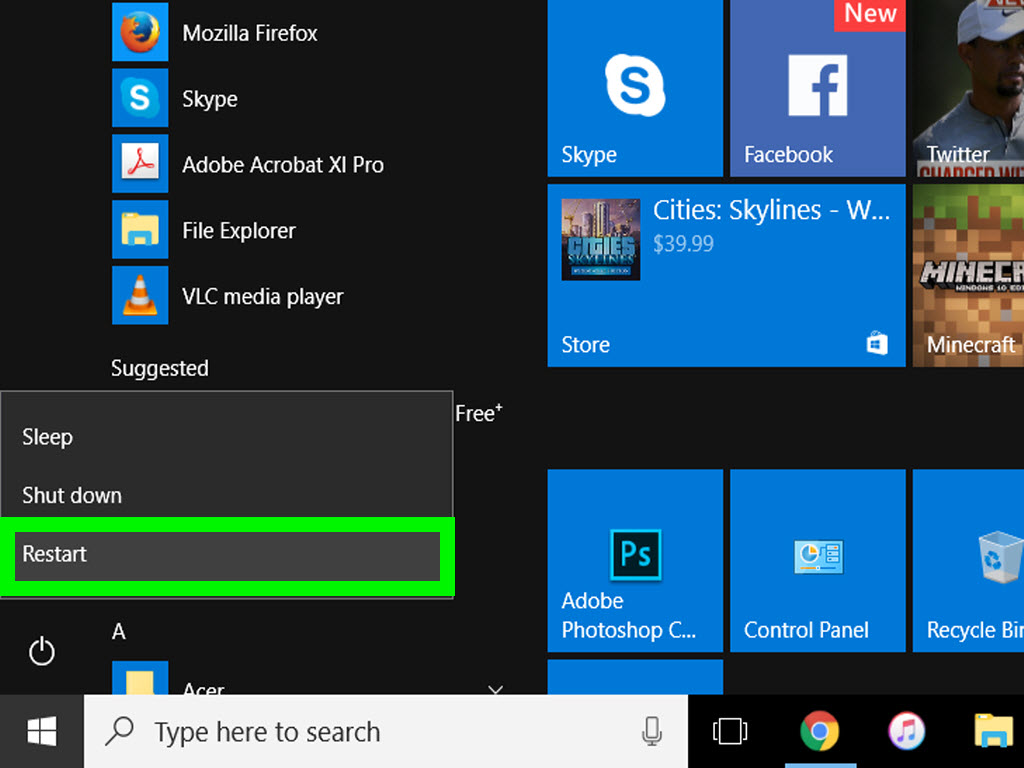
Press Ctrl + Alt + Delete, select the power icon, and choose Restart. If that does not work, press Alt + F4 while on the desktop, choose Restart, and click OK.
After restarting, test the Start menu. If it still does not work, try signing out and signing back in. Press Ctrl + Alt + Delete, choose Sign out, then log into your account again.
This step is especially useful after installing updates, changing account settings, or waking the computer from sleep. Sometimes Windows does not need surgery. It just needs to stop holding a half-finished thought in memory.
5. Check for Windows Updates
A broken Start menu can be caused by an incomplete update, a failed update, or a bug that Microsoft later fixes with another update. Keeping Windows 10 updated can restore missing system components and repair known issues.
If Settings opens, go to Settings > Update & Security > Windows Update. Click Check for updates. Install available updates, restart your PC, and test the Start menu again.
If the Start menu does not open but Settings still works through shortcuts, press Windows + I. If Settings will not open either, launch Task Manager with Ctrl + Shift + Esc, click File > Run new task, type ms-settings:windowsupdate, and press Enter.
Be patient with updates. Windows may need more than one restart, especially if several updates are waiting. If your PC has been avoiding updates for months, it may behave like a student doing an entire semester of homework the night before finals.
6. Rebuild the Start Menu Apps with PowerShell
If the Windows 10 Start menu will not open because built-in app packages are damaged, you can try re-registering Windows apps using PowerShell. This is a common repair method for Start menu, Search, Settings, and other shell-related problems.
Open Task Manager with Ctrl + Shift + Esc. Click File > Run new task. Type powershell, check Create this task with administrative privileges, and click OK.
In the PowerShell window, enter this command:
Wait for the command to finish. You may see some red error messages. Do not panic immediately; some app packages may already be installed, unavailable, or locked while Windows is running. When the process finishes, restart the computer and test the Start menu.
This step is more advanced than restarting Explorer, so avoid interrupting it once it begins. Also, close unnecessary programs first. PowerShell is not scary, but it does appreciate being treated with respect.
7. Run System File Checker and DISM
Corrupted or missing system files can break the Windows 10 Start menu. Microsoft provides built-in tools that scan and repair Windows system files: DISM and System File Checker.
Open Task Manager, choose File > Run new task, type cmd, check Create this task with administrative privileges, and click OK.
First, run this command:
Let it complete. Then run:
Do not close the window until the scan reaches 100 percent. If Windows finds and repairs problems, restart your PC. If it says it found corrupt files but could not fix some of them, run the commands again after restarting.
This is one of the best fixes when the Start menu issue appears alongside other strange problems, such as Settings crashing, File Explorer freezing, icons missing, or Windows Search refusing to cooperate. In other words, if your PC seems haunted, this is the polite exorcism.
8. Disable or Update Third-Party Start Menu Tools
Many people install tools that change the Windows Start menu, taskbar, icons, or Explorer behavior. These tools can be useful, especially for users who prefer a classic Start menu layout. However, they can also conflict with Windows updates or shell components.
If you use software such as a Start menu replacement, taskbar customizer, icon pack manager, shell extension, or desktop enhancement utility, update it first. If updating does not help, temporarily disable or uninstall it and restart Windows.
To uninstall a program without using the Start menu, press Windows + R, type appwiz.cpl, and press Enter. This opens Programs and Features. Select the customization tool, choose Uninstall, and follow the prompts.
If the Start menu returns after removing the tool, you found the culprit. You can reinstall the latest compatible version later, but make sure it supports your Windows 10 build. A Start menu replacement that worked beautifully three years ago may not enjoy today’s Windows updates.
9. Create a New Local User Account
If the Start menu works in a new account but not in your current account, your user profile may be damaged. This can happen after failed updates, interrupted shutdowns, corrupted account settings, or broken app data.
Open an administrator Command Prompt from Task Manager. Use this command, replacing the sample name and password with your own:
Then give the account administrator rights:
Restart your PC and sign into the new account. Test the Start menu. If it works, your Windows installation is probably fine, but your old profile has a problem.
You can move personal files from the old profile folder to the new one. Look under C:\Users and copy folders such as Desktop, Documents, Downloads, Pictures, and Videos. Avoid copying hidden system folders from the old profile unless you know exactly what they do, because that may bring the problem with you like packing a mosquito in your vacation suitcase.
10. Use System Restore, Reset This PC, or an In-Place Repair
If none of the earlier steps restore the Windows 10 Start menu, it is time for the bigger repair options. Start with System Restore if it is enabled. Press Windows + R, type rstrui, and press Enter. Choose a restore point from before the Start menu problem began.
If System Restore is not available, consider Reset this PC. Go to Settings > Update & Security > Recovery, then choose Reset this PC. Select the option to keep your files if you want to preserve personal documents, but remember that apps may need to be reinstalled.
Another strong option is an in-place repair installation using official Windows 10 installation media. This keeps personal files and apps while repairing Windows system components. It is more involved than the earlier fixes, but it can solve deep operating system issues without starting completely from scratch.
Before using any major repair option, back up important files to an external drive, cloud storage, or another safe location. The Start menu may be broken, but your photos, school files, work documents, and saved projects deserve VIP treatment.
Extra Tips to Keep the Windows 10 Start Menu Working
Once your Start menu is back, take a few minutes to reduce the chance of the problem returning. Keep Windows updated, restart your PC regularly, avoid installing too many shell customization tools at the same time, and create restore points before making major system changes.
You should also keep enough free storage on your system drive. When the C: drive is nearly full, Windows updates may fail, temporary files may pile up, and system components may behave unpredictably. A healthy Windows 10 PC should have breathing room.
If the Start menu problem happens after every update, check whether a specific program loads at startup. Open Task Manager, go to the Startup tab, and disable nonessential startup apps. Restart and test again. This can help identify whether a background utility is interfering with Explorer or the Start menu.
Experience-Based Advice: What Usually Works in the Real World
When troubleshooting the Windows 10 Start menu, the biggest mistake is jumping straight to the most dramatic fix. Many users panic when the Start menu disappears and immediately think they need to reinstall Windows. In real-world repair situations, the fastest fix is often much simpler: restart Windows Explorer, turn off Tablet Mode, or complete pending updates.
For example, a common situation is a laptop that suddenly shows a full-screen Start interface. The user thinks the normal Start menu is gone forever, but the real cause is usually full-screen Start or tablet-style behavior. Turning off that setting brings the familiar menu back instantly. It feels like magic, but it is really just Windows being overly enthusiastic about touch-friendly design.
Another frequent case is the frozen Start button. The desktop is visible, apps may still open from shortcuts, but clicking Start does nothing. Restarting Windows Explorer from Task Manager often fixes this in under a minute. This is especially helpful when the computer has been running for days without a restart or has just resumed from sleep. Explorer can get stuck, and restarting it is cleaner than forcing the whole PC to shut down.
PowerShell repairs and SFC scans are useful when the problem is deeper. If the Start menu is broken along with Settings, Search, Microsoft Store apps, or built-in Windows features, the issue may involve app registration or system file corruption. In that situation, re-registering Windows apps and running DISM plus SFC are worth trying before moving to a reset. These tools are built into Windows, so you do not need a random “PC fixer” download from a website with twelve flashing buttons and suspicious confidence.
Third-party customization tools deserve special attention. Many users love classic Start menu replacements because they make Windows feel more familiar. That is understandable. However, Start menu and taskbar tools operate close to the Windows shell, so updates can break compatibility. If the Start menu problem started right after a Windows update, and you use a customization tool, update or temporarily remove that tool before blaming Windows entirely. Sometimes the issue is not Windows versus you. It is Windows versus a tiny utility that has been quietly redecorating your desktop since 2018.
User profile problems are also more common than people think. If the Start menu works in a new account, do not waste hours repeating the same repairs in the old one. Move your files carefully and rebuild the account environment. It can be annoying, but it is often faster than trying to untangle corrupted profile data. Think of it as moving to a clean apartment instead of arguing with a haunted closet.
Finally, always back up before major repairs. Even when Windows offers a “keep my files” option, a backup gives you control. Copy important documents, downloads, browser exports, photos, and project folders before using Reset this PC or a repair installation. A Start menu problem is inconvenient; losing your files is a much bigger headache.
Note: Use the steps in order, from simple to advanced. For most Windows 10 users, the Start menu comes back after restarting Explorer, changing Start settings, installing updates, or repairing system files.
Conclusion
Getting your Windows 10 Start menu back does not have to be stressful. Start with keyboard shortcuts and taskbar settings, then move through Explorer restart, Windows updates, PowerShell repair, system file scans, third-party app checks, and user profile testing. Save reset or repair installation options for last.
The Start menu may be a small part of Windows, but it controls how most people launch apps, search files, open settings, and get around their PC. When it breaks, everything feels slower. With the right troubleshooting path, you can usually restore it without losing files or reinstalling everything.
And if the Start menu ever disappears again, you now have a plan. That is better than angrily clicking the corner of the screen 47 times and hoping Windows develops empathy.