Note: Android Messages is now commonly known as Google Messages, but many users still search for “Android Messages” when they want to change the look of their texting app. This guide uses both terms naturally so readers can find the right instructions fast.
Introduction: Give Your Texting App a Night Shift
Dark mode is one of those tiny phone settings that somehow feels like a lifestyle upgrade. One minute, your Android Messages app is blasting your eyeballs with a bright white screen at midnight. The next, it is wearing a calm, darker theme that makes late-night texting feel less like staring into a tiny refrigerator light.
If you use Google Messages, formerly known by many Android users as Android Messages, enabling dark mode is usually quick. In most cases, you can switch it on directly inside the app or let the app follow your phone’s system-wide dark theme. The exact wording may vary slightly depending on your Android version, phone brand, and app update, but the core process is simple.
This guide explains how to enable dark mode on Android Messages in 4 steps, why the setting is useful, what to do if the option is missing, and how to make your texting experience more comfortable. Whether you are using a Google Pixel, Samsung Galaxy, Motorola, OnePlus, or another Android phone, the goal is the same: darker conversations, easier reading, and fewer “why is my phone brighter than the sun?” moments.
What Is Dark Mode on Android Messages?
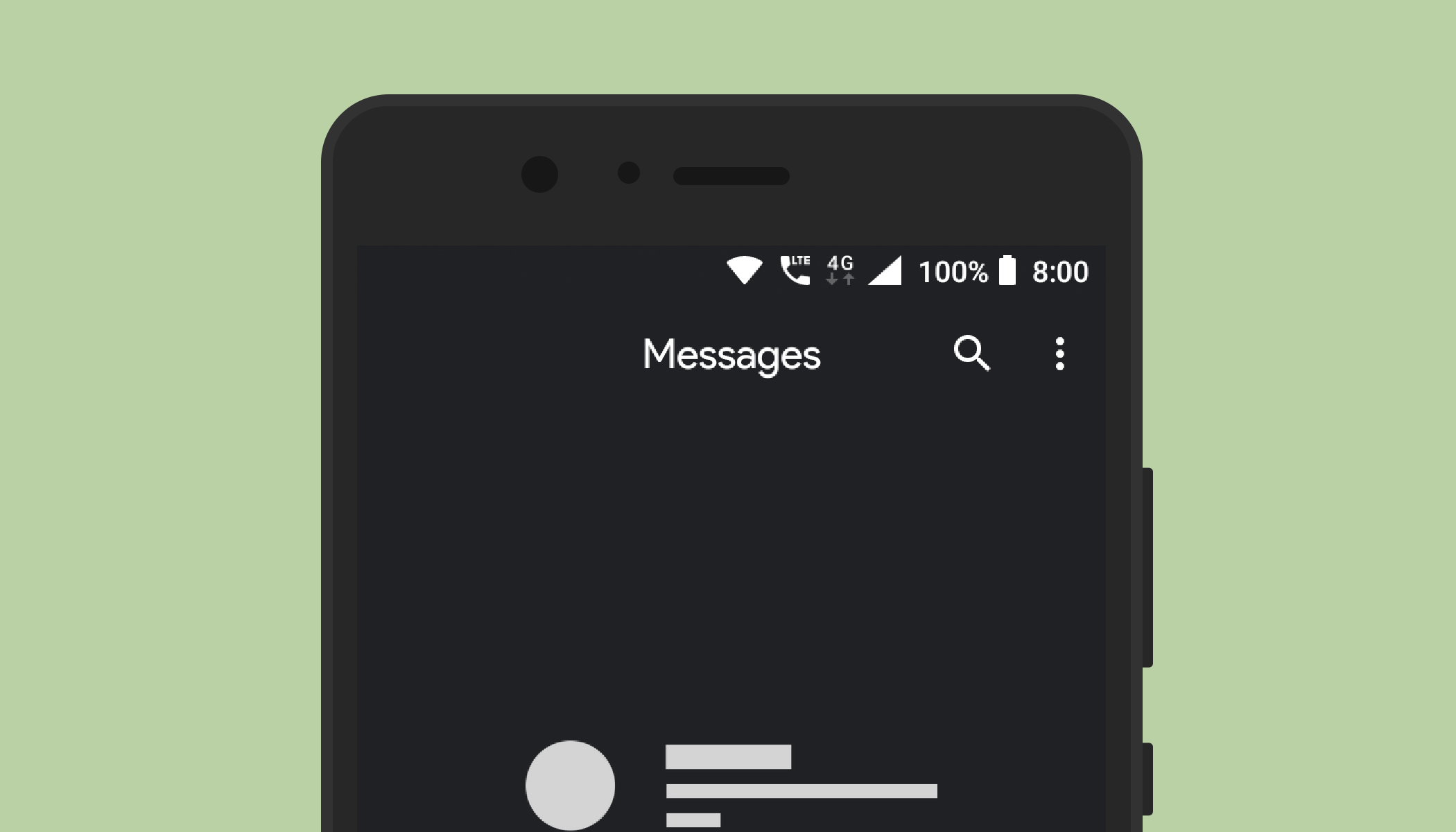
Dark mode changes the appearance of Google Messages from a light background to a darker interface. Instead of black text on a white or light gray screen, you usually get light text on a dark gray or near-black background. Menus, conversation lists, message bubbles, and settings screens also become darker so the app feels visually consistent.
On Android, dark mode may work in two main ways. First, you can choose a dark theme inside Google Messages if your app version includes the option. Second, you can turn on dark theme for the entire phone, and Google Messages can follow that system setting. This second method is especially useful if you want Gmail, Chrome, Settings, Google Photos, and other supported apps to join the dark-side party too.
Is Android Messages the Same as Google Messages?
For everyday users, yes. “Android Messages” was the older name many people used for Google’s default texting app. Today, the app is generally called Google Messages. It handles SMS, MMS, and RCS chats on supported phones and carriers. So if you are searching for how to enable dark mode on Android Messages, you are most likely looking for the dark theme setting in Google Messages.
How to Enable Dark Mode on Android Messages: 4 Steps
Here is the simplest method if your Google Messages app includes the built-in theme option.
Step 1: Open the Google Messages App
Unlock your Android phone and open the Messages app. The icon usually looks like a blue speech bubble. If you have more than one texting app installed, make sure you are opening Google Messages, not Samsung Messages, Verizon Messages, or another SMS app.
If you cannot find it, swipe up to open your app drawer and search for “Messages.” On some phones, the app may simply be labeled Messages, while the Play Store listing calls it Google Messages.
Step 2: Tap Your Profile Icon or Three-Dot Menu
Once you are inside the app, look at the top-right corner. On newer versions of Google Messages, you will usually see your profile icon. Tap it. On older versions, you may see a three-dot menu instead. Tap whichever menu button appears on your screen.
This is the part where Android likes to keep things mildly exciting. Your friend’s Pixel may show a profile picture, while your Samsung Galaxy may show a slightly different layout. Do not panic. If you see a menu that leads to settings, you are in the right neighborhood.
Step 3: Go to Messages Settings and Choose Theme
From the menu, tap Messages settings. Then look for an option called Choose theme, Theme, or something similar. When you open it, you may see choices such as Light, Dark, and System default.
Select Dark if you want Google Messages to stay in dark mode all the time. Choose System default if you want Messages to follow your phone’s overall theme. For example, if your phone switches to dark theme at sunset, Google Messages should switch with it.
Step 4: Tap Dark and Confirm
Choose Dark, then tap OK or simply return to the app if no confirmation button appears. Your conversation list should immediately switch to a darker look. Open a chat thread to make sure the message bubbles, background, and menu areas have updated.
That is it. Four steps, no secret developer code, no flashlight required, and thankfully no need to sacrifice a charging cable to the Android gods.
Alternative Method: Turn On Android System Dark Theme
If you do not see a dark theme option inside Google Messages, you can turn on dark mode from your Android system settings. This method changes the whole phone theme and often makes supported apps, including Google Messages, switch to dark mode automatically.
How to Turn On System-Wide Dark Mode
Open your phone’s Settings app, then tap Display. Look for Dark theme, Dark mode, or Night mode. Turn it on. After that, reopen Google Messages and check whether the app has switched to a darker interface.
On many Android phones, you can also access dark theme from Quick Settings. Swipe down from the top of the screen once or twice, then look for a tile labeled Dark theme or Dark mode. Tap it to turn the feature on or off quickly.
When Should You Use System Default?
The System default option is ideal if you like automation. You can keep your phone in light mode during the day and dark mode at night. Some Android devices let you schedule dark theme from sunset to sunrise or during custom hours. If Google Messages is set to system default, it should follow that schedule.
Why Use Dark Mode in Google Messages?
Dark mode is not just a visual trend. It can make your phone feel more comfortable in dim environments, especially when you are texting in bed, riding in a car at night, or checking a message in a dark room. A darker interface reduces the amount of bright light coming from large white areas of the screen.
Dark mode may also help conserve battery on phones with OLED or AMOLED displays, because black pixels can use less power than bright white pixels. The actual battery savings depend on your screen type, brightness level, and how long you use the app. Still, if you text often, dark mode is a practical setting to try.
Another benefit is visual focus. In Google Messages, dark mode can make conversations feel less cluttered. Message bubbles stand out clearly, menus feel calmer, and the whole app has a more relaxed look. It is like giving your texting app a pair of sunglasses, but useful ones.
Dark Mode vs. Light Mode: Which Is Better?
There is no single winner for everyone. Light mode is often easier to read in bright daylight, especially outdoors. Dark mode can feel better in low-light spaces and may be more comfortable for users who dislike bright interfaces. Many people use both by setting their phone to switch automatically based on the time of day.
If you read long conversations or receive many notifications, test both modes for a few days. Pay attention to eye comfort, readability, and whether links, emojis, and images still look clear. A good theme should make texting easier, not turn every message into a mysterious cave painting.
What to Do If Dark Mode Is Missing
If you cannot find dark mode in Android Messages, do not assume your phone is broken. The option may be hidden, moved, controlled by system settings, or unavailable because your app is outdated.
Update Google Messages
Open the Google Play Store, search for Google Messages, and tap Update if an update is available. App updates often bring interface changes, bug fixes, and setting adjustments. After updating, reopen Messages and check the settings again.
Check Your Android Version
System-wide dark theme became a standard Android feature in newer Android versions. If your phone is running an older version, the system setting may not appear in the same place, or it may not work as smoothly across apps.
Restart the App
Sometimes the easiest fix is also the most boring one: close the app and reopen it. If you changed the system theme but Messages did not update right away, swipe the app away from your recent apps screen and launch it again.
Restart Your Phone
If the theme still refuses to change, restart your phone. This can refresh app behavior, clear small glitches, and encourage Google Messages to recognize your current system settings.
Look for Manufacturer Differences
Samsung, Pixel, Motorola, OnePlus, and other Android phones may use slightly different names for theme settings. Samsung may use labels such as Dark mode, while Pixel phones commonly use Dark theme. The feature is similar, even if the wording changes.
How to Enable Dark Mode on Samsung Galaxy Phones
Many Samsung Galaxy users now use Google Messages as their main texting app. To enable dark mode, open Settings, tap Display, and choose Dark. Then open Google Messages. If Messages is set to follow the system theme, it should appear in dark mode.
If you are using Samsung Messages instead of Google Messages, the steps may differ. Open the Samsung Messages app, check its menu, and look for appearance or theme settings. However, for users searching specifically for Android Messages dark mode, Google Messages is the app most likely involved.
How to Schedule Dark Mode for Messages
Scheduling dark mode is perfect if you like light mode during the day but want a darker screen at night. On many Android phones, go to Settings, then Display, then Dark theme or Dark mode settings. Look for scheduling options such as Turns on from sunset to sunrise or Custom schedule.
Once your phone is scheduled, set Google Messages to System default. This allows the app to change automatically. You get bright and readable text conversations during lunch and a softer dark interface when you are texting after dinner.
Does Dark Mode Affect Message Colors?
Dark mode changes the app interface, but it does not change the actual content of your text messages. Your SMS, MMS, and RCS conversations remain the same. It only changes how the app displays them on your screen.
You may notice that message bubbles, background colors, links, and icons look slightly different in dark mode. This is normal. The app adjusts contrast so text remains readable against the darker background. Emojis, images, stickers, and shared media should still appear normally.
Common Problems and Quick Fixes
Problem: Google Messages Stays Light Even After Dark Mode Is On
Open Google Messages, go to Messages settings, and check the theme option. If it is set to Light, change it to Dark or System default. If it is already set correctly, restart the app.
Problem: Only Some Parts of the App Are Dark
This can happen after an update or temporary display glitch. Update Google Messages, restart your phone, and make sure your Android system theme is set correctly.
Problem: The Text Is Hard to Read
Go to your phone’s display settings and adjust brightness, font size, or display size. Dark mode should make reading comfortable, not turn every conversation into an eye exam.
Problem: Dark Mode Turns On by Itself
Your phone may have a dark theme schedule enabled. Check Settings > Display > Dark theme and look for scheduling options. Turn off the schedule if you want full manual control.
Best Settings to Pair With Dark Mode
Dark mode works even better when paired with a few simple display adjustments. First, enable adaptive brightness if your phone supports it. This lets the screen adjust based on surrounding light. Second, consider using Night Light or Eye Comfort Shield, depending on your phone brand. These features reduce cooler blue tones at night.
You can also adjust font size if message text feels too small. Go to your phone’s display settings and increase the font size slightly. A dark interface with tiny text is like a fancy restaurant menu in candlelight: stylish, but not always helpful.
Privacy and Comfort Benefits of Dark Mode
Dark mode may also make your phone feel a little less attention-grabbing in public spaces. A bright white messaging screen can light up your face, your seat, and possibly the sandwich of the person next to you. A darker screen is not a privacy shield, but it can feel less visually loud.
For people who text in shared rooms, theaters before the movie starts, late-night buses, or quiet bedrooms, dark mode is a polite little upgrade. It does not hide your screen from someone sitting right beside you, but it reduces glare and makes the phone less distracting.
Extra Experience: Real-Life Tips for Using Dark Mode on Android Messages
After using dark mode on Android Messages for a while, the biggest difference is not just how the app looks. It is how the app feels during normal daily routines. In the morning, light mode can feel crisp and bright. But at night, especially when the room is dark, opening a white messaging screen can feel like your phone just yelled “Good evening!” directly into your pupils. Dark mode fixes that problem in a simple, practical way.
One useful habit is to set Google Messages to System default instead of forcing it to stay dark all day. This gives you a flexible setup. During daylight hours, your phone can remain easy to read in bright spaces. At night, Android can switch to dark theme automatically, and Messages follows along. It feels natural because you do not have to remember to change anything manually.
Another helpful experience is pairing dark mode with a slightly lower brightness level. Many people turn on dark mode but leave brightness at 90 percent, then wonder why their eyes still feel tired. Dark mode is not magic. It works best when your screen brightness matches your environment. In a dark bedroom, even a dark interface can feel too bright if the display is turned up all the way.
Dark mode is also great for long message threads. Group chats, family updates, work reminders, school conversations, and delivery notifications all feel easier to scan when the background is less intense. The darker layout can make individual message bubbles stand out more clearly, especially if you are quickly looking for a code, address, appointment time, or shared link.
However, dark mode is not perfect for everyone. Some users find light text on a dark background harder to read for long periods. If that happens, try increasing the font size or using system default mode instead of permanent dark mode. The best setting is the one that helps you read comfortably, not the one that looks coolest in screenshots.
On Samsung Galaxy phones, the experience can vary slightly because Samsung has its own display settings and theme system. If Google Messages does not change right away, check both the app theme and the phone’s display theme. Sometimes the app is set to light mode while the system is dark, which creates confusion. Switching the app to system default usually solves the mismatch.
For users who text late at night, dark mode can be one of the most useful Android settings to enable. It makes quick replies less harsh, reduces the shock of opening a bright app in a dark room, and gives the interface a cleaner look. It is a small change, but small changes are often the ones you notice every day.
The best part is that dark mode does not change your conversations, contacts, photos, videos, or message history. It simply changes the visual theme. So there is very little risk in trying it. Turn it on for a few days, use your phone normally, and see whether it feels better. If you miss the bright look, switching back takes only a few taps.
Conclusion: Dark Mode Is a Small Setting With a Big Comfort Upgrade
Learning how to enable dark mode on Android Messages takes less than a minute, but it can make daily texting feel much more comfortable. Open Google Messages, go to settings, choose the theme option, and select dark mode. If the built-in option is not available, turn on dark theme from Android’s display settings and let Messages follow the system.
Dark mode is especially useful for nighttime texting, OLED screens, lower-glare reading, and anyone who prefers a calmer interface. It will not make your group chat less chaotic, sadly, but at least the chaos can arrive in a stylish darker theme.