Google Images contains enough wallpaper possibilities to redecorate every screen you own until the sun becomes a red giant. The tricky part is getting the right imagenot a fuzzy preview, suspicious executable file, or tiny thumbnail that looks as though it was photographed through a sock.
Fortunately, downloading wallpapers from Google is straightforward once you understand where the image is hosted, how your device saves it, and which resolution will fit your screen. This guide explains how to download wallpapers from Google on an iPhone, Android phone, and Windows PC. It also covers image quality, copyright, file formats, cropping, safety, and the small problems that tend to appear at the least convenient moment.
Before You Download: Google Images Is a Search Tool
Google Images usually does not own or directly host the pictures shown in its results. It indexes images published on photography platforms, blogs, news websites, online stores, portfolios, and other pages. When you select an image, Google displays a preview and identifies the website where the original file appears.
This distinction matters because the preview may be smaller than the original. Saving the preview can leave you with a blurry wallpaper, especially on a high-resolution phone or 4K monitor. Whenever possible, open the source page and download the largest legitimate version offered there.
Use a Specific Wallpaper Search
A broad query such as “nature wallpaper” produces mountains of resultsquite literally. Add details that describe your device, preferred orientation, resolution, color, or visual style. Useful searches include:
- Minimalist black AMOLED wallpaper for Android
- Vertical ocean wallpaper for iPhone
- 4K forest wallpaper 3840 x 2160
- Ultrawide space wallpaper 3440 x 1440
- Pastel desktop wallpaper without text
For phones, search for a vertical or portrait image. For a traditional PC monitor, choose a horizontal or landscape image. An image with the wrong orientation may still work, but your device will crop it with the enthusiasm of a barber who heard only half your instructions.
How to Download Wallpapers from Google on iPhone
You can save a Google wallpaper through Safari, Chrome, or another iOS browser. The wording of the menu may vary slightly, but the basic method is the same.
Step 1: Find the Wallpaper
- Open Safari or Chrome on your iPhone.
- Go to Google and enter a detailed wallpaper search.
- Tap Images near the top of the search results.
- Select a picture to open its larger preview.
- Tap the source page when you want to look for a higher-resolution copy.
Step 2: Save the Image
- Touch and hold the full-size image.
- Tap Save to Photos, Save Image, or a similarly named option.
- Open the Photos app and check Recently Saved or Recents.
Chrome may also offer an option to save the image directly to Google Photos. Choose the destination you normally use so the wallpaper does not vanish into a folder dimension known only to your phone.
Step 3: Set It as Your iPhone Wallpaper
- Open the Settings app.
- Tap Wallpaper.
- Tap Add New Wallpaper.
- Select Photos and choose the image you downloaded.
- Pinch to zoom, reposition the image, and review the clock and widget placement.
- Tap Add.
- Choose Set as Wallpaper Pair or customize the Home Screen separately.
Leaving some empty space near the top of the picture usually makes the Lock Screen easier to read. If the main subject sits directly behind the clock, the result may look less like a carefully designed wallpaper and more like the time is attacking someone’s forehead.
How to Download Wallpapers from Google on Android
The instructions below work for most Android devices using Chrome. Menu names can differ among Pixel, Samsung Galaxy, Motorola, OnePlus, and other phones because Android manufacturers enjoy rearranging settings just enough to keep life exciting.
Step 1: Download the Image in Chrome
- Open the Chrome app.
- Search Google for the wallpaper you want.
- Tap Images and select a result.
- Open the source website when a larger version is available.
- Touch and hold the image.
- Tap Download image.
The file will usually appear in the Downloads folder, Google Photos, or your phone’s Gallery app. A download notification may also appear immediately after the file is saved.
Set the Wallpaper on a Google Pixel
- Touch and hold an empty area of the Home Screen.
- Tap Wallpaper & style.
- Tap More wallpapers or Change wallpaper.
- Select Choose a photo.
- Open the downloaded image and adjust its position.
- Select the Home Screen, Lock Screen, or both.
- Tap Apply.
Set the Wallpaper on a Samsung Galaxy Phone
- Touch and hold an empty part of the Home Screen.
- Tap Wallpaper and style.
- Choose Change wallpapers.
- Tap Gallery and select the downloaded picture.
- Tap Done.
- Choose the Home Screen, Lock Screen, or both, and confirm the change.
Alternative Method Through the Gallery
Many Android phones let you open the picture in Gallery or Google Photos, tap the three-dot menu, and choose Use as or Set as wallpaper. This route is often faster when you have already found the image but cannot remember which wallpaper menu your manufacturer redesigned this week.
How to Download Wallpapers from Google on a Windows PC
Downloading a wallpaper on a PC gives you more control over the file name, destination folder, resolution, and display fit. It also makes it easier to inspect an image before letting it occupy several million pixels of desktop real estate.
Step 1: Save the Full-Resolution Image
- Open Google Images in Chrome, Edge, Firefox, or another browser.
- Search for a wallpaper using your screen resolution or aspect ratio.
- Select an image and open the website hosting it.
- Find the largest available version.
- Right-click the image.
- Select Save image as.
- Choose a folder such as Pictures or a dedicated Wallpapers folder.
- Rename the file clearly and click Save.
Chrome and Firefox both support the familiar Save image as command. In some cases, the source website provides a separate Download button with resolution choices. Use that button when it comes from a trustworthy photography or wallpaper platform.
Step 2: Set the Image as the Desktop Background
The quickest method is to right-click the downloaded file and select Set as desktop background. For more control:
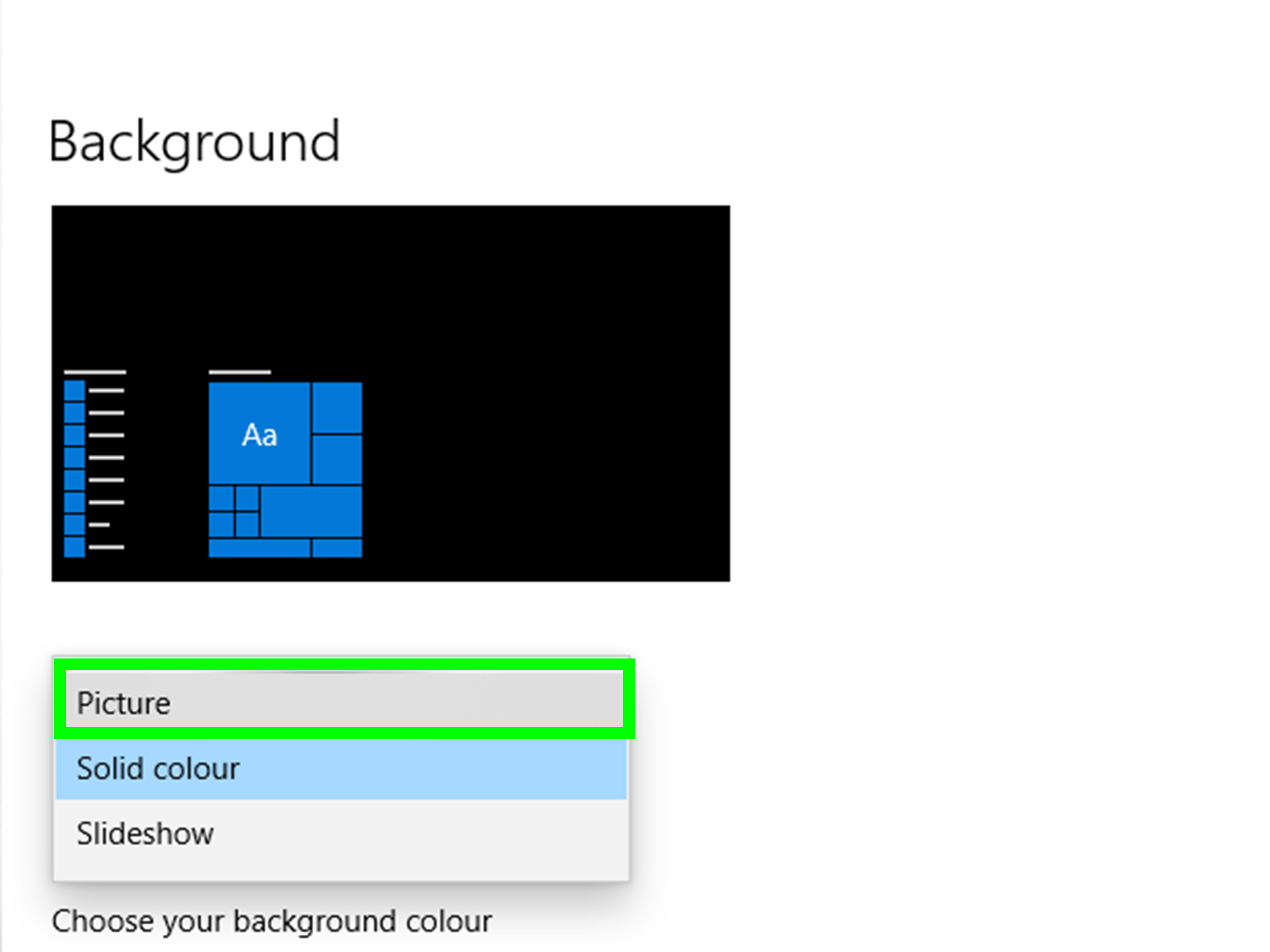
- Right-click an empty area of the desktop.
- Select Personalize.
- Open Background.
- Choose Picture.
- Click Browse photos and select your wallpaper.
- Choose a fit such as Fill, Fit, Stretch, Tile, Center, or Span.
Which Windows Fit Option Should You Use?
- Fill: Covers the screen completely but may crop the edges.
- Fit: Shows the complete picture but may add bars around it.
- Stretch: Fills the display but can distort the image.
- Center: Keeps the original dimensions without enlarging the file.
- Span: Extends one image across multiple monitors.
Fill is usually the best choice when the image and display have similar aspect ratios. Stretch should be treated carefully unless you enjoy mountains that look as though they have been pulled like warm taffy.
A Quick Note for Mac Users
On a Mac, Control-click an image in Safari and choose an option such as Save Image to Downloads, Save Image As, or Use Image as Desktop Wallpaper. You can also Control-click a saved image in Finder and select Set Desktop Picture.
How to Choose the Best Wallpaper Resolution
A wallpaper should be at least as large as the screen area it needs to cover. A smaller image can be enlarged, but enlarging does not create new detail. It merely promotes every existing pixel to management.
Common PC Resolutions
- Full HD: 1920 x 1080
- QHD or 1440p: 2560 x 1440
- 4K UHD: 3840 x 2160
- Ultrawide QHD: 3440 x 1440
Check your Windows resolution under Settings > System > Display. Search Google using that exact width and height for the closest match.
Phone Wallpaper Dimensions
Phone resolutions vary widely, so there is no single perfect wallpaper size for every iPhone or Android model. Search using your device name or use a high-resolution vertical image with enough room for cropping. Images measuring roughly 1440 pixels wide or more generally provide comfortable flexibility for modern phone displays.
Remember that the Home Screen may shift or zoom the picture slightly. Place faces, logos, and other important details near the center rather than against an edge that may be cropped.
How to Find Wallpapers You Can Legally Use
Images appearing in Google Search may be protected by copyright. Saving a picture as a private wallpaper is not the same as receiving permission to repost it on a website, print it on merchandise, include it in an advertisement, or distribute it as part of your own wallpaper collection.
Use Google’s Usage Rights Filter
- Run an image search on Google.
- Select Tools.
- Open the Usage rights menu.
- Choose the available Creative Commons licensing filter.
- Open the source and review its license details before reusing the image.
The filter helps locate images with attached licensing information, but it is not a substitute for checking the source. Creative Commons licenses can require attribution, limit commercial use, prohibit modifications, or require adapted work to use the same license.
Use Reputable Free-Photo Sources
Google can help you find images on established stock-photo platforms such as Unsplash and Pexels. Their licenses generally permit broad use, although restrictions still apply to activities such as reselling unaltered files, implying endorsement, or building a competing image library. Read the current license before publishing or commercially using an image.
Common Wallpaper Download Problems and Fixes
The Image Looks Blurry
You probably saved a thumbnail or preview rather than the original file. Return to the result, open the source website, and look for a larger version. Compare the file dimensions with your screen resolution before setting it as the wallpaper.
There Is No Save Image Option
Some sites display pictures as page backgrounds, use interactive viewers, or disable the ordinary context menu. Try opening the source page, tapping the image once, or looking for an official Download button. Do not install a mysterious browser extension merely to defeat a site’s restrictions. A wallpaper is not worth inviting a digital raccoon into your browser.
The Wallpaper Is Cropped Too Aggressively
Use a picture with the same general orientation and aspect ratio as your display. On Windows, switch from Fill to Fit. On a phone, pinch to zoom out during the wallpaper preview or select a version with more empty space around the subject.
The File Is WebP Instead of JPG
WebP is a normal image format supported by current browsers and many modern operating systems. It can often be used directly as a wallpaper. When a particular editor or older application rejects it, open the file in a trusted image application and export or save a copy as JPEG or PNG.
The File Downloaded as an EXE, APK, or ZIP
Stop and delete it unless you intentionally requested software or an archive from a trusted provider. A standard static wallpaper is usually an image file such as JPG, JPEG, PNG, or WebP. Websites that insist you install a “special wallpaper downloader” may be distributing adware or worse.
The Image Is Hidden Somewhere on the Phone
On iPhone, check Photos, Recently Saved, Recents, or the Downloads folder in Files. On Android, check Gallery, Google Photos, Downloads, or the Files app. Sorting by newest files usually reveals the missing wallpaper before you begin questioning reality.
Safety Tips for Downloading Google Wallpapers
- Prefer established websites and official download buttons.
- Avoid pages filled with fake Download buttons and aggressive pop-ups.
- Do not install unknown wallpaper apps, browser extensions, APK files, or PC programs.
- Check the filename and extension before opening the download.
- Keep your browser, phone, and operating system updated.
- Use licensed or clearly permitted images when publishing or sharing your wallpaper.
- Do not enter payment details simply to download an ordinary image unless you knowingly selected a legitimate paid service.
Searching Google for wallpaper is safe when you treat the result as a doorway to another website rather than an automatic guarantee that every destination is trustworthy.
Practical Experience: What Actually Makes a Wallpaper Work
The most useful lesson from testing wallpaper workflows across phones and computers is that finding the image takes longer than downloading it. The buttons are easy. Choosing a picture that survives clocks, app icons, widgets, cropping, and multiple display shapes is where the real work begins.
A beautiful photograph is not automatically a good wallpaper. A detailed city scene may look impressive in a full-screen preview but become visual oatmeal once dozens of icons sit on top of it. Images with a calm area, soft gradient, open sky, dark shadow, or modest depth of field tend to make icons easier to identify. The subject can still be dramatic; it simply needs room to breathe.
Vertical images work best on phones, but subject placement matters as much as orientation. In practical tests, portraits with faces near the extreme top were regularly blocked by Lock Screen clocks. Moving the subject lower or choosing a photo with extra space above the head solved the problem. On Android Home Screens, important details near the bottom can disappear behind the dock. A centered subject usually survives both systems with less fiddling.
Dark wallpapers deserve special attention. On OLED phones, a predominantly black background can look excellent and may reduce the light emitted by black areas of the display. More importantly for daily use, dark and uncluttered images often make colorful app icons easier to distinguish. However, a wallpaper that is too dark can hide dark widgets or notification text. Preview the Lock Screen and Home Screen separately rather than assuming one crop will suit both.
On desktop computers, matching the aspect ratio produces a bigger quality improvement than downloading the largest file on Earth. A 4K square image still requires heavy cropping on a 16:9 monitor. Meanwhile, a well-composed 2560 x 1440 image can look excellent on a QHD display because it already matches the screen. Resolution is important, but shape is the quiet hero doing unpaid overtime.
Multi-monitor setups create another challenge. A single panoramic image can work across two displays when the monitors have similar sizes, resolutions, and alignment. When one display is vertical or significantly smaller, separate wallpapers usually look better. Windows allows different pictures for individual monitors, which avoids slicing a person, landmark, or moon directly along a bezel.
File organization also makes a surprising difference. Saving every image into Downloads eventually produces a digital junk drawer containing receipts, installers, screenshots, and twelve files named “image(7).webp.” A dedicated Wallpapers folder with subfolders such as Phone, Desktop, Dark, Nature, and Abstract makes future changes much faster. Descriptive filenames such as “blue-lake-4k-3840×2160.jpg” are far more useful than “download_48392_final_final2.jpg.”
Finally, preview the wallpaper for a full day before declaring victory. Morning brightness, nighttime dark mode, notification visibility, and icon contrast can reveal problems that were invisible during the initial five-second inspection. The best wallpaper is not merely attractive in a browser tab. It remains pleasant after you have looked at it fifty times while checking messages, opening spreadsheets, or pretending not to notice another software update.
Conclusion
To download a wallpaper from Google, search for a high-resolution image that matches your device’s orientation, open the original source, and use your browser’s image-saving command. On iPhone, save the picture to Photos and apply it through Settings > Wallpaper. On Android, use Download image and select the file through Wallpaper & style or Gallery. On a Windows PC, choose Save image as and set the file through Personalization or the right-click menu.
The final quality depends less on how quickly you press Download and more on whether you choose the original file, correct aspect ratio, trustworthy source, and appropriate license. Do those things, and your screen can receive a polished new look without blur, awkward cropping, or a suspicious installer trying to become your new roommate.
SEO Information
Note: Menu wording can vary slightly by browser, operating-system version, phone manufacturer, and website design.