Connecting a Brother printer to Wi-Fi should feel like a two-minute victory lap. In real life, it sometimes turns into a staring contest between you, a blinking Wi-Fi light, and a printer that acts like it has never heard of the internet. The good news: most Brother wireless printer setup problems come down to a few fixable thingswrong network, wrong password, unsupported Wi-Fi band, outdated drivers, or a printer still clinging emotionally to an old router.
This complete guide explains how to connect a Brother printer to Wi-Fi using the printer control panel, WPS, the Brother Mobile Connect app, Wi-Fi Direct, Windows, macOS, iPhone, iPad, and Chromebook. You will also learn what to do when your Brother printer is connected to Wi-Fi but not printing, why 2.4 GHz matters, and how to reset the network settings without turning your office into a technology crime scene.
Before You Start: Gather These Details First
Before touching the printer menu, make sure you have three things ready: your Wi-Fi network name, your Wi-Fi password, and the Brother printer model number. The network name is also called the SSID, while the password may be called the network key, security key, or passphrase. Different words, same tiny source of frustration.
Check the label on your router, your internet provider’s app, or your router settings page if you do not know the Wi-Fi password. If your home or office uses several networks, choose the normal private networknot a guest network, hotel-style captive portal, or mobile hotspot unless you specifically know it allows printer discovery.
Why the 2.4 GHz Network Matters
Many Brother printers connect only to the 2.4 GHz wireless band. Some newer models support 5 GHz, but plenty of popular Brother laser and inkjet printers do not. If your printer cannot see your Wi-Fi network, the router may be broadcasting only 5 GHz, or your mesh system may be combining 2.4 GHz and 5 GHz under one network name.
For the smoothest setup, use a 2.4 GHz network or split your router bands temporarily. For example, if your router has “HomeWiFi” and “HomeWiFi_5G,” connect the Brother printer to “HomeWiFi.” Your computer or phone can often stay on 5 GHz and still print, as long as the router allows devices on both bands to communicate.
Method 1: Connect a Brother Printer to Wi-Fi Using the Control Panel
This is the most reliable method for Brother printers with a screen or button-based menu. It does not require a USB cable, and it works well for many Brother HL, MFC, DCP, and all-in-one wireless printer models.
Step-by-Step Setup Wizard Instructions
- Turn on your Brother printer and wait until it is ready.
- Press Menu or Settings on the printer.
- Go to Network.
- Select WLAN or Wi-Fi.
- Choose Setup Wizard.
- If the printer asks to enable WLAN, select Yes.
- Wait while the printer searches for available wireless networks.
- Select your Wi-Fi network name from the list.
- Enter your Wi-Fi password carefully.
- Press OK, Apply, or Yes to connect.
When the connection succeeds, the printer may display a confirmation message such as “Connected,” “Connection OK,” or “Completed.” Some Brother models also print a wireless connection report. Keep that report if the printer still does not appear on your computer; it can reveal whether the printer has a valid IP address.
Typing the Password Without Losing Your Mind
If your Brother printer has arrow buttons instead of a touchscreen, entering a password can feel like programming a microwave from 1998. Take your time. Wi-Fi passwords are case-sensitive, so “BlueDog24” is not the same as “bluedog24.” Watch for similar characters such as zero and the letter O, lowercase l and uppercase I, or accidental spaces at the end.
Method 2: Connect a Brother Printer to Wi-Fi Using WPS
WPS, or Wi-Fi Protected Setup, lets you connect the printer to the router without manually typing the password. This can be convenient if your router has a WPS button and your Brother printer supports WPS.
How to Use WPS
- Place the Brother printer near the router during setup.
- On the printer, open Network or WLAN settings.
- Select WPS, Push Button, or WPS Button Push.
- When prompted, press the WPS button on your router.
- Wait while the printer and router pair automatically.
- Move the printer back to its normal location after setup, as long as the Wi-Fi signal remains strong.
WPS is fast, but it is not always available. Some modern routers disable WPS by default for security reasons. If you cannot find a WPS button or the printer fails to connect, use the Setup Wizard method instead.
Method 3: Connect with the Brother Mobile Connect App
If you mostly print from your phone, the Brother Mobile Connect app is often the easiest route. It can help you add the printer, connect it to Wi-Fi, print documents, scan files, monitor supplies, and manage supported printer functions from iPhone, iPad, or Android.
Brother Mobile Connect Setup Steps
- Install Brother Mobile Connect from the App Store or Google Play.
- Open the app and tap Add Machine.
- Select Connect your machine to Wi-Fi.
- Enter or select your Brother printer model.
- Follow the on-screen instructions to link the phone and printer.
- Confirm that your phone is connected to the Wi-Fi network you want the printer to use.
- Enter the Wi-Fi password when prompted.
- Wait for setup to complete, then run a test print.
This method is especially helpful for newer Brother inkjet and compact laser models. If the app cannot find the printer, move your phone closer to the printer, turn off VPN temporarily, and make sure Bluetooth and local network permissions are enabled if your phone asks for them.
Method 4: Use Wi-Fi Direct When There Is No Router
Wi-Fi Direct allows a phone, tablet, or computer to connect directly to the Brother printer without using a standard router. Think of it as the printer creating its own mini Wi-Fi network. It is useful in temporary setups, small offices, job sites, dorm rooms, or situations where you cannot connect the printer to the main network.
To use Wi-Fi Direct, enable the feature on the printer, then open the Wi-Fi settings on your phone or computer and look for a network name that begins with something like “DIRECT.” Select that printer network and enter the Wi-Fi Direct password shown on the printer, printed report, label, or model-specific documentation.
Wi-Fi Direct is convenient, but it has a trade-off: while your device is connected directly to the printer, it may disconnect from normal internet Wi-Fi. For everyday home printing, a regular router connection is usually better.
Install or Add the Brother Printer on Your Device
Connecting the printer to Wi-Fi is only half the job. Your computer, phone, or tablet also needs to know the printer exists. Once your Brother printer is on the same network as your device, add it through your operating system or Brother software.
Windows 11 or Windows 10
- Make sure the Brother printer is turned on and connected to the same network as your PC.
- Open Settings.
- Go to Bluetooth & devices and then Printers & scanners.
- Select Add device.
- Choose your Brother printer from the list.
- If it does not appear, select the option to add manually.
For the best features, download the Brother Full Driver & Software Package for your specific model from Brother’s official support site. Windows may install a basic driver automatically, but the full package can enable scanning, ink or toner monitoring, advanced print settings, and Brother utilities.
macOS
- Make sure the Mac and Brother printer are on the same Wi-Fi network.
- Open System Settings.
- Go to Printers & Scanners.
- Click Add Printer, Scanner, or Fax.
- Select your Brother printer.
- Choose AirPrint or the Brother driver if available.
- Click Add.
If your Brother printer supports AirPrint, your Mac can often print without installing extra drivers. However, if you need scanning tools, advanced paper settings, or special printer features, the Brother software package may still be worth installing.
iPhone and iPad
Many Brother printers support AirPrint. To print from iPhone or iPad, connect the mobile device and printer to the same Wi-Fi network, open a document or photo, tap the share icon, choose Print, select the Brother printer, and tap Print. If the printer does not appear, check that it is awake, connected to Wi-Fi, and not on a guest network.
Chromebook
- Connect the Chromebook and Brother printer to the same Wi-Fi network.
- Click the time in the lower-right corner.
- Open Settings.
- Go to Device, then Printers and scanners.
- Under available printers, select your Brother printer and save it.
Chromebooks may take a little time to discover printers on the network, so do not panic if the printer does not pop up instantly. Give it a moment, then restart the printer and Chromebook if needed.
How to Fix a Brother Printer That Will Not Connect to Wi-Fi
If your Brother printer refuses to connect, do not immediately factory-reset everything in sight. Start with the simple checks. They solve a surprising number of cases, and they are less dramatic than rebuilding your home network at midnight.
Check the Wi-Fi Band
If the printer cannot find your network, confirm that the router is broadcasting 2.4 GHz. Many Brother printers cannot connect to 5 GHz networks. If you use a mesh router, try creating a separate 2.4 GHz network or an IoT network for printers and smart home devices.
Check the Password
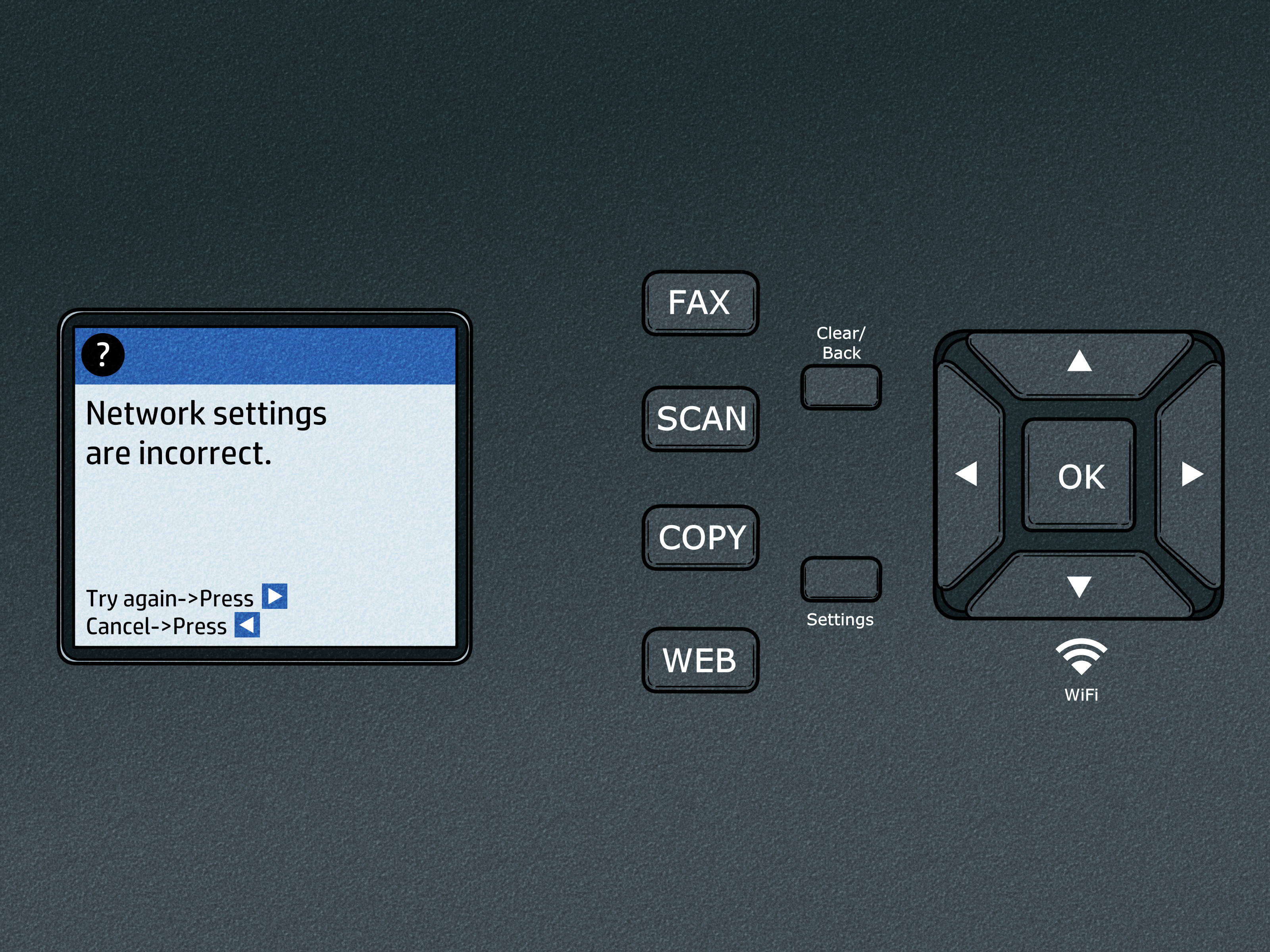
A wrong password is the classic villain. Re-enter it slowly. If the printer shows a “connection failed” report, review the error details. If you recently changed your router password, the printer will not magically know. Printers are useful, not psychic.
Move the Printer Closer to the Router
Weak signal can cause failed setup or random offline errors. During setup, place the printer near the router. After it connects, move it to the final location and run a test print. Avoid placing the printer behind metal cabinets, thick walls, large appliances, or inside a cabinet that turns Wi-Fi into a sad whisper.
Restart the Printer, Router, and Computer
Restarting sounds basic because it is basic. It also works. Turn off the printer, restart the router, wait for Wi-Fi to return, then turn the printer back on. Restart your computer or phone afterward. This clears temporary network discovery issues and stale IP assignments.
Run Brother Network Repair Tools
Brother provides wireless network tools for Windows users, including a Network Repair Utility and Wireless Setup Helper. These tools can help repair offline printer connections, verify network information, and correct IP-related problems when the printer is connected but not printing.
Reset Brother Network Settings
If the printer was previously connected to a different router, office network, or old Wi-Fi password, reset the network settings and start fresh. On many Brother models, this option appears under Settings, All Settings, Network, and Network Reset. The exact path varies by model.
Network reset removes saved Wi-Fi details, IP settings, and other network configuration data. It does not usually erase your print history from your computer, but you may need to reconnect the printer and add it again on your devices.
Brother Printer Connected to Wi-Fi but Not Printing
This situation is common: the printer says it is connected, but your laptop acts like the printer moved to another country. Try these fixes in order.
Make Sure Both Devices Are on the Same Network
Your computer and printer must be able to see each other. If your laptop is on a guest network and the printer is on the main network, printing may fail. If your computer uses a VPN, pause it temporarily and try again.
Remove and Re-Add the Printer
On Windows or macOS, delete the old Brother printer entry and add it again. This is especially helpful after changing routers, replacing a modem, updating the operating system, or moving from USB to Wi-Fi printing.
Update the Driver
Outdated or incompatible drivers can cause recognition and printing problems. Download the correct Brother driver package for your exact model and operating system. Do not rely on random “driver download” websites. Your printer deserves better, and so does your computer.
Check the Printer Queue
A stuck print job can block everything behind it. Open the printer queue and cancel old jobs. Then send one simple test page. Avoid testing with a 90-page PDF, a tax form, and a full-color vacation album all at once. Start small.
Best Practices for Stable Brother Wireless Printing
Once your Brother printer is connected to Wi-Fi, keep it stable with a few practical habits. First, give the printer a permanent location with strong signal. Second, avoid changing your Wi-Fi name and password unless necessary. Third, keep your printer firmware and drivers updated. Fourth, consider assigning a reserved IP address in your router settings if the printer often goes offline.
For small offices, label the printer clearly in Windows or macOS. A name like “Brother MFC-L3770CDW Office” is better than “Printer 3,” which is how innocent people accidentally send payroll forms to the shipping room.
Quick Troubleshooting Table
| Problem | Likely Cause | Best Fix |
|---|---|---|
| Printer cannot find Wi-Fi | 5 GHz-only network or weak signal | Use 2.4 GHz and move printer closer to router |
| Connection failed | Wrong password or unsupported security setting | Re-enter password and check router settings |
| Connected but offline | IP address or driver issue | Restart devices, run Brother Network Repair, re-add printer |
| Phone cannot find printer | Different network or app permission issue | Use same Wi-Fi, allow local network access, restart app |
| Printer worked before router change | Old Wi-Fi settings saved | Reset network settings and reconnect |
Real-World Experience: What Actually Works When Setting Up Brother Wi-Fi
In real homes and offices, Brother printer Wi-Fi setup is rarely difficult because the printer is “bad.” It is usually difficult because networks have become more complicated than they look. A decade ago, many homes had one router, one network name, and one laptop. Today, there may be a mesh router, a guest network, a 2.4 GHz band, a 5 GHz band, a 6 GHz band, a VPN, a work laptop with security restrictions, three phones, two tablets, and one printer sitting in the corner wondering why everyone is shouting.
The most useful experience-based tip is this: connect the printer to the simplest network available. If your router allows you to create a separate 2.4 GHz network, do it. Name it something obvious, such as “HomePrinter24” or “OfficeIoT24.” Connect the Brother printer to that network, then add the printer on your devices. This small step can prevent a mountain of “offline” errors later, especially with mesh systems that move devices between bands automatically.
Another practical lesson is to perform setup close to the router, even if the printer’s final home is across the room. Wi-Fi setup requires a clean first handshake. Once the printer has joined the network successfully, you can move it back and test the signal. If printing becomes unreliable after moving it, the issue is probably location, not the driver. Printers are not known for their athletic Wi-Fi antennas, so do not hide them behind metal shelves or under a desk surrounded by cables.
It also helps to treat the printer like a network device, not just an appliance. Print a network configuration report after setup and save it. That page usually shows the SSID, IP address, connection status, and signal strength. If the printer goes offline later, the report gives you clues. For example, if the IP address begins with 169.254, the printer may not be receiving a proper address from the router. If the SSID is wrong, it joined the wrong network. If the signal is weak, move the printer or improve Wi-Fi coverage.
For Windows users, installing the Brother Full Driver & Software Package often makes life easier than relying only on automatic detection. Windows may find the printer, but a generic driver may not expose scanning, duplex printing, toner status, or maintenance features. For macOS and iPhone users, AirPrint is wonderfully simple when supported, but Brother’s own software can still be helpful for scanning and device management. Chromebook users should be patient during discovery and use manual IP setup if the printer does not appear automatically.
One of the most overlooked causes of Brother printer connection issues is a router replacement. People upgrade internet service, install a new router, keep the same printer, and then wonder why nothing prints. The printer is still trying to connect to the old network name or password. In that case, resetting the printer’s network settings is often faster than poking around menus for an hour. Reset, reconnect, re-add the printer, and move on with your life.
Finally, avoid making five changes at once. Do not reset the router, reinstall every driver, rename the Wi-Fi, change security settings, and reboot the printer simultaneously. Make one change, test, then continue. Printer troubleshooting is like detective work, except the suspect is beige, has toner, and refuses to confess. Slow, methodical steps almost always beat panic-clicking.
Conclusion
Learning how to connect a Brother printer to Wi-Fi is mostly about choosing the right setup method for your device. Use the control-panel Setup Wizard when you have the Wi-Fi name and password. Use WPS if your router supports it and you want a quick password-free setup. Use Brother Mobile Connect for phone-friendly installation. Use Wi-Fi Direct when you need printer-to-device printing without a router.
If something goes wrong, focus on the basics: confirm the 2.4 GHz network, recheck the password, keep the printer close to the router during setup, install the right Brother driver, and reset network settings only when needed. Once properly connected, a Brother wireless printer can be dependable, efficient, and refreshingly boringwhich is exactly what a printer should be.