If your Bash window on Windows 10 looks like a plain black rectangle from the Jurassic period, good news: you can absolutely make it more transparent, more modern, and a lot easier on the eyes. Better news: this is not some dark art that requires registry spelunking, a sacrifice to the command-line gods, or a 47-step tutorial written in 2017 and abandoned like an old batch file.
The trick is understanding one important thing first: Bash itself usually is not what controls the window transparency. On Windows 10, Bash typically runs through the Windows Subsystem for Linux (WSL), and the terminal host controls how the window looks. That means the method depends on where your Bash session is running. If it opens in the classic console window, you adjust opacity in the console properties. If it opens in Windows Terminal, you adjust opacity in Windows Terminal settings.
Once you know which window you are dealing with, changing the Bash console background opacity becomes easy. In this guide, I will walk you through both methods, explain what each setting actually does, show a practical Windows Terminal example, and help you avoid the classic “why did nothing happen?” moment that makes people question all of computing.
Why Bash Opacity in Windows 10 Can Be Confusing
Search this topic online and you will quickly run into a mess of half-right advice. One article says to open Properties. Another tells you to use Windows Terminal. A third starts talking about acrylic effects, JSON files, and a suspicious amount of confidence. The reason this gets messy is simple: “Bash on Windows 10” can refer to a few different experiences.
For many users, Bash means a Linux distribution running through WSL, such as Ubuntu or Debian. In that setup, the Linux shell runs on Windows, but the window you see is provided by a Windows terminal application. On older or simpler setups, that may be the classic console host window. On newer or more customized setups, it may be Windows Terminal. Same Bash commands, different wardrobe.
So before you change anything, look at the window you are using. Does it look like a classic Command Prompt style window with a title bar and old-school right-click menu? You are probably in the legacy console path. Does it have tabs, profiles, and a Settings screen with Appearance options? That is Windows Terminal. Once you identify the host, the opacity setting becomes much easier to find.
Method 1: Change Bash Window Opacity in the Classic Console
If your Bash session opens in the older console-style window, this is the easiest path. Windows 10 added built-in transparency controls to the console, so you do not need third-party tools just to make the background a little see-through.
Step-by-Step Instructions
Step 1: Open your Bash session.
Launch your WSL distribution the usual way. This could be Ubuntu, Debian, Kali, or another Linux distribution installed through WSL.
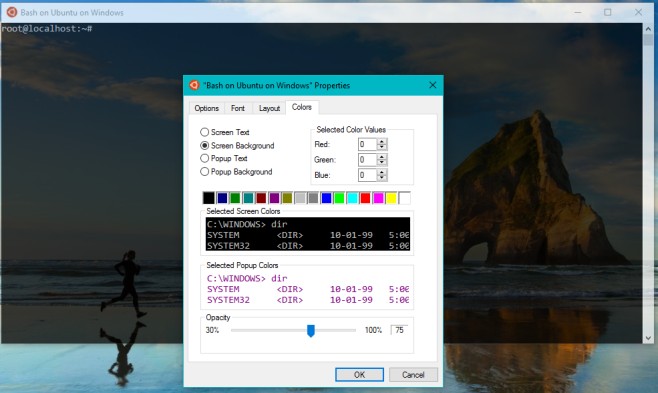
Step 2: Right-click the title bar.
Do not click inside the terminal text area. Right-click the title bar at the top of the window, then choose Properties.
Step 3: Open the Colors tab.
In the Properties window, click the Colors tab. Near the bottom, you should see an Opacity slider.
Step 4: Move the opacity slider.
Drag the slider left or right until the background reaches the transparency level you want. Lower opacity makes the window more transparent. Higher opacity makes it more solid.
Step 5: Click OK.
Once you hit OK, your Bash console should immediately reflect the new look.
This method is ideal if you want a quick, built-in fix without changing your overall setup. It is especially handy if you only use Bash occasionally and do not care about extra features like tabs, panes, or profile-specific themes.
A Quick Tip for On-the-Fly Testing
Windows 10 also lets you adjust console transparency with keyboard shortcuts while the window is open. That is useful when you want to preview the effect before committing to a new setting. Think of it as trying on sunglasses for your terminal: stylish, reversible, and slightly more dramatic than necessary.
If you are experimenting, use the shortcut method first, then go back into Properties > Colors when you want a more deliberate setting that feels right long term.
Best Opacity Range for Everyday Use
In real life, extreme transparency usually looks cooler than it works. If you make the window too transparent, the browser, wallpaper, or random spreadsheet behind it will start photobombing your shell session. A practical sweet spot is often somewhere around 75% to 90% opacity. That gives you a softer background while keeping commands readable.
If you spend lots of time in Bash running package managers, editing files, or watching logs scroll by, readability matters more than flair. Your terminal should look good, not audition for a cyberpunk movie every time you type ls.
Method 2: Change Bash Background Opacity in Windows Terminal
If your Bash profile runs inside Windows Terminal, congratulations: you have the more flexible setup. Windows Terminal is the modern host for command-line tools on Windows and supports Bash through WSL profiles. It also gives you more control over appearance, including profile-based opacity settings.
This is the better method if you use Bash regularly, switch between PowerShell and Linux shells, or want different looks for different profiles. For example, you can keep PowerShell solid and professional while giving your Ubuntu profile a slightly transparent, moody, “I debug for fun” vibe.
Use the Settings Interface
Step 1: Open Windows Terminal.
Launch Windows Terminal and open your Bash or WSL profile.
Step 2: Open Settings.
Click the drop-down menu in the tab bar and choose Settings.
Step 3: Select your Bash profile.
In the sidebar, choose the Linux profile you use for Bash, such as Ubuntu or Debian.
Step 4: Open Appearance.
In that profile, go to Appearance.
Step 5: Enable acrylic and adjust opacity.
On Windows 10, transparency in Windows Terminal is commonly tied to the acrylic-style setting. Turn on Use acrylic if available, then adjust the Opacity value or slider until the background looks the way you want.
Step 6: Save your changes.
Click Save, then return to your Bash tab and admire your newly civilized terminal.
Edit the JSON Settings File
If you prefer doing things the terminal-enthusiast way, you can edit the settings file directly. This is also useful if you like exact values or want to copy your setup later.
That example gives the Ubuntu Bash profile an 85% opacity setting with acrylic enabled. If your version of Windows Terminal uses older wording, you may see acrylicOpacity instead of opacity. Either way, the goal is the same: a background that is slightly transparent without turning your commands into a visual scavenger hunt.
Why Windows Terminal Is Better for Power Users
Windows Terminal gives you more than just prettier transparency. You can create separate profiles, assign icons, set custom colors, change fonts, add background images, and fine-tune how each shell looks. That means your Bash environment can feel distinct from Command Prompt or PowerShell instead of all of them wearing the same plain suit.
It is also easier to keep a consistent visual setup. If you spend hours in development tools, SSH sessions, package installs, or server logs, a comfortable appearance matters more than people admit. Nobody writes cleaner commands because the window is ugly.
What to Do If the Opacity Setting Does Not Work
If you changed the setting and your Bash window still looks stubbornly opaque, do not panic. The problem is usually one of a few common issues.
You Are Editing the Wrong Host
This is the big one. If Bash is running in Windows Terminal, changing classic console Properties will not help. If Bash is running in a legacy console window, editing Windows Terminal settings will not magically affect it. You have to adjust the window that is actually hosting the session.
You Changed the Current Session Only
Some quick opacity adjustments are great for testing, but they may not be the best way to create a lasting setup. If you want the look to stick, save it in the appropriate Properties window or profile settings rather than relying on temporary adjustments.
Your Transparency Level Is Too Aggressive
Sometimes the feature is working perfectly, but the result is just unusable. If the background becomes so transparent that every icon, browser tab, and desktop wallpaper detail shows through, it can look like the setting failed when it actually succeeded a little too enthusiastically. Dial it back and test again.
You Need Acrylic Enabled in Windows Terminal
On Windows 10, Windows Terminal transparency usually behaves best when acrylic is enabled. If you only change the numeric opacity value without the matching appearance option, the effect may not look the way you expected. In plain English: if the glass effect is missing, turn the glass effect on.
The Best Setup for Most Windows 10 Users
If you only want to make Bash slightly transparent and move on with your day, use the classic console Properties method. It is fast, built in, and requires almost no explanation once you know where the slider lives.
If you use Bash often and want a better long-term workflow, switch to Windows Terminal. It is cleaner, more flexible, and better suited for anyone who regularly works across multiple shells. You also get the added bonus of profile-based customization, which is a fancy way of saying your terminal can finally have a personality.
For most people, the sweet spot looks like this:
Recommended Everyday Settings
Legacy console: Opacity around 80% to 90%
Windows Terminal: Use acrylic enabled with opacity around 80% to 85%
Background color: Dark gray or near-black for better readability
Text color: Soft white instead of ultra-bright pure white
That combination usually gives you a more modern look without sacrificing comfort. It says, “I know my way around a shell,” not, “I made this unreadable for the aesthetic.”
Real-World Experience: What Changing Bash Opacity Is Actually Like
After you change the Bash console background opacity in Windows 10, the first thing you notice is not some huge productivity miracle. It is something smaller, but surprisingly satisfying: the terminal feels less like a wall and more like part of the desktop. Instead of a giant black box cutting the screen in half, the window blends in just enough to feel lighter.
That matters more than it sounds. If you use Bash to run package updates, manage project files, edit config files, or hop between Linux and Windows tools, you end up staring at that terminal a lot. Even a small visual improvement can make the session feel more comfortable. It is the difference between a workspace that looks assembled and one that looks like it was found in a drawer.
In daily use, a slightly transparent Bash window can also make multitasking easier. Say you are following setup instructions in a browser while typing commands into Ubuntu on WSL. With a carefully chosen opacity setting, you can keep a little bit of the page visible behind the terminal without constantly dragging windows around like you are solving a puzzle. It is not magic, but it is convenient in a very real, practical way.
That said, there is definitely a point where transparency becomes annoying. Too much opacity reduction and your terminal starts competing with whatever is behind it. A browser full of tabs, a bright wallpaper, or a chat window can suddenly make your command line harder to read. This is why most people who try the effect end up settling in the middle rather than going all the way dramatic. The sweet spot feels polished. The extreme setting feels like your terminal forgot how to commit to being visible.
There is also a small psychological bonus. A customized terminal tends to make the whole command-line experience feel less intimidating. That sounds silly until you remember how many people still associate terminal windows with errors, warnings, or mysterious commands they are scared to touch. Once the window looks intentional and modern, it feels more approachable. You are not just opening “the scary black box” anymore. You are opening a workspace you actually set up to suit you.
Windows Terminal takes that feeling even further. When you give your Bash profile its own appearance, with its own opacity, font, and colors, it becomes easier to mentally separate Linux work from Windows work. You can glance at the tab and instantly know where you are. That may sound like a tiny detail, but it helps when you bounce between shells and would rather not run the wrong command in the wrong place. Nobody wants to learn that lesson the exciting way.
Over time, the best experience usually comes from restraint. A touch of transparency, a comfortable dark background, and clean text colors beat flashy settings almost every time. The goal is not to make your Bash window look like a sci-fi movie prop. The goal is to make it pleasant enough that you can work for long stretches without visual fatigue or constant fiddling.
So yes, changing Bash console background opacity in Windows 10 is a cosmetic tweak. But it is the kind of cosmetic tweak that improves how the terminal feels every single day. And in computing, the little comforts add up fast.
Conclusion
If you want to change the Bash console background opacity in Windows 10, the real secret is knowing which host window is running your Bash session. In the classic console, use Properties > Colors > Opacity. In Windows Terminal, use your Bash profile’s Appearance settings and, when needed, enable acrylic for the transparency effect to show properly. Once you match the method to the right terminal host, the process is simple, fast, and worth doing.
A slightly transparent Bash window can make your setup feel cleaner, more modern, and easier to work with. Just do yourself a favor and stop before the desktop wallpaper starts reading your commands over your shoulder.