Adding a hometown to Facebook sounds like a ten-second joband usually it is. Then Facebook moves a button, renames a menu, or decides your perfectly real town has apparently fallen off the map. This guide explains how to add, change, display, hide, or troubleshoot a hometown on Facebook using the mobile app and desktop website. It also clears up an important point: adding an existing hometown to your profile is not the same as creating a brand-new location in Facebook’s database.
Quick Answer: How Do You Add a Hometown on Facebook?
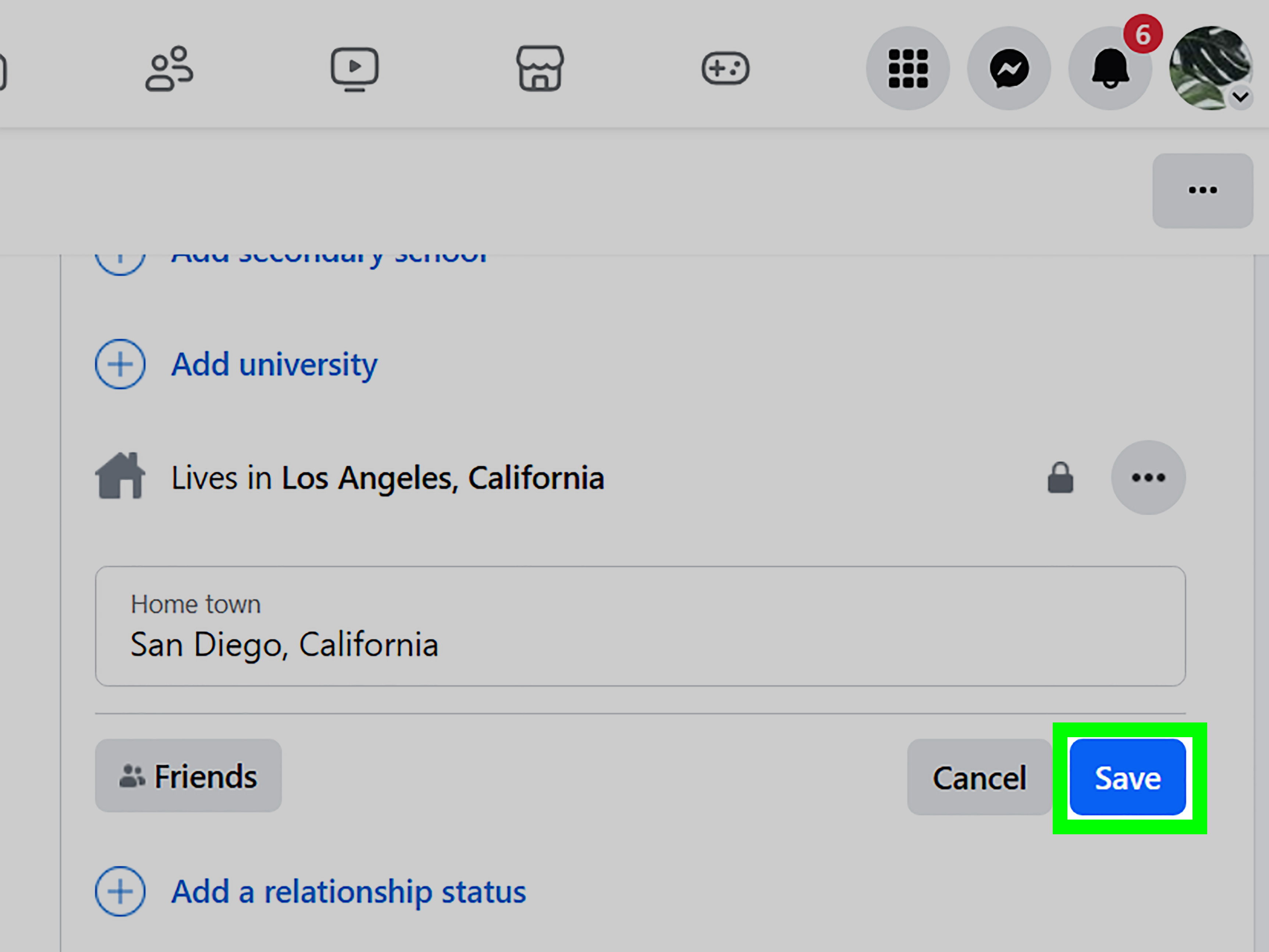
Open your Facebook profile, enter the profile-editing or About area, find Places lived, select Add hometown, type the city or town, choose the correct suggestion, set the audience, and save. Facebook treats a hometown as personal profile information, alongside details such as your current city, education, and work history.
Do not confuse hometown with current city. Your hometown usually means the place where you grew up or the community you identify as home. Your current city is where you live now. They can be the same, but Facebook gives them separate fields because life has a habit of relocating people.
How to Add a Hometown on Facebook on iPhone or Android
The Facebook app changes its furniture regularly, but the following route works across most recent iPhone and Android layouts.
Method 1: Use Edit Profile
- Open the Facebook app and sign in.
- Tap your profile picture or your name to open your profile.
- Tap Edit profile.
- Scroll to the Details section and tap Edit. On some versions, scroll to the bottom and tap Edit your About info.
- Find Places lived.
- Tap Add hometown. If a hometown already appears, tap its pencil icon or three-dot editing control.
- Begin typing the town or city name.
- Select the correct location from Facebook’s suggested results. Typing a name without selecting a suggestion may not save correctly.
- Choose an audience, such as Public, Friends, or Only me.
- Tap Save.
Facebook allows users to add or change profile details and assign an audience to individual pieces of information.
Method 2: Use the About Section
- Go to your Facebook profile.
- Tap See your About info or See more about yourself.
- Scroll to Places lived.
- Tap Add hometown or edit the existing entry.
- Select a location, choose its visibility, and tap Save.
This route is especially useful when the shorter Edit Profile screen only lets you show or hide details but does not let you change the underlying information.
How to Display Your Hometown in Your Profile Intro
Adding a hometown does not always place it prominently near the top of your profile. To show it in your intro:
- Open your profile and tap Edit profile.
- Find Customize your intro or the Details area.
- Turn on the checkbox or toggle beside your hometown.
- Save the changes.
The intro editor generally controls which already-added details appear in the compact profile summary. The About section controls the actual information stored on your profile.
How to Add or Change a Hometown on Facebook on a Computer
The desktop website provides more space and is often easier when the mobile app keeps sending you through a maze worthy of a small theme park.
- Open Facebook in a web browser and sign in.
- Click your profile picture in the upper-right corner, then click your name.
- Open the About tab beneath your cover photo.
- Select Places lived in the left-side menu. If it is not immediately visible, look under a category related to living or profile details.
- Click Add a hometown. To replace an existing hometown, click the pencil icon or options control next to it.
- Type the location and choose the correct suggestion.
- Select the audience for the entry.
- Click Save.
If your layout does not show a dedicated Places lived category, click Edit details or open another About subsection and look for the hometown field. Facebook’s general desktop editing path involves opening your profile, choosing About, selecting an information category, and using its Add or Edit control.
How to Remove a Hometown
Return to Places lived, open the editing menu next to the hometown, and choose Delete or Remove. If you merely want to keep the information private, changing the audience to Only me is less dramatic and easier to reverse.
Can You Create a New Hometown If Facebook Does Not List It?
Usually, you can add only a town or city that Facebook recognizes in its location suggestions. The hometown box is not a completely free-form biography field. It draws from Facebook’s place and geographic data, which means a tiny village, newly renamed municipality, alternate spelling, or local nickname may not appear.
Facebook does not provide every user with a dependable Create new hometown button inside the profile editor. Some accounts may see an option to add a new place while making a check-in, but availability varies by account, region, app version, and location type.
Even when you create a check-in place or Facebook Page, that location may not become selectable as a personal hometown. In other words, making “Grandma’s Farm Behind the Red Barn” a check-in does not automatically convince Facebook that it is an incorporated city.
Try These Options in Order
- Use the official spelling. Search for the name used by the local government or postal service.
- Add the state, province, or country. Try “Springfield, Illinois” instead of only “Springfield.” Facebook has met a few Springfields.
- Try an alternate spelling. The database may use an older English spelling, a local-language name, or a different transliteration.
- Search for the administrative municipality. A village may be listed under the larger city, county, district, or municipality that governs it.
- Try the Facebook mobile app. Location creation and check-in tools are more likely to appear on mobile than on desktop.
- Update the app. An outdated Facebook version may not display the latest profile-editing controls.
- Try another device or browser. This can rule out a temporary interface, extension, or cache problem.
- Report the missing location. Open Menu > Help & support > Report a problem. Include the exact place name, country, region, postal code, and a short explanation.
Facebook separates profile information from post check-ins. Check-ins are used to search for and attach a nearby place to a post, often with help from the device’s location services.
Should You Select the Nearest Major City?
If your small community is not listed, selecting the nearest recognized municipality can be a reasonable solution. This is particularly practical when your village is officially part of that municipality or when people outside the region would recognize the larger city more easily.
You can mention the exact village in your bio, but consider whether publishing such a precise location is appropriate for your privacy.
Do Not Create a Fake Facebook Page Just to Add a Hometown
A Facebook Page with an address is intended for a business, organization, public figure, brand, or another Page identity. It is not designed as a workaround for personal profile geography.
Page addresses and profile hometowns use different systems. Creating a misleading Page may produce an empty public listing without solving your hometown problem.
How to Control Who Can See Your Facebook Hometown
A hometown can help old classmates, childhood friends, and distant relatives recognize you. However, it is still location-related personal information. Before making it public, decide whether the benefit is worth adding another detail to your digital footprint.
Common Audience Choices
- Public: Anyone who can view your profile may see the hometown.
- Friends: Only accepted Facebook friends can see it.
- Only me: The hometown remains saved but hidden from everyone else.
- Custom: Depending on your interface, you may be able to include or exclude particular people or friend lists.
You can normally change the audience beside the hometown entry in the About section. Facebook also provides broader privacy tools and audience selectors for profile information.
Hometown Privacy Is Not the Same as Location Services
Your hometown is a profile field that you enter manually. Location Services is a phone permission that may help Facebook find nearby places for check-ins and other location-aware features.
You generally do not need to give Facebook precise GPS access merely to type an existing hometown into your profile. If Facebook requests location access while you are trying to create or search for a nearby check-in place, that is a separate process.
Your Hometown Does Not Control Every Facebook Location
Changing your hometown does not necessarily change your Marketplace area, Facebook Dating location, event recommendations, advertising location, login-location display, or the location attached to a post.
Those features may use separate settings, your current-city field, device signals, network information, or recent activity. For example, Facebook provides a separate location control for Marketplace listings.
Why Can’t I Add My Hometown on Facebook?
The Town Does Not Appear in Search
Check the spelling, add the region or country, try the official municipal name, and test both the mobile app and desktop website. If Facebook does not recognize the location, you may need to choose a nearby city or report the missing place.
The Save Button Does Nothing
Make sure you selected one of Facebook’s dropdown suggestions instead of leaving unconfirmed text in the box. The location may look complete while still lacking the structured place record Facebook expects.
If it still will not save, close and reopen the app, switch between Wi-Fi and mobile data, clear the Facebook cache on Android, or try a desktop browser.
The Hometown Is Saved but Not Visible
There are two likely causes. First, its audience may be set to Only me. Second, the entry may exist in your About section but be switched off in the profile intro.
Check both the audience selector beside the hometown and the Customize your intro controls.
The Wrong City Appears
Edit the existing entry rather than adding another hometown. If duplicate records remain, delete the incorrect location and save the correct one. Also verify that you are editing Hometown, not Current city.
Facebook Shows Several Towns With the Same Name
Compare the state, province, county, region, and country shown beside each suggestion. Choosing the first result may send your digital childhood several hundred miles away.
The Places Lived Menu Is Missing
Facebook may be testing a different profile layout. Look for any route containing About, public details, profile details, or places lived.
Update the app and try the desktop site if necessary. If the feature still fails, Facebook recommends using its Help and support menu to report a problem.
The Hometown Disappeared After Saving
Reload your profile before entering it again. A slow connection can delay the visible update. Also check your activity log or About section to determine whether the entry was saved but hidden from the intro.
You Cannot Edit the Field on an Additional Profile
Facebook’s main and additional profiles may not support exactly the same personal-information fields. Switch to your main profile and check whether the complete About editor is available there.
Frequently Asked Questions
Can I Add More Than One Hometown?
Facebook normally treats Hometown as a single identity field. You can list other locations under places you have lived, create life events, or mention multiple places in your bio when your background does not fit neatly into one box.
Will Facebook Notify My Friends When I Change My Hometown?
A profile edit may become visible depending on Facebook’s current interface, the audience selected for the information, and your profile activity settings. Review the audience before saving and check your profile afterward if discretion matters.
Can I Enter a Neighborhood Instead of a City?
Only if Facebook recognizes that neighborhood as a selectable location. Otherwise, use the larger city and mention the neighborhood in your bio if you are comfortable sharing it.
Does Changing My Hometown Change My Current City?
No. Hometown and current city are separate profile entries. You must update each one individually.
Can I Hide My Hometown Without Deleting It?
Yes. Edit the hometown’s audience and choose Only me. You can make it visible again later without retyping it.
Do I Need to Turn On GPS to Add a Hometown?
Not usually. GPS or device location permission may help with nearby check-ins, but adding an existing hometown to your profile is generally a manual profile-editing action.
Can I Use a Fake Hometown?
Facebook may allow you to select any recognized location, but inaccurate profile information can confuse friends, reduce trust, and make account recovery or identity verification more complicated. Using truthful informationor leaving the field blankis the safer approach.
Practical Experience: What Actually Helps When Adding a Facebook Hometown
In real-world use, the easiest part is entering a major city. Type “Chicago,” tap the obvious Illinois result, choose Friends, and you are finished before your coffee cools. The trouble begins with smaller communities, duplicate names, recently renamed towns, and places that locals know well but databases treat like folklore.
Lesson 1: The Selected Suggestion Matters More Than the Typed Words
One of the most common mistakes is typing the full hometown name and immediately tapping Save. Facebook often expects a structured location selected from its suggestion list. The text may look complete, but the system has not attached it to a recognized place record.
The reliable habit is to pause, wait for suggestions, and tap the exact city-state-country combination. This is particularly important for town names shared by multiple locations. Choosing Portland without checking the state is how a profile can take an accidental cross-country vacation.
Lesson 2: “Added” and “Displayed” Are Different States
Another frequent source of confusion is that the hometown appears in the About section but not in the short intro under the profile photo. That does not mean the save failed.
Facebook separates the stored profile detail from the compact list displayed in the intro. After adding the hometown, return to Edit profile and enable it under Customize your intro. Also check the audience. A hometown set to Only me can be correctly stored, correctly enabled, and still invisible to everyone elsewhich is Facebook behaving exactly as instructed for once.
Lesson 3: Mobile and Desktop Can Produce Different Results
When one interface refuses to cooperate, switching devices is surprisingly effective. The desktop About page is better for seeing the complete Places lived structure, while the mobile app may be better for location suggestions or check-in features.
If the app loops back to your profile, use a desktop browser. If the desktop site offers incomplete search results, try the app. When testing a nearby check-in search, you can temporarily allow location access and disable it again afterward if you do not want Facebook using that permission continuously.
Lesson 4: A Nearby City Is Sometimes the Honest Practical Choice
For an unlisted village, users often spend far too long trying to force a custom location into the hometown field. A better solution may be the nearest officially recognized municipality, especially when the village is administratively part of it or when that city is the name people outside the area would understand.
You can add the exact village to your bio, provided you are comfortable publishing it. This balances accuracy, recognizability, and the limitations of Facebook’s location database.
Lesson 5: Creating a Check-In Place Is Not a Guaranteed Fix
Older tutorials often suggest creating a custom check-in location and then selecting it as a hometown. That method is inconsistent today. Some users still receive an option to add a place, while others see only existing search results.
Even when the place is created successfully, it may function as a check-in or Page location without becoming available in the hometown field. Treat custom place creation as an experiment, not a guaranteed solution.
Lesson 6: Privacy Deserves a Deliberate Decision
A hometown seems harmless because it describes the past rather than your exact present location. However, it can still help strangers connect your profile to schools, relatives, old addresses, or answers to common security questions.
For most people, Friends is a sensible default. Public may be useful for creators, local community organizers, public figures, or people who want old contacts to find them. Only me is appropriate when you want the information saved without advertising it.
A Simple Final Check
After saving, view your profile as another person would. Confirm the spelling, state or country, audience, and placement. Make sure you did not accidentally edit Current city instead of Hometown.
Finally, remember that Facebook’s menus will change againprobably five minutes after this guide is publishedbut the underlying process remains stable: open your profile information, find Places lived, select a recognized location, control the audience, and save.
Conclusion
To add or change a hometown on Facebook, go to your profile’s Edit or About area, open Places lived, choose a recognized town from the suggestions, set its audience, and save.
If the location is missing, try its official spelling, add the state or country, search for the governing municipality, switch between mobile and desktop, or use Facebook’s problem-reporting tool. Avoid confusing a profile hometown with a check-in location, Page address, current city, Marketplace area, or GPS setting.
Once the hometown is saved, decide whether it should appear in your profile intro and who should be allowed to see it. A correct location is useful; a correct location with sensible privacy settings is even better.