Quick truth before we start: if you are looking for the old Yahoo security questions page, you may feel like you are hunting for a flip phone charger in 2026. Yahoo no longer treats security questions as the main way to recover an account. In many cases, you cannot “reset Yahoo security questions” the way older tutorials describe. Instead, Yahoo now pushes users toward stronger recovery options such as a recovery email address, recovery phone number, Sign-in Helper, two-step verification, Account Key, passkeys, and recent activity controls.
That does not mean you are stuck. It means the correct solution is slightly different from the old-school method. This guide explains what happened to Yahoo security questions, how to recover your account on a computer or phone, how to update your Yahoo recovery settings, and what to do if Yahoo still asks for questions you no longer remember. Think of it as cleaning out an old digital attic: a little dusty, occasionally annoying, but very satisfying once everything works again.
Can You Still Reset Yahoo Security Questions?
In most modern Yahoo accounts, security questions are no longer a standard recovery method. Yahoo’s current account recovery system focuses on verified recovery information: your mobile number, alternate email address, Account Key, two-step verification, and other account security tools. If your account is older, you may still remember setting up questions like “What was your childhood best friend’s name?” or “What was your first car?” Unfortunately, those questions may no longer appear in your normal Yahoo Account Security settings.
The important point is this: Yahoo security questions are not the reliable recovery path they used to be. Security questions became unpopular across the tech industry because the answers are often easy to guess, easy to research, or easy to forget. Your mother’s maiden name may not be a secret if your family is on social media. Your favorite teacher in fifth grade may have changed three times depending on your mood. And your first pet’s name? Let’s be honest, half the internet had a dog named Max.
Why Yahoo Moved Away From Security Questions
Security questions look safe because they feel personal. In reality, they are often weaker than passwords. A password can be random. A security answer is usually based on a real-life fact, and real-life facts have a bad habit of appearing in public records, social media posts, old yearbooks, family conversations, or data leaks.
Modern account security now prefers proof you can actively control: a phone you own, an email address you can open, an authentication app, a passkey, or a trusted device. That is why the best answer to “How do I reset my Yahoo security questions?” is often: secure your Yahoo account with updated recovery methods instead.
Before You Start: What You Need
Before trying to recover or update your Yahoo account, gather anything that can prove account ownership. You may need your Yahoo email address, recovery phone number, recovery email address, access to your Yahoo Mail app, a device you have used before, or your current password if you can still sign in.
If you are already signed in, your job is easier. Go directly to your Yahoo Account Security settings and update your recovery methods. If you are locked out, use Yahoo Sign-in Helper. If you no longer have access to your old phone number or recovery email, recovery becomes harder, but you should still try Yahoo’s official account recovery process before giving up.
How to Recover Yahoo Account Access on a Computer
Step 1: Go to Yahoo Sign-in Helper
On your computer, open a browser and go to Yahoo’s sign-in or account recovery page. Select the option for trouble signing in or forgotten password. Yahoo will ask for one of the following: your Yahoo email address, your recovery email address, or your recovery phone number.
Use the information you still control. If your old phone number disappeared into the same black hole as your favorite hoodie, try the recovery email instead. If the recovery email is also unavailable, try entering your Yahoo email address and follow the available prompts.
Step 2: Choose a Verification Method
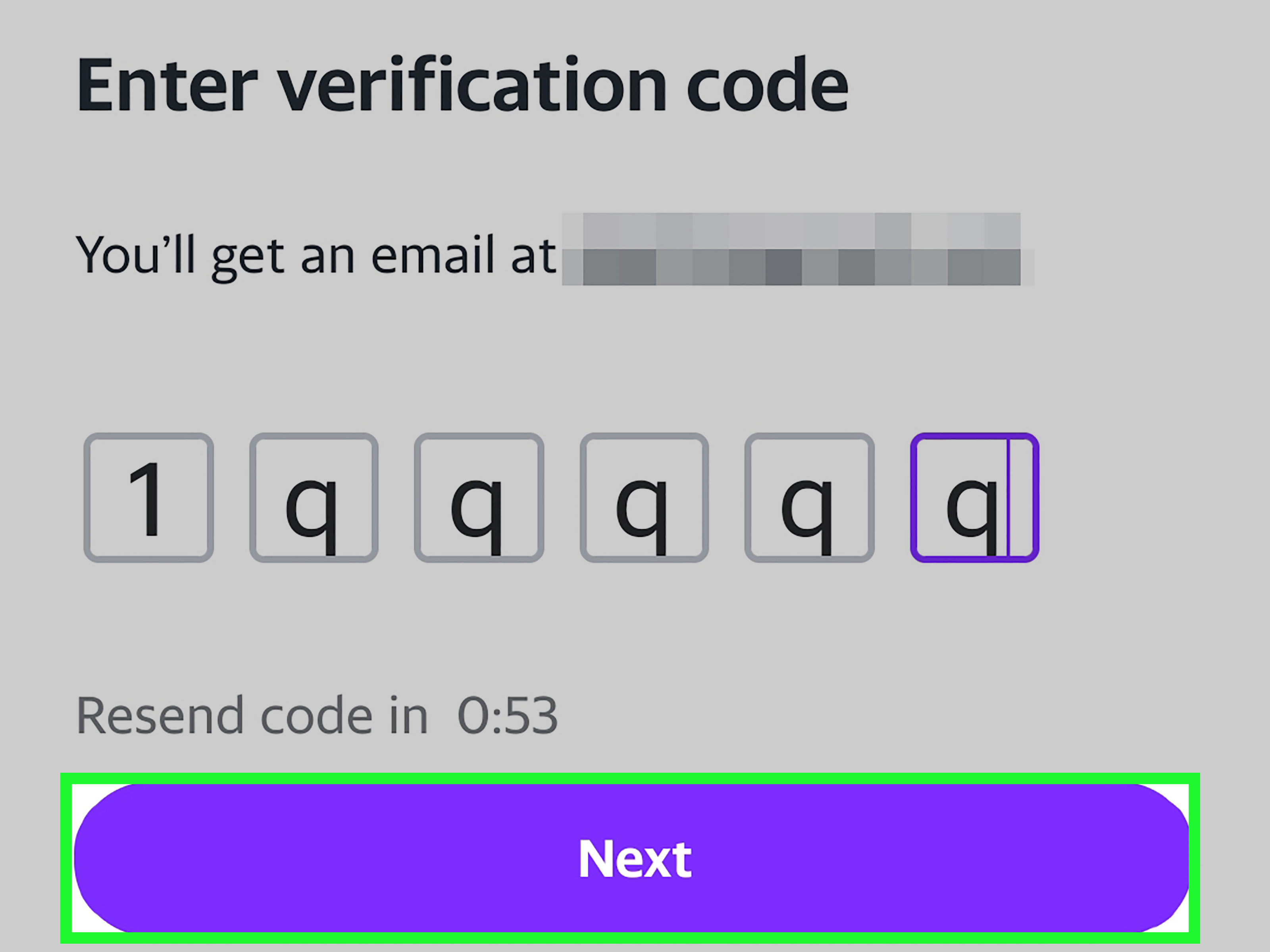
Yahoo may offer to send a code to your phone, send a code to your alternate email address, approve a prompt through Account Key, or use another available recovery option. Choose the method you can access immediately. Do not guess codes, and do not refresh the page twenty-seven times like the website personally insulted you. Wait for the code, check spam folders if using email, and make sure your phone has signal.
Step 3: Enter the Code and Reset Your Password
After receiving the verification code, enter it carefully. If Yahoo confirms your identity, you may be asked to create a new password. Choose a strong, unique password that you do not use anywhere else. A good password should not be your name, birthday, favorite team, or “Yahoo123,” which is less a password and more an invitation.
Step 4: Review Your Account Security Page
Once you are back in the account, open your Account Security settings. Review your recovery phone, recovery email, two-step verification settings, Account Key, passkeys, and connected devices. Remove anything outdated. Add at least one recovery email and one phone number if possible. This is the digital version of putting a spare key somewhere sensible instead of under a rock labeled “spare key.”
How to Recover Yahoo Account Access on a Phone
Using a Mobile Browser
Open your phone’s browser and visit Yahoo’s sign-in page. Tap the option for forgotten password or trouble signing in. Enter your Yahoo email address, recovery phone number, or recovery email. Yahoo will then show the recovery options available for your account.
If you receive a text message code, enter it on the screen. If you receive an email code, open your recovery email account and copy the code carefully. If you use Account Key, approve the sign-in prompt from your Yahoo app. Once verified, reset your password and continue to your account security settings.
Using the Yahoo Mail App
If you still have the Yahoo Mail app installed and signed in, open it. Tap your profile icon or menu, then look for account management or account security options. From there, you may be able to manage Account Key, recovery details, and security settings. The exact labels may vary depending on app version, device, and whether you are using iPhone or Android.
If the app asks you to verify your identity, use the method Yahoo provides. Keep the app updated, because old versions can behave strangely. Sometimes the fastest fix is not dramatic detective work; it is simply updating the app and trying again.
How to Update Yahoo Recovery Email and Phone Number
If you can sign in, updating recovery information is one of the smartest things you can do. From a computer or phone, open your Yahoo Account Security page. Find the section for ways of signing in or recovery methods. Add a current phone number and an alternate email address you actually use.
After adding a new recovery method, Yahoo will usually ask you to verify it. That means you may receive a text message or email with a code. Complete the verification. An unverified recovery method is like buying an umbrella and leaving it at the store: technically nice, practically useless.
Remove old phone numbers and email addresses that you no longer control. If your recovery phone number now belongs to someone else, leaving it on the account can create risk. If your old recovery email was abandoned years ago, it may not help you when you need it most.
What If Yahoo Still Asks for Security Questions?
Some users with older accounts report seeing prompts related to old security questions. If that happens, do not panic. First, try signing in from a device and location you have used before. Account recovery systems may behave differently when you use a familiar browser, trusted phone, or normal Wi-Fi network.
Next, try Yahoo Sign-in Helper instead of repeatedly attempting the same failed login. The recovery tool may offer alternate verification methods, especially if you have a recovery email or phone number on file. If Yahoo gives you no usable recovery option, check whether you are entering the correct Yahoo ID. A small typo can send you into the wrong recovery flow and ruin your afternoon before lunch.
If you still cannot proceed, use Yahoo’s official help options. Avoid random “Yahoo support” phone numbers found in search results, comment sections, or suspicious pop-ups. Scammers love account recovery panic because people in panic mode click things they would normally laugh at.
How to Remove Old Yahoo Security Questions
If your Yahoo account still displays old security questions in a security settings area, remove them if Yahoo provides that option. Yahoo’s own guidance has indicated that security questions are no longer used as a preferred security method. Removing outdated questions reduces the chance that weak personal information remains attached to your account.
If you do not see any security question section, that is normal for many accounts. It likely means Yahoo has already moved your account away from that system. In that case, focus on recovery email, recovery phone, two-step verification, Account Key, and recent activity review.
Set Up Two-Step Verification for Better Protection
Two-step verification adds another layer to your Yahoo account. Instead of relying only on a password, Yahoo may ask for a code or approval from another method. This is helpful because even if someone steals your password, they still need the second factor.
To set it up, go to your Yahoo Account Security page and look for two-step verification. Choose a phone number, authenticator app, passkey, or another available method depending on what Yahoo offers your account. Follow the prompts and save any emergency recovery information securely.
Do not store recovery codes in the same email account they protect. That is like locking your house key inside your house and then congratulating yourself for being organized.
Use Yahoo Account Key Carefully
Yahoo Account Key lets you approve sign-ins from your phone instead of typing a password every time. It can be convenient, especially for people who hate passwords with the passion of someone who has typed “incorrect password” six times in a row.
However, Account Key depends on access to your phone and Yahoo app. If you lose the phone, change devices, uninstall the app, or stop receiving prompts, you may need to use other recovery methods. That is why it is smart to keep your recovery email and phone number current even if Account Key is enabled.
Check Recent Activity After Recovery
After you regain access, review your account’s recent activity. Look for unfamiliar devices, strange locations, unusual sign-ins, or connected apps you do not recognize. If something looks suspicious, sign out of unknown sessions, change your password, remove unfamiliar app passwords, and review mail forwarding or filters.
Hackers do not always make a grand entrance. Sometimes they quietly add a forwarding rule, create an app password, or change a setting so they can keep reading your mail later. Your job is to close every window, not just the front door.
Common Problems and Fixes
You Do Not Have the Old Phone Number
Try your recovery email instead. If you are still signed in on another device, update the phone number immediately. If you are fully locked out and Yahoo only offers the old number, recovery may be limited.
You Do Not Have the Recovery Email
Try the recovery phone number. Also check whether you are signed in on the Yahoo Mail app, an old browser session, or another device. If you can get in anywhere, update your recovery email before signing out.
The Verification Code Does Not Arrive
Check spam and junk folders for email codes. For phone codes, confirm the number is correct, disable call or text blocking temporarily, and wait a few minutes before requesting another code. Too many requests can create delays.
Yahoo Says the Account Cannot Be Recovered
If Yahoo cannot verify ownership through available recovery methods, the account may not be recoverable through automated tools. This is frustrating, but it is part of modern security: if Yahoo cannot prove you are the owner, it also should not hand the account to someone else.
Security Tips After Resetting Your Yahoo Account
Use a unique password for Yahoo. Turn on two-step verification. Keep at least two recovery methods current. Remove old app passwords. Review recent activity monthly. Be careful with phishing emails that pretend to be Yahoo. Never share verification codes with anyone, even if they claim to be support.
Also, consider using a password manager. It can create and store strong passwords so your brain can focus on better things, like remembering why you walked into the kitchen.
Experience Notes: What Real Users Usually Learn the Hard Way
The biggest lesson with Yahoo security questions is that people often start looking for them only after something has already gone wrong. Maybe they changed phone numbers. Maybe the recovery email is an old school or work address. Maybe they last updated account security when ringtones were a personality trait. By the time they need recovery, the account is connected to a phone number they no longer own and an email address they barely recognize.
A practical example: imagine someone created a Yahoo account in 2012, added security questions, used the account for shopping receipts, and then forgot about recovery settings for years. In 2026, they try to sign in from a new phone. Yahoo asks for verification, but the recovery phone number is from two carriers ago. The user searches for “reset Yahoo security questions,” expecting a simple page where they can type new answers. Instead, they find that Yahoo now relies on recovery methods and Sign-in Helper. The real fix is not changing the old questions; it is proving ownership through a current email, phone, trusted device, or official recovery process.
Another common experience happens with the Yahoo Mail app. A user may still be signed in on their phone but locked out on a computer. That phone session is valuable. Before logging out, factory resetting the device, or deleting the app, they should open account settings and update recovery information. Many people accidentally remove their only working access point because they think reinstalling the app will “clear the problem.” Sometimes it clears the problem; sometimes it clears your last open door.
People also underestimate how important old inbox access can be. Yahoo accounts are often tied to banking alerts, social media accounts, shopping profiles, domain registrations, cloud services, and password reset links. Losing access to Yahoo can become a domino effect. That is why recovery settings deserve a quick check every few months. It is boring, yes. But so is brushing your teeth, and everyone appreciates the result.
The safest habit is simple: treat recovery information like part of your identity. When you change your phone number, update Yahoo. When you stop using an alternate email, replace it. When you buy a new phone, confirm that Account Key, passkeys, and two-step verification still work. When you notice strange messages in Sent, unknown devices, or missing emails, review recent activity immediately.
Finally, do not trust panic. Account recovery stress makes people vulnerable to fake support pages, paid “recovery experts,” and scammers who ask for verification codes. Yahoo will not need your password over the phone, and a stranger cannot magically unlock your account by “connecting to the server.” Use official recovery tools, move slowly, and protect your verification codes like cash. The old security-question era may be fading, but good account hygiene still works beautifully.
Conclusion
Resetting Yahoo security questions is not as straightforward as it once was because Yahoo has moved away from security questions as a primary recovery method. For most users, the better path is to use Yahoo Sign-in Helper, verify identity through a recovery phone or email, update account security settings, enable two-step verification, manage Account Key carefully, and review recent activity after regaining access.
If you are already signed in, update your recovery information today. If you are locked out, use Yahoo’s official recovery process and avoid unofficial support numbers or suspicious services. Security questions may feel nostalgic, but nostalgia is not a security strategy. A current recovery email, working phone number, strong password, and two-step verification will do far more to keep your Yahoo account safe.