If your iPhone suddenly says “Uploading to iCloud Paused”, do not panic, do not throw your phone across the room, and definitely do not assume your photos have vanished into the digital abyss. In most cases, this message is less of a disaster and more of a polite Apple nudge that says, “Hey, I need a little help here.”
Usually, the issue comes down to something simple: your battery is low, your Wi-Fi is shaky, your iCloud storage is stuffed like an overpacked suitcase, or your iPhone has decided now is the perfect time to save power instead of uploading your 97 nearly identical sunset photos. The good news is that there are practical ways to get things moving again.
In this guide, you will learn 7 ways to fix uploading to iCloud paused on your iPhone, why the problem happens in the first place, and what you should avoid doing if you do not want to make the situation worse. Let’s get your photos back on speaking terms with iCloud.
Why Does iPhone Say “Uploading to iCloud Paused”?
Before jumping into the fixes, it helps to understand what this message usually means. Your iPhone is trying to sync photos or videos to iCloud Photos, but something is blocking the process temporarily. That “something” might be battery-saving settings, poor connectivity, low available storage, heat, or a pause triggered by system optimization.
In plain English, your iPhone is not broken. It is just being dramatic in a very Apple way.
1. Check the Exact Sync Status in the Photos App
The first fix is also the most overlooked: actually read the status message. Open the Photos app and check what iPhone is trying to tell you. The message often includes the real reason uploads are paused, such as Low Battery, Low Data Mode, Poor Network Connection, Needs to Cool Down, or iCloud Storage Is Full.
How to do it
- Open Photos.
- Go to your library or collection view.
- Look for the sync status near your profile or at the bottom of the library, depending on your iOS version.
- If you see a button like Sync Now or Resume, tap it.
This matters because the fix for a low-battery pause is different from the fix for full iCloud storage. Reading the message first saves you from randomly toggling settings like a game-show contestant hitting buttons under pressure.
2. Charge Your iPhone and Turn Off Low Power Mode
One of the most common reasons for iCloud upload paused on iPhone is battery management. When your battery gets low, iPhone may delay or pause iCloud Photos syncing to conserve energy. If Low Power Mode is turned on, that can also temporarily pause photo uploads.
What to do
- Plug your iPhone into a charger.
- Let it charge past 20%, and ideally keep it charging longer.
- Open Settings > Battery.
- Turn off Low Power Mode if it is enabled.
If your phone is hovering at a low percentage and trying to survive the day, it will prioritize not dying over uploading your vacation reel in 4K. Fair enough, honestly.
After charging for a bit, return to Photos and check whether uploading resumes automatically. In many cases, it does.
3. Connect to Stable Wi-Fi and Disable Low Data Mode
iCloud Photos works best with a stable Wi-Fi connection. If your network is weak, inconsistent, or heavily restricted, uploads can pause. The same thing may happen when Low Data Mode is turned on, since iPhone may reduce background syncing to save data.
How to fix network-related pauses
- Connect to a reliable Wi-Fi network.
- Avoid switching repeatedly between Wi-Fi and cellular.
- Open Settings > Wi-Fi, tap the info icon next to your network, and check whether Low Data Mode is enabled.
- Turn Low Data Mode off if you want iCloud Photos to sync more freely.
If you are uploading a large batch of photos or videos, give your iPhone time on solid Wi-Fi. Uploading a few selfies is one thing. Uploading hundreds of Live Photos, slo-mo videos, and that accidental 11-minute pocket recording is another story.
A smart move is to leave your iPhone connected to Wi-Fi and power overnight. Large libraries often need more time than people expect, especially after a recent restore, a software update, or a huge weekend of camera-happy behavior.
4. Make Sure iCloud Photos Is Turned On and You Are Using the Right Apple Account
Sometimes the pause is not really a pause. Sometimes syncing is stalled because the feature is off, the account changed, or the device is signed into the wrong Apple Account. It sounds obvious, but obvious problems are still problems.
Check your iCloud Photos settings
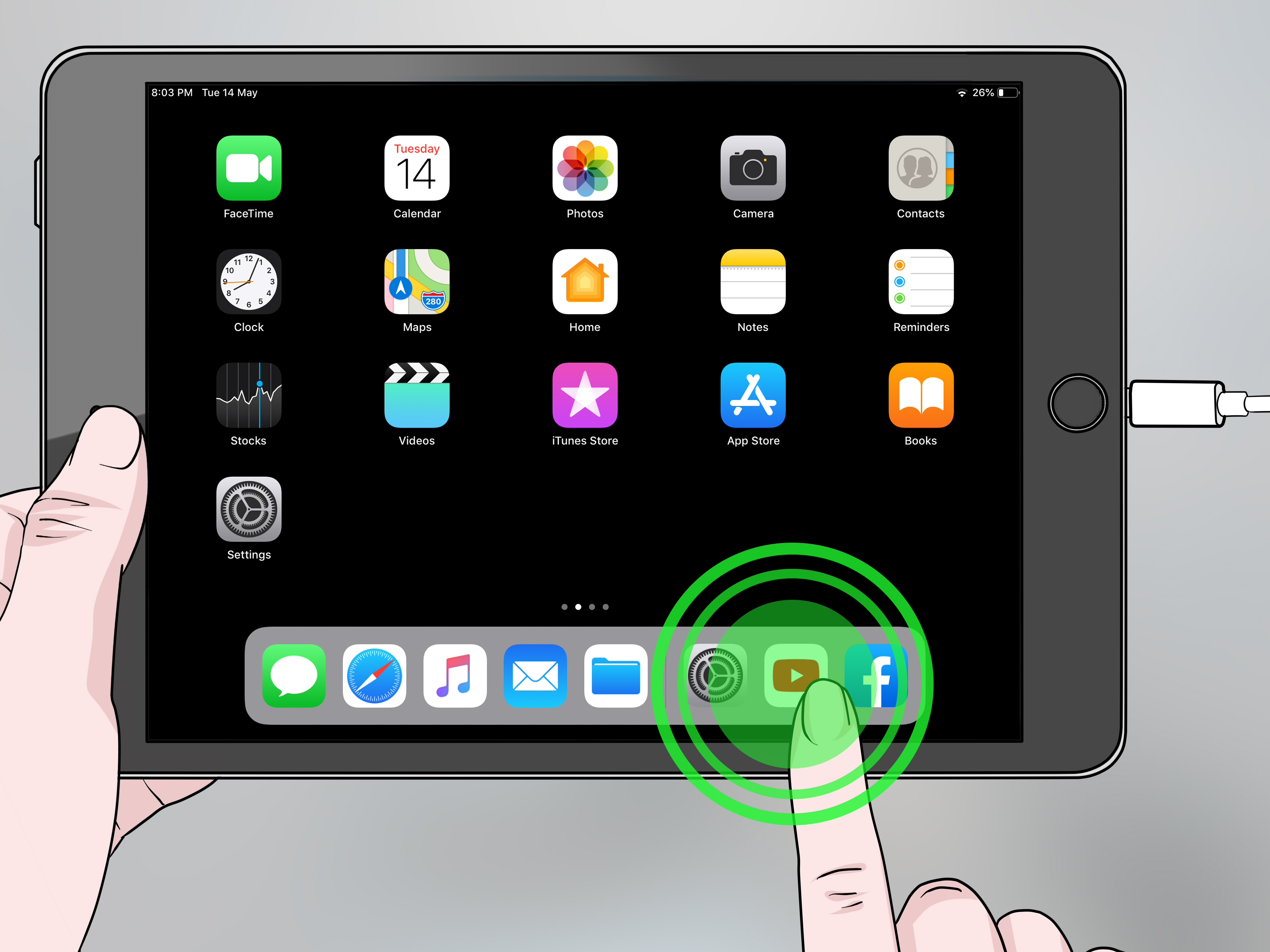
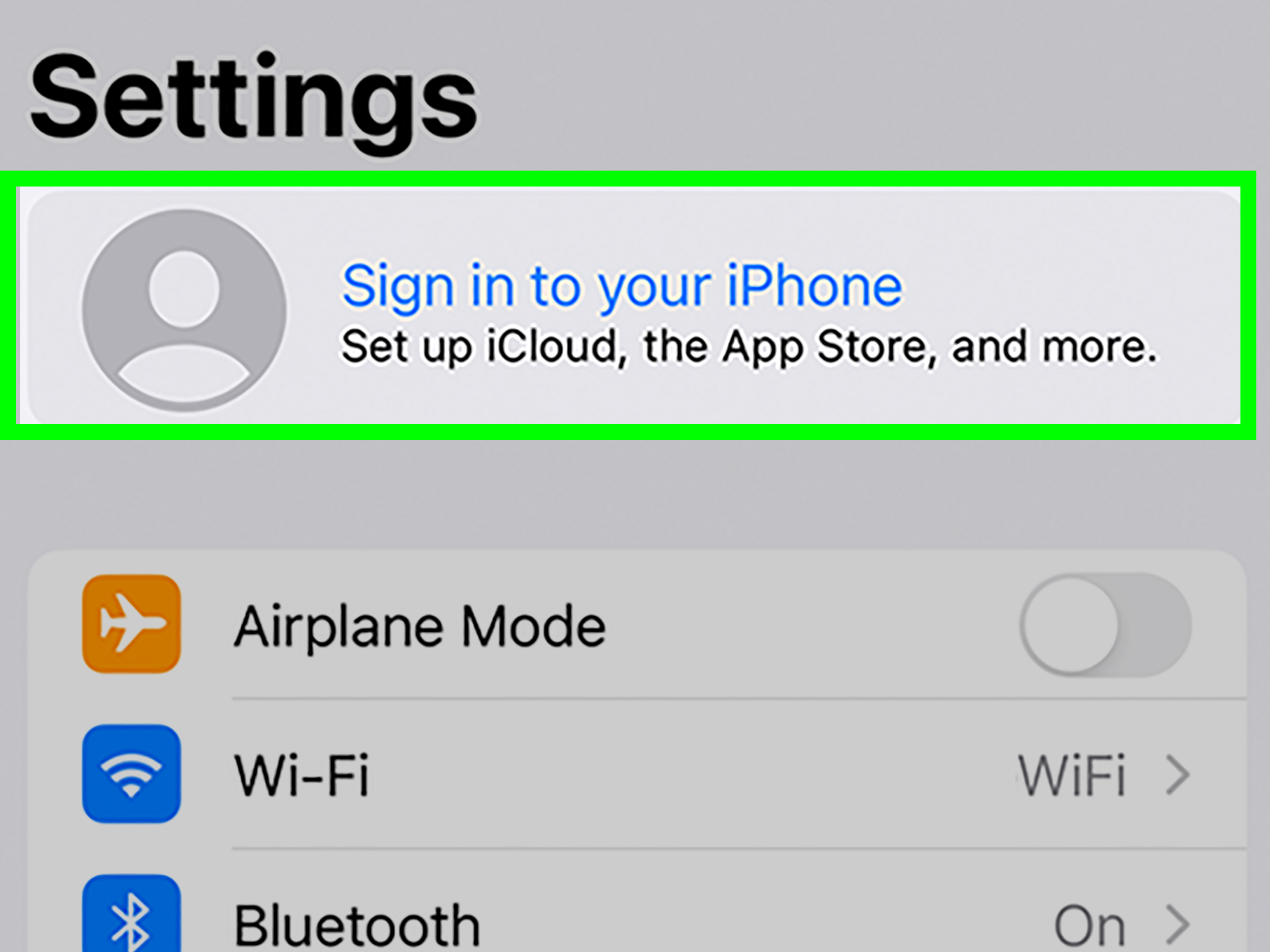
- Open Settings.
- Tap your name.
- Tap iCloud.
- Tap Photos.
- Make sure Sync this iPhone is turned on.
Also confirm that the Apple Account on this iPhone is the same one you use on your other Apple devices. If not, your uploads may not go where you expect them to go.
This is especially important if you recently changed accounts, restored your device, signed out of iCloud for troubleshooting, or inherited a family phone setup that feels like a sitcom plotline.
5. Free Up iCloud Storage and Local iPhone Storage
If your iCloud storage is full, uploads can stop cold. No room means no new photos in the cloud. Simple, rude, and very effective. But here is the twist: cramped local storage on your iPhone can also make syncing more difficult, especially if the system has little breathing room to process uploads.
Check iCloud storage
- Open Settings.
- Tap your name.
- Tap iCloud.
- Review your storage usage.
Check iPhone storage
- Open Settings > General > iPhone Storage.
- See how much local space is available.
Ways to create more room
- Delete large videos you no longer need.
- Remove duplicate photos and screenshots.
- Offload unused apps.
- Upgrade your iCloud storage plan if needed.
- Turn on Optimize iPhone Storage under Settings > your name > iCloud > Photos.
Optimize iPhone Storage is especially helpful if your iPhone is packed. It keeps smaller, device-friendly versions on the phone while full-resolution originals stay in iCloud. Think of it as telling your iPhone, “You do not need to carry every heavy box yourself. The cloud has a truck.”
6. Check for Overheating, System Issues, or an Apple Outage
Your iPhone may pause syncing if it gets too warm. That can happen during charging, heavy video use, gaming, long navigation sessions, or simply sitting in a hot car like it is sunbathing against its will. If the device needs to cool down, iCloud uploads may pause until temperature returns to normal.
What to do if your iPhone is warm
- Take it out of direct sunlight.
- Remove a thick case if the device feels hot.
- Stop heavy apps for a while.
- Let the phone cool naturally.
Also, do not ignore the possibility that the problem is on Apple’s side. If iCloud Photos or related services are having issues, you may not be able to fix the pause from your iPhone no matter how many times you squint at Settings.
What to check
Visit Apple’s System Status page and look for issues related to Photos, iCloud Account & Sign In, or other iCloud services. If there is an outage, the best fix is patience. Annoying? Yes. But at least it means your phone is not the villain.
7. Update iOS and Restart Your iPhone
If uploads are still paused, give your iPhone the classic one-two punch: restart it and check for iOS updates. This advice is so common it almost feels like tech support wallpaper, but it works because temporary software glitches do happen.
Restart your iPhone
Power the phone off completely, wait a moment, and turn it back on. A restart can clear minor sync hiccups and background weirdness that built up quietly while you were busy living your life.
Update iOS
- Open Settings.
- Tap General.
- Tap Software Update.
- Install the latest available update.
Software updates often include bug fixes, stability improvements, and behind-the-scenes adjustments that can help with syncing behavior. If your iPhone has been avoiding updates like a teenager avoiding chores, now is the time.
What Not to Do When iCloud Uploading Is Paused
When people see a sync problem, they often go straight to the most dramatic solution. Resist that urge. Here are a few things you should avoid unless you have a specific reason and a backup plan:
- Do not immediately turn off iCloud Photos just because syncing paused.
- Do not sign out of iCloud casually unless you understand what will resync and what may take time to return.
- Do not delete photos in a panic without checking whether they are already backed up.
- Do not assume “paused” means “lost”. It usually means delayed, not gone.
A calm, methodical approach is almost always faster than random troubleshooting chaos.
Quick Recap: The 7 Best Fixes
- Check the exact iCloud sync status in Photos.
- Charge your iPhone and turn off Low Power Mode.
- Use strong Wi-Fi and disable Low Data Mode if necessary.
- Confirm iCloud Photos is on and your Apple Account is correct.
- Free up iCloud storage and iPhone storage.
- Let the iPhone cool down and check Apple System Status.
- Restart the iPhone and update iOS.
Real-World Experiences: What This Problem Usually Looks Like on an Actual iPhone
A lot of people run into this issue after a completely normal day. You take a bunch of photos at a birthday party, record a few videos, maybe edit one clip for social media, and later notice that the Photos app says “Uploading to iCloud Paused.” At first, it feels alarming. You start wondering whether your newest memories are stuck on the device, whether iCloud is broken, or whether you accidentally changed something important. In reality, it is often a mix of ordinary conditions piling up at once.
One common experience is the “almost full battery, still paused” situation. Your phone might be at 35% or 40%, yet uploads are still stalled because Low Power Mode is active, the device recently got warm, or the system is prioritizing performance. That makes the issue feel random, even though the phone is following its own internal rules. Another classic scenario happens after travel. People return home with hundreds of photos and videos, connect to Wi-Fi, and expect instant syncing. Instead, the phone takes its sweet time because the library is large and the network is shared with every other device in the house streaming, gaming, and doing everything except helping your upload finish.
Storage is another big one. Many users do not realize their iCloud plan filled up weeks ago because everything seemed fine until the newest batch of photos arrived. Then the pause message shows up like an overdue bill with perfect timing. On-device storage can create a similar headache. Even if iCloud has room, an iPhone packed with apps, downloads, and media can struggle to keep up smoothly.
There is also the emotional side of the problem, which no settings menu ever explains. When uploads pause, people worry about losing important photos of family, pets, trips, graduations, or everyday moments they do not want to recreate because, well, time machines are still unavailable. That anxiety is understandable. The reassuring part is that a pause usually means the process has stopped temporarily, not that your content has disappeared.
In real use, the fix is often surprisingly boring: charge the phone, leave it on strong Wi-Fi, free some storage, and wait. Not glamorous. Not magical. But effective. Tech problems love drama; solutions are usually much less theatrical.
Conclusion
If you see “Uploading to iCloud Paused” on your iPhone, the best response is not panic. It is a checklist. Start with the status message in Photos, then work through battery, Wi-Fi, data-saving settings, storage, temperature, software updates, and a restart. In most cases, one of these seven fixes gets iCloud Photos moving again.
The biggest takeaway is simple: paused does not mean broken forever. It usually means your iPhone needs better conditions to finish the job. Give it power, give it storage, give it decent internet, and maybe give it a little patience too. Your photo library will thank you, even if your phone never says so out loud.