If you own a MacBook Air, you already know the screen is a bit like a magnet for fingerprints, dust,
and that one sneeze you swore missed. The good news? You don’t need fancy potions or risky hacks to
clean it. With a few simple tools and the right technique, you can get a streak-free, crystal-clear
display without damaging the delicate coatings Apple puts on the glass.
In this guide, you’ll learn three safe, manufacturer-friendly ways to clean a MacBook Air screen:
a quick dry dust-off, a deeper clean with distilled water, and a careful approach to stubborn smudges
and light disinfecting. We’ll also walk through what not to do, plus real-world experiences
from everyday use, so you can keep your screen looking fresh for years.
Before You Start: Essential Safety Rules
Before you grab the nearest paper towel and glass cleaner (please don’t), take a moment to prep your
laptop. A few simple precautions go a long way toward avoiding streaks, scratches, or liquid damage.
Power down and unplug
- Shut down your MacBook Air completely, don’t just close the lid.
- Unplug the power adapter and any connected devices.
-
This makes it easier to see smudges on a dark screen and reduces the risk of short circuits if
moisture goes where it shouldn’t.
Use the right cloth
-
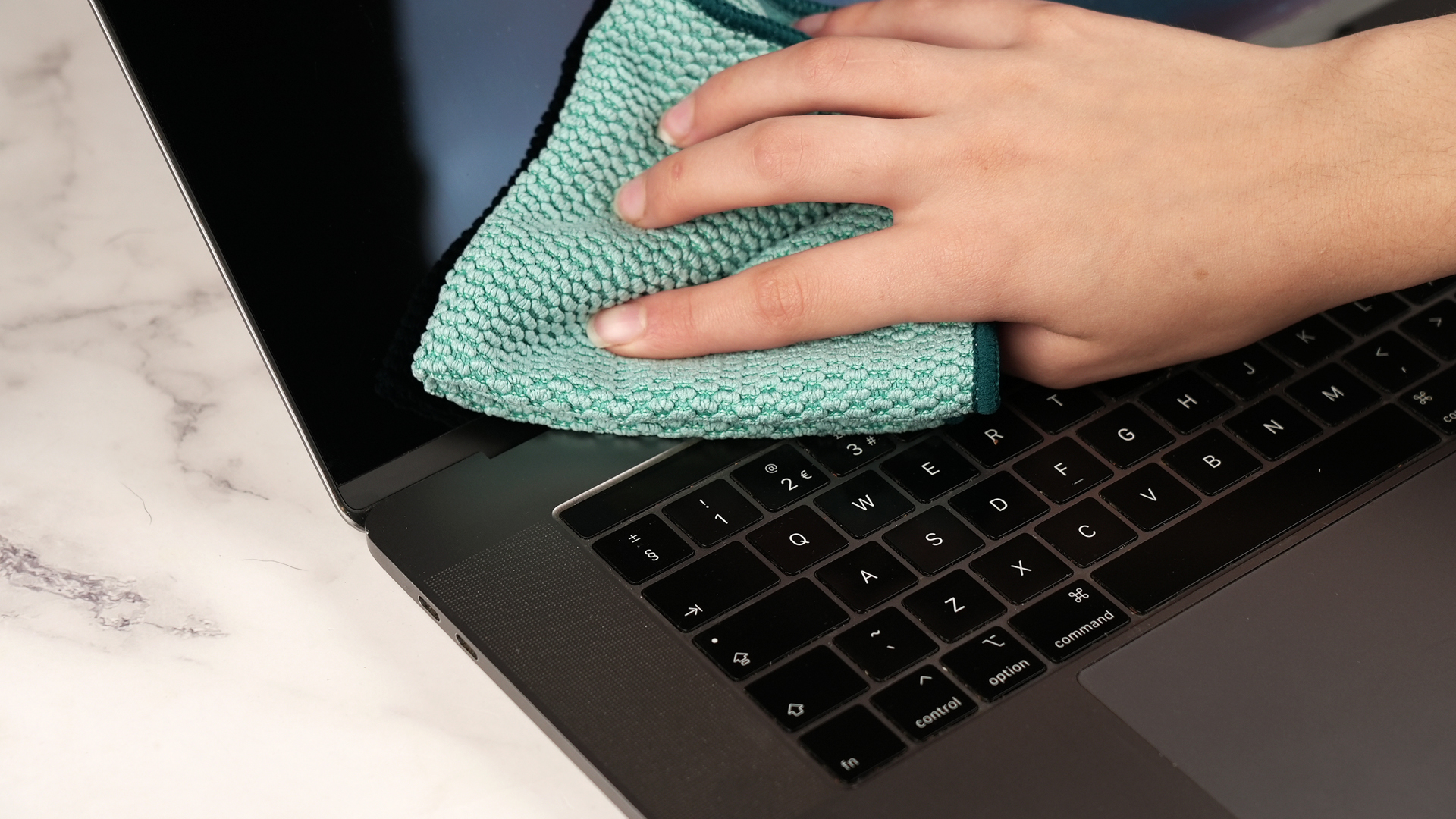
Always use a soft, clean, lint-free microfiber cloth. These are designed for
glasses, camera lenses, and screens. -
Avoid paper towels, tissues, old T-shirts, or abrasive ragsthese can scratch the screen or damage
the anti-reflective coating.
Go easy on liquids
- Never spray liquid directly onto the screen. Always dampen the cloth first.
-
The cloth should be slightly damp, not wet. If you can squeeze drops out of it,
it’s too wet. -
Keep moisture away from openings like the keyboard, speakers, and ports. If liquid drips, stop and
dry immediately.
With those basics covered, let’s go through the three main methods you can safely use to clean your
MacBook Air screen.
Method 1: Quick Dry Dust-Off (Everyday Cleaning)
Think of this as your “daily face wash” for the MacBook Air. It’s fast, gentle, and perfect when
the screen just looks a little dusty or has light smudges.
What you’ll need
- 1–2 clean, dry microfiber cloths
- A clean, dry workspace (no drinks hovering over the laptop)
Step-by-step
-
Turn off and unplug
Make sure the MacBook Air is shut down and disconnected from power. -
Fold the microfiber cloth
Fold the cloth into quarters. This gives you multiple clean surfaces to work with, so if one area
picks up a lot of dust, you can flip to a fresh side. -
Wipe gently in one direction
Starting at the top of the screen, gently wipe in straight horizontal or vertical strokes. Avoid
scrubbing or pressing hard; let the cloth do the work. -
Buff with a second cloth (optional)
If you want an extra polished look, use a second dry microfiber cloth to lightly buff away any
remaining haze.
When to use this method
- After a regular workday when you see light dust or a few faint fingerprints.
- Before meetings or video calls when you want the display to look sharp.
- Any time you notice dust but don’t see oily smudges.
In many cases, this simple dry method is enough. Because you’re not using liquids, it’s the lowest-risk
option and can be done as often as you like.
Method 2: Deep Clean with Distilled Water
When your MacBook Air screen has obvious fingerprints, smears, or mysterious “what did I touch”
streaks, a bit of distilled water on a microfiber cloth can help lift grime without harming the
screen’s coating.
Why distilled water?
Distilled water is free of minerals and impurities that can leave spots or streaks behind. Using
regular tap water occasionally is unlikely to be catastrophic, but distilled water gives you the
cleanest result and reduces the risk of residue.
What you’ll need
- 1 small bottle or bowl of distilled water
- 2 microfiber cloths (one for damp cleaning, one for drying/buffing)
Step-by-step
-
Turn off and unplug the MacBook Air
As always, shut it down and disconnect the charger and accessories. -
Dampen the cloth (don’t soak it)
Lightly moisten one corner of the microfiber cloth with distilled water. Wring it out or squeeze
it between your fingers so it feels just barely damp to the touch. -
Wipe the screen gently
Using the damp area of the cloth, wipe the screen in smooth, overlapping strokes. Work from top to
bottom. Don’t scrub in circles aggressivelygentle pressure is enough. -
Switch to a dry cloth
Immediately follow with a second, dry microfiber cloth to remove any remaining moisture and reduce
the chance of streaks. Think of this as “buffing” the glass. -
Check from different angles
Tilt the screen under a light and check for streaks. If you see any, lightly buff with the dry
cloth until they disappear.
Tips for better results
- Always apply water to the cloth, never directly to the screen.
- Use small amounts of water and re-dampen the cloth as needed rather than starting out too wet.
-
If you see recurring streaks, try using a fresh microfiber clothsometimes old cloths are the real
culprit.
Method 3: Remove Stubborn Smudges and Disinfect Safely
Sometimes your MacBook Air screen isn’t just dirtyit’s determined to stay that way. Oily
fingerprints, makeup marks, or that one splash of coffee can require a bit more effort. In these
cases, you can escalate carefully with a screen-safe cleaner or a small amount of 70% isopropyl
alcohol on a cloth, as long as you’re gentle and follow Apple’s general recommendations.
What you’ll need
- Screen-safe cleaning wipes or solution designed for electronics or
-
A cloth slightly moistened with a 70% isopropyl alcohol (IPA) solution (not dripping, just barely
damp) - 1 dry microfiber cloth for finishing
Step-by-step
-
Confirm your screen type
Most MacBook Air models have standard glass displays. If you ever use a Mac with a specialty
nano-texture display, follow Apple’s specific cloth and cleaner rules and don’t improvise. -
Turn off and unplug
Shut down the laptop and unplug everything, just as with the other methods. -
Lightly moisten the cloth or use a wipe
If you’re using alcohol, apply it to the microfiber clothdo not pour or spray it
on the screen. If you’re using pre-moistened screen wipes, make sure they’re labeled as safe for
LCD or laptop screens. -
Spot-clean the problem areas
Focus on the stubborn smudges instead of saturating the entire screen. Use light, controlled
strokes rather than scrubbing. -
Wipe again with a damp (water-only) cloth
If you want to be extra cautious, you can follow up with a cloth slightly dampened with distilled
water to remove any residue. -
Dry and buff
Finish with a dry microfiber cloth to remove any remaining moisture and restore a clear, streak-free
finish.
Important cautions
-
Avoid cleaners that contain ammonia, bleach, or window-cleaner chemicalsthey can damage the screen
coating over time. - Don’t use rough “disinfectant” wipes that feel scratchy or contain strong household solvents.
-
If you’re unsure about a product, test it on a tiny corner of the display frame first, or skip it
and use water only.
Common Screen-Cleaning Mistakes to Avoid
Cleaning a MacBook Air screen is simple, but a few common mistakes can cause permanent damage. Here
are the big red flags.
-
Spraying liquid directly onto the screen – This increases the chance of moisture
running into the bezel or keyboard. -
Using glass cleaner or multi-surface sprays – They may contain harsh chemicals that
strip protective coatings. -
Pressing too hard – Excess pressure can cause temporary distortion (like rainbow
waves) and, in extreme cases, damage the LCD underneath. -
Using dirty or gritty cloths – If the cloth has sand, dust, or residue, you can
drag those particles across the glass like sandpaper. -
Ignoring the keyboard – A dusty or oily keyboard can transfer marks to the screen
every time you close the lid. Occasionally wiping the keys helps prevent new smudges.
How Often Should You Clean Your MacBook Air Screen?
There’s no strict schedule, but a simple rhythm works well:
- Every few days: Dry dust-off with a microfiber cloth.
- Weekly or bi-weekly: Distilled water wipe for fingerprints and general grime.
-
As needed: Spot cleaning with alcohol or a screen-safe cleaner for stubborn smudges
or after you’ve been sick and want a quick disinfecting pass.
The goal is to keep the screen clean enough that it feels pleasant to use, without over-cleaning or
scrubbing it so aggressively that you wear down the coatings.
Real-World Experiences: What Actually Works Day to Day
Guides and manuals are great, but what about real life? Here are some practical experiences and
scenarios that many MacBook Air owners can relate toand what tends to work best in each case.
The “coffee shop” MacBook Air
You’re working in a café, juggling a latte, earbuds, and three open tabs. At some point you close
the lid, only to open it later and realize your screen now has a faint latte “fog” plus fingerprints
from adjusting the angle. In this situation:
-
Start with a dry microfiber cloth. Often, that’s enough to lift the light film without adding
moisture. -
If it still looks hazy, go to Method 2 and use a cloth slightly dampened with distilled water,
followed by a dry buff.
Over time, many café-working MacBook owners find that a quick dry wipe at the end of each day keeps
the screen from ever reaching “gross” status, even if the environment isn’t perfect.
Sharing a MacBook with kids (and sticky fingers)
If your MacBook Air doubles as a family device, you may notice more dramatic smudgesthink peanut
butter, mystery sauce, or fingerprints that look like they were applied with lotion. In these cases:
-
Don’t panic and don’t scrub. Let the laptop cool down if it’s warm, then follow Method 2 with
distilled water. -
For really stubborn, oily marks, use Method 3 with a screen-safe wipe or a cloth just barely
moistened with 70% isopropyl alcohol, then follow with a water-dampened cloth and a dry buff. -
Make it a habit to clean both the screen and keyboard; often the keyboard is the source of the
recurring smudges.
Parents often report that once they switch to microfiber cloths and stop using household glass
cleaners, the screen looks clearer and they worry less about long-term damage.
Remote work and all-day every-day use
If you stare at your MacBook Air for 8–10 hours a day, even tiny streaks can feel distracting. Many
remote workers find a simple routine works best:
- Quick dry wipe in the morning before starting work.
- Distilled water clean once a week, usually on Friday when shutting down for the weekend.
-
Stubborn marks handled as needed with a tiny amount of alcohol or a screen wipe, especially after
traveling or working in shared spaces.
Over-cleaning with strong products tends to do more harm than good, but gentle, regular care keeps
the display looking almost new even after years of use.
Learning from mistakes (so you don’t repeat them)
Many people only discover the “right” way to clean a MacBook Air screen after trying the wrong way
first. Common regrets include using paper towels, generic glass cleaner, or cheap rough wipes. These
can leave micro-scratches or cloudy areas that never quite go away.
The takeaway from those experiences is simple: less is more. A couple of good microfiber cloths, a
bit of distilled water, and patience will almost always outperform harsh chemicals and heavy pressure.
If something feels riskylike spraying directly on the screen or soaking the clothit probably is.
With a gentle touch and a clear routine, cleaning your MacBook Air screen becomes just another
2-minute maintenance task, not a source of anxiety. Your reward is a bright, sharp, streak-free
display that makes everything from spreadsheets to movies look better.