If you have ever tried typing a long Wi-Fi password, PlayStation Network message, or game search term with a DualShock 4 controller, you already understand why the PS4 Second Screen app exists. It turns your phone or tablet into a handy companion for your PlayStation 4, letting you control basic menus, type with your mobile keyboard, and view extra information in certain supported games.
PS4 Second Screen is not the same thing as PS Remote Play. Remote Play streams the full PS4 screen to your phone, tablet, computer, or compatible device. Second Screen is lighter and simpler: it works more like a companion remote and text-entry tool. Think of Remote Play as “playing PS4 away from the TV,” while Second Screen is more like “my phone is now the PS4’s helpful little assistant.” Less dramatic, still useful.
This guide walks you through how to use PS4 Second Screen in 11 clear steps, plus troubleshooting tips, practical examples, and real-world experience so you know what to expect before you start tapping around like your phone just became a magic wand.
What Is PS4 Second Screen?
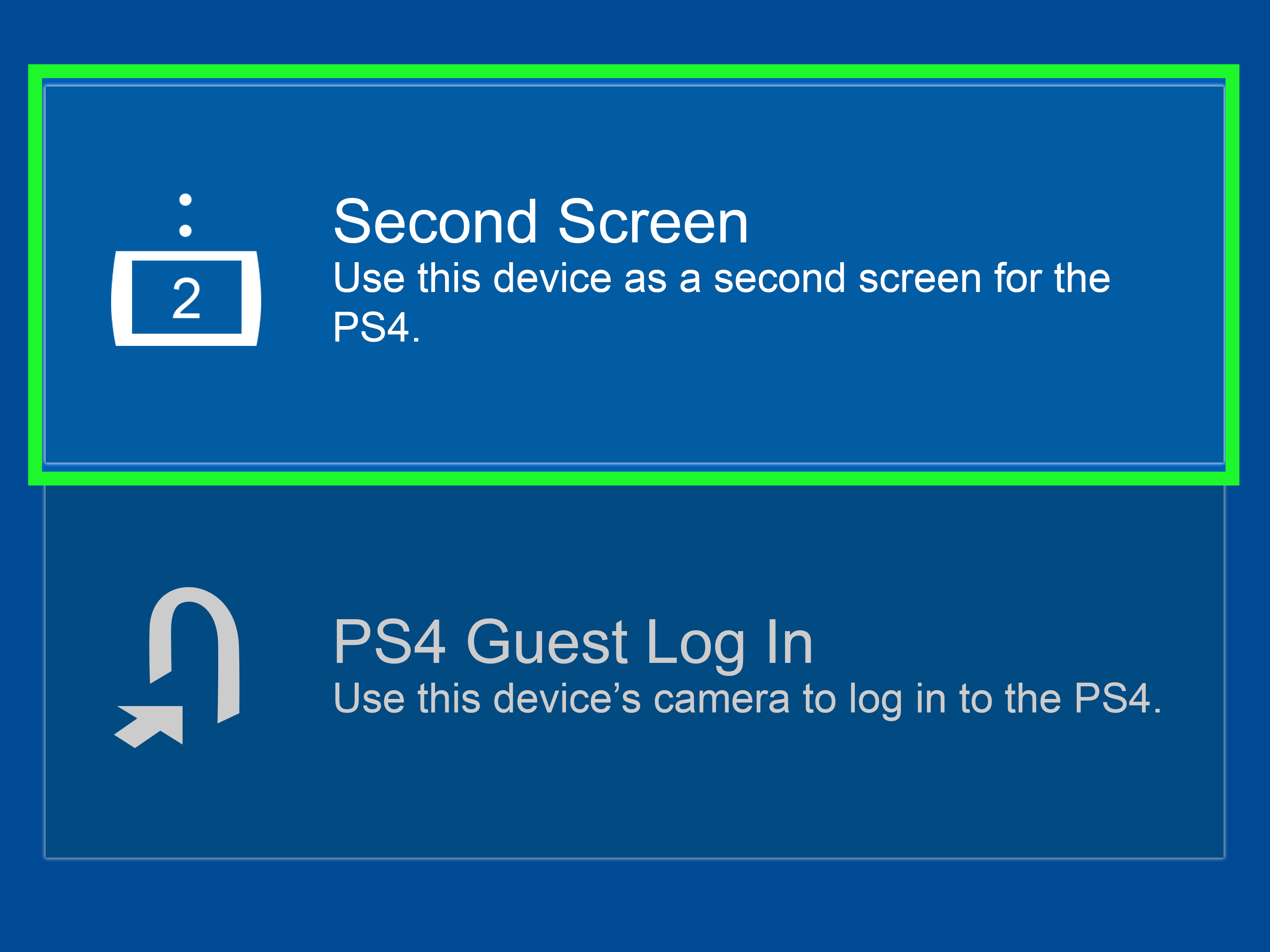
PS4 Second Screen is a mobile app designed to connect your smartphone or tablet to a PlayStation 4 console. Once paired, the app can be used for three main purposes: basic PS4 control, mobile keyboard input, and second-screen game information when a title supports the feature.
The most useful everyday feature is text entry. Instead of slowly moving across the PS4 on-screen keyboard one letter at a time, you can type from your phone. This is especially helpful when searching the PlayStation Store, entering login details, naming a party, sending messages, or typing into apps that support PS4 text fields.
The “second screen” part depends on the game. Some PS4 games include companion-style features such as maps, extra stats, or related information. However, not every PS4 game supports it. In fact, many games do not. So if you open a game and nothing exciting happens on your phone, your phone is not being rude; the game may simply not support the feature.
Before You Start: What You Need
Before using PS4 Second Screen, make sure you have a working PS4 or PS4 Pro, a smartphone or tablet, the PS4 Second Screen app, a PlayStation Network account, and a stable home network. Your PS4 and mobile device should usually be connected to the same Wi-Fi network for the smoothest setup.
You should also update your PS4 system software and your mobile app if updates are available. Old software is like an old sandwich in the fridge: technically still there, but not something you want to rely on.
How to Use PS4 Second Screen: 11 Steps
Step 1: Connect Your PS4 to the Internet
Turn on your PS4 and make sure it is connected to the internet. From the PS4 home screen, go to Settings, then choose Network. Select Set Up Internet Connection if you need to connect through Wi-Fi or a LAN cable.
A wired Ethernet connection is usually more stable, but Wi-Fi works fine for most Second Screen features. Since the app is not streaming full gameplay like Remote Play, it does not require the same level of bandwidth. Still, a shaky network can cause pairing problems, delayed controls, or the classic “why is this not connecting?” face.
Step 2: Put Your Phone and PS4 on the Same Network
Connect your phone or tablet to the same Wi-Fi network as your PS4. This is one of the most important steps. If your PS4 is on your home Wi-Fi and your phone is using mobile data, the app may not find the console.
For best results, avoid guest networks, hotel Wi-Fi, school networks, or public hotspots. These networks often block device-to-device discovery, which is exactly what the app needs. Your home network is usually the easiest place to set everything up.
Step 3: Download the PS4 Second Screen App
Open the App Store on iPhone or iPad, or Google Play on Android, and search for PS4 Second Screen. Install the official app from PlayStation Mobile Inc. or Sony Interactive Entertainment. Be careful with copycat apps that use similar names. If an app looks suspicious, asks for strange permissions, or promises impossible features, back away slowly like you just opened a mysterious basement door in a horror game.
The official PS4 Second Screen app is designed for basic control, text entry, and supported second-screen game features. It is not meant to replace your controller completely, and it does not turn every mobile device into a full PS4 display.
Step 4: Sign In With Your PlayStation Network Account
Open the app and sign in with your PlayStation Network account. Use the same account you use on your PS4 when possible. This helps the app identify your console and connect correctly.
If you use two-step verification, keep your authentication method nearby. Also make sure your PSN password is correct. Nothing ruins a quick setup session faster than realizing you have changed your password three times and your memory filed all three under “probably this one.”
Step 5: Open Mobile App Connection Settings on PS4
On your PS4, go to Settings from the main menu. Then select Mobile App Connection Settings. Choose Add Device. Your PS4 will display a code that you can enter into the PS4 Second Screen app.
This is where many people accidentally wander into the wrong menu. Do not use Remote Play Connection Settings for this specific setup. Remote Play and Second Screen are related, but they are not the same feature. For PS4 Second Screen, you want Mobile App Connection Settings.
Step 6: Select Your PS4 in the App
Return to the PS4 Second Screen app on your phone or tablet. The app should search for nearby PS4 systems linked to your account or available on your network. When your console appears, tap it.
If your PS4 does not appear, check that both devices are on the same Wi-Fi network, your PS4 is turned on, and you are signed in correctly. Restarting the app can also help. Sometimes technology needs the digital equivalent of a deep breath.
Step 7: Enter the Pairing Code
When prompted, enter the code shown on your PS4 screen into the mobile app. After the code is accepted, your phone or tablet will be paired with the console.
Pairing usually only needs to be done the first time. After that, the app should remember your PS4, although you may need to reconnect if you change networks, reset settings, reinstall the app, or use a different console.
Step 8: Use Your Phone as a Basic PS4 Remote
Once connected, the app can work as a simple remote for navigating the PS4 interface. You can move through menus, select items, and perform basic actions. This is convenient when your controller is across the room, low on battery, or being guarded by a pet who has declared it part of the kingdom.
However, the app is not a full replacement for the DualShock 4. It is fine for menu navigation, but serious gameplay still belongs to the controller. Trying to play a fast action game with basic second-screen controls would be like trying to eat soup with a fork: technically an attempt, emotionally a mistake.
Step 9: Use Your Mobile Keyboard to Enter Text
The keyboard feature is one of the best reasons to use PS4 Second Screen. Whenever a text field appears on your PS4, the app can let you type from your mobile device. This is faster and more comfortable than using the PS4 controller to select letters one by one.
Use it when searching for games, entering account information, typing messages, naming screenshots, using the web browser, or filling out text fields in compatible apps. For long text, your phone keyboard is a small miracle. It may not make you type like a professional novelist, but it will save your thumb from crossing the PS4 keyboard thirty-seven times just to spell “Minecraft.”
Step 10: Try Second-Screen Features in Compatible Games
Some PS4 games support extra second-screen content. Depending on the game, your phone or tablet may display maps, menus, stats, inventory information, or other companion details. These features vary widely, and many games do not support them at all.
To check whether a game supports second-screen features, look at the game’s official description, manual, store listing, or in-game options. If the feature is supported, launch the game while your app is connected and follow any on-screen instructions. Some games may require their own companion app instead of the general PS4 Second Screen app.
Step 11: Disconnect When You Are Done
When you finish using the app, you can simply close it on your phone or tablet. If you want to remove the connection more formally, you can manage connected devices through the PS4 settings. This is useful if you paired an old phone, sold a device, or want to clean up your console’s saved connections.
It is also smart to sign out of your PlayStation account on shared devices. Your phone may be personal, but tablets often float around the house like public property. If younger siblings, cousins, or visiting friends use the device, account security matters.
PS4 Second Screen vs. PS Remote Play
PS4 Second Screen and PS Remote Play are often confused because both involve connecting another device to your PlayStation 4. The difference is simple: Second Screen adds companion controls and text entry, while Remote Play streams the console screen so you can play from another device.
Use PS4 Second Screen when you want to type faster, browse menus, or access supported companion information. Use PS Remote Play when you want to actually play PS4 games on your phone, tablet, computer, or another supported screen. Remote Play requires stronger internet performance because it streams video and sends controller input in real time.
For example, if you are sitting on the couch and want to type a message quickly, Second Screen is perfect. If someone else wants the TV and you want to continue playing from your phone, Remote Play is the better tool.
Troubleshooting: Why PS4 Second Screen Is Not Working
Your PS4 Does Not Appear in the App
First, confirm that your PS4 and phone are on the same Wi-Fi network. Then check that your PS4 is powered on and signed in. Close and reopen the app. If that fails, restart both your phone and PS4.
The Pairing Code Does Not Work
Make sure you are using the code from Settings > Mobile App Connection Settings > Add Device. Do not use a Remote Play code unless you are setting up Remote Play. Also enter the code before it expires.
The App Connects but Controls Feel Delayed
Move closer to your router, disconnect unnecessary devices from the network, or restart your router. If your PS4 is far from the router, consider using a LAN cable for the console.
Second-Screen Game Features Do Not Show Up
The most likely reason is that the game does not support the feature. Some games also require a separate companion app. Check the game’s menu, official description, or support information.
The App Is Missing From Your Store
App availability can vary by region, device, and operating system version. If you cannot find PS4 Second Screen, check your device compatibility, update your operating system, or search from the official PlayStation app pages when available.
Best Ways to Use PS4 Second Screen
The best everyday use is text entry. If you often message friends, search the PlayStation Store, or use the PS4 browser, the mobile keyboard is a serious quality-of-life upgrade. It turns slow controller typing into normal phone typing, which feels like trading a tricycle for a motorcycle.
Second Screen is also useful when your controller battery is low and you only need to navigate menus. You can move around the interface, start apps, and select items without grabbing the controller immediately. It is not ideal for gameplay, but for small tasks, it works well.
Another good use is checking whether certain games offer companion information. While second-screen game support is not universal, the feature can be fun when available. Maps, extra stats, and related information can make a game feel more interactive, especially if you like having extra details nearby.
Privacy and Safety Tips
Use only the official PlayStation app and avoid unofficial apps that ask for your PlayStation password. Your PSN account can contain personal details, purchase history, saved payment methods, and game library access, so treat it like something valuable.
Turn on two-step verification for your PlayStation account if you have not already. Do not share your pairing code with other people, and avoid signing in on devices you do not control. If you pair a device temporarily, remove it later through your PS4 settings.
Also remember that a connected phone may allow menu control or text entry. If you hand your phone to someone while the app is connected, they may be able to interact with your PS4. That may be harmless, or it may result in your profile status becoming “I love broccoli racing games.” Protect your dignity. Disconnect when needed.
Real-World Experience: What Using PS4 Second Screen Actually Feels Like
In real life, PS4 Second Screen is not a flashy feature that completely changes the way you play. It is more like a helpful drawer in your gaming desk: not exciting every minute, but very nice when you need it. The first time you use your phone to type into the PS4 search bar, you may wonder why you spent years steering a cursor around the alphabet like you were driving a shopping cart with one bad wheel.
The setup process is usually simple, but the menu names can confuse people. The most common mistake is going into Remote Play settings instead of Mobile App Connection Settings. Once you know the correct path, pairing feels straightforward: open the PS4 menu, display the code, enter it on your phone, and connect. The app does not require advanced technical skills. You do not need to understand networking, ports, or mysterious router magic. You mostly need both devices on the same Wi-Fi and a little patience.
The mobile keyboard is the star of the show. Searching for games, typing a message, or entering account information becomes much faster. It is especially useful if your PS4 is used for streaming apps, because search boxes appear constantly. Typing a movie title with a controller can feel like a small endurance sport. Typing it with your phone feels normal.
The remote-control function is useful but limited. It is fine for moving around menus, launching apps, or selecting basic options. It is not something you will want to use for actual gameplay. Even slower games are better with a real controller because the DualShock 4 has physical buttons, analog sticks, triggers, and better response. The app is a helper, not a controller replacement.
The actual second-screen game experience depends heavily on the game. When a game supports it well, it can feel clever. Having a map, extra information, or companion content on your phone can make the setup feel futuristic in a modest, “my phone is helping” kind of way. But because many PS4 games do not support the feature, you should not expect every title to suddenly display secret bonus content. It is better to treat game-specific second-screen support as a bonus rather than the main reason to install the app.
Connection reliability is generally fine on a stable home Wi-Fi network. Problems usually appear when the phone and console are not on the same network, the router is overloaded, or the app has not been updated in a long time. If the app cannot find the console, restarting the app and checking the Wi-Fi connection fixes many cases. If that fails, removing the old pairing and adding the device again can help.
Overall, PS4 Second Screen is best for players who still use their PS4 regularly and want a faster way to type, search, and manage simple console actions. It will not replace Remote Play, and it will not transform every game into a dual-screen masterpiece. But as a practical companion tool, it earns its place. It saves time, reduces controller-keyboard frustration, and gives your phone something useful to do besides judging your screen time.
Conclusion
Learning how to use PS4 Second Screen is simple once you understand what the app is designed to do. Install the official app, connect your phone and PS4 to the same network, open Mobile App Connection Settings on the console, pair the device, and use your phone for basic control, faster text entry, and compatible second-screen game features.
The app is most valuable as a convenience tool. It makes typing easier, helps with menu navigation, and occasionally adds extra game information when supported. It is not the same as PS Remote Play, and it is not meant to replace your DualShock 4 controller. But when used for the right tasks, it can make your PS4 feel smoother, faster, and slightly less determined to make you type every word one letter at a time.