Trying to unlink a Microsoft account from your PS5 can feel like opening a door, finding another door, and then discovering that the second door is actually a settings menu with a tiny checkbox hiding in the corner. The good news? If you are talking about Minecraft on PlayStation, there is a real unlink option. The slightly spicy news? You need to understand what unlinking actually does before you press the button like a heroic speedrunner.
This guide explains how to unlink a Microsoft account from PS5 the easy way, what to do if the option does not appear, why this usually happens inside Minecraft rather than the PS5 system settings, and how to avoid losing access to purchases, Marketplace content, or the wrong account. We will keep it simple, practical, and free from “just restart your console” energy unless restarting actually helps.
Quick Answer: Can You Unlink a Microsoft Account from PS5?
Yes, in many cases you can unlink a Microsoft account from your PlayStation account through Minecraft on your PS5. The usual path is:
- Open Minecraft on your PS5.
- Go to Settings from the Minecraft launch screen.
- Select the Account tab.
- Choose Unlink Microsoft Account.
- Confirm the warnings and select Unlink.
That is the simple version. However, do not skip the warning screen. Unlinking can affect access to Minecraft Marketplace content, entitlements, cross-platform features, and account-based purchases. In other words, this is not the time to treat the confirmation screen like a pop-up ad for a mobile puzzle game.
What Does “Microsoft Account on PS5” Usually Mean?
When players search for “unlink Microsoft account from PS5,” they are usually talking about Minecraft. Minecraft Bedrock Edition uses a Microsoft account for features such as cross-platform multiplayer, Realms, servers, Marketplace access, achievements, and account-based content. Your PlayStation Network account handles your PlayStation identity, purchases, console access, and PSN profile. The Microsoft account acts like the bridge that lets Minecraft connect your PlayStation world to the wider Minecraft ecosystem.
This is why the unlink option is normally found inside Minecraft, not in the main PS5 settings. Your PS5 settings may show options for Linked Services or Authorized Apps, but those menus are broader PlayStation account tools. They are useful for managing some connected services, social accounts, streaming services, or app permissions, but they may not fully control a Minecraft Microsoft-account link.
Before You Unlink: Read This First
Before unlinking your Microsoft account from PS5, pause for one minute and check three things: which Microsoft account is currently connected, which PSN account is signed in, and whether you have any Minecraft Marketplace purchases tied to the setup. This tiny bit of account detective work can save you from a very annoying afternoon.
1. Confirm the Microsoft Account Email
Open Minecraft and check the account information shown in the profile or account area. If you are not sure which Microsoft account is connected, do not unlink yet. Try signing into your Microsoft account on another device and checking your Xbox gamertag, Minecraft profile, and purchase history. Many account problems happen because a player has two email addresses: one old account used years ago and one shiny new account they actually remember.
2. Confirm the PlayStation Network Account
Make sure you are using the correct PSN profile on the PS5. If multiple people use the console, it is easy to open Minecraft under the wrong profile. The Microsoft account link is associated with a specific PlayStation account, not simply “the PS5 sitting under the TV.” Your console may be shared, but account links are not a family pizza.
3. Check Purchases and Entitlements
If you bought Minecraft content, add-ons, skins, texture packs, or other Marketplace items, understand that unlinking can affect what appears in-game. Some purchases are platform-specific, some are tied to a Microsoft account, and some depend on the account combination being recognized correctly. Read every warning screen carefully before confirming.
How to Unlink a Microsoft Account from PS5 in Minecraft
Here is the easiest method for most players.
Step 1: Launch Minecraft on Your PS5
Start Minecraft from your PS5 home screen. Make sure you are connected to the internet and signed into the correct PlayStation Network profile. If Minecraft needs an update, install it first. Account screens can change after updates, and using an outdated version is like trying to follow a map from 2017 while the road is now a shopping mall.
Step 2: Open Settings
From the Minecraft launch screen, go to Settings. Do this before entering a world. You want the main settings area where Minecraft stores account options, not the pause menu inside your survival world while a creeper is auditioning for a jump scare.
Step 3: Go to the Account Tab
Look for the Account tab. Depending on your version and interface, the wording may appear as account settings, profile settings, or a Microsoft account section. The important thing is that you are looking for the area that shows your connected Microsoft account or sign-in status.
Step 4: Select “Unlink Microsoft Account”
Choose Unlink Microsoft Account. Minecraft should display a warning explaining what may happen after unlinking. Read it. Yes, actually read it. This is one of those rare gaming screens where the fine print matters more than your instinct to mash X.
Step 5: Confirm the Unlink
Confirm that you want to unlink the accounts, check any required acknowledgment boxes, and select Unlink. After the process is complete, restart Minecraft. You may also want to restart the PS5 if the sign-in state looks stuck.
What Happens After You Unlink?
After unlinking, Minecraft may sign you out of Microsoft-powered features on PlayStation. You may lose immediate access to cross-platform multiplayer, Realms, servers, certain Marketplace content, and cloud-connected Minecraft account features until you sign in again with an eligible Microsoft account.
This does not delete your Microsoft account. It also does not delete your PlayStation Network account. Think of it as removing the handshake between two accounts, not throwing either account into a digital volcano. Your PSN account remains your PSN account, and your Microsoft account remains your Microsoft account.
However, the tricky part is what happens when you try to link a different Microsoft account later. Some account combinations may have restrictions, and some content may remain tied to the original account relationship. That is why the smartest move is to verify everything before unlinking.
Can You Link a Different Microsoft Account After Unlinking?
This is the question that causes the most confusion. In a perfect world, you would unlink one Microsoft account and link another in thirty seconds while sipping iced coffee. In the real world, account linking rules may limit what you can change, especially for Minecraft on PlayStation.
If your goal is simply to sign out and sign back into the same Microsoft account, the process is usually straightforward. If your goal is to replace the old Microsoft account with a completely different one, move carefully. You may see errors saying the Microsoft account is already connected or that the PlayStation account has already been linked. These errors usually mean Minecraft is detecting a previous account relationship.
For the best result, use the Microsoft account that was originally linked to the PSN account whenever possible. If you no longer have access to that Microsoft account, try account recovery before creating a new account. A new account may not carry over the same Minecraft identity, purchases, or linked status.
What If “Unlink Microsoft Account” Is Missing?
If the unlink button does not appear, do not panic. It may be hidden because of your Minecraft version, login state, menu layout, or account status. Try these fixes:
Update Minecraft
On your PS5 home screen, highlight Minecraft, press the options button, and check for updates. Install any available update and open the game again. Account menus sometimes change after patches.
Restart Minecraft and the Console
Close Minecraft completely, then reopen it. If that does not help, restart the PS5. This can clear a stuck session or refresh the account menu. It will not magically solve every account problem, but it is quick and harmless.
Check the Correct PSN Profile
If another person uses the console, you may be signed into the wrong PlayStation profile. Switch users on the PS5 and open Minecraft again under the correct PSN account.
Look for Sign-Out Language
Some screens may show wording like Sign out of your Microsoft account instead of Unlink Microsoft Account. Sign-out and unlinking may not always mean the same thing, so read the confirmation screen carefully. If the screen only signs you out temporarily, the account link may still exist.
Contact Minecraft Support
If Minecraft shows an account-linked error and you cannot access the original Microsoft account, gather your PSN online ID, Xbox gamertag if known, Microsoft account email if known, and screenshots of the exact error. Then contact Minecraft support. Clear details help support teams understand whether you have a sign-in issue, an account recovery issue, or an account-linking issue.
Can You Unlink Through PS5 Settings Instead?
You can check PS5 account settings, but do not assume that removing a service there fully unlinks Minecraft from a Microsoft account. On PS5, go to:
Settings > Users and Accounts > Linked Services
You can also check:
Settings > Users and Accounts > Authorized Apps
These menus are helpful for supported services and app permissions. If you see a relevant service listed, you can choose it and unlink it. But for Minecraft, the in-game account menu is usually the main place to manage the Microsoft account connection.
Can You Remove the PS5 from Your Microsoft Account Devices Page?
Some players try to fix this by visiting their Microsoft account devices page and removing a device. That can be useful for managing Microsoft Store device limits, old PCs, mobile devices, or registered hardware. However, removing a device from your Microsoft account is not the same as unlinking a Microsoft account from Minecraft on PlayStation.
In simple terms: device removal is about the devices associated with your Microsoft account. Minecraft account linking is about the connection between your Microsoft account, your Minecraft profile, and your PlayStation Network account. They live in different neighborhoods of the account universe.
Should You Use “Sign Out Everywhere” on Microsoft?
Microsoft offers a “sign out everywhere” option for security situations, such as when you think someone else may have access to your account. This can sign you out of many browsers and apps, although it may take time to fully apply. It is useful for security, but it should not be treated as the main way to unlink Minecraft from PS5.
Use “sign out everywhere” if you are protecting a compromised account or cleaning up sessions across devices. Use Minecraft’s own account settings if your goal is specifically to unlink a Microsoft account from PlayStation.
Common Errors and What They Mean
“This Microsoft Account Is Already Connected”
This usually means the Microsoft account you are trying to use is already associated with a PlayStation account, or Minecraft believes the PSN account has a previous Microsoft account relationship. Double-check both the PSN profile and Microsoft email before trying again.
“Please Sign In With Your Previously Connected Account”
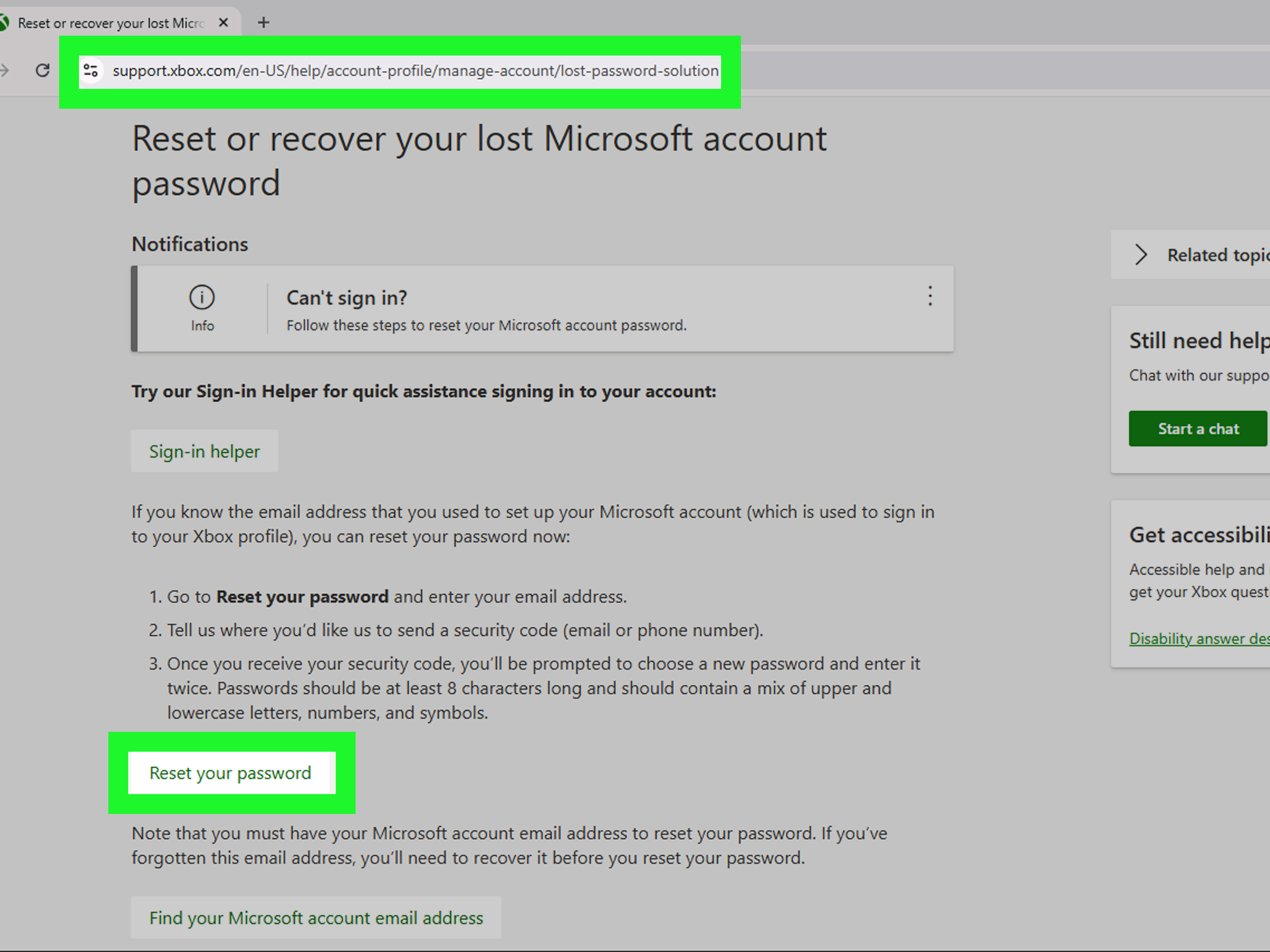
This message often appears when Minecraft expects the original Microsoft account. Try recovering that account first. If you forgot the email, check old inboxes, saved passwords, Xbox apps, Microsoft Store purchase history, or family account records.
Marketplace Content Is Missing
Make sure you are signed into the same Microsoft account that owns the content. Also confirm you are on the correct PSN account. If content still does not appear, wait a short while, restart Minecraft, and check the Marketplace again. If the issue continues, contact support with purchase details.
Best Practices Before Relinking
Before linking another account, write down the Microsoft email address, Xbox gamertag, and PSN online ID you intend to use. Then check that you can sign into the Microsoft account successfully on a phone or computer. This prevents the classic “I linked the wrong account again” situation, which is basically the account-management version of stepping on a LEGO brick.
If the PS5 is shared by siblings, parents, cousins, roommates, or that one friend who somehow always changes settings, make sure each person uses their own PSN profile. Minecraft account links should not be treated like a communal backpack. Keeping profiles separate prevents future confusion.
When You Should Not Unlink Yet
Do not unlink if you are unsure which Microsoft account owns your purchases. Do not unlink if you are locked out of the current Microsoft account and have not tried recovery. Do not unlink while Minecraft services are having login issues. And do not unlink just because one Marketplace item is not loading. In many cases, a missing item is a syncing problem, not a reason to disconnect accounts.
Also, avoid deleting or closing accounts while troubleshooting. Closing a Microsoft account or PlayStation account is a much bigger action than unlinking, and it can affect purchases, subscriptions, saves, messages, and account history. Start with the smallest fix first.
Experience Notes: What Usually Works in Real Life
In real-world troubleshooting, the biggest mistake people make is assuming “PS5 account” means one single account. It does not. You may have a console user profile, a PlayStation Network account, a Microsoft account, an Xbox gamertag, and a Minecraft profile all involved in one login flow. That is a lot of accounts for one blocky game about punching trees.
The easiest experience is when the player still has access to the original Microsoft account. In that case, unlinking from inside Minecraft, restarting the game, and signing back in is usually manageable. The player can verify the email, confirm the gamertag, and avoid accidentally creating a new Microsoft account during the sign-in process.
The messiest experience is when the original Microsoft account is old, forgotten, or owned by a parent’s email address. Many players created their Minecraft setup years ago and now cannot remember whether they used Outlook, Hotmail, Gmail as a Microsoft login, or a family member’s account. In that situation, the best move is not to spam new login attempts. Instead, calmly identify the account. Search old email inboxes for Minecraft, Microsoft, Xbox, Mojang, or PlayStation receipts. Check password managers. Open the Xbox app if it is already signed in somewhere. Look for the gamertag shown in Minecraft and match it to the correct Microsoft account.
Another practical tip: take screenshots before changing anything. Screenshot the current Minecraft account screen, the error message, and the PSN profile name. If you later contact support, those screenshots are much more useful than saying, “It did the thing where the thing would not thing.” Support teams need exact account names and exact errors.
If you are helping a younger sibling or family member, do not rush the process. Ask which PSN profile they normally use and whether they ever played Minecraft on another PlayStation. A lot of account-link problems come from someone signing into Minecraft on a different profile “just to test something” and accidentally creating a long-term linking headache.
Finally, treat relinking like a one-shot task. Before entering any code or approving any Microsoft login prompt, confirm the email on the phone or browser screen. Make sure it is the account you actually want tied to Minecraft. Account linking is not scary, but it rewards patience. Five extra seconds of checking can prevent five hours of troubleshooting later.
Final Thoughts
Unlinking a Microsoft account from PS5 is easy when you know where to look: open Minecraft, go to Settings, choose the Account tab, and select Unlink Microsoft Account. The harder part is understanding the consequences. Minecraft account links can affect cross-platform access, Marketplace content, Realms, and sign-in behavior, so always check the account details before confirming.
If the unlink option is missing, update Minecraft, restart the game, confirm the correct PSN profile, and check whether the menu uses slightly different wording. If the account is stuck or the original Microsoft login is lost, account recovery and official support are safer than guessing. In short: unlink carefully, relink intentionally, and do not let one wrong email turn your PS5 into an account puzzle dungeon.