Turning off an iPhone 12 Pro Max sounds like it should be as simple as pressing one button and moving on with your life. Then you press and hold the Side button, Siri appears, and suddenly your phone is listening politely while you mutter, “No, not you.” If that has happened to you, welcome to the club. Apple changed the shutdown process on Face ID iPhones, and the iPhone 12 Pro Max follows the newer button combination instead of the old “hold the power button” routine.
The good news is that learning how to turn off your iPhone 12 Pro Max is easy once you know where Apple hid the shutdown door. There are two simple methods: using the physical buttons or using the Settings app. The button method is fastest when your phone is working normally. The Settings method is perfect if you prefer on-screen controls, have trouble pressing two buttons at the same time, or simply want the calmer, less finger-gymnastics version.
In this guide, you will learn both easy ways to power off your iPhone 12 Pro Max, how to turn it back on, when to restart instead of shut down, what to do if the screen freezes, and a few practical tips from real-world use. No tech degree required. No tiny screwdriver. No dramatic sacrifice to the Apple logo.
Why Turning Off the iPhone 12 Pro Max Feels Different
Older iPhones with a Home button often used a simpler shutdown process: press and hold the power button until the power-off slider appeared. The iPhone 12 Pro Max does not have a Home button, and the Side button does more than one job. Press it once to lock the screen. Double-click it for Apple Pay. Press and hold it by itself, and Siri may appear. That is why shutting down the phone requires either a button combination or the Settings app.
This design can confuse new iPhone 12 Pro Max users, especially if they upgraded from an iPhone 6, iPhone 7, iPhone 8, or iPhone SE. It can also trip up Android users switching to iOS, because many Android phones still use a long-press power menu. On the iPhone 12 Pro Max, the “power button” is officially the Side button, but it does not act like a traditional standalone power button for shutdown.
Method 1: Turn Off iPhone 12 Pro Max Using the Buttons
This is the quickest way to turn off your iPhone 12 Pro Max. It works well when the screen is responsive and you can comfortably press two buttons at the same time.
Step-by-Step Instructions
- Hold your iPhone 12 Pro Max normally, with the screen facing you.
- Press and hold the Side button on the right side of the phone.
- At the same time, press and hold either Volume Up or Volume Down on the left side.
- Keep holding both buttons until the power-off screen appears.
- Release the buttons when you see the “slide to power off” slider.
- Drag the power slider from left to right.
- Wait a few seconds while the iPhone shuts down completely.
You can use either volume button. Volume Up works. Volume Down works. Your iPhone is not picky here. The key is pressing one volume button and the Side button at the same time until the shutdown screen appears.
What You Will See on the Screen
When the shutdown screen appears, you may see more than one slider. The main one you need is “slide to power off.” Depending on your settings and region, you may also see emergency options. Do not panic. You are not launching a space mission. Simply use the power-off slider at the top and ignore the rest unless you actually need emergency services.
When This Method Is Best
The button method is best when you want speed. For example, use it before boarding a plane if you want the phone completely off, before cleaning the device, before removing a case that presses on the buttons, or when your iPhone is acting slightly weird and needs a fresh start.
It is also useful when your Settings app is slow or you do not want to tap through menus. Once your fingers memorize the shortcut, it becomes second nature: Side button plus either volume button, slide, done.
Method 2: Turn Off iPhone 12 Pro Max from Settings
The Settings method is the most beginner-friendly way to power off your iPhone 12 Pro Max. It does not require a button combination, so it is great for users who find the physical shortcut awkward. It is also helpful if your Side button or volume buttons are stiff, covered by a thick case, or difficult to press.
Step-by-Step Instructions
- Open the Settings app on your iPhone.
- Tap General.
- Scroll all the way to the bottom of the General page.
- Tap Shut Down.
- When the power-off slider appears, drag it from left to right.
- Wait for the screen to go black.
This method does the same thing as the button method: it turns the iPhone off completely. It is not just locking the screen. It is not putting the phone to sleep. It powers the device down until you manually turn it on again.
Why the Settings Method Is Useful
The Settings method is especially handy for people who use accessibility features, larger protective cases, or phone grips that make side buttons harder to reach. It is also a nice option if you are teaching someone else how to use an iPhone 12 Pro Max. “Settings, General, Shut Down” is easy to remember and less likely to accidentally trigger Siri, screenshots, volume changes, or emergency screens.
How to Turn Your iPhone 12 Pro Max Back On
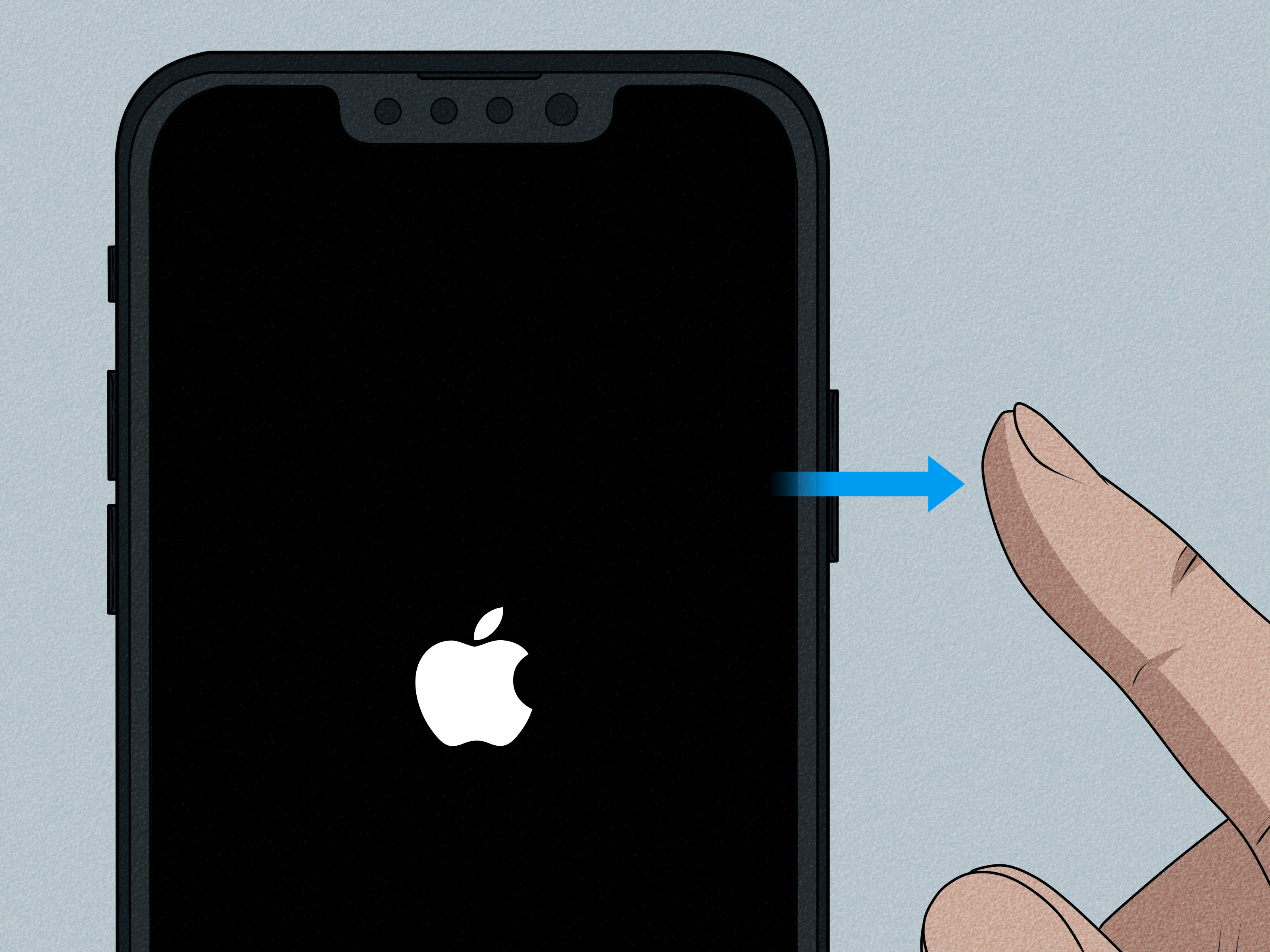
After your iPhone is fully powered off, turning it back on is simple. Press and hold the Side button on the right side of the phone until the Apple logo appears. Once you see the logo, release the button and wait for the device to boot up.
The startup process may take a short while. When your iPhone turns back on, you will usually need to enter your passcode before Face ID fully activates. This is normal. After a restart or shutdown, iOS asks for the passcode as a security measure before biometric unlocking resumes.
Turning Off vs. Locking: What Is the Difference?
Many people say “turn off” when they actually mean “lock the screen.” These are not the same thing.
Locking your iPhone happens when you press the Side button once. The screen turns off, but the phone is still running. It can receive calls, notifications, messages, alarms, background updates, and other activity. This is what you do dozens of times a day.
Turning off your iPhone shuts the device down completely. Calls and notifications will not come through while it is off. Alarms may not work the same way they do when the phone is powered on. Background apps stop running. The phone stays off until you press and hold the Side button to restart it.
When Should You Turn Off Your iPhone 12 Pro Max?
You do not need to shut down your iPhone every night. Modern iPhones are designed to sleep efficiently when locked. However, there are several times when powering off or restarting your iPhone 12 Pro Max makes sense.
When the Phone Feels Slow
If apps are lagging, animations feel jumpy, or the keyboard acts like it had too much coffee, a restart can help. Turning the phone off and back on clears temporary glitches and gives iOS a clean session.
When an App Is Misbehaving
If one app freezes repeatedly, first close and reopen that app. If the problem continues, restart the iPhone. A full shutdown is not magic, but it is often the digital version of “take a breath and try again.”
Before Cleaning the Phone
Powering off the iPhone before cleaning is a smart habit. It helps prevent accidental taps, button presses, and surprise flashlight moments while wiping the screen or case.
Before Long Storage
If you will not use the iPhone 12 Pro Max for a while, shut it down after charging it to a reasonable battery level. Avoid storing it completely dead for a long period, because batteries prefer a little breathing room.
What If Your iPhone 12 Pro Max Will Not Turn Off?
If your iPhone 12 Pro Max screen is frozen or the slider will not respond, do not keep angrily swiping like you are trying to erase a stubborn stain. Try a force restart instead. A force restart is different from a normal shutdown. It is designed for situations where the phone is not responding.
How to Force Restart iPhone 12 Pro Max
- Press and quickly release Volume Up.
- Press and quickly release Volume Down.
- Press and hold the Side button.
- Keep holding until the Apple logo appears.
- Release the Side button and let the phone restart.
Use force restart only when the normal shutdown methods are not working. It is not the same as erasing your iPhone, and it should not delete your data. Still, it is best treated as a troubleshooting tool, not your everyday shutdown routine.
Common Mistakes to Avoid
Holding Only the Side Button
On the iPhone 12 Pro Max, holding only the Side button usually brings up Siri instead of the power-off slider. If Siri appears, nothing is broken. Your iPhone simply misunderstood the assignment because the button combination was incomplete.
Pressing the Buttons Too Quickly
For a normal shutdown, press and hold the Side button and one volume button together. Do not just tap them. If you press and release too quickly, you may change the volume or take a screenshot, depending on the timing.
Confusing Restart with Reset
Restarting means turning the iPhone off and back on. Resetting can mean changing settings or erasing data, depending on the menu. If your goal is simply to refresh the phone, you want a restart, not a factory reset.
Dragging the Wrong Slider
On the shutdown screen, use “slide to power off.” Do not experiment with emergency sliders unless you need them. Your phone gives you options, but this is not the time to treat the screen like a mystery game.
Quick Troubleshooting Tips
If the button method does not work, remove your case and try again. Some rugged cases make the buttons harder to press evenly. If the Settings method does not work, close the Settings app and reopen it. If the screen is frozen, use the force restart sequence. If the iPhone still will not respond, charge it with a known working cable and power adapter, then try again after several minutes.
If your iPhone 12 Pro Max repeatedly shuts down by itself, refuses to power on, or gets stuck on the Apple logo, the issue may involve the battery, software, storage, or hardware. In that case, back up your data when possible and contact Apple Support or a trusted repair provider for diagnosis.
Which Method Should You Use?
For most people, the button method is the best everyday option. It is fast, reliable, and available from almost anywhere on the phone. Once you remember that the Side button needs a volume-button partner, it becomes easy.
The Settings method is better if you want a slower, clearer path or if the buttons are difficult to use. It is also excellent for accessibility. There is no wrong choice. Both methods safely shut down the iPhone 12 Pro Max.
Real-Life Experience: What Actually Works Best Day to Day
In everyday use, the button method feels fastest, but it also causes the most confusion for new users. The first time many people try to turn off an iPhone 12 Pro Max, they hold the Side button and wait. Then Siri appears, ready to help, except the only help needed is for Siri to please go away. This is probably the most common “I know I’m not bad at phones, but this phone is making me feel bad at phones” moment.
After a few tries, the shortcut becomes easy. The trick is to press and hold both buttons at the same time instead of pressing one first and then the other much later. I usually recommend using the Side button and Volume Up because that pairing feels natural when holding the phone with two hands. However, Volume Down works just as well. If one side feels awkward, switch to the other volume button and see which grip feels better.
The Settings method is the one I recommend for people who do not shut down their phone often. It is slower, but it is almost impossible to mess up. Open Settings, tap General, scroll down, tap Shut Down, and slide. It feels more like following a map than remembering a secret handshake. This is especially helpful for parents, grandparents, or anyone who gets annoyed when button shortcuts change from one phone model to the next.
A protective case can make a bigger difference than people expect. Some thick cases around the iPhone 12 Pro Max require extra pressure on the Side button or volume buttons. If the shutdown screen does not appear, the phone may be fine; the case may simply be blocking a clean press. Removing the case for a quick test can save a lot of frustration.
Restarting the iPhone once in a while can also solve small annoyances. For example, if Bluetooth refuses to connect to your car, AirDrop acts moody, an app freezes, or the camera opens slowly, a restart is a quick first step. It is not a cure-all, but it is fast, safe, and surprisingly effective. Think of it as letting your iPhone take a tiny nap, wake up refreshed, and stop being dramatic.
One thing I would not recommend is shutting down the phone obsessively every few hours to “save battery.” The iPhone 12 Pro Max is designed to manage sleep mode efficiently. Locking the screen is enough for normal daily breaks. Use a full shutdown when troubleshooting, cleaning, storing the phone, traveling, or intentionally disconnecting. Otherwise, let the phone do what smartphones do best: quietly sit in your pocket while pretending not to hear your group chat exploding.
Conclusion
Learning how to turn off your iPhone 12 Pro Max is simple once you know the two correct methods. For the fastest shutdown, press and hold the Side button with either volume button, then drag the power-off slider. For the easiest on-screen option, go to Settings, tap General, choose Shut Down, and slide to power off. To turn the phone back on, hold the Side button until the Apple logo appears.
The main thing to remember is that the Side button alone does not usually shut down a Face ID iPhone. It needs help from a volume button, or you can skip the buttons and use Settings. Either way, your iPhone 12 Pro Max will power down safely, calmly, and without requiring you to negotiate with Siri.