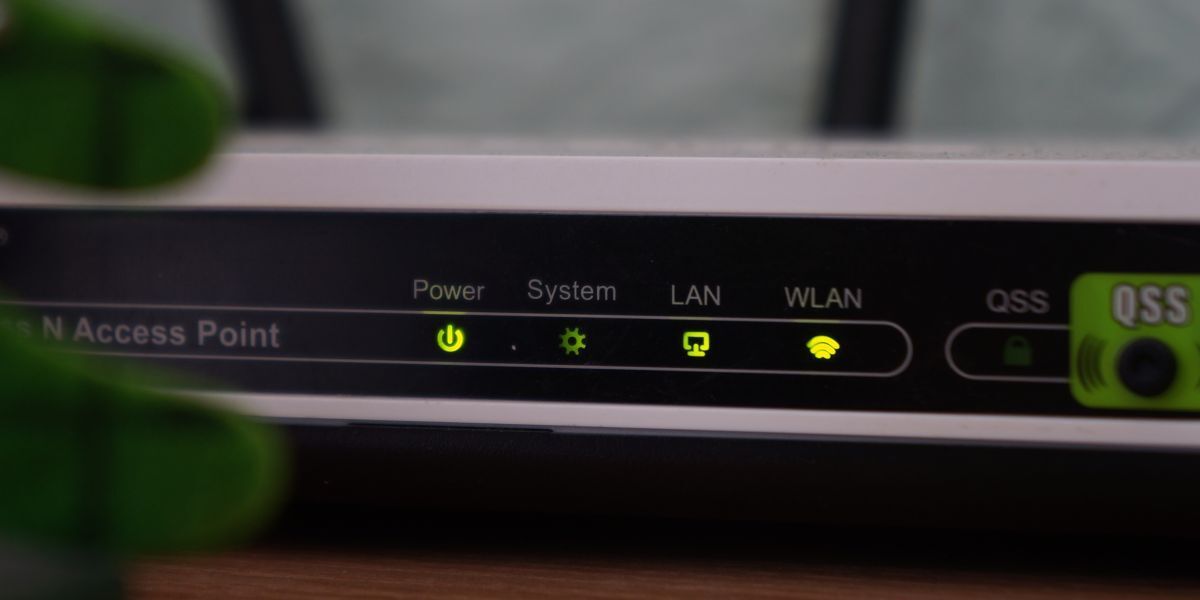
If your internet has suddenly become slower than a sleepy turtle, your Zoom call sounds like robot karaoke, or your smart TV has decided buffering is now a personality trait, restarting your router is still one of the quickest fixes in the book. It is simple, free, and wonderfully low-drama compared to calling your internet provider and listening to hold music that feels longer than a mortgage.
That said, there is a right way to do it. A lot of people “restart” their router by tapping buttons at random, yanking the wrong cable, or accidentally doing a factory reset and then wondering why every device in the house is acting betrayed. This guide walks you through exactly how to restart your router, when you should do it, what to expect afterward, and what to try next if the reboot does not solve the problem.
What Restarting a Router Actually Does
Restarting your router, also called rebooting or power cycling, turns the device off and back on so it can re-establish its network connection. In plain English, you are giving your networking gear a short nap so it can stop being weird. A proper restart can clear temporary glitches, refresh the connection to your internet service provider, and help the router recover from memory hiccups, overheating behavior, or momentary software hiccups.
This is why restarting a router is often the first suggestion for common home internet problems such as:
- Slow Wi-Fi speeds across multiple devices
- Intermittent disconnections
- A router that shows power but no internet
- Lag spikes during gaming or video calls
- Devices that cannot connect even though the Wi-Fi name appears
In many homes, this step works because the problem is temporary, not catastrophic. Your router is not necessarily broken. It may simply need to restart its connection and settle down.
Restarting vs. Resetting: These Are Not the Same Thing
Before we get into the steps, let us clear up one of the most common router mistakes on the internet: restarting is not the same as resetting.
Restarting your router
A restart powers the router off and back on. Your settings usually stay the same. Your Wi-Fi network name, password, parental controls, and custom setup should still be there once it comes back online.
Resetting your router
A factory reset wipes custom settings and returns the router to its original out-of-the-box state. That is a much bigger move. It is useful in some cases, like severe configuration problems or possible security compromise, but it is absolutely not the first thing to do just because Netflix froze for 40 seconds.
If you remember only one thing from this article, remember this: restart first, reset only if necessary.
When You Should Restart Your Router
You do not need to restart your router every time a webpage loads like it is traveling by horse. But a reboot makes sense in several common situations:
- Your Wi-Fi is down on several devices, not just one
- Your internet speed suddenly drops for no obvious reason
- You just had a short power outage or service interruption
- Your smart home devices cannot reconnect
- You changed cables, moved equipment, or installed a new modem
- The router lights look abnormal or keep blinking without recovering
If only one phone, laptop, or tablet is acting up, the problem may be that specific device rather than the router. In that case, restart the device too, forget and reconnect to the Wi-Fi network, and test again before blaming your innocent router.
How to Restart Your Router: Step-by-Step
Here is the clean, no-chaos version.
Method 1: Restart a Router With a Power Button
- Find the power button on the back or side of the router.
- Press it once to turn the router off.
- Wait at least 30 seconds.
- Press the power button again to turn the router back on.
- Wait for the status lights to stabilize.
That is it. If your router has a dedicated power switch, this is often the easiest method.
Method 2: Restart a Router Without a Power Button
- Unplug the power cable from the router.
- Make sure the lights turn off completely.
- Wait at least 30 seconds.
- Plug the power cable back in.
- Give the router time to boot fully before testing the connection.
Do not rush this part. Waiting only five seconds is not really a reboot. That is more like startling the router.
If You Have a Separate Modem and Router
Many homes have two separate boxes: a modem and a router. If that is your setup, rebooting them in the right order matters.
Best reboot order for modem + router setups
- Unplug the router.
- Unplug the modem.
- Wait at least 30 seconds.
- Plug the modem back in first.
- Wait until the modem lights settle down and show it is online.
- Plug the router back in.
- Wait until the router fully reconnects and begins broadcasting Wi-Fi again.
This order helps the modem reconnect to your provider before the router tries to grab that connection and share it with the rest of your devices. If you power everything back on all at once, the network can still recover, but the modem-first method is usually cleaner and more reliable.
How Long Does It Take?
This is the part where people get impatient, declare the internet officially dead, and start refreshing pages like they are trying to win a contest.
In reality, most routers need around 1 to 2 minutes to reboot, while modems and combo gateways can take anywhere from 2 to 5 minutes. Some systems with mesh nodes, fiber equipment, or app-controlled gateways may take a little longer. Watch the indicator lights. When the normal internet or status light turns solid and stable, that is usually your sign that the device is back online.
If your router and modem are still blinking angrily after several minutes, move on to the troubleshooting section below.
How to Restart Your Router Using an App
Many modern routers can be restarted through the manufacturer or provider app. This is common with Xfinity, eero, NETGEAR, Google Fiber, and similar systems.
The exact steps vary by brand, but the process usually looks like this:
- Open the router or internet provider app.
- Select your router, gateway, or network equipment.
- Look for an option such as Restart, Reboot, or Restart Network.
- Confirm the action.
- Wait for the device to disconnect and come back online.
This is handy if the router is tucked behind a cabinet, mounted awkwardly, or living in that one corner of the house where spiders pay rent.
What to Check After Restarting
Once the router finishes rebooting, do a quick health check.
- See whether your Wi-Fi network name appears on your phone or laptop
- Try opening a website on more than one device
- Run a speed test if the issue was slow performance
- Check whether smart TVs, cameras, printers, or speakers reconnect automatically
- Look at the router lights for anything unusual
If everything reconnects and the internet works normally again, congratulations. You have successfully performed one of the most powerful five-minute fixes in home tech.
What If Restarting the Router Does Not Work?
If the reboot does not fix the issue, do not jump straight to a factory reset like a cowboy in an action movie. Try these next steps first.
1. Check the cables
Loose Ethernet, coaxial, or power cables are common troublemakers. Make sure everything is firmly connected and undamaged.
2. Check for an outage
Your internet provider may be having a service issue in your area. If your gear looks normal but there is still no internet, an outage is very possible.
3. Test another device
If only one device cannot connect, restart that device and reconnect to Wi-Fi. The router may not be the villain here.
4. Move the router
If the issue is weak Wi-Fi rather than no Wi-Fi, placement matters. Thick walls, metal objects, fish tanks, baby monitors, and microwaves can all mess with wireless performance. Yes, your kitchen can absolutely bully your signal.
5. Update firmware
Outdated router firmware can lead to bugs, instability, and security issues. Log in to your router admin panel or app and check for updates.
6. Consider a factory reset only if needed
If the router is badly misconfigured, keeps failing after every reboot, or you suspect a deeper security issue, a factory reset may help. Just remember that it can erase custom settings and require full reconfiguration.
Common Router Restart Mistakes to Avoid
- Holding the reset button by accident: This can wipe your settings instead of simply rebooting the device.
- Not waiting long enough: A proper reboot usually needs at least 30 seconds with the power disconnected.
- Powering the router before the modem: If you have separate devices, bring the modem back first.
- Assuming every blinking light means disaster: Some blinking is normal during startup.
- Ignoring overheating: If your router is hot and stuffed in a cramped cabinet, heat may be causing the problem to return.
Should You Restart Your Router Regularly?
For most households, you do not need a strict reboot ritual like it is feeding time at a zoo. But restarting the router occasionally can be helpful, especially if you notice performance slowly degrading over time. Some users reboot once every few weeks or after firmware changes, power outages, or unusual slowdowns.
If you find yourself restarting the router every day or every other day, that is not a charming little quirk. That is a symptom. At that point, you may be dealing with overheating, old hardware, poor placement, ISP issues, failing cables, buggy firmware, or a modem problem rather than a simple router hiccup.
Router Security: When a Restart Is Not Enough
Sometimes a restart helps because it clears temporary junk. But if you suspect your network has been tampered with, a reboot alone may not be enough. Signs can include unfamiliar devices on your network, changed login credentials, strange settings, or repeated instability without an obvious cause.
In those cases, the smarter move is to:
- Log in to the router admin panel
- Check connected devices
- Change the admin password
- Update the firmware
- Disable remote management if you do not use it
- Use a factory reset if compromise seems likely
Think of a restart as a quick refresh. Think of security cleanup as changing the locks.
Final Thoughts
Restarting your router is one of those deceptively simple tech fixes that still earns its reputation. Done properly, it can resolve slow speeds, connection drops, temporary Wi-Fi issues, and those mysterious moments when your home internet seems to have entered a dramatic phase. The key is to do it deliberately: power off, wait long enough, reboot in the correct order, and give the equipment time to come back online.
Most of the time, that is all it takes. And if it is not, the reboot still gives you a clean starting point for deeper troubleshooting. In other words, restarting your router may not solve every internet problem, but it is often the fastest way to separate a temporary glitch from a real issue.
Real-World Experiences: What Restarting a Router Feels Like in Everyday Life
Anyone who has dealt with home internet problems knows that restarting a router is not just a technical task. It is an experience. Usually, it begins with confusion. One minute, everything is fine. The next, your video call freezes on the least flattering frame imaginable, your music stops mid-song, and your smart speaker suddenly behaves like it has never heard of Wi-Fi. That is usually when somebody in the house says, “Did you try restarting the router?” in the same tone people use when recommending soup during flu season.
One of the most common experiences is the “nothing works, but only a little bit” situation. Pages half-load. Messages send late. Streaming services drop from crystal clear to potato quality. In moments like that, a router restart feels almost magical because the problem is vague enough to be infuriating, yet simple enough that a reboot can genuinely fix it. You unplug the router, wait, plug it back in, and spend the next two minutes staring at blinking lights like you are reading tea leaves.
Then there is the family-household version of the experience, which is far less peaceful. The second the router goes down, everyone notices. Someone asks why the TV stopped. Someone else complains that their game disconnected. A third person wonders whether the internet bill was paid. Restarting the router in a busy household can feel less like troubleshooting and more like emergency management. Still, when the connection returns and the complaints stop, it feels like you personally negotiated peace.
For remote workers, restarting the router often comes with a special kind of panic. If your internet drops five minutes before a meeting, that reboot can feel longer than a cross-country road trip. You start calculating whether your phone hotspot can save you, whether your camera needs to stay off, and whether anyone will believe “my router needed a quick reboot” in the year 2026. The good news is that, in many cases, a clean restart really does get things back online before total professional embarrassment sets in.
Gamers know a very specific version of this experience too. The internet does not fully die. It just becomes haunted. Everything looks normal until the lag hits. You teleport across the map, lose the match, and instantly suspect the router is plotting against you personally. A proper restart can often restore stability, especially after long uptime or temporary ISP hiccups. It does not fix skill issues, unfortunately, but it can eliminate one convenient excuse.
And then there is the oddly satisfying part: when the reboot works. The lights stabilize. Devices reconnect. Pages load instantly. The house returns to normal. You did not replace hardware, call support, or perform a factory reset with a paperclip and a prayer. You simply restarted the router correctly, and the problem disappeared. That is why this tiny fix remains so popular. It is easy, low-risk, and surprisingly effective.
In everyday life, restarting a router is not glamorous, but it is one of those little digital survival skills that pays off again and again. Once you know the right steps, you stop guessing and start fixing.