If Safari keeps sending your searches to Yahoo even though you never chose Yahoo, your Mac is probably not “haunted.” Good news. Bad news: it may be dealing with a browser hijacker, unwanted extension, suspicious configuration profile, or adware-style app that keeps changing Safari’s settings behind your back. The Yahoo search redirect on Safari is annoying because it looks almost normal at first. You type a search, Safari blinks, and suddenly you land on a Yahoo results page, sometimes after passing through a strange address you have never seen before.
To be clear, Yahoo itself is a legitimate search engine. The problem is usually not Yahoo. The problem is the shady middleman that forces your browser to use Yahoo, often to earn advertising commissions, track searches, promote questionable pages, or keep you stuck in an endless loop of “Why is my Mac doing this?” energy. This guide explains how to remove Yahoo Search redirect from Safari on Mac step by step, without panic-clicking every button like you are defusing a movie bomb.
Below, you will learn how to check Safari settings, remove suspicious extensions, delete unknown profiles, clear website data, inspect login items, remove unwanted applications, and prevent the redirect from returning. The goal is simple: get Safari back under your control.
What Is the Yahoo Search Redirect on Safari?
The Yahoo Search redirect on Safari is a browser behavior where your searches, homepage, new tab page, or address bar results are repeatedly redirected to Yahoo Search or to a Yahoo-powered results page. In many cases, this happens even after you manually change Safari back to Google, DuckDuckGo, Bing, or another preferred search engine.
This kind of issue is often called a browser hijacker. It may arrive through a free app installer, fake software update, suspicious download, “helpful” browser extension, coupon tool, PDF converter, media player, or cleaner app with more ambition than manners. Once installed, the unwanted software may change your default search engine, add an extension, create a configuration profile, or run in the background each time your Mac starts.
Common Signs Your Safari Browser Has Been Hijacked
- Safari searches go to Yahoo even after you choose another search engine.
- Your homepage or new tab page changes without permission.
- Safari opens unfamiliar pages when launched.
- You see pop-ups, sponsored search results, or strange redirects.
- An unknown Safari extension appears in settings.
- A Mac configuration profile prevents you from changing browser settings.
- The redirect returns after restarting your Mac.
If one or two of these sound familiar, keep reading. If all of them sound familiar, your Safari has basically joined a marketing circus without your consent.
Before You Start: Do These Quick Safety Checks
Before removing anything, slow down for a minute. Browser hijackers rely on rushed decisions. You do not need to wipe your Mac, delete every file, or download the first “miracle remover” advertised in a pop-up. In fact, do not trust pop-ups that claim your Mac is infected and demand immediate installation. That is how many users end up with more junk than they started with.
Start with these simple precautions:
- Quit Safari completely before deeper cleanup steps.
- Back up important files with Time Machine or another trusted backup method.
- Do not enter passwords on pages that appear during redirects.
- Do not install security tools from random ads or pop-ups.
- Only download apps from official developer websites or the Mac App Store.
Now let’s clean Safari and macOS in the right order.
Step 1: Check Safari’s Default Search Engine
Sometimes the fix is simple: Safari’s search engine was changed. Other times, changing it back only works temporarily because adware keeps overriding it. Either way, this is the first place to check.
How to Change Safari Search Settings
- Open Safari.
- Click Safari in the menu bar.
- Select Settings.
- Click the Search tab.
- Choose your preferred search engine.
- If available, also check the private browsing search engine setting.
After changing the search engine, open a new Safari window and search for something simple, like “weather today” or “banana bread recipe.” If Safari still redirects to Yahoo, the search setting is probably being controlled by an extension, profile, or background app.
Step 2: Remove Suspicious Safari Extensions
Safari extensions can be useful. Password managers, grammar tools, privacy blockers, and shopping assistants can all live there. Unfortunately, browser hijackers also love extensions because extensions can influence pages, search behavior, and browsing activity.
How to Review Safari Extensions
- Open Safari.
- Go to Safari > Settings.
- Click Extensions.
- Look for extensions you do not recognize.
- Turn off suspicious extensions first.
- If the redirect stops, uninstall the suspicious extension.
Be especially careful with extensions that claim to improve search, manage coupons, convert documents, unlock media, display deals, or “secure” your browser with vague language. If you do not remember installing it, and it is not essential, remove it. Safari works perfectly well with no extensions installed, so do not feel guilty about being strict.
Step 3: Check Safari Homepage and New Window Settings
A Yahoo redirect may also appear because your homepage, new window, or new tab setting was changed. This is not always malware. Sometimes it happens after installing a bundle that quietly asks for permission in tiny print. Yes, the tiny print strikes again.
How to Reset Safari Homepage Settings
- Open Safari.
- Choose Safari > Settings.
- Click General.
- Review the Homepage field.
- Remove suspicious URLs.
- Set new windows and new tabs to your preferred option.
You can set Safari to open with your Favorites, homepage, empty page, or another trusted destination. If the homepage field is locked or instantly changes back, move to the next step because a configuration profile may be enforcing the redirect.
Step 4: Delete Unknown Configuration Profiles on Mac
Configuration profiles are powerful. Schools, companies, and organizations use them to manage Macs. However, unwanted software can also misuse profiles to control browser settings. If a profile has been added without your knowledge, it may lock Safari into a specific search engine or homepage.
How to Remove Unknown Profiles
- Click the Apple menu.
- Open System Settings.
- Go to General.
- Look for Device Management or Profiles.
- Select any profile you do not recognize.
- Remove it if you are sure it does not belong to your school, employer, or trusted organization.
If your Mac is managed by a workplace or school, ask the administrator before deleting profiles. If this is your personal Mac and you find a profile with a strange name related to search, browsing, coupons, security, or device optimization, it may be the reason Safari keeps redirecting to Yahoo.
Step 5: Clear Safari Website Data, Cache, and History
Clearing website data will not remove every browser hijacker, but it can remove stored cookies, cached scripts, and site data that may keep unwanted behavior alive. Think of it as cleaning crumbs out of the keyboard. It may not fix the whole sandwich accident, but it helps.
How to Clear Website Data in Safari
- Open Safari.
- Choose Safari > Settings.
- Click Privacy.
- Select Manage Website Data.
- Click Remove All.
- Confirm the action.
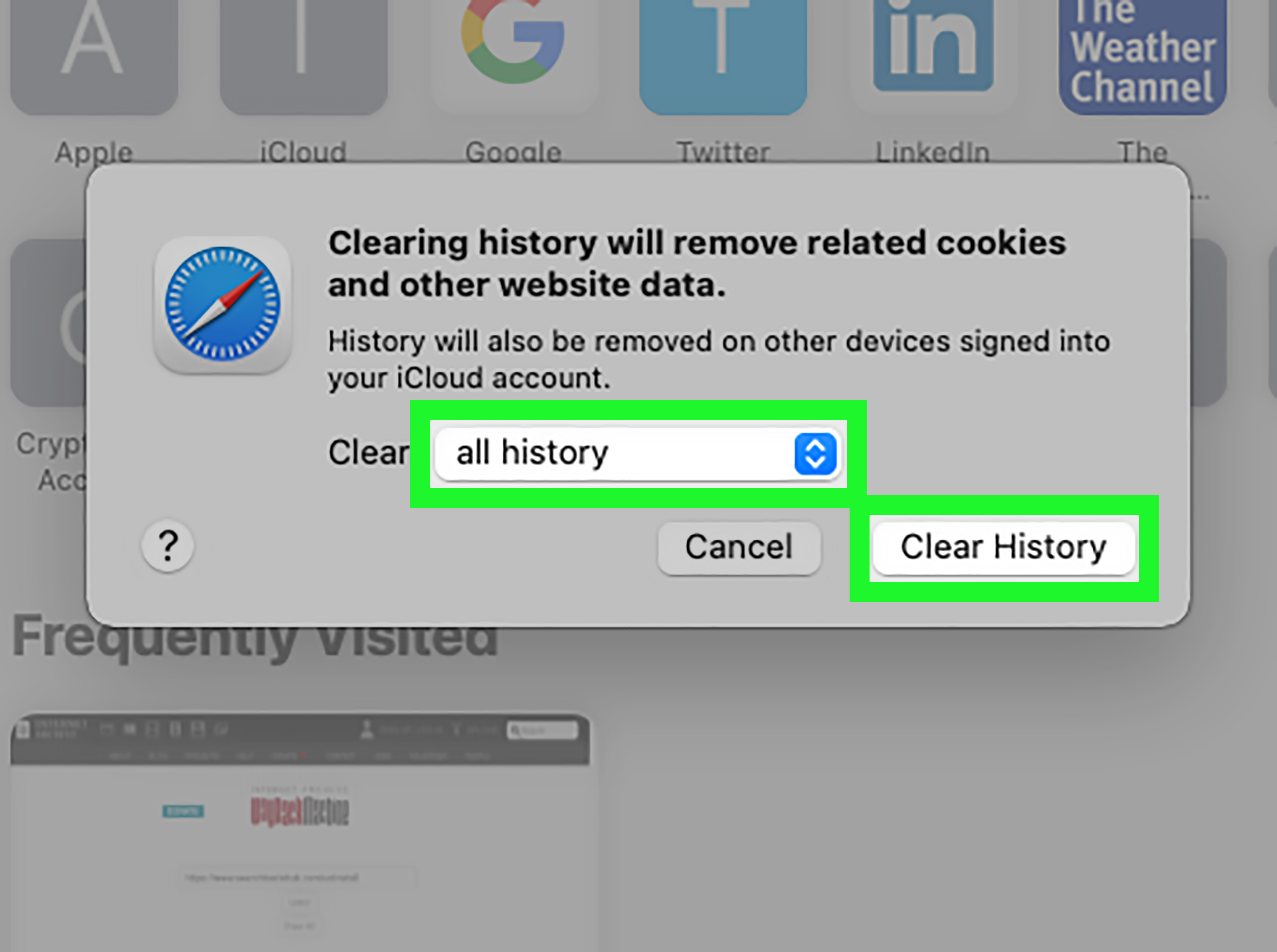
You can also clear browsing history from History > Clear History. Choose an appropriate time range, such as all history, if the redirect has been happening for a while. Be aware that clearing data may sign you out of websites, so make sure you know your passwords or use a trusted password manager.
Step 6: Remove Suspicious Safari Profiles
Recent versions of Safari support browser profiles, which separate history, cookies, extensions, and website data for different browsing contexts. That is useful for keeping work and personal browsing separate. But if a suspicious Safari profile was created, it may contain settings or data related to the redirect.
How to Review Safari Profiles
- Open Safari.
- Choose Safari > Manage Profiles, or go to Safari > Settings > Profiles.
- Review the list of profiles.
- Delete any profile you do not recognize, except the default profile.
After removing a suspicious Safari profile, restart Safari and test your search again. If Safari behaves normally, the unwanted profile may have been part of the problem.
Step 7: Check Login Items and Background Items
If the Yahoo redirect returns after restarting your Mac, the cause may not be inside Safari alone. A background item may be relaunching the hijacker, rewriting preferences, or reopening a helper app. This is why some users say, “I removed it yesterday, and it came back today.” The redirect is not magic. It has a helper.
How to Review Login Items on macOS
- Click the Apple menu.
- Open System Settings.
- Go to General.
- Click Login Items & Extensions.
- Review apps that open at login.
- Remove anything unfamiliar or suspicious.
- Review background items and disable suspicious entries.
Look for names that seem generic, misspelled, or unrelated to apps you actually use. Examples may include vague words like “Search,” “Manager,” “Helper,” “Updater,” “Assist,” or “Engine.” Not every helper item is bad, so use common sense. Adobe, Google, Microsoft, Dropbox, and other major apps may have legitimate background items. Random “Search Manager Pro” from nowhere? Not so charming.
Step 8: Delete Recently Installed Suspicious Apps
Many Safari redirect problems begin after installing a free utility. The app may not announce itself as a browser hijacker. It may look like a video downloader, fake Flash update, file converter, archive tool, cleaning app, or “search enhancement.” The name may sound useful enough to get invited in, then behave like a raccoon in the pantry.
How to Remove Suspicious Applications
- Open Finder.
- Go to Applications.
- Sort apps by date added or look for recently installed items.
- Drag suspicious apps to the Trash.
- Empty the Trash only after you are confident the app is unwanted.
- Restart your Mac.
If an app refuses to delete because it is open, quit it from the Dock or use Activity Monitor to stop the related process. Avoid deleting apps you do not understand, especially Apple system apps or software required by your school or workplace.
Step 9: Inspect Browser-Related Folders Carefully
Some adware stores support files outside the Applications folder. Advanced users sometimes check LaunchAgents, LaunchDaemons, and Application Support folders. This can help when the redirect keeps returning, but it must be done carefully because deleting the wrong files may break legitimate apps.
Common Folders to Review
~/Library/LaunchAgents/Library/LaunchAgents/Library/LaunchDaemons~/Library/Application Support/Library/Application Support
To open these folders, use Finder, click Go in the menu bar, choose Go to Folder, and paste one path at a time. Look for files connected to apps you already identified as suspicious. Do not randomly delete files just because their names look technical. Technical-looking files are common on macOS. The goal is not to delete “anything weird.” The goal is to remove files clearly connected to unwanted software.
Step 10: Restart Your Mac and Test Safari
After removing suspicious extensions, profiles, website data, login items, and unwanted apps, restart your Mac. Then open Safari and test it in a clean sequence:
- Open Safari.
- Check Safari > Settings > Search.
- Confirm your preferred search engine is selected.
- Open a new private window.
- Search for a neutral phrase.
- Close Safari and reopen it.
- Search again from the Smart Search field.
If Safari no longer redirects to Yahoo, you have likely removed the active cause. If the redirect returns, review configuration profiles and login items again. Persistent redirects are often tied to something running outside the browser.
Should You Use an Anti-Malware Scanner?
A trusted anti-malware scanner can help, especially if you are uncomfortable manually checking system folders. The key word is trusted. Do not download tools from pop-up warnings, fake virus alerts, or random pages that scream in capital letters. Use reputable security companies, official websites, or the Mac App Store.
Manual cleanup is useful, but scanners may detect adware components you missed. This is especially helpful when the unwanted files use confusing names or hide in multiple locations. If a scanner finds threats, review the results and follow its quarantine or removal instructions.
How to Prevent Yahoo Redirects from Coming Back
Once Safari is clean, prevention becomes much easier. Most browser hijackers arrive through habits that can be improved without turning your Mac into a digital bunker.
Use Safer Download Habits
- Download apps only from official sources.
- Avoid fake update prompts, especially fake browser or media player updates.
- Read installer screens before clicking “Continue.”
- Do not install bundled “bonus” tools you did not ask for.
- Keep macOS and Safari updated.
- Review Safari extensions every month or two.
- Remove apps you no longer use.
Also, be skeptical of any app that promises to “optimize,” “boost,” “accelerate,” or “enhance” your browser without clearly explaining what it does. Your Mac does not need a mysterious search assistant wearing a fake mustache.
Why Does the Redirect Use Yahoo?
Many users wonder why a browser hijacker redirects to Yahoo instead of some obviously suspicious search page. The answer is simple: using a familiar search engine makes the redirect look less alarming. A user may think, “Oh, Safari just changed to Yahoo,” instead of realizing a third-party component is forcing the change.
In many cases, the hijacker sends your query through one or more intermediate domains before landing on a Yahoo-powered page. Those intermediate redirects may help the operator earn referral revenue or collect browsing signals. Again, Yahoo is not usually the villain here. The unwanted redirect chain is the problem.
Common Mistakes to Avoid
Only Changing the Search Engine
Changing Safari’s search engine is a good first step, but it may not remove the cause. If the setting changes back, something else is controlling it.
Ignoring Configuration Profiles
Unknown profiles are one of the most overlooked causes of locked browser settings. Always check Device Management or Profiles if Safari refuses to stay fixed.
Installing Random “Removal” Apps
Some fake removal tools are just more unwanted software. Use reputable security tools only.
Deleting System Files Blindly
Do not delete random files from Library folders unless you understand what they belong to. When unsure, research the file name or ask a knowledgeable technician.
When to Get Professional Help
If Safari still redirects after you remove suspicious extensions, profiles, login items, and apps, it may be time to get help. This is especially true if your Mac also shows pop-ups, unknown apps, slow performance, repeated password prompts, or security warnings. A professional technician or Apple support channel can help review your Mac without guesswork.
You should also get help if the Mac belongs to a school or workplace. Managed devices may have legitimate profiles and restrictions, and removing them could cause account, network, or compliance problems.
Real-World Experience: What Usually Works Best
In real cleanup situations, the fastest fix is rarely one dramatic button. It is usually a combination of small checks done in the right order. A common example looks like this: a user notices Safari searches going to Yahoo, changes the default search engine back to Google, feels victorious for twelve seconds, then watches Safari redirect again. That usually means the search setting was only a symptom, not the root cause.
The most effective cleanup pattern is to start inside Safari and then move outward. First, check the search engine, homepage, extensions, website data, and Safari profiles. If the redirect disappears after disabling an extension, you have found the likely troublemaker. Many unwanted extensions use friendly names, so do not judge only by the label. A suspicious extension may call itself something harmless like “Search Tool,” “Web Helper,” or “Smart Browse.” If it showed up around the same time the redirect began, it deserves a hard stare.
If Safari looks clean but the redirect keeps returning, the next place to check is macOS itself. Unknown configuration profiles are a big clue. When a profile controls browser behavior, your changes may not stick. Users often describe this as Safari “fighting back,” but really the Mac is following a rule installed by the profile. Removing an unfamiliar profile from a personal Mac can instantly unlock settings that seemed impossible to change.
Another common experience is finding the cause in Login Items or background items. The user removes a suspicious extension, restarts the Mac, and the extension or redirect returns. That is often because a helper app is still running at startup. Removing the visible Safari problem without removing the background helper is like wiping water off the floor while the sink is still overflowing. You may feel productive, but the puddle has plans.
Recently installed apps are also worth reviewing. Many Yahoo redirect cases appear shortly after someone downloads a free converter, unofficial media tool, fake updater, or “cleaner.” The user may not connect the two events because the redirect does not always begin immediately. A good habit is to ask, “What changed on this Mac in the last week?” That question often points directly to the suspicious app.
One practical tip: test after each major change. Disable extensions, test Safari. Remove an unknown profile, test again. Clear website data, test again. Restart, then test again. This method helps you identify what actually fixed the issue. It also prevents unnecessary deletion of unrelated files. Cleanups become much less stressful when you treat them like a checklist instead of a frantic treasure hunt.
Another lesson from real-world troubleshooting: do not assume the Mac is “infected forever” just because the redirect is persistent. Browser hijackers are annoying, but many are removable with careful settings review and cleanup. At the same time, do not ignore the issue. A redirect that changes your search behavior without permission is a privacy and security concern. Even if it only sends you to Yahoo results, the path your search takes before arriving there may involve unknown domains.
Finally, prevention is easier than removal. Keep Safari lean. Install only extensions you truly use. Review Login Items after installing new apps. Avoid fake update prompts. And whenever an installer offers “recommended search tools,” treat that recommendation like gas station sushi: technically available, but probably not the best decision of your day.
Conclusion
Removing Yahoo Search redirect from Safari on Mac is usually a matter of finding what changed your browser settings and removing it completely. Start with Safari’s search engine, homepage, extensions, website data, and profiles. Then check macOS configuration profiles, login items, background items, and recently installed apps. If the redirect keeps returning, use a trusted anti-malware scanner or seek professional help.
The most important thing is to stay calm and methodical. Yahoo redirects can feel sneaky, but they are not unbeatable. With the right steps, Safari can go back to doing what it is supposed to do: browsing the web without dragging you through an unwanted search engine detour.