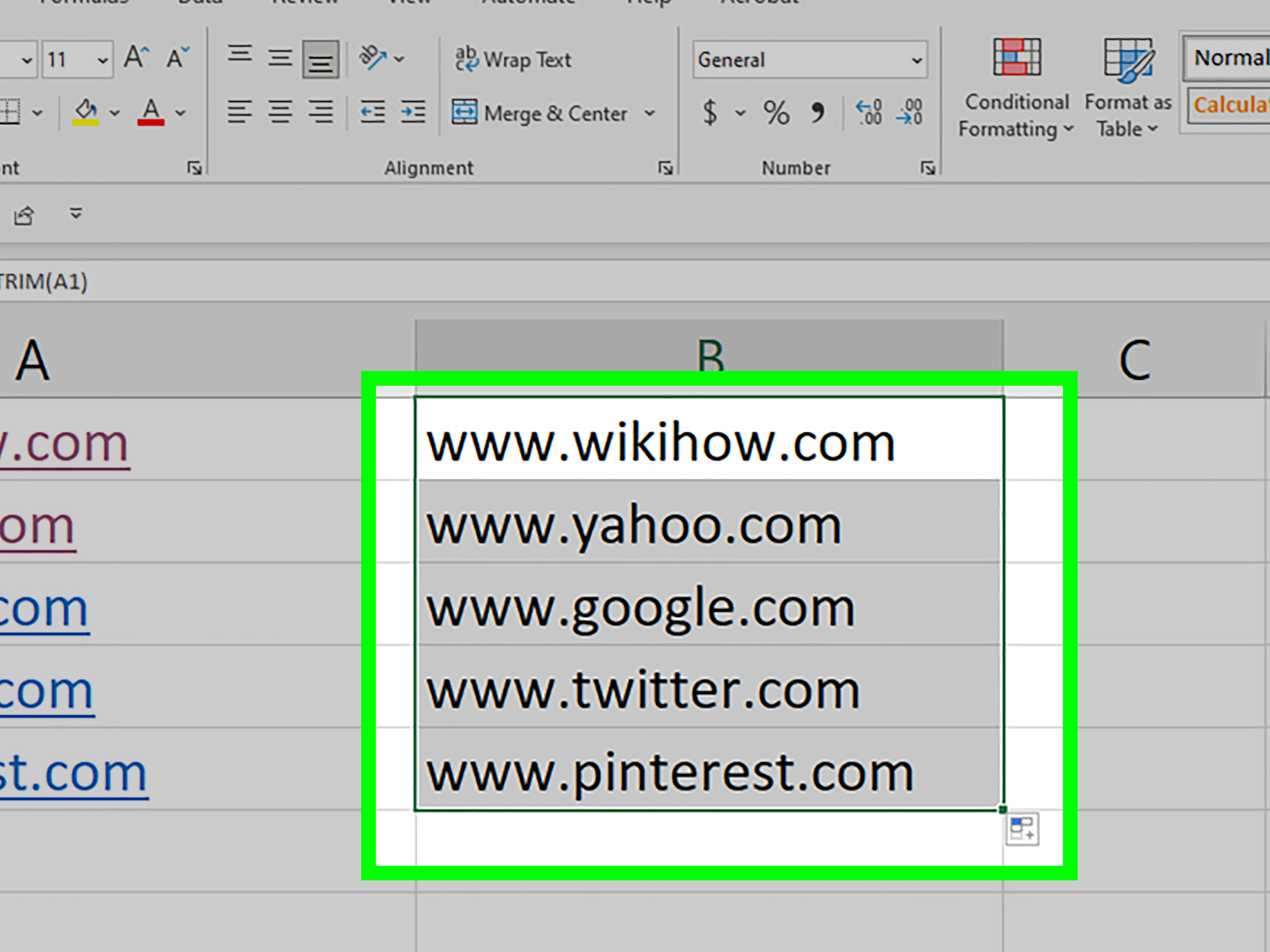
Spaces in Excel are tiny troublemakers. They look harmless, they sit quietly between numbers and words, and thensurprisethey break your formulas, ruin your sorting, make lookups fail, and turn perfectly normal numbers into text wearing a fake mustache. Whether you copied data from a website, exported a customer list from a CRM, downloaded a bank statement, or inherited a worksheet from someone who treats the spacebar like a musical instrument, this guide will show you exactly how to clean it up.
The good news is that removing spaces between numbers and words in Excel is not difficult once you know which tool to use. The slightly annoying news is that not all spaces are the same. Some are regular spaces. Some are leading spaces before text. Some are trailing spaces after values. Some hide between digits in numbers, like 12 345. Others are non-breaking spaces copied from web pages, and those stubborn little gremlins often ignore the normal TRIM function.
In this guide, you will learn several practical ways to remove spaces in Excel, including Find and Replace, TRIM, SUBSTITUTE, CLEAN, VALUE, Power Query, and smart formula combinations. We will cover examples for numbers, words, product codes, imported data, and messy real-world spreadsheets.
Why Spaces Between Numbers and Words Cause Problems in Excel
Excel is excellent at calculating, organizing, filtering, and analyzing data. It is less excellent at guessing what you meant when a value contains hidden or unnecessary spaces. A product code like AB 123 may look similar to AB123, but Excel treats them as different values. A number like 10 000 may look like ten thousand to your eyes, but Excel may treat it as text, not a usable number.
That matters because extra spaces can cause several headaches:
- VLOOKUP, XLOOKUP, and MATCH errors: A lookup value with an extra space will not match the clean version.
- Incorrect sorting: Text-formatted numbers may sort alphabetically instead of numerically.
- Broken calculations: Excel cannot add, average, or compare numbers properly if they are stored as text.
- Duplicate records:
John SmithandJohn Smithmay appear as different entries. - Messy reports: Extra spaces make dashboards, labels, invoices, and exported files look unprofessional.
Before fixing the problem, decide what you want Excel to do. Do you want to remove all spaces, including spaces between words? Or only extra spaces at the beginning, end, and between words? The correct method depends on the answer.
Method 1: Use Find and Replace to Remove All Spaces
The fastest way to remove spaces between numbers or words in Excel is Find and Replace. This is perfect when you want to delete every regular space in a selected range.
Example
Suppose cell A2 contains:
You want it to become:
Steps
- Select the cells or column you want to clean.
- Press Ctrl + H to open Find and Replace.
- In the Find what box, press the spacebar once.
- Leave the Replace with box empty.
- Click Replace All.
Excel will remove the spaces from the selected range. This method is fast, simple, and ideal for data like phone numbers, account numbers, invoice IDs, ZIP codes, and product SKUs where spaces should not exist.
Be careful, though. Find and Replace is like a tiny spreadsheet vacuum cleaner. If you tell it to remove spaces from names, it will turn Mary Ann Lee into MaryAnnLee. That may be useful for creating usernames, but it is less charming if you are preparing wedding invitations.
Method 2: Use SUBSTITUTE to Remove Every Space in a Cell
If you prefer a formula-based approach, use the SUBSTITUTE function. It replaces specific text with something else. In this case, you tell Excel to replace a space with nothing.
Formula
If A2 contains:
The formula returns:
This is one of the best Excel formulas to remove spaces between numbers and words because it is clear, predictable, and easy to copy down a column.
When to Use SUBSTITUTE
- When you want to remove every regular space from a value.
- When you need a helper column instead of editing the original data immediately.
- When cleaning product codes, serial numbers, phone numbers, IDs, or imported records.
After using the formula, copy the cleaned results, then use Paste Special > Values if you want to replace the original messy data.
Method 3: Use TRIM to Remove Extra Spaces but Keep Normal Word Spacing
The TRIM function removes leading spaces, trailing spaces, and repeated spaces between words. However, it keeps one normal space between words. This makes it ideal for cleaning names, addresses, descriptions, and labels.
Formula
If A2 contains:
The result is:
TRIM is excellent for text cleanup, but it is not designed to remove all spaces. If you want BlueCottonShirt, use SUBSTITUTE instead. Think of TRIM as the polite editor who straightens spacing. SUBSTITUTE is the bouncer who removes every space from the building.
Method 4: Combine TRIM and SUBSTITUTE for Cleaner Results
Sometimes you need to remove a specific type of space while keeping the rest of the text readable. For example, imported data may contain too many spaces between words, but you still want normal spacing.
Basic Cleanup Formula
This formula replaces double spaces with single spaces, then trims the result. However, if there are many repeated spaces, standard TRIM(A2) is usually enough for regular spaces.
For removing all spaces, use:
This first removes extra leading, trailing, and repeated internal spaces, then removes the remaining single spaces. It is useful when the original cell contains inconsistent spacing and you want a compact final result.
Method 5: Remove Non-Breaking Spaces with CHAR(160)
Here is where things get spicy. If you copied data from a website, PDF, email, or online system, the space may not be a regular space. It may be a non-breaking space. In Excel formulas, this character is often handled as CHAR(160). Regular TRIM may not remove it, which leads to the classic spreadsheet moment: “I cleaned this already, so why is it still broken?”
Formula for Non-Breaking Spaces
This removes non-breaking spaces from A2.
Stronger Cleanup Formula
This converts non-breaking spaces into regular spaces, then uses TRIM to remove unnecessary spacing while keeping one space between words.
All-in-One Cleanup Formula
This is a strong formula for imported text because it handles non-breaking spaces, nonprintable characters, and extra regular spaces. It is especially useful when cleaning data copied from websites, reports, PDFs, accounting exports, or older systems that seem to have been built during a thunderstorm.
Method 6: Remove Spaces from Numbers and Convert Them Back to Real Numbers
When numbers contain spaces, Excel may store them as text. For example:
To remove the spaces and convert the result into a real number, use:
If A2 contains 1 250 000, the formula returns the number 1250000. You can now use it in calculations, charts, pivot tables, and formulas.
If the number may contain non-breaking spaces, use this stronger version:
This removes both non-breaking spaces and regular spaces, then converts the cleaned text to a number.
Method 7: Use Text to Columns to Fix Numbers Stored as Text
Sometimes spaces are gone, but Excel still treats the result as text. One quick fix is Text to Columns.
Steps
- Select the cleaned numbers.
- Go to the Data tab.
- Click Text to Columns.
- Choose Delimited, then click Next.
- Click Next again.
- Choose General.
- Click Finish.
This often forces Excel to recognize text-formatted numbers as actual numbers. It is a handy no-formula trick when working with large exports.
Method 8: Use Power Query for Large or Repeated Cleanup Jobs
If you regularly import messy data, Power Query can save your sanity and possibly your lunch break. Power Query lets you clean data once, then repeat the same steps every time the file updates.
Basic Power Query Steps
- Select your data range.
- Go to Data > From Table/Range.
- In Power Query Editor, select the column to clean.
- Use Transform > Format > Trim to remove leading and trailing spaces.
- Use Transform > Format > Clean to remove control characters.
- Use Replace Values to replace spaces or non-breaking spaces if needed.
- Click Close & Load.
Power Query is especially useful for monthly sales reports, inventory exports, bank statements, CRM lists, and any file that arrives messy on a schedule, like a tiny administrative prank.
Method 9: Remove Spaces Only Between Numbers
Sometimes you want to remove spaces inside numbers but leave spaces between words. For example:
You may want:
This is more advanced because Excel needs to know whether a space sits between digits or between words. In modern Excel, you can often solve this with helper columns or more advanced formulas, but the easiest practical method is to separate the number into its own column, clean it, then recombine the text if needed.
If the number is in A2 by itself, use:
If the cell contains mixed text and numbers, consider using Power Query, Flash Fill, or splitting the data into columns before cleaning. Trying to solve every mixed-text scenario with one giant formula can turn your worksheet into a haunted forest of parentheses.
Method 10: Use Flash Fill for Quick One-Time Fixes
Flash Fill is useful when Excel can detect a pattern from your example. Suppose column A contains:
In column B, type the desired result:
Then press Ctrl + E. Excel may fill the rest of the column using the same pattern. Flash Fill is not always perfect, but for quick one-time cleanup tasks, it can feel like Excel suddenly decided to be helpful.
Best Formula Cheat Sheet
| Goal | Formula |
|---|---|
| Remove all regular spaces | =SUBSTITUTE(A2," ","") |
| Remove extra spaces but keep one space between words | =TRIM(A2) |
| Remove non-breaking spaces | =SUBSTITUTE(A2,CHAR(160),"") |
| Clean imported text | =TRIM(CLEAN(SUBSTITUTE(A2,CHAR(160)," "))) |
| Remove spaces from a number and convert to numeric value | =VALUE(SUBSTITUTE(A2," ","")) |
| Remove regular and non-breaking spaces from numbers | =VALUE(SUBSTITUTE(SUBSTITUTE(A2,CHAR(160),"")," ","")) |
Common Mistakes to Avoid
Using TRIM When You Need SUBSTITUTE
TRIM does not remove every space. It removes extra spaces and keeps single spaces between words. If your goal is to turn AB 123 into AB123, use SUBSTITUTE.
Cleaning the Whole Sheet Without Thinking
Removing all spaces from an entire worksheet can damage addresses, names, descriptions, and notes. Always select the specific range you want to clean.
Forgetting to Paste Values
If you use formulas in a helper column, copy the results and paste them as values before deleting the original column. Otherwise, your formulas may break.
Ignoring Non-Breaking Spaces
If spaces remain after using TRIM or Find and Replace, suspect CHAR(160). It is the invisible villain of Excel cleanup.
Assuming Clean-Looking Numbers Are Real Numbers
After removing spaces from numbers, check whether Excel treats the result as a number. If needed, use VALUE, Text to Columns, or Paste Special Multiply by 1.
Practical Examples
Example 1: Product Codes
You have product codes like AX 100 B, but your system requires AX100B. Use:
Example 2: Customer Names
You have names like Lisa Morgan . Use:
Example 3: Imported Prices
You have values like 2 499 that should be numbers. Use:
Example 4: Web-Copied Data
You copied a table from a website and normal cleanup does not work. Use:
Which Method Should You Choose?
Choose Find and Replace when you want a fast, direct edit. Choose SUBSTITUTE when you want formula control and repeatability. Choose TRIM when you want readable text with normal spacing. Choose VALUE when cleaned numbers must behave like numbers. Choose Power Query when this is not a one-time problem but a recurring data-cleaning ritual.
For most everyday Excel users, the best starting formulas are:
for removing all spaces, and:
for cleaning messy imported text.
Experience Notes: Real-World Lessons from Removing Spaces in Excel
After cleaning many Excel files, one lesson becomes clear: spaces are rarely just spaces. They are clues. A column full of extra spaces usually means the data came from somewhere elsea web page, accounting software, a database export, a PDF conversion, a copied email, or a manually maintained spreadsheet that has lived too many lives. The mistake many users make is assuming the visible problem is the whole problem. They remove one space, the sheet looks cleaner, and then a lookup still fails. That is when the detective work begins.
One common experience involves product codes. A team may have a master product list where codes are stored as AB123, but a supplier sends a file with AB 123. The codes look similar enough to a human, but Excel is not a human. Excel is a very literal office robot. It sees those as two different strings. In that situation, SUBSTITUTE is usually the cleanest fix because the space should not exist anywhere in the code.
Another frequent case appears in financial data. Numbers exported from banking systems or international reports may contain spaces as thousands separators, such as 45 000. Visually, this is easy to read, but Excel may treat it as text. The problem becomes obvious when totals do not calculate correctly or when a pivot table refuses to summarize the field as a number. The fix is not just removing the space; it is also converting the result into a numeric value. That is why =VALUE(SUBSTITUTE(A2," ","")) is so useful.
Imported customer lists create a different challenge. Names and addresses need spaces, but not messy ones. You do not want SarahJohnson; you want Sarah Johnson. For this kind of data, TRIM is the better choice because it removes the junk while preserving normal word spacing. It is simple, safe, and much less likely to create a new problem while solving the old one.
The trickiest experience is dealing with non-breaking spaces. These often show up after copying from websites or PDFs. Everything looks normal, but formulas behave strangely. You use TRIM, nothing changes. You use Find and Replace, nothing changes. At that point, the issue may be CHAR(160). Once you know that, the fix feels almost magical. A formula like =TRIM(CLEAN(SUBSTITUTE(A2,CHAR(160)," "))) can rescue data that seemed cursed.
The best habit is to keep the original data untouched until the cleaned version is verified. Use a helper column, test a few rows, check formulas, confirm that numbers calculate correctly, and only then paste values over the original column. This small habit prevents big headaches. Excel cleanup is not glamorous, but it is one of those practical skills that saves hours of frustration. And honestly, few things feel better than watching a broken lookup suddenly work because one invisible space finally packed its bags and left.
Conclusion
Removing spaces between numbers and words in Excel is a small task with a big impact. Clean spacing makes formulas more reliable, reports more professional, and data easier to analyze. Use Find and Replace for quick direct cleanup, SUBSTITUTE to remove all spaces with a formula, TRIM to tidy text while keeping normal word spacing, and VALUE when numbers need to become real numbers again. For stubborn imported data, combine TRIM, CLEAN, and SUBSTITUTE with CHAR(160).
The next time Excel refuses to match, calculate, or sort correctly, do not panic. Check for spaces first. The problem may not be your formula, your file, or your computer. It may simply be one tiny invisible character acting like it owns the place.