If your iPhone 13 suddenly flashes SIM Failure, No SIM, Invalid SIM, or drops into the dreaded SOS only mood, don’t panic. Your phone is not necessarily turning into a very expensive paperweight. In many cases, the problem comes down to a loose SIM card, a carrier settings hiccup, outdated software, or a network issue that can be fixed in a few minutes.
This guide walks you through 7 practical ways to troubleshoot SIM failure on iPhone 13, step by step. We’ll also cover what causes the error, when a physical SIM card may be the problem, when an eSIM might save the day, and when it’s time to stop troubleshooting and let your carrier or Apple take the wheel.
If you rely on your iPhone 13 for calls, texts, mobile data, two-factor authentication, work chats, maps, and the occasional late-night pizza order, this is one issue you’ll want to fix fast. Let’s get your signal back.
What Does “SIM Failure” Mean on iPhone 13?
A SIM failure on iPhone 13 usually means your phone can’t properly read or connect to the SIM information needed to access your carrier’s network. That can show up as:
- SIM Failure
- No SIM
- Invalid SIM
- No Service
- Searching
- SOS Only
On an iPhone 13, the issue might involve the physical nano-SIM, your eSIM setup, the carrier profile, or the phone’s network settings. Sometimes the cause is small and silly, like the SIM tray not sitting flush. Other times it’s more annoying, like a carrier provisioning issue or a damaged SIM card.
Common Reasons Your iPhone 13 Says SIM Failure
Before jumping into the fixes, it helps to know what may be causing the problem. Here are the most common culprits:
- A loose, dirty, or damaged SIM card
- A bent or poorly seated SIM tray
- Temporary iOS or modem glitches
- Outdated carrier settings
- Pending iOS updates
- Carrier lock or activation problems
- Service outage or account issue with your mobile provider
- Corrupted network settings
- eSIM activation or transfer errors
The good news is that most of these are fixable without a trip to the repair shop. The even better news is that you do not need a dramatic montage or inspirational soundtrack to get through them.
How to Fix SIM Failure on iPhone 13: 7 Ways to Troubleshoot
1. Toggle Airplane Mode, Then Restart Your iPhone
This sounds suspiciously simple, which is exactly why people skip it. Don’t. A quick Airplane Mode reset forces your iPhone 13 to disconnect and reconnect to the cellular network, and a restart clears temporary software bugs that may be confusing the phone’s radio and carrier settings.
What to do:
- Open Settings.
- Turn Airplane Mode on.
- Wait about 15 seconds.
- Turn Airplane Mode off.
- Then restart your iPhone 13.
Why it helps: If the SIM is fine but the network handshake failed, this can restore service without touching the SIM tray at all.
Example: If your phone showed full bars in the morning and then suddenly switched to Searching or SOS after leaving Wi-Fi, this quick reset may be enough to get everything back on track.
2. Remove and Reinsert the SIM Card Carefully
If you use a physical SIM, this is one of the most important fixes. A SIM card that is slightly misaligned, dusty, scratched, or not fully seated can trigger the SIM failure on iPhone 13 error.
What to do:
- Power off your iPhone 13.
- Use a SIM eject tool or a straightened paperclip to open the tray on the right side of the phone.
- Remove the SIM card gently.
- Check for dust, grime, or visible damage.
- Wipe the SIM lightly with a dry, lint-free cloth.
- Make sure the SIM sits correctly in the tray.
- Slide the tray back in fully so it sits flush.
- Power the phone back on.
Important: Don’t force the tray, don’t use a cut or modified SIM, and don’t clean the card with anything wet. If the tray looks bent or cracked, that alone can cause recurring SIM issues.
Pro tip: If you have access to another known-working SIM from the same carrier, testing it can help you tell whether the problem is the card or the phone.
3. Check for a Carrier Settings Update
Many people remember iOS updates but forget carrier settings updates. These smaller updates help your iPhone communicate properly with your network for calls, texts, voicemail, and data. If they’re outdated, your iPhone 13 may act like it suddenly forgot how to be a phone.
What to do:
- Connect your iPhone to Wi-Fi.
- Go to Settings > General > About.
- Wait a few seconds.
- If a prompt appears, tap Update.
Why it helps: Carrier updates can fix provisioning issues, improve network compatibility, and resolve bugs affecting mobile connectivity.
Example: If your SIM failure started after switching carriers, transferring a line, or porting your number, this step is especially important.
4. Update iOS and Check Cellular Settings
Outdated software can cause all kinds of weird behavior, and yes, “my phone forgot the SIM exists” is absolutely on that list. Apple frequently rolls out fixes that improve cellular performance and network stability.
First, update iOS:
- Go to Settings > General > Software Update.
- Install any available update.
Then, review your cellular settings:
- Go to Settings > Cellular.
- Make sure Cellular Data is on.
- If you use multiple lines, confirm the correct line is enabled.
- Check that your eSIM or physical line appears as active.
If you recently transferred service from an older iPhone, make sure the new device actually finished activation. An incomplete eSIM setup or half-finished line transfer can look exactly like a bad SIM.
5. Confirm Your Carrier, Account, and Lock Status
Sometimes the problem is not the SIM card at all. It’s the account attached to it. If your line is suspended, your carrier is having an outage, the SIM was never properly activated, or the phone is carrier-locked, your iPhone 13 can throw SIM-related errors even when the hardware is fine.
What to check:
- Is your line active and paid up?
- Did you recently move the SIM from another phone?
- Did you switch from physical SIM to eSIM?
- Is there a service outage in your area?
- Is your iPhone carrier-locked?
To check the carrier lock:
- Go to Settings > General > About.
- Scroll to Carrier Lock.
- If it says No SIM restrictions, the phone is unlocked.
If you’re trying to use a SIM from a different carrier on a locked iPhone, that can cause an Invalid SIM message. This is especially common with used phones and recently switched devices.
6. Reset Network Settings
If your iPhone 13 still shows SIM failure after the basic fixes, resetting network settings is often the next best move. This won’t erase your photos, apps, or messages, but it will reset Wi-Fi passwords, cellular settings, VPN settings, and APN information.
How to do it:
- Open Settings.
- Tap General.
- Tap Transfer or Reset iPhone.
- Tap Reset.
- Select Reset Network Settings.
Why it helps: If the network configuration is corrupted, this gives your iPhone a clean slate.
When to use it: This is especially useful if the problem started after an iOS update, a carrier switch, international travel, or repeated eSIM activation attempts.
7. Switch to eSIM or Contact Your Carrier for a Replacement SIM
If your physical SIM card is old, damaged, or simply done with this whole relationship, replacing it may be the real fix. The iPhone 13 supports eSIM, which can be a great workaround if the physical SIM keeps failing.
Try this if:
- Your SIM card looks scratched or worn
- The issue keeps coming back after reinserting it
- The SIM works poorly across multiple phones
- Your carrier recommends moving the line to eSIM
What to do:
- Contact your carrier and ask for a replacement SIM or eSIM activation.
- Connect your iPhone to Wi-Fi.
- Go to Settings > Cellular.
- Choose Add eSIM or follow your carrier’s activation instructions.
For many users, switching from a flaky physical SIM to eSIM solves the issue for good. It also removes one tiny piece of plastic from your life, which is not nothing.
When SIM Failure on iPhone 13 May Be a Hardware Problem
If you’ve tried all seven fixes and your iPhone 13 still won’t recognize any SIM or activate an eSIM, the issue may be hardware-related. Possible causes include:
- A damaged SIM reader
- A bent or broken SIM tray
- Liquid or impact damage
- Logic board or modem failure
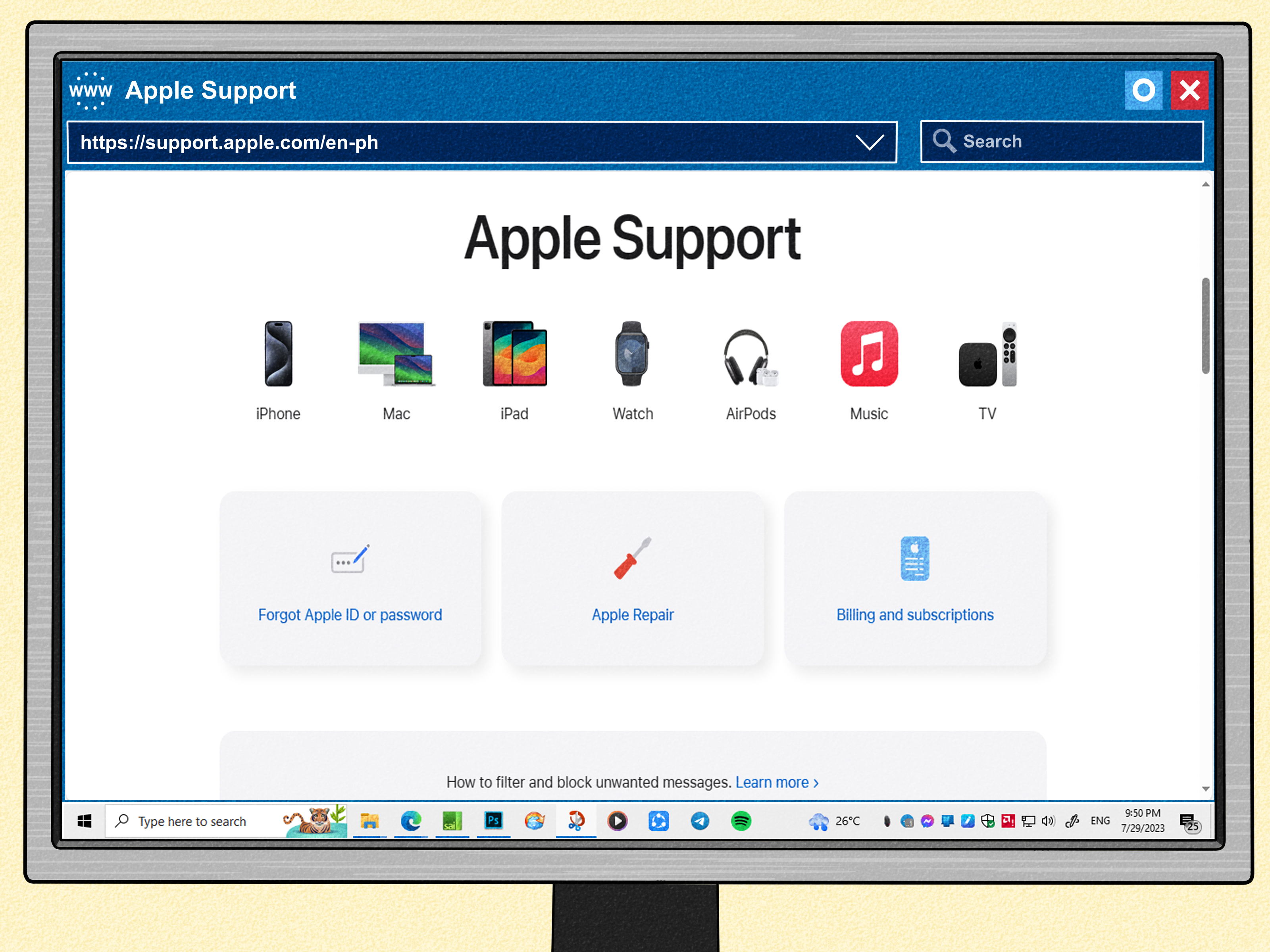
If a known-good SIM also fails, or the phone keeps bouncing between service and no service, it’s smart to contact Apple Support or book an in-person diagnostic. At that point, continued DIY troubleshooting is mostly just you and your phone arguing.
Extra Tips to Prevent SIM Errors in the Future
- Avoid swapping SIM cards unnecessarily
- Keep the tray and phone dry
- Never cut or modify a SIM to make it fit
- Install iOS and carrier updates regularly
- Use a protective case if you drop your phone a lot
- Consider eSIM if your carrier supports it
Final Thoughts
A SIM failure on iPhone 13 can feel urgent because it takes out the essentials: calling, texting, mobile data, and often your patience. But the fix is usually manageable. Start with the easy steps like Airplane Mode, restart, and reseating the SIM. Then move to carrier settings, iOS updates, network reset, and carrier verification. If the physical card is the problem, replacing it or switching to eSIM is often the cleanest long-term solution.
The key is to troubleshoot in order instead of randomly poking at settings like you’re guessing the combination to a safe. With the right sequence, most SIM issues can be solved without drama, panic, or buying a new phone before dinner.
Real-World Experiences With SIM Failure on iPhone 13
One of the most frustrating things about a SIM failure is that it rarely happens at a convenient time. It doesn’t show up when you’re lounging at home with Wi-Fi, snacks, and emotional support. It shows up when you’re heading to work, waiting for a verification text, trying to call someone back, or standing in a parking lot asking your maps app for mercy.
A common experience goes like this: an iPhone 13 works perfectly for months, then suddenly shows No SIM after a restart or software update. The user assumes the carrier is down, waits a while, and then notices that everyone else has service. After a few rounds of toggling Airplane Mode and muttering darkly at the screen, they remove the SIM card, reseat it, and the phone starts working again. In cases like that, the SIM may have shifted slightly in the tray or had a little buildup on the contacts.
Another common story involves people who upgraded phones or transferred service from one device to another. Everything seems fine at first, but the line never fully activates on the iPhone 13. Calls fail, texts don’t arrive, and the phone bounces between Searching and SOS Only. The actual problem turns out not to be the SIM card itself, but a stuck carrier activation or missing carrier settings update. Once the user connects to Wi-Fi, opens Settings > General > About, and installs the update, service returns like nothing happened. Phones can be very dramatic for devices with no feelings.
There are also users who discover that the issue is tied to the SIM card aging out. Physical SIM cards can last for years, but they are still small pieces of hardware that deal with friction, handling, dust, temperature changes, and repeated swaps. Someone may move a SIM between several phones over time and eventually notice that it becomes unreliable. At that point, a brand-new SIM or eSIM activation often fixes the problem almost instantly.
Then there’s the “I thought my iPhone was broken, but it was my account” experience. A line suspension, provisioning issue, or failed port-in can create SIM-related errors that look like hardware trouble. People sometimes spend an hour cleaning trays and restarting devices only to learn their carrier never finished moving the number. It’s annoying, yes, but it also explains why checking the carrier side matters just as much as checking the phone itself.
For travelers and dual-line users, the situation can get even more confusing. An iPhone 13 can support eSIM alongside a physical SIM, but if one line is inactive, misconfigured, or tied to a locked device, it may create a mess of mixed signals. Users often report thinking the phone cannot read any SIM at all, when the real issue is that one plan is disabled or the wrong line is selected for cellular data.
The most reassuring pattern across these experiences is simple: many SIM failure cases look catastrophic in the moment but end up being fixable with a calm, methodical checklist. The people who solve it fastest usually do the boring things first. They restart the phone, check for updates, reseat the SIM, verify their account, and only then escalate. That steady approach beats panic every time.