If USB ports had personalities, USB 2.0 would be the dependable old sedan and USB 3.0 would be the friend who shows up early, lifts the couch, and somehow still has enough energy to help you move a refrigerator. Both can get the job done, but one is dramatically faster and more capable.
That is why knowing whether a device is USB 3.0 or USB 2.0 actually matters. It can affect transfer speed, charging performance, compatibility, and whether your external drive feels snappy or painfully nostalgic. The good news is that you do not need a lab coat, a magnifying glass, or a dramatic soundtrack to figure it out. In most cases, a few visual clues and a quick check in your operating system are enough.
In this guide, you will learn how to identify USB 3.0 vs USB 2.0 on ports, cables, flash drives, external hard drives, and computers. We will also cover the common gotchas, because USB has a long history of pretending to be simple while quietly making life more confusing.
Why It Matters to Know Whether a Device Is USB 3.0 or USB 2.0
At a glance, the difference may sound technical, but the real-world effect is easy to notice. USB 2.0 has a maximum theoretical speed of 480 Mbps. USB 3.0 jumps to 5 Gbps. In plain English, that means USB 3.0 can move large files much faster when both the device and the port support it.
So if you plug a fast flash drive or external SSD into a slower USB 2.0 connection, you are basically putting running shoes on a turtle. It may still move, but not at the speed you paid for.
USB 3.0 also generally offers better power delivery than USB 2.0 for standard bus power, which can matter for some external drives, hubs, and accessories. And because USB 3.0 is backward compatible, many devices will still work in a USB 2.0 port, just at lower speed. That is convenient, but it can also trick people into thinking everything is working at full performance when it is not.
USB 2.0 vs USB 3.0: The Quick Difference
USB 2.0
- Maximum theoretical speed: 480 Mbps
- Usually found on older computers, printers, keyboards, mice, and basic accessories
- Often enough for low-bandwidth devices
- Usually has 4 pins in a standard USB-A connector
USB 3.0
- Maximum theoretical speed: 5 Gbps
- Often marketed today under newer naming such as USB 3.2 Gen 1
- Better for flash drives, external hard drives, SSDs, webcams, docking stations, and large file transfers
- Uses extra pins for faster data transfer
One important detail: the connector shape alone does not always tell you the speed. A USB-A port can be USB 2.0 or USB 3.0. A USB-C port can also support different speeds depending on the hardware. That is where the detective work begins.
Method 1: Check the Color of the Port
This is the most famous shortcut, and yes, it can help. Many USB 3.0 Type-A ports have a blue plastic insert inside the port. Many USB 2.0 ports are black or white inside.
That said, this is a clue, not a courtroom verdict.
Some newer computers use black inserts even for faster ports. Some manufacturers use teal, red, or other colors for special charging or always-on ports. So if the port is blue, that strongly suggests USB 3.0 or better. If it is black, it might be USB 2.0, but you should not rely on color alone.
Method 2: Look for the “SS” or SuperSpeed Logo
If there is one visual sign you should trust more than color, it is the label next to the port. USB 3.0 ports are often marked with SS, which stands for SuperSpeed. You may also see a USB trident symbol paired with “SS.”
If a port has the standard USB symbol but no SuperSpeed marking, it may be USB 2.0. Again, this is not universal, but it is usually a stronger clue than color.
Think of “SS” as the port politely telling you, “I can go faster, thank you very much.”
Method 3: Inspect the Connector Pins
This is one of the most reliable physical ways to tell whether a device or cable is USB 3.0 or USB 2.0.
USB-A connectors
A standard USB 2.0 Type-A plug has 4 pins. A USB 3.0 Type-A plug has 9 pins. The extra pins are added deeper inside the connector to support higher-speed data transfer.
If you look closely inside a USB 3.0 Type-A plug, you will often notice an extra row of contacts. That is a strong sign you are dealing with USB 3.0 hardware.
USB-B and Micro-B connectors
Some USB 3.0 connectors look physically different. For example:
- USB 3.0 Type-B is taller than the older USB 2.0 Type-B
- USB 3.0 Micro-B has a wider, split-looking connector compared with standard Micro-USB 2.0
If your external hard drive cable has that distinctive wide Micro-B shape, there is a very good chance it supports USB 3.0.
Method 4: Check the Product Label or Device Packaging
Sometimes the easiest answer is printed right on the device, the cable, the box, or the product page. Look for terms like:
- USB 3.0
- SuperSpeed USB
- 5 Gbps
- USB 3.2 Gen 1
- Hi-Speed USB
- 480 Mbps
Here is the catch: Hi-Speed USB refers to USB 2.0, while SuperSpeed USB refers to USB 3.0-class performance. That naming is easy to mix up if you are shopping quickly or reading tiny text on a product label while balancing a coffee.
If you are checking a computer, the manufacturer’s support page or manual is often the cleanest way to confirm which ports are USB 2.0 and which are USB 3.0.
Method 5: Check in Windows
If you are on a Windows PC, software can help confirm whether your system has USB 3.0 support and sometimes whether a connected device is negotiating at USB 3.0 speed.
Use Device Manager
- Right-click the Start button
- Select Device Manager
- Expand Universal Serial Bus controllers
Look for entries containing words such as:
- xHCI usually associated with USB 3.x host controllers
- USB Root Hub (USB 3.0)
- Enhanced Host Controller commonly associated with USB 2.0-era hardware
This will not always tell you every detail about a specific connected accessory, but it is a good sign of what your system supports.
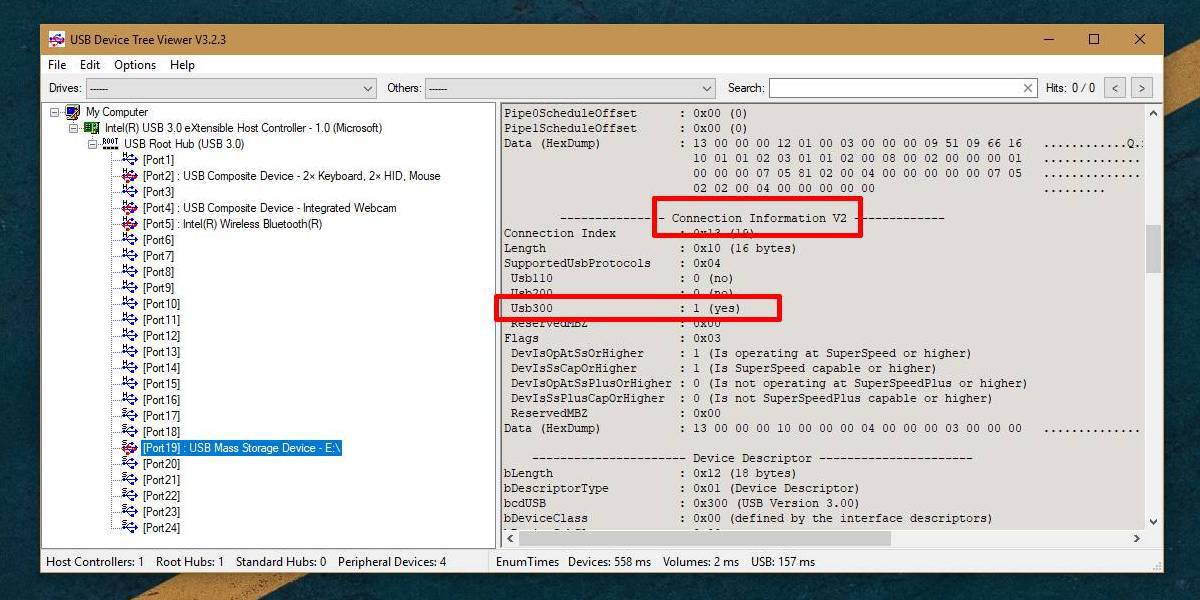
Use USBView or similar system tools
Windows also has USB diagnostic tools that can show more detailed information about connected USB devices and controllers. If you want a deeper answer than “the port looks kind of blue-ish,” this is the grown-up method.
Method 6: Check on a Mac
Mac users can get useful information from System Information.
- Hold the Option key
- Click the Apple menu
- Select System Information
- Open the USB section
There you may see entries such as USB 3.0 Bus or device information that helps confirm how your accessory is connected. You can also check your Mac model’s official tech specs to see which USB standards its ports support.
This is especially useful because many Macs do not use the classic blue USB port color trick, which means visual inspection alone is not always helpful.
Method 7: Look at Real-World Speed, But Use Caution
If you transfer a huge file and it crawls along at old-school speed, that can suggest a USB 2.0 connection somewhere in the chain. But speed alone is not proof.
Why? Because actual transfer rate depends on more than the USB standard. It also depends on:
- The speed of the flash drive, hard drive, or SSD
- The quality of the cable
- Whether a hub is involved
- The file types being transferred
- The speed of the computer’s internal storage
- Background processes on the system
A slow USB 3.0 flash drive can still be slow. A fast drive plugged through a cheap adapter can also underperform. So transfer speed is useful as supporting evidence, not the whole case file.
Why a USB 3.0 Device May Still Run at USB 2.0 Speed
This is where a lot of frustration happens. A device can be labeled USB 3.0 and still behave like USB 2.0 if something else in the setup is slower.
Common reasons
- The device is plugged into a USB 2.0 port
- The cable supports only USB 2.0 speeds
- A hub or adapter in the middle is limited to USB 2.0
- The port has driver or controller issues
- The device fell back to a slower mode because of power or connection problems
In other words, USB speed is only as strong as the weakest link in the chain. USB loves teamwork, but sometimes one lazy cable ruins everything.
USB-C Does Not Automatically Mean USB 3.0
This is one of the biggest modern USB myths. USB-C describes the shape of the connector, not the speed. A USB-C port or cable may support USB 2.0, USB 3.x, USB4, Thunderbolt, charging only, or a mix of those features depending on the hardware.
So if you are checking a USB-C device, do not assume it is faster just because the connector looks modern and symmetrical. USB-C is stylish, but style is not the same thing as bandwidth.
Best Ways to Confirm a Device Is USB 3.0 or USB 2.0
If you want the practical answer, here is the smartest order to check:
- Look for SS or SuperSpeed markings
- Check the port color, but do not rely on it alone
- Inspect the connector pins or shape
- Read the device label, packaging, or official specs
- Use Windows Device Manager or USBView
- Use Mac System Information
If at least two or three of those checks agree, you can be pretty confident in your answer.
Common Examples
Example 1: Flash drive with blue insert and “SS” mark
Very likely USB 3.0 or better.
Example 2: Older printer with standard square USB-B port and no SuperSpeed markings
Likely USB 2.0.
Example 3: External hard drive with wide Micro-B connector
Usually USB 3.0.
Example 4: Laptop port is black, but manual lists it as SuperSpeed USB
Trust the documentation over the color.
Example 5: USB-C cable came with a charger and no speed rating listed
Could be USB 2.0 only for data. Check the specs before assuming fast transfer support.
Experience Section: What People Usually Discover in Real Life
In real-world use, checking whether a device is USB 3.0 or USB 2.0 often starts with a simple question: “Why is this transfer taking forever?” That is usually the moment people realize that USB standards are not just boring spec-sheet trivia. They are the difference between copying a folder in a few minutes and watching a progress bar age like a banana on a dashboard.
A very common experience happens with external hard drives. Someone buys a drive advertised as fast, plugs it into the front port of an older desktop, and then wonders why performance feels underwhelming. Later, they discover the front port is USB 2.0 while the rear motherboard ports are USB 3.0. Same computer, same drive, wildly different result. The drive was not lying. The port was just living in the past.
Flash drives create similar confusion. Many people assume that if a flash drive physically fits, they are getting the best possible speed. Not always. A USB 3.0 flash drive plugged into a USB 2.0 port will still work, which is nice, but it will not perform like a USB 3.0 setup. That backward compatibility is useful, but it also hides the problem so well that users may never realize they are leaving speed on the table.
Cables are another sneaky troublemaker. Plenty of users blame the device or the computer when the real issue is the cable. This comes up a lot with USB-C accessories. A person buys a modern-looking USB-C cable, assumes it is high-speed, and then finds out it supports only USB 2.0 data. The connector looks futuristic, but the speed is wearing flip-flops. That is why checking the cable spec is just as important as checking the port.
Laptop owners also run into the color myth. They hear that blue means USB 3.0 and black means USB 2.0, which is often true, until it suddenly is not. Some manufacturers use black inserts for everything. Some add charging features with different colors. In practice, experienced users learn quickly that logos and documentation are more trustworthy than color alone.
Mac users often have a different experience. Since many Macs do not advertise speed with obvious blue ports, people usually end up verifying things through System Information or the model’s tech specs. It feels less like visual detective work and more like checking the official paperwork. Not glamorous, but reliable.
Then there are the classic hub problems. A user connects a fast drive through an older USB hub and wonders why speed tanks. The answer is usually simple: a USB 2.0 hub can bottleneck the whole setup. It is a great reminder that a single outdated accessory can drag down an otherwise fast chain of devices.
Over time, the most useful lesson people learn is this: do not assume, verify. Check the label. Check the logo. Check the operating system. Check the cable. USB is convenient, but it is also the master of looking fine while quietly underperforming. Once you know what signs to watch for, though, it becomes much easier to spot whether a device is running on USB 3.0 or stuck in USB 2.0 territory.
Final Takeaway
If you want the fastest and most accurate answer to “How do I check if a device is USB 3.0 or USB 2.0?” start with the obvious signs: the SS logo, the connector design, and the product specs. Then confirm with your operating system if needed.
The biggest lesson is simple: a device, cable, port, and hub all need to support the faster standard if you want full USB 3.0 performance. If even one part is limited to USB 2.0, the whole setup slows down.
So the next time your file transfer feels suspiciously leisurely, do not panic. Your device may not be broken. It may just be plugged into the digital equivalent of a one-lane road.