Note: Facebook’s features change often, so this guide focuses on the most reliable current ways to share an MP3 on Facebook: posting a shareable link, turning the MP3 into a simple video, adding music through Facebook’s built-in tools, or sharing from an audio platform. In plain English, Facebook is a social network, not a dusty folder labeled “Random MP3s From 2011.” You can still get your audio in front of peopleyou just need the right route.
Introduction: Can You Upload an MP3 Directly to Facebook?
If you are trying to figure out how to add an MP3 to Facebook, the first thing to know is this: Facebook generally does not let users upload a standalone MP3 file to a regular profile post the same way they upload a photo or video. That little detail has confused musicians, podcasters, teachers, event organizers, family historians, and at least one uncle who insists his garage-band demo “just needs a little exposure.”
The good news is that adding audio to Facebook is still very possible. You can share an MP3 as a link from a cloud storage service, upload it to a music platform and post the track, convert the MP3 into a video file, use Facebook Reels with original audio, or add licensed music through Facebook’s own music tools when available. Each method has a slightly different purpose, and choosing the right one saves time, stress, and the urge to argue with your phone.
This guide walks you through 12 practical steps to add an MP3 to Facebook, with examples for everyday users, creators, podcasters, small businesses, musicians, and anyone who simply wants friends to hear an audio file without needing a decoder ring.
Before You Start: Pick the Best Way to Share Your MP3
Before clicking anything, decide what you actually want people to do. Do you want them to listen quickly? Download the file? Watch a simple visual while the audio plays? Use the sound in a Reel? Hear background music on a Story? Your answer determines the best method.
Common Ways to Add an MP3 to Facebook
There are four dependable options:
- Share a link: Upload the MP3 to Google Drive, Dropbox, SoundCloud, your website, or another audio host, then post the link on Facebook.
- Convert the MP3 into a video: Pair the audio with an image, waveform, lyric slide, album cover, or simple background, then export it as an MP4.
- Use Facebook music features: Add available music clips to Stories, text posts, or Reels when the feature appears on your account.
- Use original audio in Reels: Create a video using your own audio so Facebook treats it as a video post with sound.
For most people, the easiest method is sharing a link. For better engagement, however, converting the MP3 into a video is usually stronger because Facebook is much friendlier to visual content than plain audio links. Facebook likes movement. A still image with sound is apparently more exciting than a lonely MP3 sitting in the corner wearing headphones.
How to Add an MP3 to Facebook: 12 Steps
Step 1: Make Sure You Have the Right to Share the MP3
Before uploading, converting, or posting your MP3, confirm that you own the audio or have permission to share it. This matters whether the file is a song, podcast episode, voice memo, audiobook sample, interview, sermon, lecture, meditation track, or sound effect. Facebook may mute, block, limit, or remove content that contains copyrighted music or audio used without proper rights.
If you created the recording yourself, you are usually in better shape. If the MP3 includes a commercial song, a TV clip, background music from a copyrighted track, or someone else’s performance, be careful. “But it was only ten seconds” is not a magic shield. It is more like a paper umbrella in a copyright thunderstorm.
Step 2: Check the MP3 File Quality
Open the MP3 and listen from start to finish before sharing it. Look for awkward silence, clipping, background noise, accidental coughs, or the classic “wait, did I record the ceiling fan for eight minutes?” problem. A clean MP3 makes your Facebook post feel professional and easier to enjoy.
For spoken audio, a bitrate around 128 kbps is often acceptable. For music, 192 kbps or higher usually sounds better. If your file sounds muffled, too quiet, or distorted, fix it before posting. You can use audio editors such as Audacity, GarageBand, Adobe Audition, or another editor to trim the start and end, normalize the volume, reduce noise, and export a polished version.
Step 3: Rename the MP3 Clearly
Rename the file before uploading it anywhere. Instead of something mysterious like final_final_REAL_v7.mp3, use a clear name such as summer-acoustic-demo.mp3, episode-12-marketing-tips.mp3, or wedding-toast-audio.mp3. A clean file name helps you stay organized and makes the link look more trustworthy when shared.
This is especially useful if you are posting on a Facebook Page, in a Group, or for a business. People are more likely to click when the audio has a clear title. Nobody wants to gamble their afternoon on a file called untitled_audio_00043.mp3. That sounds less like a song and more like evidence in a detective show.
Step 4: Choose a Hosting Option for the MP3
Since Facebook does not usually accept a standalone MP3 upload in a regular post, upload your MP3 somewhere that can host audio. Good options include Google Drive, Dropbox, SoundCloud, Bandcamp, your own website, podcast hosting platforms, or another reliable file-sharing service.
If you want simple access, cloud storage works well. If you are a musician, SoundCloud or Bandcamp may look more professional. If you run a podcast, use your podcast host and share the episode link. If you own a website, uploading the MP3 to a page with a short description can also help your SEO because you are sending Facebook traffic back to your own content instead of donating all the attention to a third-party platform.
Step 5: Upload the MP3 to Your Chosen Platform
Log in to the platform you selected and upload the MP3. On Google Drive or Dropbox, this usually means dragging the file into your account or selecting an upload button. On SoundCloud or a music platform, you may need to add a title, genre, artwork, description, tags, and privacy settings.
Use this moment to make the audio look presentable. Add a short description explaining what listeners will hear. For example, if the MP3 is a podcast clip, write: “A five-minute discussion on how small businesses can improve Facebook engagement without posting 47 times a day.” That tells people what they are clicking, and it gives the post more context.
Step 6: Set the File Permission Correctly
This step is where many people accidentally create a Facebook post that says, “Listen here!” followed by a link nobody can open. If you use Google Drive, Dropbox, or similar cloud storage, make sure the sharing settings allow people to view or listen with the link. Usually, that means changing access from restricted to “anyone with the link” or a similar option.
Do not give editing permission unless you truly want strangers remixing your file like they have been hired by a chaotic radio station. Viewer access is enough. After changing the permission, copy the share link and test it in a private browser window or send it to yourself. If it opens without asking for login permission, you are ready for the next step.
Step 7: Create a Facebook Post With the MP3 Link
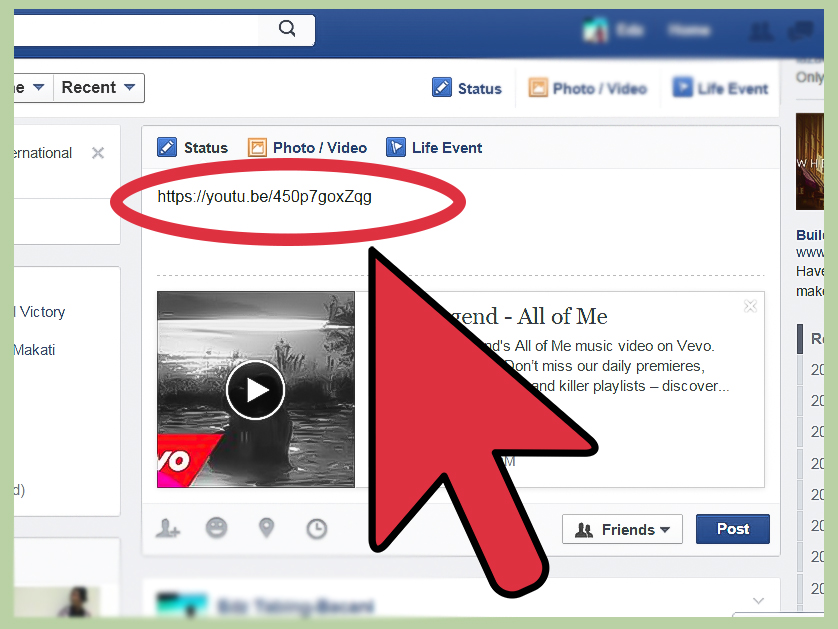
Now go to Facebook and create a new post. Paste the MP3 link into the post box. Facebook may generate a preview, depending on the platform and link type. Add a short caption that explains why people should listen.
Here is a simple example:
“I just uploaded a short acoustic demo called ‘Rain on Main Street.’ It is 2 minutes long, slightly moody, and contains zero ukulele crimes. Listen here: [your link]”
For a podcast, you could write:
“New episode clip: 4 quick tips for planning your first community event. Listen to the MP3 here and tell me which tip you would try first.”
A good caption gives people a reason to click. “Here is my MP3” works, but it has the emotional energy of a refrigerator manual.
Step 8: Add a Visual to Improve Engagement
If you are sharing a link, consider adding an image to the post. Use album art, a podcast cover, a quote card, a behind-the-scenes photo, or a simple branded graphic. Facebook users scroll quickly, and a visual gives your MP3 post a better chance of being noticed.
If you are sharing music, a square cover image works nicely. If you are sharing a speech, use a photo of the speaker or an event graphic. If you are sharing a business audio tip, create a clean image with the title of the tip. Think of the image as the friendly sign outside the audio café. The MP3 is the coffee; the image gets people through the door.
Step 9: Convert the MP3 Into a Video for Better Facebook Compatibility
If you want the audio to play directly inside Facebook rather than sending people away through a link, convert the MP3 into a video. This is often the best workaround. Add the MP3 to a static image, waveform animation, lyrics, slideshow, or simple background, then export the project as an MP4 file.
Tools such as Canva, CapCut, iMovie, Adobe Express, Premiere Pro, Final Cut Pro, and many online audio-to-video converters can do this. The process is usually simple: upload the MP3, add an image or video background, adjust the duration, export as MP4, and upload that video to Facebook.
For Facebook compatibility, MP4 or MOV is typically a safe choice. For good results, use H.264 video and AAC audio when available. This may sound technical, but most modern editing tools export in Facebook-friendly settings by default. In other words, you do not need to become a codec wizard living in a tower of cables.
Step 10: Upload the MP4 Video to Facebook
Once your MP3 has been converted into an MP4 video, upload it to Facebook as a regular video, Reel, or Page post, depending on your goal. A vertical video works well for Reels and mobile viewing. A square video works well in the feed. A horizontal video can work for longer presentations, webinars, or music videos.
Add a title, caption, and relevant hashtags if they make sense. Keep hashtags natural. A few useful ones are better than a suitcase full of digital confetti. For example, a songwriter might use #OriginalMusic, #AcousticSong, and #NewMusic. A podcaster might use #PodcastClip, #BusinessTips, or the show name.
Step 11: Add Music Through Facebook Stories, Reels, or Text Posts When Available
Facebook also offers built-in music options in some areas of the app. You may be able to add a music clip to a Story, include music in a Reel, or add a song to a text post. Availability depends on your location, account type, device, app version, and Facebook’s current feature rollout.
This method is different from uploading your own MP3. Instead, you are choosing music from Facebook’s available music library or audio tools. It is useful when you want background music, a popular song clip, or a quick mood boost for a Story or Reel. It is not always the best choice when you need to share a specific MP3 file, such as your own podcast episode or a full custom recording.
Step 12: Test the Post and Watch for Copyright or Playback Issues
After posting, test the experience like a normal listener. Click the link, play the video, check the sound on mobile and desktop, and make sure privacy settings are correct. If the post contains music, watch for alerts about muting, blocking, limited visibility, or rights issues.
If the MP3 link does not open, revisit your file permissions. If the video has no sound, check your export settings. If Facebook mutes the audio, you may need to replace the track, use music from an approved library, or post only audio you own or have permission to use. The best Facebook MP3 strategy is simple: make the file easy to access, easy to understand, and safe to share.
Best Method by Use Case
For Musicians
If you are a musician, upload your track to a music platform such as SoundCloud, Bandcamp, your website, or a distributor-supported profile, then share the link on Facebook. For stronger engagement, create a short video with album art, lyrics, or a behind-the-scenes clip and upload it as a Reel or video post.
For Podcasters
If you are a podcaster, share the official episode link from your podcast host, website, Spotify page, Apple Podcasts page, or another listening platform. For Facebook, short video clips usually perform better than full audio links. Create a 30- to 90-second teaser with captions and a waveform, then include the full episode link in the caption.
For Teachers and Coaches
If you are sharing a lesson, pronunciation guide, meditation, practice recording, or training clip, a cloud storage link is often enough. Make sure the file is set to viewer access and write a clear caption. For classroom or client use, avoid making private audio public unless everyone involved has given permission.
For Businesses
If your MP3 is a testimonial, announcement, audio ad, or brand message, turn it into a branded video. Add your logo, captions, a short headline, and a call to action. A video post looks more polished and gives people something to watch while they listen.
Common Problems When Adding an MP3 to Facebook
Problem: The MP3 Will Not Upload
This usually happens because Facebook does not support uploading standalone MP3 files as ordinary feed posts. Use a link or convert the MP3 to MP4 video.
Problem: People Cannot Open the Link
Your sharing settings are probably restricted. Change the file permission to allow anyone with the link to view or listen. Then test the link before reposting.
Problem: Facebook Muted the Audio
The audio may contain copyrighted music or a track that Facebook’s rights system detected. Use original audio, licensed music, royalty-free music, or music available through Facebook’s tools.
Problem: The Post Gets Low Engagement
Plain audio links are easy to miss. Add a visual, write a better caption, ask a question, post a short teaser video, or explain exactly why the audio is worth hearing.
SEO and Engagement Tips for Facebook MP3 Posts
Even though Facebook is not a traditional search engine, your wording still matters. Use a clear title in your caption, mention what the audio contains, and include natural keywords such as MP3 on Facebook, share audio on Facebook, upload music to Facebook, or post an audio file on Facebook when relevant. Do not cram keywords into every sentence like you are stuffing socks into an overpacked suitcase.
For example, instead of writing:
“MP3 Facebook audio upload MP3 post Facebook share MP3 file listen now.”
Write:
“I just shared a new MP3 demo on Facebook. It is a short acoustic track about late-night city walks, and you can listen through the link below.”
The second version sounds human. Search systems, social platforms, and actual people tend to appreciate that.
Extra Experience: What I Have Learned From Sharing MP3s on Facebook
When people first try to add an MP3 to Facebook, they often expect a big friendly button that says “Upload Audio.” That would be lovely. There could be a tiny trumpet sound when it works. Unfortunately, Facebook has always been more comfortable with photos, videos, links, Stories, and Reels than with raw audio files. Once you understand that, the process becomes much less annoying.
In real-world use, the best method depends on the audience. If the audience already knows and trusts you, a simple link can work perfectly. For example, if you are posting in a private family group and sharing an old recording of a grandparent telling a story, a Google Drive or Dropbox link is enough. The emotional value is already there. Nobody needs a cinematic waveform animation for “Grandpa explains how he met Grandma,” although honestly, that would probably be adorable.
For public posts, creator pages, music pages, and business content, video almost always performs better. People scrolling through Facebook need a reason to stop. A static image with a play button feel is better than a bare link. A waveform video is better still. Add captions, a title, or even one sentence on screen explaining the audio. A podcast teaser that says “3 mistakes new freelancers make” will usually get more attention than a post that simply says “New audio uploaded.” Specific beats vague every time.
One useful experience is to create multiple versions of the same MP3 content. For example, a musician can post a 20-second Reel with the hook, a full song link in the caption, and a separate behind-the-scenes post about how the song was recorded. A podcaster can post a short quote video, then link to the full MP3 or episode page. A teacher can post a short preview and keep the full audio in a shared folder. This approach respects how people use Facebook: they sample first, then commit.
Another lesson is that privacy settings deserve more attention than they get. Many people upload an MP3 to cloud storage, paste the link into Facebook, and then wonder why everyone says, “It asks me for access.” Always test your link in a private browser window before posting. If it does not open there, it probably will not open for your audience either. That one-minute test can prevent an entire comment section full of “Can’t open it,” which is the internet’s least musical chorus.
File names also matter more than expected. A clean file name makes the content look intentional. A messy file name makes it look unfinished. If you are sharing business audio, public music, or a podcast, treat the MP3 like published content. Use a good title, short description, and simple cover image. Presentation does not replace quality, but it helps people trust the click.
Finally, respect copyright from the beginning. It is tempting to use a popular song under a voice recording or slideshow, but Facebook’s detection systems can mute or block content. If the audio matters, use original audio, licensed music, royalty-free music, or Facebook’s available music tools. Nothing ruins a heartfelt post faster than discovering the most important part has been muted and your emotional tribute now sounds like a silent film with Wi-Fi.
The practical takeaway is this: adding an MP3 to Facebook is less about forcing Facebook to accept an audio file and more about packaging the audio in a format Facebook understands. Use a link when convenience matters. Use a video when engagement matters. Use built-in music tools when you want quick, licensed music clips. Once you pick the right method, the whole process becomes simple, reliable, and much less likely to make you glare at your screen like it owes you money.
Conclusion
Learning how to add an MP3 to Facebook is really about choosing the right sharing method. Facebook may not be designed for direct MP3 uploads in regular posts, but you can still share audio effectively through a hosted link, a converted MP4 video, Facebook Reels, Stories, music tools, or an audio platform like SoundCloud. The best choice depends on your goal: quick listening, better engagement, professional presentation, or wider reach.
For the simplest option, upload your MP3 to a trusted platform, set the link permission correctly, and share it in a Facebook post with a strong caption. For the most Facebook-friendly option, turn your MP3 into an MP4 video with cover art, captions, or a waveform. And if your audio includes music, make sure you have the rights to use it. Your future selfand your unmuted postwill thank you.