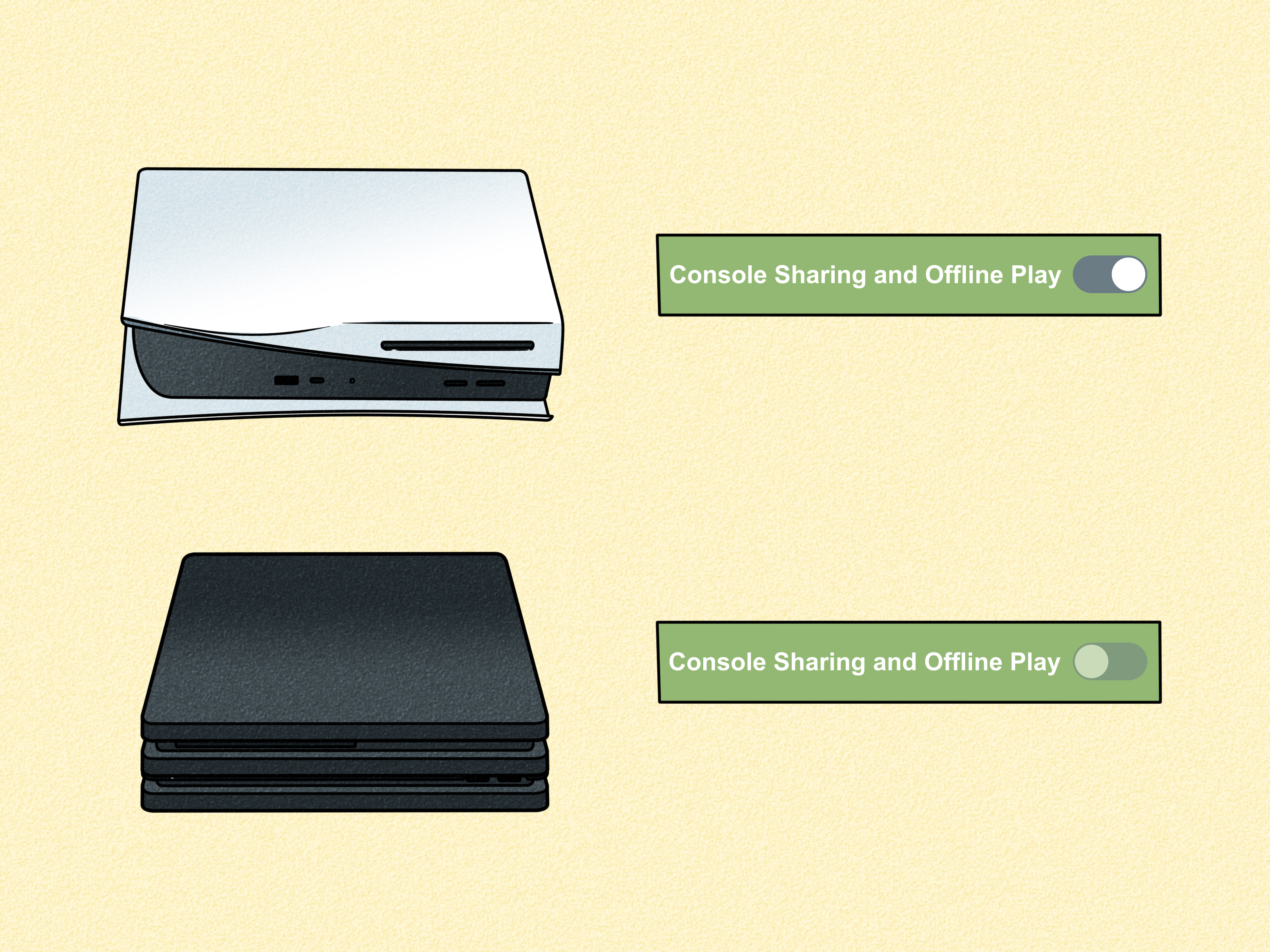
Trying to activate a primary account on PS5? Good news: you are not alone, and no, your console is not secretly judging you from across the room. The slightly confusing part is that Sony does not officially call it a “primary account” on PS5. The feature you are looking for is called Console Sharing and Offline Play.
Think of it as the PS5 version of setting a “home console.” Once enabled, other users on that PS5 can access many of your downloaded games, media purchases, and some PlayStation Plus benefits without needing to sign in as you every time. It is useful for families, siblings, roommates, and anyone who wants their digital library available on the main household console.
This complete guide explains how to activate your primary PS5 account, what the feature actually does, what it does not do, how game sharing works, how to fix locked games, and how to avoid common mistakes. Grab your DualSense, take a deep breath, and let’s make your PS5 behave.
What Does “Primary Account” Mean on PS5?
On PS4, players commonly used the phrase “Activate as Your Primary PS4.” On PS5, Sony changed the wording. Instead of a primary console setting, the PS5 uses Console Sharing and Offline Play. Many gamers still call it “activating primary account on PS5” because the result feels similar.
When Console Sharing and Offline Play is enabled for your PlayStation Network account on a PS5, that console becomes the main PS5 where your digital content can be shared. Anyone using that console can play eligible games and media that you purchased and downloaded. They may also be able to use certain PlayStation Plus benefits from your subscription.
In plain English: if your PS5 is the family machine in the living room, this is the setting that stops everyone from yelling, “Why is there a lock icon on the game?” every 12 minutes.
Before You Activate: What You Need
Before you activate Console Sharing and Offline Play, make sure you have the following:
- A PS5 console connected to the internet
- Your PlayStation Network account email and password
- Access to the account that owns the digital games or subscription
- The latest PS5 system software installed
- A stable internet connection for the initial setup
You do not need to keep the console online forever to use offline play for eligible content, but the PS5 does need to verify your account and licenses during setup. If you just changed your password, enabled passkeys, or added two-step verification, sign in carefully and avoid rushing through prompts like you are speedrunning a boss fight.
How to Activate a Primary Account on PS5
Here is the step-by-step method to activate your PS5 as the primary console for your account.
Step 1: Sign In to the Correct PSN Account
Turn on your PS5 and sign in with the PlayStation Network account that owns the games, downloadable content, or PlayStation Plus subscription you want to share. This part matters. If you enable the setting under the wrong account, you may wonder why your library still looks emptier than a snack drawer after a gaming marathon.
Step 2: Open Settings
From the PS5 home screen, move to the top-right corner and select the Settings gear icon. This is the console’s control room, minus the dramatic spaceship lighting.
Step 3: Go to Users and Accounts
Inside Settings, scroll down and select Users and Accounts. This menu controls sign-in options, account details, privacy settings, linked services, and the sharing feature you need.
Step 4: Choose Other
In the left-side menu, scroll down and select Other. This is where Sony stores several important account tools, including the one we are hunting today.
Step 5: Select Console Sharing and Offline Play
Choose Console Sharing and Offline Play. This is the PS5 setting most people mean when they say “activate primary account.”
Step 6: Select Enable
If the option is available, select Enable. Your PS5 is now set up for Console Sharing and Offline Play for that account. Other users on the same console should be able to access eligible shared games and benefits.
If the screen says the feature is already enabled, your account may already be using this PS5 as its shared console. Congratulations, you solved the puzzle before reading the whole guide. That is legal, but suspiciously efficient.
What Console Sharing and Offline Play Actually Allows
Once enabled, Console Sharing and Offline Play can allow other users on the same PS5 to play games and media purchased by the account that activated the feature. It can also allow offline access to downloaded content on that console.
This is especially useful in a household where several people have their own PSN profiles. For example, a parent may buy a digital game on their account, enable Console Sharing and Offline Play on the family PS5, and let children play the game on their own profiles, as long as the content is allowed by parental controls.
It also helps when the internet is down. If your connection disappears at the exact moment you planned to relax, the PS5 with Console Sharing and Offline Play enabled is more likely to let eligible downloaded games launch without throwing a digital tantrum.
Important Limits You Should Know
You can enable Console Sharing and Offline Play on only one PS5 console at a time per PSN account. That is the big rule. If you activate it on another PS5, the previous console may lose that shared-console access for your account.
This means you should choose carefully. If you own two PS5 consoles, such as one in your bedroom and one in the living room, decide which console needs shared access the most. The account owner can usually still sign in and play their own games on another PS5 while online, but other users on that second console may not get the same shared access.
Also, Console Sharing and Offline Play is not a magic wand. It does not let unlimited consoles share one game library. It does not bypass region rules, subscription requirements, parental controls, or game-specific online requirements. If a game needs an internet connection because it is an online-only title, activating offline play will not turn it into a cozy offline farming sim.
How to Disable Console Sharing on PS5
If you want to move your primary PS5 setting to another console, you should disable it on the old one first.
- Sign in to the PSN account on the PS5 where sharing is currently enabled.
- Go to Settings.
- Select Users and Accounts.
- Choose Other.
- Select Console Sharing and Offline Play.
- Choose Disable.
After disabling it, go to the new PS5 and follow the activation steps again. This is the cleanest way to switch your primary PS5 setup without causing locked games, confused family members, or dramatic group chat messages.
How to Activate a New PS5 If You No Longer Have the Old One
Sometimes life happens. Maybe you sold your old console, upgraded, moved, or left your account signed in somewhere you no longer visit. If you cannot access the old PS5, you may be able to deactivate all PlayStation consoles remotely through PlayStation Account Management.
Use this option carefully because remote deactivation affects all consoles linked to your account, not just one specific PS5. Sony also limits how often you can remotely deactivate all devices, so do not use it casually just because you feel like pressing big buttons.
After remote deactivation, sign in on your new PS5 and enable Console Sharing and Offline Play from the console settings menu. For security, you should also sign out of devices you do not recognize and change your password if your account was used on someone else’s console.
Can You Share PlayStation Plus on a Primary PS5?
Yes, some PlayStation Plus benefits can be shared on one PS5 console where Console Sharing and Offline Play is enabled. This can include online multiplayer access for other users on that console and access to certain downloaded monthly or catalog games, depending on the subscription and content rules.
However, not every PlayStation Plus feature is shared. For example, cloud storage for saved data is tied to the subscriber’s account. Some trials, discounts, streaming features, and account-specific benefits may not transfer to other users.
The easiest way to remember it: shared console benefits help other users play, but they do not turn every profile on the PS5 into the subscription owner.
Why Games Show a Lock Icon on PS5
A lock icon on a PS5 game usually means the console cannot confirm that the current user has permission to play it. This can happen for several reasons:
- The account that purchased the game is not signed in.
- Console Sharing and Offline Play is disabled.
- The game license needs to be restored.
- The PlayStation Plus subscription has expired.
- The game left a subscription catalog.
- The console is having network or PSN service issues.
Do not panic when you see the lock icon. It is annoying, but it is usually fixable. The PS5 is not deleting your memories; it is just being very formal about licenses.
How to Restore Licenses on PS5
If your games are locked even though you own them, try restoring licenses:
- Go to Settings.
- Select Users and Accounts.
- Choose Other.
- Select Restore Licenses.
- Choose the licenses you want to restore.
Restoring licenses does not delete your saved data. It simply asks the console to refresh purchase permissions. In many cases, this clears up locked digital games, missing DLC access, or confusing ownership errors.
Troubleshooting: Can’t Enable Console Sharing and Offline Play
If the PS5 will not let you enable Console Sharing and Offline Play, try these fixes in order.
Check Whether Another PS5 Already Has It Enabled
Your account can use Console Sharing and Offline Play on one PS5 at a time. If another PS5 already has the feature enabled, disable it there first. Then return to your current console and try again.
Check PlayStation Network Status
If PSN is having problems, activation may fail temporarily. Wait until services are working normally, then try again. Console activation depends on account and license verification, so network outages can interfere.
Update Your PS5 System Software
Go to Settings > System > System Software > System Software Update and Settings. Install any available update. Old system software can cause sign-in, license, or sharing problems.
Restart Your Router and Console
Turn off your PS5, restart your router, wait a few minutes, and try again. This sounds basic, but basic fixes work often enough that tech support keeps them in the greatest-hits album.
Sign Out and Sign Back In
Go to Settings > Users and Accounts > Other > Sign Out, then sign back in. If your login session is stale, refreshing it may help.
Primary PS5 vs Game Sharing: Are They the Same?
They are closely related, but not exactly the same. “Primary PS5” is the common phrase players use. “Console Sharing and Offline Play” is the official PS5 feature. “Game sharing” is the practical result when another user on that console can play your eligible digital games.
For example, if you enable Console Sharing and Offline Play on your brother’s PS5 using your account, he may be able to play your downloaded digital games on his own profile. Meanwhile, you can still sign in to your account on your own PS5 and play your games while connected online. This setup is popular, but it requires trust because it involves account access.
Never share your PSN password with strangers, random social media users, or anyone promising “free games.” That is how accounts get stolen, payment methods get abused, and weekends get ruined.
Best Practices for a Safe PS5 Primary Account Setup
Use Console Sharing and Offline Play only with people you trust, such as family members in your household. Enable two-step verification or passkeys on your PlayStation account. Keep your payment method protected with checkout passwords. Review your transaction history regularly if multiple people use the same console.
If children use the PS5, set up family management and parental controls. This helps manage playtime, spending, communication, and age-appropriate content. Console Sharing can make games available, but parental controls decide whether a child account can access certain content.
Also, download the games you want to share while signed in as the account owner. Other users may see shared games once installed, but the purchasing account usually needs to manage downloads, add-ons, and library access.
Common Examples
Example 1: One Family PS5
A parent buys games digitally on their PSN account. They enable Console Sharing and Offline Play on the living room PS5. Their kids sign in with their own profiles and can play eligible downloaded games without using the parent’s profile. This is one of the cleanest and most practical uses of the feature.
Example 2: Two PS5 Consoles in One Home
You have a PS5 in your room and another in the living room. If the living room console is used by everyone, it may make sense to enable Console Sharing and Offline Play there. You can still sign in on your bedroom PS5 with your own account, but other users on that second console may not have shared access to your library.
Example 3: Upgrading to a New PS5
You buy a new PS5 and want it to become your main console. First, disable Console Sharing and Offline Play on the old PS5. Then sign in on the new PS5 and enable it there. If you no longer have the old console, use remote deactivation through Account Management, but remember that remote deactivation has limits.
Frequently Asked Questions
Can I have two primary PS5 consoles?
No. One PSN account can enable Console Sharing and Offline Play on one PS5 at a time.
Does activating a primary PS5 affect my PS4?
PS5 Console Sharing and Offline Play is separate from the PS4 primary console setting. You can have one PS5 with Console Sharing and Offline Play enabled and one PS4 activated as your primary PS4.
Can other users play my digital games?
Yes, other users on the PS5 can play eligible downloaded games owned by the account that enabled Console Sharing and Offline Play.
Can I play offline after activating it?
For eligible downloaded games and media, yes. Online-only games still require an internet connection.
Will restoring licenses delete my saves?
No. Restoring licenses refreshes access permissions and does not erase your saved data.
Extra Experience-Based Tips for Activating a Primary Account on PS5
After helping many players understand the PS5 primary account setup, one pattern becomes obvious: most problems come from wording. Players search for “primary account,” the PS5 menu says “Console Sharing and Offline Play,” and suddenly everyone feels like they opened the wrong settings screen. The first tip is simple: ignore the old PS4 language and look for the PS5-specific feature name.
Another useful habit is to decide which console is truly the household console before activating anything. If one PS5 is used by several people and another is used only by you, enable Console Sharing and Offline Play on the shared machine. That gives the most people access with the least friction. If you activate it on your private console instead, everyone else may keep running into locked games.
It also helps to keep profiles organized. Each person should use their own PSN profile instead of playing on the purchasing account. This keeps trophies, saved games, friend lists, and privacy settings separate. Nobody wants to discover that their little brother earned random trophies in their favorite RPG or renamed a character something deeply unserious.
If you are setting up a new console, activate sharing before downloading a huge library. That way, you can test access with another user profile early. Download one small game first, switch to another account on the same PS5, and confirm that it launches. Once that works, download the big games. This saves time and prevents the classic mistake of downloading 600GB of games before realizing the wrong account was activated.
For families, parental controls deserve attention. Console Sharing may make games visible, but child accounts still follow age ratings, communication settings, spending limits, and playtime rules. If a child cannot open a shared game, the issue might not be sharing at all. It could be a parental control restriction. Check those settings before blaming the console, the Wi-Fi, or the nearest innocent houseplant.
When moving from an old PS5 to a new one, always disable Console Sharing and Offline Play on the old console first if you still have access. This makes the transfer smoother. If you sold or gave away the old console, sign in to Account Management online, deactivate devices if necessary, change your password, and enable two-step verification or a passkey. Security is not the most exciting part of gaming, but neither is losing your account five minutes before a weekend session.
Finally, remember that game sharing works best when expectations are clear. It is great for a family console or trusted household setup, but it should not become a password-swapping hobby. Your PlayStation account may contain purchases, payment details, personal information, messages, and years of progress. Treat it like your digital house key, not a spare controller tossed onto the couch.
Conclusion
Activating a primary account on PS5 is really about enabling Console Sharing and Offline Play. Once you know the correct menu path, the process is quick: go to Settings > Users and Accounts > Other > Console Sharing and Offline Play, then select Enable. That setting allows eligible games, media, offline access, and some PlayStation Plus benefits to be shared with other users on the same PS5.
The key is understanding the limits. You can enable the feature on only one PS5 per account, locked games may require license restoration, and online-only games still need the internet. Use the feature wisely, protect your account, and your PS5 setup will feel much smoother. Your console may not thank you out loud, but fewer lock icons are basically applause.