Updating Ubuntu should feel like brushing your teeth: a little boring, very useful, and absolutely not something that turns into a full emotional event. Yet plenty of users still treat updates like a haunted house. They click “Remind Me Later” on desktop, avoid terminal prompts on servers, and hope the machine somehow raises itself into a healthier state through optimism alone.
The good news is that Ubuntu updates do not have to be complicated. The trick is not learning fifty commands or turning your laptop into a science project. It is building a simple routine, using the right tools, and avoiding the two biggest causes of update chaos: too many extra repositories and too much procrastination.
Whether you run Ubuntu on a personal laptop, a home lab box, or a small production server, you can make the whole update process easier, safer, and faster. In this guide, we will walk through the cleanest way to handle package updates, automatic security patches, release upgrades, reboots, repository cleanup, and a few real-world habits that save time in the long run.
Why Ubuntu updates feel harder than they need to
Ubuntu itself is not the problem. In fact, its update tools are fairly mature. The mess usually comes from human behavior, which is both powerful and deeply talented at creating unnecessary drama. A system becomes annoying to update when users install random PPAs, mix package sources, skip updates for months, or confuse ordinary package updates with full release upgrades.
That confusion matters. Updating installed packages is not the same thing as moving from one Ubuntu release to another. One is routine maintenance. The other is a bigger move that deserves preparation. When those two ideas get blended together, users either become too cautious about routine updates or too reckless about major upgrades.
The simpler approach is to split Ubuntu maintenance into three buckets:
1. Regular package updates
These are the normal updates you install every week or every few days. They fix bugs, patch security issues, and keep installed software current.
2. Automatic security updates
These reduce the amount of manual babysitting you need, especially on servers or systems you do not want to log into every single day.
3. Release upgrades
These move you from one Ubuntu version to another, such as 22.04 LTS to 24.04 LTS. They should be planned, not improvised at 11:47 p.m. because you got curious.
Use one basic update routine and stick to it
If you only remember one thing from this article, make it this: keep your regular update routine simple. Ubuntu’s standard package workflow is straightforward. First refresh the package lists, then install the available upgrades.
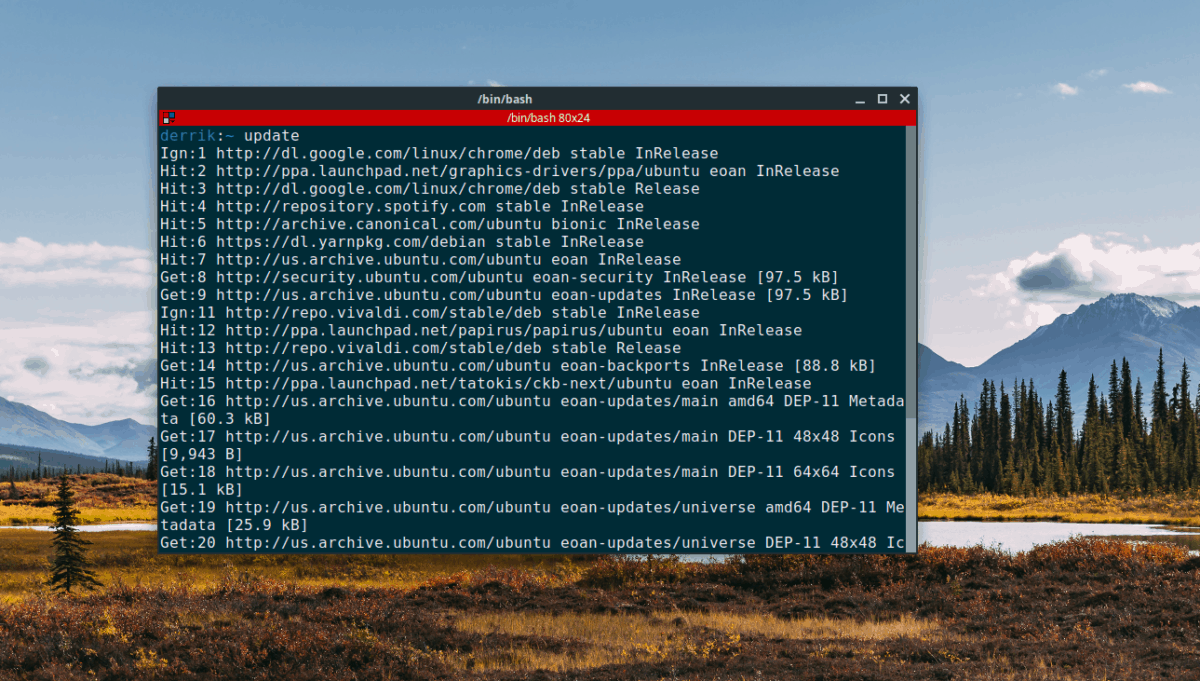
That is the heartbeat of Ubuntu maintenance. The first command refreshes the package information from your configured repositories. The second installs available updates for packages already on your system. For most people, that is the entire routine they need for normal upkeep.
You can make this even more manageable by checking what is waiting before you install it:
This is useful when you want visibility without committing immediately. It is the digital equivalent of peeking into the fridge before deciding whether dinner is leftovers or a rescue mission.
For desktop users, Ubuntu also gives you the graphical route. Open Software Updater, install available updates, and reboot if prompted. That is a perfectly legitimate way to stay current. You are not “less technical” for using a GUI. You are just choosing fewer opportunities to typo something impressive.
Know when to use upgrade, full-upgrade, and release upgrade
One reason Ubuntu updates scare people is that the vocabulary sounds like it was designed during a committee meeting with too much coffee.
apt upgrade
This is your default tool for routine maintenance. Use it often. It updates packages already installed on your system without turning the process into a major negotiation.
apt full-upgrade or dist-upgrade
This is more aggressive. It can handle larger dependency changes and may remove packages if needed to complete the upgrade path. That makes it useful in some situations, but it also means you should read the summary before pressing yes like you are swatting a pop-up ad.
do-release-upgrade
This is for moving to a new Ubuntu release. Do not use it as a substitute for normal updates. Think of it as moving apartments instead of tidying the kitchen. Both are important. They are not the same afternoon.
A smart pattern is this: use apt update and apt upgrade regularly, reserve full-upgrade for cases where you understand why it is needed, and use do-release-upgrade only when your system is already fully updated and you are ready for a version jump.
Let Ubuntu handle security updates automatically
If your goal is to make updating Ubuntu simpler, automatic security updates are the biggest quality-of-life improvement you can make. Ubuntu uses unattended-upgrades for this. It can refresh package lists, install approved security updates, log what happened, and even schedule reboots when needed.
On many current Ubuntu setups, unattended security updating is already part of the expected workflow. Even so, it is worth checking rather than assuming. If the package is missing, install it:
Then verify or enable the configuration. On many systems, this simple command will walk you through setup:
This is especially valuable on servers. A machine that quietly receives security fixes is easier to live with than one that waits for you to remember it exists. You can also review logs if you want proof that updates are happening:
The key detail here is control. Ubuntu’s automatic updates generally focus on official repositories, not every random third-party source you have ever added during a late-night tutorial binge. That limitation is actually helpful. It keeps the automation more predictable.
Stop making updates harder with too many PPAs and third-party repos
If Ubuntu updates feel fragile, the first place to look is your repository list. Many update problems are not caused by Ubuntu’s core tools. They are caused by extra package sources that are outdated, broken, duplicated, or no longer compatible with your current release.
Every extra PPA is a tiny promise you made to Future You. Future You usually does not remember making that promise.
To simplify updates, review your software sources and remove anything you no longer need. Keep package sources as clean as possible. The fewer outside repositories you use, the fewer weird dependency conflicts and “failed to fetch” errors you will see later.
This also matters for automatic updates. Official Ubuntu repositories are the default comfort zone. Third-party repositories often require extra configuration if you want them included in unattended updating, and many users are better off leaving them manual.
Accept that “held back” does not always mean “broken”
Ubuntu now uses phased updates for many packages. That means some updates are rolled out gradually instead of landing everywhere all at once. If your system says something is being held back, it is not always a sign of disaster. Sometimes Ubuntu is just being cautious and staggering deployment.
This is actually a feature, not a bug. It helps reduce the blast radius of a bad update. If an issue appears early, it can be caught before the update hits every machine at once.
So when you see a held-back package, do not immediately assume your machine is cursed. Check the details, be patient, and understand that staged rollouts are part of modern package management. Simpler updating is not only about speed. It is also about avoiding unnecessary panic.
Reboot when Ubuntu asks, and do not turn it into a philosophical debate
Some updates need a reboot. Not all of them, but enough that pretending otherwise becomes a hobby with consequences. Kernel updates, core libraries, and certain security fixes may require a restart to be fully applied.
One of the most common reasons systems remain vulnerable is not that updates were unavailable. It is that updates were installed but the machine never rebooted afterward.
If you want a quick check, look for Ubuntu’s reboot-required marker:
On personal desktops, rebooting promptly is usually the easiest choice. On servers, schedule it sensibly. Do not wait three weeks unless you enjoy vague anxiety and surprise maintenance windows.
Use Ubuntu Pro Livepatch if reboots are your biggest headache
Some users do not hate updates. They hate the interruption. If that is your pain point, Ubuntu Pro with Livepatch can make life easier. Livepatch applies certain critical kernel security patches without requiring an immediate reboot, which is particularly helpful on long-running systems or machines that should avoid surprise downtime.
This does not mean you never reboot again. It means you may reduce the number of urgent reboots caused by high-priority kernel vulnerabilities. You still need normal maintenance windows and you still need to reboot for full kernel upgrades and other changes. But Livepatch can take some of the drama out of patching.
For personal use, Ubuntu Pro is available at no cost for a limited number of machines, which makes it a practical option for home users, developers, and small labs who want a smoother update story without opening their wallet in fear.
Clean up after updates so the next round is easier
Simpler updating is not just about installing patches. It is also about reducing clutter. Over time, old dependencies, unused packages, and stale kernels can make maintenance noisier than it needs to be.
A good cleanup habit is:
This removes packages that were installed automatically but are no longer needed. It frees space, trims package baggage, and reduces the odds of dragging old junk into future upgrades.
You do not need to run it obsessively. This is not a treadmill. But running it periodically keeps the system leaner and makes update output easier to review.
Make release upgrades less stressful
Regular package updates should be routine. Release upgrades deserve a checklist. If you want Ubuntu version upgrades to feel simpler, the best move is preparation.
Before a release upgrade
- Install all current package updates first.
- Reboot if needed.
- Remove or disable unnecessary third-party repositories.
- Make sure you have enough disk space.
- Back up important files or snapshot the machine.
- Read the release notes for your target version.
Then, and only then, run the release upgrade tool:
If you are on Ubuntu Desktop, Software Updater may offer the new release through the graphical interface when that upgrade path is officially enabled. If the prompt does not appear yet, that does not always mean something is wrong. Sometimes the rollout simply has not been opened for your path.
Users who stick to LTS releases generally have the easiest experience. That is not because interim releases are bad. It is because LTS-to-LTS upgrading is calmer, more predictable, and better suited to people who want fewer maintenance surprises.
A simple Ubuntu update routine for normal humans
If you want the shortest possible playbook, here it is:
For desktop users
- Open Software Updater once a week, or run the standard APT commands.
- Install updates.
- Reboot when prompted.
- Keep your repositories tidy.
- Stay on LTS if stability matters more than novelty.
For server users
- Enable unattended security updates.
- Check logs occasionally.
- Run manual maintenance updates on a schedule.
- Use snapshots or backups before major changes.
- Plan reboots and release upgrades instead of improvising them.
That is it. No black magic. No ritual chanting over the package cache. Just consistent habits.
Extra experience: what updating Ubuntu is really like over time
One of the most interesting things about Ubuntu maintenance is that it usually becomes easier the longer you use it, but only if you resist the urge to turn every system into a custom experiment. In the beginning, many users update Ubuntu in a very emotional way. They install software from six different sources, forget what changed, skip updates for weeks, and then blame the operating system when something eventually squeaks.
After a while, the experience teaches a simpler lesson: boring is good. The smoothest Ubuntu machines are usually the least dramatic ones. They use the default repositories whenever possible. They install updates regularly instead of all at once after three months of neglect. They reboot when needed. They treat release upgrades like maintenance projects, not surprise entertainment.
On personal laptops, the biggest improvement often comes from using a rhythm. Maybe it is every Friday afternoon. Maybe it is every Monday morning with coffee. The exact schedule matters less than the consistency. When updates become a habit, they stop feeling disruptive. You are no longer facing a giant pile of changes. You are just handling a small batch before it grows teeth.
On servers, the experience is slightly different. Convenience matters, but predictability matters more. Many administrators eventually discover that the best update process is the one that creates the fewest surprises. Automatic security patching helps. Controlled maintenance windows help. Good notes help. Snapshots before risky changes help even more. That way, when a package behaves badly or a dependency acts like it skipped breakfast, you have a clear way back.
Another common experience is learning not to fight every update message. When Ubuntu says a package is held back, many users initially assume the machine is broken. Later they learn that phased rollouts are normal. When Ubuntu requests a reboot, some people try to avoid it like it is a social obligation. Later they learn that rebooting on time is easier than guessing which old component is still lingering in memory. Experience makes users calmer because they start recognizing patterns instead of treating every message like a jump scare.
There is also a confidence shift that happens once you separate package updates from release upgrades. Newer users often lump them together and become nervous about everything. Experienced users know that routine APT maintenance is usually low drama, while release upgrades deserve a proper checklist. That distinction reduces stress immediately. You stop acting like every minor patch might launch your system into a new geological era.
In real-world use, the simplest Ubuntu systems are the ones built around trustable routines. Keep sources clean. Use the default tools. Read prompts before confirming. Schedule updates before they become urgent. Add automation where it genuinely saves time. And avoid collecting PPAs the way some people collect novelty mugs.
That is the honest experience behind simpler Ubuntu updating: less heroism, more hygiene. Not flashy, not mystical, just dependable. And in system maintenance, dependable is beautiful.
Conclusion
If you want to make updating Ubuntu simpler, do not chase complexity. Stick to the standard APT workflow, enable automatic security updates, keep your repositories under control, reboot when required, and treat release upgrades as planned events. That combination removes most of the friction people associate with Ubuntu maintenance.
In other words, the easiest Ubuntu system to update is usually the one you have not overcomplicated. Keep it clean, keep it current, and let Ubuntu do what it was built to do.