Converting a Notepad file to Excel sounds like one of those tiny computer chores that should take thirty secondsright up until all your data lands in one lonely column, your ZIP codes lose their leading zeros, and your neatly typed list turns into spreadsheet soup. The good news: turning a Notepad TXT file into an Excel spreadsheet on Windows 10 and Windows 11 is completely doable. The even better news: once you understand delimiters, file types, and Excel’s import tools, the process becomes pleasantly boring.
This guide walks you through the best ways to convert a Notepad file to Excel, including quick opening, proper importing, saving as an Excel workbook, fixing messy columns, handling comma-separated or tab-separated files, and avoiding common formatting disasters. Whether your text file contains customer names, inventory lists, exported reports, log files, survey responses, or a homemade budget that began life in Notepad at 1:00 a.m., Excel can help turn that plain text into organized rows and columns.
What Does “Convert a Notepad File to Excel” Actually Mean?
A Notepad file is usually a plain text file with a .txt extension. It does not contain formulas, worksheets, formatting, charts, filters, or any of Excel’s spreadsheet magic. It is just text. Excel files, on the other hand, usually use formats like .xlsx or .xls, which can store structured worksheets, formulas, styles, tables, and more.
So when people say they want to convert Notepad to Excel, they usually mean one of three things:
- Open a
.txtfile in Excel so the text appears in rows and columns. - Import a text file into Excel and choose how the data should be separated.
- Save the imported data as a real Excel workbook, usually
.xlsx.
That last step matters. Opening a text file in Excel does not automatically transform the original file into an Excel workbook. Think of it like inviting your Notepad file to visit Excel’s house. To make it move in permanently, you need to save it as an Excel workbook.
Before You Start: Check How Your Notepad Data Is Organized
Excel needs clues to know where one column ends and the next begins. In a spreadsheet, columns are obvious. In Notepad, everything is just characters on a line. The separator between fields is called a delimiter. Common delimiters include commas, tabs, semicolons, pipes, and spaces.
Example of a Comma-Delimited Notepad File
In this example, each comma tells Excel, “Start a new column here.” This is similar to a CSV file, even if the file is currently saved as .txt.
Example of a Tab-Delimited Notepad File
A tab-delimited file uses tab spaces between fields. This is one of the cleanest formats for moving plain text into Excel because normal words and addresses often contain commas, but they rarely contain tab characters.
Example of a Fixed-Width Notepad File
In a fixed-width file, columns line up based on character position rather than a separator. This style is common in older system exports, accounting reports, banking files, and software that still believes the 1990s were the peak of user interface design.
Method 1: Open the Notepad File Directly in Excel
This is the fastest method and works well when your text file is simple and clean.
Steps for Windows 10 and Windows 11
- Open Microsoft Excel.
- Select File, then Open.
- Click Browse.
- In the file type dropdown, choose Text Files or All Files.
- Find your Notepad file and open it.
- If Excel launches the Text Import Wizard, choose the correct data type: Delimited or Fixed width.
- Select the correct delimiter, preview the columns, and finish the import.
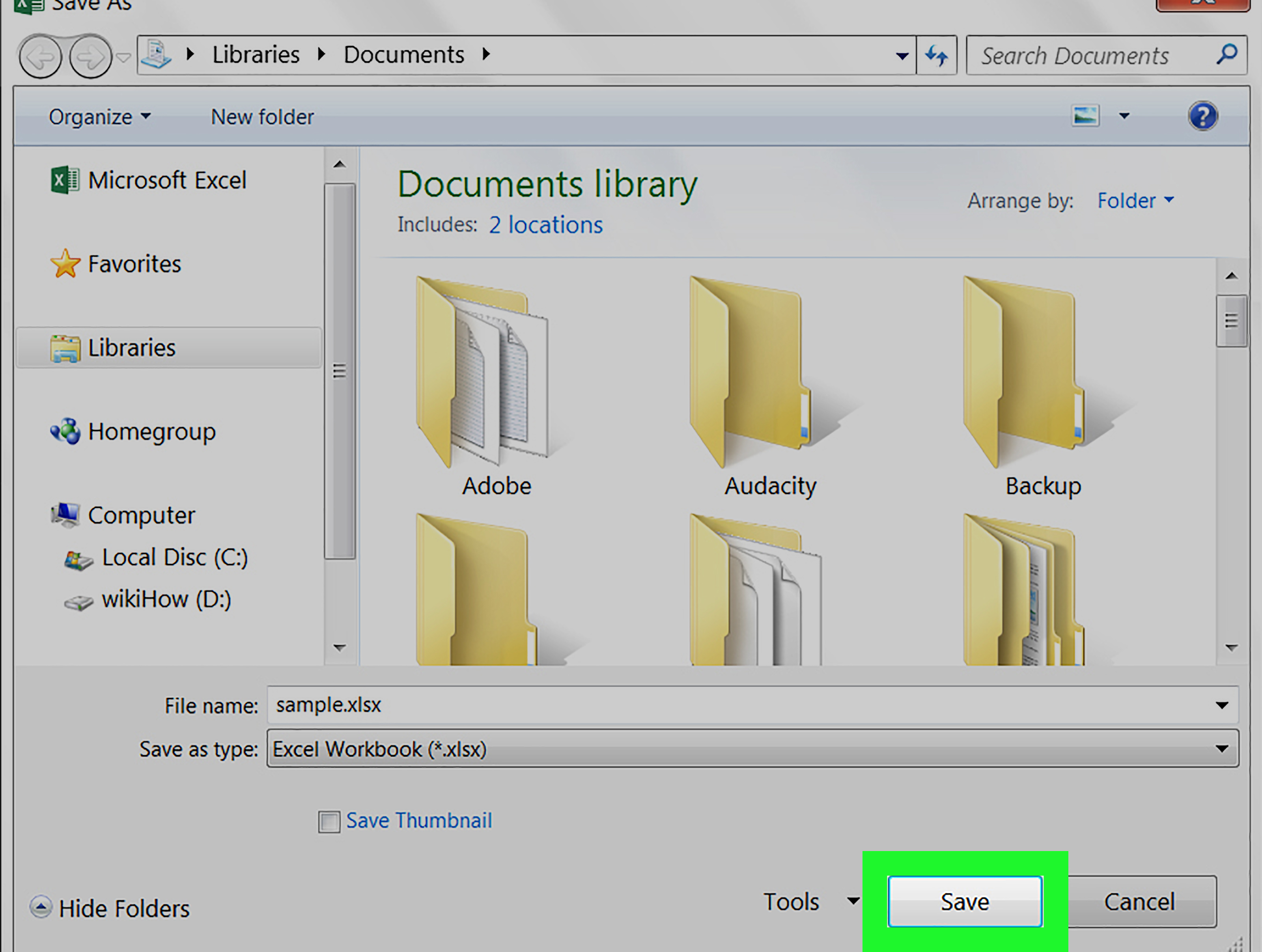
- Go to File > Save As.
- Choose Excel Workbook (*.xlsx) as the file type.
- Click Save.
This method is great for quick conversions. However, if your data includes unusual separators, special characters, dates, long numbers, or leading zeros, the next method gives you more control.
Method 2: Use Data > From Text/CSV for Better Control
The most reliable modern method is Excel’s From Text/CSV import option. It is available in recent desktop versions of Excel on Windows 10 and Windows 11 and is especially useful when you want Excel to preview the data before loading it.
Steps to Import a Notepad TXT File into Excel
- Open Excel and create a blank workbook.
- Click the Data tab.
- Select Get Data > From File > From Text/CSV. In some Excel layouts, you may simply see From Text/CSV.
- Choose your Notepad file.
- Click Import.
- Review the preview window.
- Choose the correct delimiter, such as comma, tab, semicolon, space, or custom.
- Check the file origin or encoding if characters look strange.
- Click Load to place the data into Excel, or Transform Data to clean it first in Power Query.
- Save the workbook as
.xlsx.
This method is the spreadsheet equivalent of using a measuring cup instead of “just eyeballing it.” It helps prevent common problems before they become a column-by-column cleanup project.
Method 3: Use the Legacy Text Import Wizard
Some users still prefer the classic Text Import Wizard because it gives a clear three-step process for delimited and fixed-width files. It is particularly helpful for older workflows, fixed-width reports, and text files that need precise column breaks.
When to Use the Text Import Wizard
- Your file is fixed-width instead of separated by commas or tabs.
- You need to manually place column breaks.
- You want to mark certain columns as text before import.
- You are working with legacy exports from older business software.
Basic Text Import Wizard Process
- Open Excel.
- Go to the Data tab.
- Choose the legacy text import option if it is enabled.
- Select your Notepad file.
- Choose Delimited if your columns are separated by commas, tabs, semicolons, spaces, or another symbol.
- Choose Fixed width if the fields line up by character position.
- Preview the data and adjust the delimiter or column breaks.
- Set column formats, especially for ZIP codes, ID numbers, product codes, or long account numbers.
- Finish the import and save the file as an Excel workbook.
If your Notepad file contains values like 00125, choose Text for that column during import. Otherwise, Excel may helpfully remove the leading zeros, which is not helpful at all if those zeros belong to a ZIP code, employee ID, or product SKU.
Method 4: Rename TXT to CSV When the File Is Comma-Separated
If your Notepad file is already comma-separated, you may be able to rename it from .txt to .csv. This can make Excel recognize it more easily as a comma-separated file.
Steps to Rename a TXT File as CSV
- Open File Explorer.
- Click View and enable File name extensions if extensions are hidden.
- Right-click the Notepad file and choose Rename.
- Change the extension from
.txtto.csv. - Confirm the change if Windows warns you.
- Open the file in Excel.
- Save it as Excel Workbook (*.xlsx) if you want a true Excel file.
This shortcut is convenient, but it is not magic. If the original text file is messy, renaming it will not suddenly make the data clean. A file full of random spacing, inconsistent commas, and surprise line breaks will still behave like a raccoon in a keyboard factory.
How to Fix Data That Opens in One Column
One of the most common problems is opening a Notepad file in Excel and seeing everything dumped into column A. This usually means Excel did not detect the delimiter correctly.
Solution: Use Text to Columns
- Select the column containing the text.
- Go to the Data tab.
- Click Text to Columns.
- Choose Delimited or Fixed width.
- Select the correct delimiter.
- Preview the result.
- Click Finish.
Text to Columns is perfect when the data is already inside Excel but needs to be split. For example, if column A contains Anna,Chicago,Sales, you can split it into three separate columns: name, city, and department.
How to Handle Special Characters and Encoding Problems
If names, symbols, or accented characters appear as boxes, question marks, or scrambled text, the issue may be character encoding. Modern files often use UTF-8, while older files may use ANSI or another encoding. Excel’s import tools often let you choose the file origin or encoding before loading the data.
When saving from Notepad, use Save As and check the encoding dropdown if available. For international characters, UTF-8 is usually the safest choice. When importing into Excel, use Data > From Text/CSV and inspect the preview. If the text looks wrong, try changing the file origin or encoding before loading.
Best Practices for a Clean Notepad-to-Excel Conversion
Use a Consistent Delimiter
Pick one separator and stick with it. Tabs are often safer than commas because names, addresses, and notes may contain commas naturally.
Add a Header Row
Your first line should contain column names such as Name, Email, Date, and Amount. This helps Excel create a more readable table and makes sorting or filtering easier later.
Protect Important Numbers
Set columns as text when they contain ZIP codes, phone numbers, account numbers, product IDs, or any value where leading zeros matter. Excel is excellent at math, but it can be a little too enthusiastic about treating everything as a number.
Clean Extra Spaces
Extra spaces can cause duplicate-looking entries that are not actually identical. After importing, you can use Excel functions such as TRIM to remove unnecessary spaces.
Save as XLSX
After the data looks right, save the file as an Excel workbook. This preserves formatting, formulas, filters, column widths, and multiple worksheets.
Windows 10 vs. Windows 11: Is the Process Different?
The core process is almost the same on Windows 10 and Windows 11. The biggest differences are visual. Windows 11 has a newer interface for File Explorer and Notepad, while Windows 10 may look more familiar to longtime users. Excel’s exact buttons can vary depending on your Microsoft Office or Microsoft 365 version, but the main paths remain similar: open the file directly, import it through the Data tab, or use a legacy wizard if available.
On both systems, the important part is not the Windows versionit is the structure of the text file. A clean tab-delimited file will usually import beautifully on either Windows 10 or Windows 11. A chaotic text file with inconsistent separators will misbehave on both, because Excel is powerful, not psychic.
Practical Example: Convert a Simple Notepad Contact List to Excel
Suppose your Notepad file looks like this:
To convert it properly:
- Save the Notepad file as
contacts.txt. - Open Excel.
- Go to Data > From Text/CSV.
- Select
contacts.txt. - Choose Comma as the delimiter.
- Check the preview to make sure four columns appear.
- Click Load.
- Save the workbook as
contacts.xlsx.
Now your plain text contact list has become a structured Excel spreadsheet. You can filter by state, sort by last name, format it as a table, remove duplicates, or use it for mail merge. Not bad for a file that started life in Notepad wearing sweatpants.
Common Mistakes to Avoid
Changing the File Extension Without Checking the Data
Renaming .txt to .xlsx does not convert the file. It only changes the label. Excel may refuse to open it or warn that the file format and extension do not match.
Using the Wrong Delimiter
If your data is separated by tabs but you choose comma, Excel will not split the columns correctly. Always check the preview before loading.
Ignoring Date Formatting
Excel may interpret dates differently depending on regional settings and format. A date like 03/04/2026 could mean March 4 or April 3 in different contexts. Use clear date formats when possible.
Forgetting to Save as an Excel Workbook
If you import the data but save it again as plain text, you may lose formatting and formulas. Choose .xlsx when you want a real spreadsheet.
Experience Notes: What Real Users Learn After Converting Notepad Files to Excel
After working with Notepad-to-Excel conversions for a while, one lesson becomes very clear: the import is only as good as the text file. Excel can do impressive things, but it cannot always guess what a human meant. If one row uses commas, the next row uses tabs, and a third row includes a note like “called twice, no answer,” Excel may split that note into extra columns. That is why it is smart to inspect the Notepad file before importing. A two-minute review can prevent a twenty-minute cleanup.
Another useful experience is to keep an untouched copy of the original text file. Before converting, duplicate the file and work from the copy. This is especially important for business exports, reports, logs, and customer data. If the import goes sideways, you can start over without asking a manager, client, or software system to regenerate the file. Nothing says “professional” quite like having a backup before the spreadsheet gremlins arrive.
For recurring tasks, Power Query is often the better long-term choice. If you receive the same type of Notepad export every week, importing manually can become repetitive. With Power Query, you can connect to the text file, define the delimiter, remove columns, rename headers, change data types, and refresh the process later. This turns a boring weekly chore into a repeatable workflow. Your future self may not send flowers, but they will quietly appreciate it.
It is also worth paying attention to numbers that should not behave like numbers. Phone numbers, employee IDs, invoice codes, tracking numbers, and ZIP codes are labels, not math problems. If Excel converts 00145 into 145, the value may look cleaner but become wrong. During import, format these columns as text. After import, scan the first few rows and the last few rows to confirm everything survived the trip.
Finally, do not underestimate the value of a good delimiter. Tabs are often the quiet hero of text-to-Excel conversion. Commas are common, but they can appear inside addresses, names, notes, and product descriptions. Semicolons and pipes are also useful in technical exports. The best delimiter is one that does not naturally appear inside your data. Choose that, and Excel will behave less like a confused intern and more like the productivity machine it was born to be.
Conclusion
Converting a Notepad file to Excel on Windows 10 and Windows 11 is straightforward once you know which method fits your file. For simple files, opening the text file directly in Excel may be enough. For cleaner results, use Data > From Text/CSV and choose the correct delimiter, encoding, and data types. For fixed-width or legacy reports, the Text Import Wizard remains a useful option. And if the data lands in one column, Text to Columns can rescue the situation without drama.
The key is to treat conversion as more than a file-opening trick. Look at the structure, choose the right separator, protect important numbers, preview the import, and save the result as an Excel workbook. Do that, and your Notepad file can graduate from plain-text chaos to spreadsheet orderno cape required.