Few things test human patience like watching a recipe video, workout tutorial, cartoon, or podcast clip on YouTube and accidentally tapping the screen at the worst possible moment. One second you are learning how to fold dumplings like a calm culinary genius; the next, your thumb has skipped to an ad, paused the video, opened the comments, or launched a completely unrelated Shorts rabbit hole. Modern phones are powerful, beautiful, and occasionally dramatic.
The good news is that you can lock the YouTube screen while watching on both iPhone and Android. The exact method depends on what you want to lock. If you want to stop accidental taps while the video stays on screen, YouTube’s built-in Lock screen feature is usually the easiest choice. If you are handing your phone to a child, friend, or chaos gremlin, iPhone’s Guided Access and Android’s App Pinning give you stronger control. If you want YouTube to keep playing after the phone screen turns off, that is a different feature called background playback, and it usually requires YouTube Premium.
This guide explains all of it in plain English: how to lock the YouTube player, how to use iPhone and Android accessibility tools, what to do on Samsung Galaxy phones, and how to avoid common mistakes. By the end, your YouTube viewing experience should feel less like a wrestling match with your touchscreen and more like, well, watching a video.
What Does “Lock YouTube Screen” Actually Mean?
Before jumping into settings, it helps to define the goal. People use the phrase “lock YouTube screen” in a few different ways, and choosing the wrong method can lead to confusion.
1. Lock the YouTube video controls
This means the video stays visible, but accidental taps and swipes do not pause, skip, scrub, or open menus. This is ideal when you are watching a video while cooking, exercising, cleaning, or letting a child hold the phone for a short time.
2. Lock the phone to the YouTube app
This means the viewer cannot easily leave YouTube and open other apps, messages, photos, or settings. On iPhone, this is done with Guided Access. On Android, this is usually done with App Pinning or Screen Pinning. This is especially useful when you lend your phone to someone and do not want them taking a scenic tour through your private life.
3. Turn off the phone screen while YouTube keeps playing
This is background playback. It is different from locking touch controls. With standard YouTube, locking the phone screen usually stops video playback. YouTube Premium officially supports background play, which lets videos or audio continue while your phone is locked or while you use other apps.
The Easiest Way: Use YouTube’s Built-In Lock Screen Feature
YouTube has a built-in Lock screen option in the mobile app. This feature is designed to prevent unintentional taps and swipes from interrupting playback. It does not lock your entire phone. It only locks the video player controls inside the YouTube app.
How to Lock the YouTube Screen in the App
- Open the YouTube app on your iPhone or Android phone.
- Start playing the video you want to watch.
- Tap the video once to show the player controls.
- Tap the settings icon, usually shown as a gear.
- Select Lock screen.
- The player will stay locked until you unlock it manually.
Once the YouTube screen is locked, random taps should not pause the video, drag the progress bar, or launch another video. This is the best option for everyday viewing. It is quick, built into YouTube, and does not require changing deeper phone settings.
How to Unlock the YouTube Screen
- Tap anywhere on the video player.
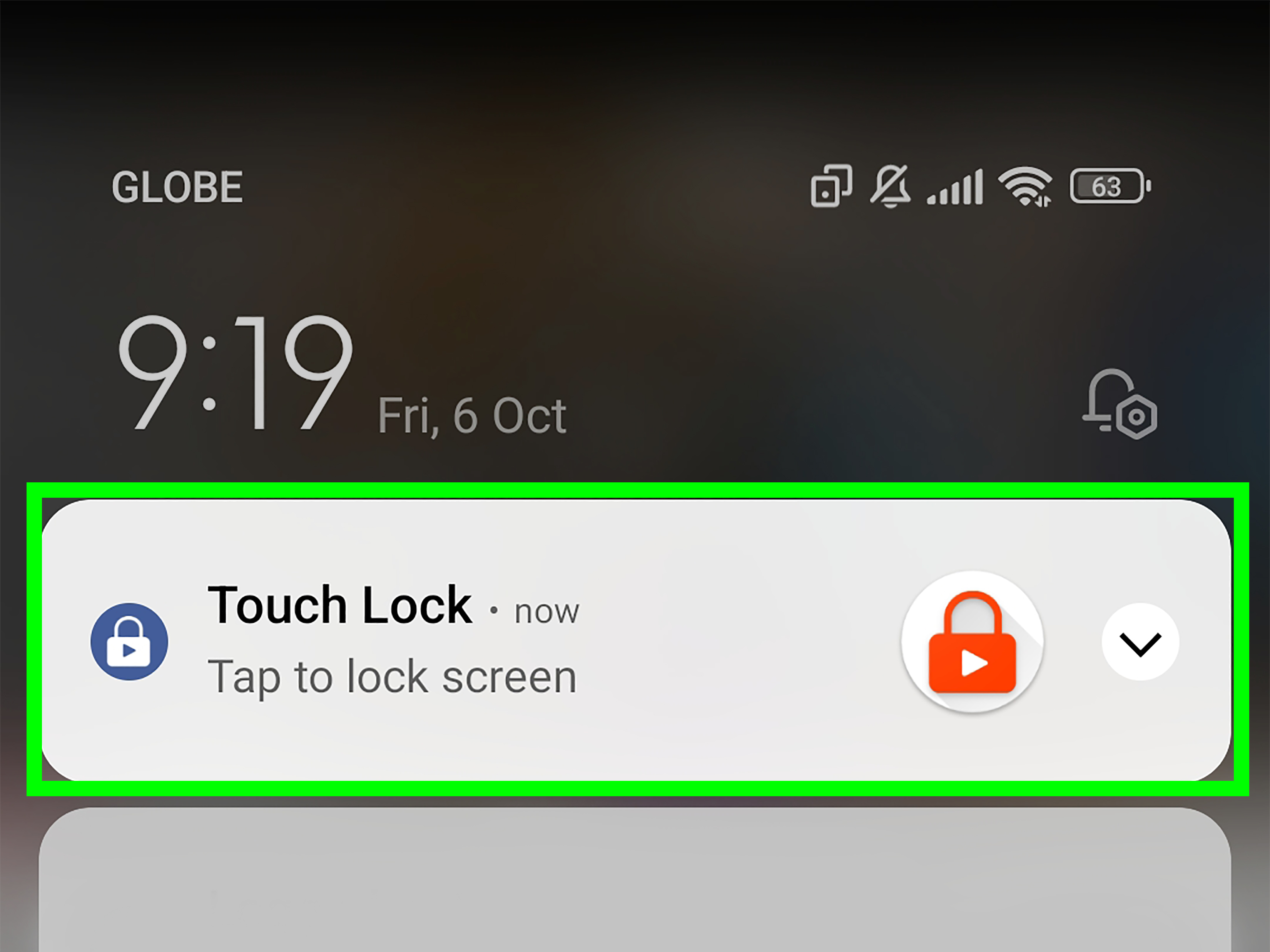
- Wait for the lock button or unlock prompt to appear.
- Tap Tap to unlock.
After unlocking, the normal YouTube controls return. You can pause, scrub, change captions, adjust playback speed, or do whatever your responsible adult heart desires.
Important Limitations
YouTube’s Lock screen feature is helpful, but it is not a full parental control tool. Some in-app notifications, ads, or system prompts may temporarily allow interaction. Also, this feature does not stop someone from pressing the phone’s physical buttons or using system gestures in every situation. Think of it as a “don’t mess up my video” button, not a Fort Knox security system.
How to Lock YouTube Screen on iPhone
iPhone users have two strong options: YouTube’s built-in Lock screen feature and Apple’s Guided Access. Use the YouTube feature when you simply want to avoid accidental taps. Use Guided Access when you want to lock the iPhone to YouTube or disable parts of the screen more seriously.
Method 1: Use YouTube Lock Screen on iPhone
This is the fastest method for most people.
- Open the YouTube app.
- Play your chosen video.
- Tap the video to bring up controls.
- Tap the gear icon.
- Choose Lock screen.
This works well when your child is watching a cartoon, when you are following a yoga routine, or when your phone is balanced on the kitchen counter in a position that screams, “I will fall into the pancake batter.”
Method 2: Use Guided Access on iPhone
Guided Access is an iPhone accessibility feature that can temporarily restrict the device to one app. You can also disable touch, hardware buttons, motion, keyboards, and specific areas of the screen. For YouTube, this is useful if you want the video to keep showing but prevent the viewer from leaving the app or tapping around.
How to Set Up Guided Access
- Open Settings on your iPhone.
- Tap Accessibility.
- Scroll down and tap Guided Access.
- Turn on Guided Access.
- Tap Passcode Settings.
- Set a Guided Access passcode or enable Face ID or Touch ID.
Setting a passcode is important. Without it, Guided Access is like putting a tiny fence around your garden and then leaving the gate wide open with a welcome sign.
How to Start Guided Access While Watching YouTube
- Open YouTube and start the video.
- Triple-click the side button on Face ID iPhones, or triple-click the Home button on older iPhones.
- When the Guided Access screen appears, tap Options.
- Turn off Touch if you want to disable the entire touchscreen.
- You can also circle specific areas of the screen to disable only those parts.
- Tap Start.
Now the iPhone is locked into YouTube based on the options you selected. This is especially useful for toddlers, classrooms, guided tutorials, and situations where “just don’t touch anything” has already failed spectacularly.
How to End Guided Access
- Triple-click the side button or Home button again.
- Enter the Guided Access passcode, or use Face ID or Touch ID if enabled.
- Tap End.
If Guided Access does not start, check that it is enabled in Accessibility settings. Also make sure you are triple-clicking the correct button. Many people accidentally double-click and summon Apple Pay instead, which is not helpful unless your YouTube video is asking for rent.
How to Lock YouTube Screen on Android
Android users also have more than one option. The YouTube app’s Lock screen feature is best for preventing accidental touches during a video. Android’s App Pinning feature is better when you want to keep the phone locked to YouTube and prevent someone from switching apps.
Method 1: Use YouTube Lock Screen on Android
- Open the YouTube app on your Android phone.
- Play the video you want to watch.
- Tap the video to show the controls.
- Tap the gear icon.
- Select Lock screen.
This prevents most accidental taps inside the video player. It is the simplest method for normal viewing, especially if you are walking on a treadmill, following a repair tutorial, or letting your phone sit on a table where every elbow in the room has apparently joined a conspiracy.
Method 2: Use Android App Pinning
App Pinning, sometimes called Screen Pinning, locks your Android phone to one app. When YouTube is pinned, the viewer cannot casually open Gmail, Photos, Messages, banking apps, or your secret collection of screenshots you definitely meant to delete.
How to Turn On App Pinning on Android
The exact path may vary by phone brand and Android version, but the general steps are similar:
- Open Settings.
- Go to Security, Security & privacy, or Privacy and security.
- Look for App pinning, Screen pinning, or Pin app.
- Turn the feature on.
- Enable the option that requires your PIN, pattern, password, or biometrics before unpinning.
The security requirement matters. Without it, someone may be able to unpin the app and roam freely. With it, they need your device unlock method to leave the pinned app.
How to Pin YouTube on Android
- Open YouTube and start the video.
- Open the Recent Apps screen.
- Tap the YouTube app icon at the top of the app preview.
- Select Pin or Pin this app.
- Confirm if prompted.
To unpin, Android usually asks you to press and hold a navigation gesture or button combination. On many phones, this means swiping up and holding, or holding Back and Recents together. After that, you may need to enter your PIN, pattern, password, or biometric unlock.
How to Lock YouTube Screen on Samsung Galaxy Phones
Samsung Galaxy phones use Android, but Samsung’s One UI menus sometimes label things differently. If you own a Galaxy phone, try these steps:
- Open Settings.
- Tap Security and privacy.
- Tap More security settings.
- Turn on Allow apps to be pinned or Pin app.
- Open YouTube.
- Open Recent Apps.
- Tap the YouTube icon above the preview card.
- Choose Pin this app.
Samsung also offers Accidental touch protection, found under Display settings on many Galaxy devices. This feature helps prevent unintended touches when the phone is in a pocket or bag. However, it is not the same as locking the YouTube video player while watching. For YouTube viewing, use YouTube Lock screen or App Pinning instead.
Can You Lock Your Phone Screen and Keep YouTube Playing?
This is where many people get confused. Locking the YouTube video controls is not the same as turning off your phone display. If you press the power button and lock your phone, standard YouTube playback usually stops unless you have background playback available.
YouTube Premium officially includes background play, which allows videos or audio to keep playing when the app is not open or when the phone screen is off. This is useful for music, podcasts, interviews, lectures, sleep sounds, and long videos where you do not need to watch every frame.
Without YouTube Premium, background playback is limited and may not work reliably. Some browser-based workarounds have appeared over the years, but they can stop working when YouTube updates its systems. For a published guide, the safest recommendation is simple: use YouTube Premium if you need official background playback, and use the Lock screen feature if you only need to prevent accidental taps while the video remains visible.
Best Method for Each Situation
For Cooking or Exercise Videos
Use YouTube’s built-in Lock screen feature. It keeps the video visible and prevents accidental touches while your hands are busy, sweaty, dusty, flour-covered, or all of the above.
For Kids Watching YouTube
Use Guided Access on iPhone or App Pinning on Android. These options help keep the child inside the YouTube app and reduce the chance of them opening other apps. For younger children, YouTube Kids and parental controls may be a better fit than regular YouTube.
For Privacy When Lending Your Phone
Use Guided Access or App Pinning with a passcode requirement. YouTube’s built-in Lock screen only locks the player controls; it does not fully protect the rest of your phone.
For Listening With the Display Off
Use YouTube Premium background play. The regular YouTube Lock screen feature does not mean the video will continue after the phone display is turned off.
Troubleshooting: Why Can’t I Find the YouTube Lock Screen Option?
If the Lock screen option does not appear in YouTube, try these fixes:
- Update the YouTube app: Open the App Store or Google Play Store and install the latest version.
- Restart the app: Close YouTube completely, then reopen it.
- Check the video player menu: The option is usually inside the gear/settings menu while a video is playing.
- Try a different video: Some content types, ads, Shorts, or special playback modes may behave differently.
- Restart your phone: A boring fix, yes, but boring fixes often work. Technology has a flair for humility.
- Check your region and account: YouTube sometimes rolls out features gradually, so not every account or device sees every option at the same time.
Tips for a Better Locked YouTube Viewing Experience
Locking the screen is only part of the experience. A few small adjustments can make YouTube viewing smoother, especially on mobile devices.
Turn On Captions Before Locking
If you need subtitles or captions, turn them on before activating Lock screen or Guided Access. Once touch is disabled, changing captions becomes inconvenient.
Set the Playback Speed First
Watching a tutorial at 1.25x speed can be great. Watching a complicated repair video at 2x speed can make the instructor sound like a caffeinated squirrel. Choose your speed before locking the controls.
Use Landscape Mode
Landscape mode gives more room for video and reduces accidental interactions with buttons near the edges. It is especially helpful for workouts, recipes, music videos, and educational content.
Clean the Screen
A greasy or wet screen can cause weird touch behavior. If YouTube seems to have developed a mind of its own, clean the screen and dry your hands before blaming the app, the phone, or Mercury retrograde.
Use a Stand or Holder
A simple phone stand can prevent accidental taps and drops. It also keeps your device away from kitchen spills, gym floors, and children who believe phones are chewable tablets.
Security and Privacy Considerations
If you are locking YouTube because you are giving your phone to someone else, remember that YouTube’s built-in Lock screen feature does not protect your device outside the video player. A determined user may still be able to press buttons, use gestures, or access notifications depending on your phone settings.
For better privacy, use Guided Access on iPhone or App Pinning on Android with a required passcode to exit. Also consider hiding notification previews on your lock screen. Nothing ruins a peaceful cartoon session faster than a private message popping up like an uninvited guest at a family dinner.
Real-Life Experience: When Locking YouTube Screen Actually Saves the Day
The first time many people discover the need to lock the YouTube screen is not during some grand technical mission. It happens during something painfully ordinary. You are making dinner, your phone is leaning against a mug, and a cooking video is showing the exact moment when the sauce changes from “delicious” to “why is there smoke?” Then your knuckle brushes the screen. The video pauses. You tap again. An ad opens. You tap again. The video jumps backward. Suddenly, dinner has become a hostage negotiation.
That is where the YouTube Lock screen feature feels surprisingly useful. For cooking, it keeps the recipe moving while your hands are busy. You can glance at the next step without worrying that a stray drop of water will skip the video. It is not glamorous, but neither is scraping burned garlic out of a pan while muttering motivational quotes to yourself.
Parents also quickly learn the value of screen locking. A child watching a video can accidentally tap suggested videos, pause playback, open comments, or exit the app. The built-in YouTube lock helps with accidental touches, but for younger kids, Guided Access on iPhone or App Pinning on Android is often better. It creates a stronger boundary. The child gets the video; your email, photos, shopping apps, and settings stay out of the adventure. Everyone wins, especially your camera roll.
Fitness is another situation where locking YouTube makes sense. If you follow workout videos, yoga classes, stretching routines, or dance tutorials, you probably know the pain of tapping the screen with a sweaty finger and turning a calm session into a tech support break. Locking the player before you start helps you stay focused. The video keeps going, and you do not have to interrupt your plank to rescue the progress bar. Planks are already rude enough.
There is also a practical privacy angle. Many people lend their phones for “just one video,” but phones contain personal messages, photos, banking apps, work accounts, and other sensitive information. App Pinning and Guided Access are helpful because they let someone use one app without casually wandering elsewhere. This is not about being paranoid. It is about being realistic. Curiosity and touchscreens have been best friends since the dawn of smartphones.
Another useful lesson: choose the right kind of lock for the job. If you only want to prevent accidental taps while watching, use YouTube’s Lock screen. If you want to keep someone inside YouTube, use Guided Access or App Pinning. If you want the phone screen off while audio continues, use YouTube Premium background playback. Mixing these up is the main reason users get frustrated. The lock icon in YouTube is not designed to make free background play magically appear. Sadly, it is not a tiny wizard.
In daily use, the best workflow is simple. Open the video, set captions and playback speed, rotate the phone if needed, then lock the screen. If giving the phone to someone else, activate Guided Access or App Pinning after the video is ready. This tiny setup routine takes a few seconds and can prevent a surprising amount of tapping chaos.
The experience also improves when you update the YouTube app regularly. Features change, menus move, and rollouts can vary by device. If the Lock screen option is missing, an update or restart may solve the problem. And if it still does not appear, using the phone’s built-in accessibility or security tools remains a reliable backup.
Ultimately, locking the YouTube screen is one of those small phone skills that feels minor until you need it. Then it becomes essential. Whether you are cooking, exercising, studying, entertaining a child, or watching a long tutorial, screen locking helps your phone behave like a helpful device instead of a tiny chaos rectangle.
Conclusion
Learning how to lock YouTube screen while watching on iPhone and Android can make mobile viewing much less frustrating. For everyday accidental taps, the YouTube app’s built-in Lock screen feature is the fastest and easiest solution. On iPhone, Guided Access gives you stronger control by locking the device to YouTube and letting you disable touch or specific screen areas. On Android, App Pinning or Screen Pinning keeps YouTube open and prevents casual switching to other apps, especially when protected by a PIN, pattern, password, or biometrics.
The key is knowing what you actually need. Lock the YouTube player if you want the video to keep playing on screen without interruptions. Use Guided Access or App Pinning if you are lending your phone or managing a child’s viewing. Use YouTube Premium if you want official background playback while the phone screen is off. Once you match the method to the situation, YouTube becomes easier, safer, and a lot less tappity-tap chaotic.
Note: Menu names and feature availability may vary slightly by YouTube app version, phone model, Android skin, iOS version, account settings, and regional rollout. Always keep your YouTube app and phone software updated for the most reliable experience.