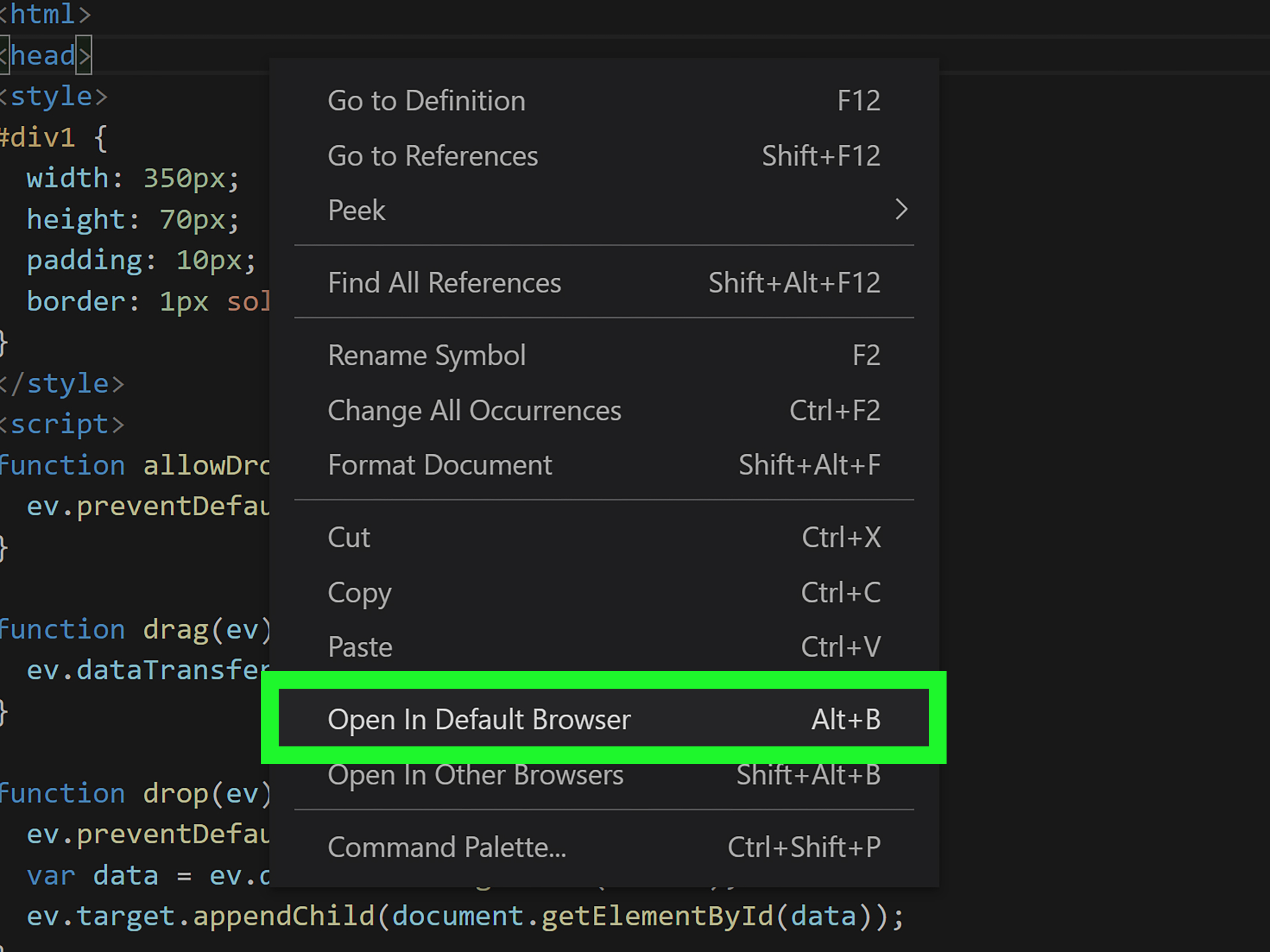
Running a HTML file in Visual Studio Code sounds like it should be as simple as pressing a giant shiny button labeled “Make Website Happen.” Sadly, VS Code is a code editor, not a mind reader with a cape. The good news? Once you know the right methods, opening, previewing, testing, and refreshing your HTML file becomes wonderfully easy.
Whether you are writing your first index.html, building a tiny portfolio site, testing CSS, or debugging JavaScript that has developed a dramatic personality, Visual Studio Code gives you several practical ways to view your HTML in action. Some methods are perfect for beginners. Others are better for real web development workflows where CSS, images, JavaScript modules, and browser security rules matter.
In this guide, you will learn four reliable ways to run a HTML file in Visual Studio Code: opening it directly in a browser, using the Live Server extension, using Microsoft’s Live Preview or the built-in browser workflow, and launching a local development server from the VS Code terminal. Each method includes clear steps, use cases, examples, and troubleshooting tips so your HTML file does not sit there like a confused sandwich.
Before You Start: Create a Simple HTML File
Before running anything, make sure you have a valid HTML file. In Visual Studio Code, open a folder for your project, create a new file named index.html, and add a basic HTML structure like this:
Save the file. Yes, saving matters. If you forget to save and wonder why the browser is not showing your latest masterpiece, congratulations: you have completed the first ancient ritual of web development.
Method 1: Open the HTML File Directly in Your Browser
The fastest way to run a HTML file in Visual Studio Code is to open the file directly in a web browser such as Chrome, Edge, Firefox, or Safari. This method does not require extensions, configuration, or a local server. It is the digital equivalent of opening the front door and walking in.
How to Open an HTML File Directly
First, save your .html file in VS Code. Then locate the file in your computer’s file explorer. On Windows, you can right-click the file and choose your browser from the “Open with” menu. On macOS, you can right-click the file, choose “Open With,” and select a browser. You can also drag the HTML file directly into an open browser window.
Another quick option is to copy the file path from VS Code. Right-click the file in the Explorer panel, copy its path, and paste it into your browser’s address bar. The browser will usually load it using a local file:/// URL.
Best For
This method is ideal for simple static HTML pages. If your file only contains basic HTML and CSS, direct browser opening works beautifully. It is especially useful when you want to check headings, paragraphs, links, images, or basic styling without setting up anything extra.
Limitations
Opening a HTML file directly can cause problems when your page relies on JavaScript modules, fetch requests, local JSON files, or certain browser security behaviors. Browsers treat local files differently from files served through http://localhost. That means a project that looks fine as a simple document may break when it starts acting like a real web app.
Use direct opening for quick checks, not serious testing. It is a great bicycle, but you probably should not use it to move a refrigerator.
Method 2: Use the Live Server Extension
Live Server is one of the most popular ways to run HTML in Visual Studio Code. It starts a lightweight local development server and opens your project in the browser. Even better, it can automatically refresh the page when you save changes. That means no more manually smashing the refresh button like it owes you money.
How to Install Live Server
- Open Visual Studio Code.
- Click the Extensions icon in the left sidebar.
- Search for Live Server.
- Install the Live Server extension.
- Open your project folder in VS Code.
- Open your
index.htmlfile. - Click Go Live in the bottom-right status bar.
Once Live Server starts, your browser should open a local URL, often something like http://127.0.0.1:5500 or http://localhost:5500. Your HTML file is now running through a local server instead of the basic file path method.
Why Live Server Is Helpful
Live Server is excellent for front-end development because it behaves more like a real website environment. CSS updates appear quickly, JavaScript files load more reliably, and local paths are easier to test. If you are learning HTML, CSS, and JavaScript, this extension makes the workflow smoother and less annoying.
For example, imagine you are editing a button style in style.css. With direct browser opening, you save the file, switch to the browser, and refresh. With Live Server, you save the file and the browser refreshes automatically. Tiny improvement? Yes. Life-changing after 400 edits? Also yes.
Common Live Server Fixes
If “Go Live” does not appear, make sure you opened a folder, not just a single file. VS Code extensions often work best when the entire project folder is open. If the page opens but images or CSS do not load, check your file paths. Use relative paths such as ./style.css or images/photo.jpg instead of random paths copied from your computer.
If the port is already in use, Live Server may choose another port or fail to start. Closing old browser tabs, stopping previous server sessions, or restarting VS Code often solves the issue.
Method 3: Use Live Preview or the Built-In Browser Workflow
Another convenient way to run a HTML file in Visual Studio Code is to preview it inside the editor. Microsoft’s Live Preview extension can host a local server and show your project directly in VS Code. VS Code also includes browser-based preview features that are useful when you want to stay focused in one window.
How to Use Live Preview
- Open the Extensions panel in VS Code.
- Search for Live Preview.
- Install the Microsoft Live Preview extension.
- Open your HTML project folder.
- Open the command palette with
Ctrl+Shift+Pon Windows orCmd+Shift+Pon macOS. - Search for Live Preview commands and start the preview.
The page can appear in an editor tab, giving you a side-by-side coding and preview experience. This is very useful for beginners because the relationship between code and output becomes obvious. Change a heading, save the file, and the preview updates. It is like having a tiny browser living politely inside your editor.
When Built-In Previewing Makes Sense
Previewing inside VS Code is helpful when you are working on layout, learning basic HTML tags, writing documentation, or building a small static page. It reduces window switching and keeps your attention in one workspace.
However, for final testing, you should still open the page in real browsers. Chrome, Firefox, Edge, and Safari may handle certain CSS and JavaScript features differently. A built-in preview is convenient, but a real browser is where your future visitors will actually meet your website. First impressions matter, even when the visitor is just your cousin clicking a link out of family obligation.
Live Preview vs. Live Server
Live Server is often preferred when you want to work in an external browser with automatic refresh. Live Preview is great when you want an integrated preview panel inside VS Code. Both can run HTML locally. The better option depends on your workflow: external-browser testing or editor-based previewing.
Method 4: Run a Local Server from the VS Code Terminal
The most flexible method is to run a local server from the integrated terminal in Visual Studio Code. This approach is especially useful when your HTML project includes JavaScript modules, API-style requests, local JSON files, or a folder structure that should be served from a project root.
Option A: Use Python’s Built-In HTTP Server
If Python is installed on your computer, open the VS Code terminal and navigate to your project folder. Then run:
On some systems, you may need:
Then open your browser and visit:
Your HTML file should load from the local server. If your main file is named index.html, it usually opens automatically when you visit the root URL.
Option B: Use Node.js Tools Such as serve
If you use Node.js, you can run a static server with tools like serve. From your project folder, run:
The terminal will show a local address. Open that address in your browser to view your HTML project. This is a clean option for developers who already use Node-based tools for front-end projects.
Why a Terminal Server Is Powerful
A terminal-based server gives you more control. You can choose the port, test from a project root, simulate a more realistic web environment, and keep the workflow close to how modern web projects are developed. It also helps avoid many issues caused by the file:/// approach.
This method is slightly more technical than clicking “Go Live,” but it is worth learning. Once you get comfortable with local servers, you start understanding how websites are actually served. That knowledge will help when you move from simple HTML pages to larger projects with frameworks, build tools, and deployment platforms.
Which Method Should You Choose?
If you are writing one simple HTML file, opening it directly in the browser is perfectly fine. If you are learning front-end development and want automatic refresh, use Live Server. If you prefer staying inside Visual Studio Code, use Live Preview or the integrated browser workflow. If you want a more professional setup, run a local server from the terminal.
Here is a simple rule: the more your project behaves like a real website, the more you should use a real local server. Static text page? Direct browser opening works. HTML, CSS, and images? Live Server is smooth. JavaScript modules or fetch requests? Use Live Server, Live Preview, or a terminal server. Future web developer energy? Terminal server, hoodie optional.
Troubleshooting: Why Your HTML File Is Not Running Correctly
The Browser Shows Code Instead of the Page
Check that your file ends with .html, not .txt. A file named index.html.txt may look innocent, but it is wearing a disguise. Enable file extensions in your operating system if needed.
CSS Is Not Loading
Make sure your CSS file path is correct. If your CSS file is in the same folder as your HTML file, use:
If it is inside a folder named css, use:
Images Are Broken
Broken images usually mean the path is wrong, the file name is misspelled, or the image is not in the folder you think it is. Remember that Photo.jpg and photo.jpg may be treated differently on some systems and servers.
JavaScript Is Not Working
Open the browser developer tools and check the Console tab. JavaScript errors usually leave clues. Sometimes they leave very rude clues, but clues nonetheless. If your script uses modules, local file loading may fail, so try running the page through Live Server or another local server.
Best Practices for Running HTML in VS Code
Always open your full project folder in VS Code, not just a single file. Keep your files organized with clear folders such as css, js, and images. Name your homepage index.html because servers commonly look for that file by default.
Use lowercase file names when possible, avoid spaces in file names, and test your page in more than one browser before publishing. Also, save your work often. VS Code is excellent, but it cannot preview changes you have not saved unless your setup specifically supports unsaved preview updates.
Real-World Experience: What It Feels Like to Run HTML in VS Code
The first time many beginners try to run a HTML file in Visual Studio Code, they expect a big “Run” button to behave like it does in some programming environments. That expectation makes sense. In Python, Java, or C++, you often write code and run it. HTML is different because it is not executed like a traditional programming language. A browser reads the HTML, interprets the structure, loads CSS and JavaScript, and then displays the page.
In practice, the easiest beginner experience is usually Live Server. You install it once, open your folder, click “Go Live,” and suddenly your workflow feels modern. You can place VS Code on one side of the screen and the browser on the other. Edit a paragraph, save, and watch the browser update. It feels simple, but it teaches an important habit: web projects are usually viewed through a server environment, even during local development.
Direct browser opening still has a place. When you are testing one small HTML file, it is quick and harmless. For example, if you are practicing headings, lists, tables, or forms, opening the file directly is enough. You do not need to install an extension just to see whether an <h1> looks bigger than an <h2>. Spoiler: it does. Usually. Unless your CSS has entered its villain era.
As projects grow, local servers become more important. Suppose you build a mini photo gallery with HTML, CSS, JavaScript, and a local JSON file containing image captions. If you open the file directly, the browser may block certain requests for security reasons. This can be confusing because your code looks correct, but the page refuses to cooperate. Running the project through Live Server, Python’s HTTP server, or npx serve often solves the problem because the browser sees the project as being served from localhost.
Another useful lesson is that VS Code is not the browser. VS Code helps you write, organize, search, format, and manage code. The browser is where your HTML becomes a visible webpage. When something looks wrong, you often need both tools: VS Code to fix the source and browser developer tools to inspect the result. The Elements panel shows your HTML structure. The Console reveals JavaScript errors. The Network tab shows missing files. Together, they form the detective duo your broken layout did not want you to call.
For daily development, many people settle into a comfortable rhythm: open the project folder, start Live Server or a terminal server, keep the browser visible, and use developer tools when something behaves strangely. This setup feels professional without being complicated. It also prepares you for future work with frameworks, Git, deployment, and hosting. Today it is one HTML file. Tomorrow it might be a portfolio, a landing page, a documentation site, or a small app that your friends describe as “actually pretty good,” which is basically a standing ovation in developer language.
The biggest practical advice is to choose the method that matches your project, not your mood. Quick file? Open it directly. Learning HTML and CSS? Use Live Server. Want preview inside VS Code? Use Live Preview. Testing something closer to a real website? Use a local terminal server. Once you understand all four options, running a HTML file in Visual Studio Code becomes less mysterious and much more enjoyable.
Conclusion
Learning how to run a HTML file in Visual Studio Code is one of the first practical steps in web development. The four methods covered here give you a complete toolkit: direct browser opening for quick checks, Live Server for smooth auto-refresh development, Live Preview for an integrated editor experience, and terminal-based local servers for more realistic testing.
You do not need to memorize every option immediately. Start with the easiest method, then upgrade your workflow as your projects become more advanced. The goal is not just to make a page appear in the browser. The goal is to understand how your HTML, CSS, JavaScript, file paths, and local server environment work together. Once that clicks, VS Code becomes more than a text editor. It becomes your web development command center, minus the dramatic movie lighting.