Wikipedia is the internet’s giant, volunteer-built brain: part encyclopedia, part rabbit hole, part “I only came here to check one date and somehow learned about medieval cheese law.” But sometimes you do not want to keep a Wikipedia page open in a browser tab forever. Maybe you need an article for school research, travel planning, offline reading, citation checking, classroom handouts, or your personal archive of “things I swear I will read later.” That is where saving a Wikipedia page as a PDF becomes surprisingly useful.
The good news is that you can save a Wikipedia page as a PDF on almost any device. The slightly annoying news is that the steps change depending on whether you are using Windows, Mac, iPhone, iPad, Android, Chromebook, Chrome, Safari, Edge, Firefox, or Wikipedia’s own export tools. Not difficultjust menu gymnastics.
This guide explains how to download a Wikipedia article as a PDF using Wikipedia’s built-in option, your browser’s print feature, mobile sharing tools, and a few backup methods when the usual buttons decide to play hide-and-seek. By the end, you will know how to save a clean, readable PDF without needing a printer, a paid app, or a degree in “Where Did They Move That Button?”
Why Save a Wikipedia Page as a PDF?
Saving a Wikipedia page as a PDF gives you a stable, portable version of an article. A PDF can be opened on nearly any device, emailed, stored in cloud folders, added to research notes, printed, annotated, or read offline. That makes it especially handy for students, teachers, writers, travelers, and anyone who prefers not to trust airport Wi-Fi with their study plans.
There is also a practical research reason. Wikipedia pages can change. That is part of their charm and their chaos. If you are reading about a historical figure, a scientific concept, a city, a court case, or a technology topic, saving a PDF helps you keep a copy of what you read at that moment. It is not a replacement for academic sources, but it is useful for reference and review.
The Best Methods at a Glance
There are three main ways to save a Wikipedia page as a PDF:
- Use Wikipedia’s built-in “Download as PDF” tool when it is available on the desktop site.
- Use your browser’s Print to PDF option on Windows, Mac, Chromebook, Linux, Chrome, Edge, Firefox, or Safari.
- Use mobile sharing or print options on iPhone, iPad, and Android.
For most people, the browser method is the most reliable. Wikipedia’s own PDF export is convenient, but browser-based PDF saving usually gives you more control over page size, margins, background graphics, headers, footers, and whether you save only certain pages.
Method 1: Use Wikipedia’s Built-In “Download as PDF” Tool
Wikipedia includes export options on many article pages, especially on the desktop version of the site. This method is ideal if you want a simple article-style PDF without messing around with print settings.
Steps on Desktop
- Open the Wikipedia article you want to save.
- Look for the Tools menu or the older Print/export section.
- Select Download as PDF.
- Wait for Wikipedia to generate the file.
- Click the download button when the PDF is ready.
- Save the file to your computer, cloud drive, or research folder.
The exact menu location can vary because Wikipedia updates its interface and different languages may display tools slightly differently. On some layouts, the option appears in a side menu. On others, it may be tucked into a dropdown. Think of it as Wikipedia’s way of gently reminding you that exploration is part of learning.
When This Method Works Best
Use Wikipedia’s built-in PDF option when you want a clean, article-focused version with minimal browser clutter. It is especially useful for long articles because the exported file is usually formatted more like a document than a screenshot of a web page.
When It May Not Be Perfect
Some complex Wikipedia pages contain large tables, interactive maps, collapsible sections, unusual templates, mathematical notation, or many images. These elements may not always convert beautifully. If the PDF looks odd, try the Print to PDF method instead. Browsers sometimes handle visual layouts better because they are saving what the browser itself can render.
Method 2: Save a Wikipedia Page as a PDF on Windows
Windows makes this process easy because modern versions include a built-in PDF printer. You do not need Adobe Acrobat, extra software, or an actual printer sitting in the corner judging your ink levels.
Using Google Chrome on Windows
- Open the Wikipedia article in Chrome.
- Press Ctrl + P, or click the three-dot menu and choose Print.
- Under Destination, choose Save as PDF.
- Adjust settings such as pages, layout, margins, and scale.
- Click Save.
- Choose a file name and folder, then save the PDF.
For Wikipedia pages, portrait layout usually works best. If the article has wide tables, maps, timelines, or comparison charts, switch to landscape layout before saving.
Using Microsoft Edge on Windows
- Open the Wikipedia page in Microsoft Edge.
- Press Ctrl + P.
- Select Save as PDF or Microsoft Print to PDF as the printer.
- Preview the page and adjust margins or scale if needed.
- Click Save or Print.
- Name the file and choose where to store it.
Edge is especially useful for people who want a straightforward PDF without installing another browser. If one PDF option does not work, try the other: Save as PDF and Microsoft Print to PDF are similar, but they may behave differently depending on your system.
Using Firefox on Windows
- Open the Wikipedia article in Firefox.
- Press Ctrl + P.
- Choose Save to PDF from the destination or printer menu.
- Review the preview.
- Click Save.
Firefox is a good option if you like simple print previews and clear page controls. It also lets you adjust scale, orientation, headers, footers, and background settings depending on your version.
Method 3: Save a Wikipedia Page as a PDF on Mac
Mac users have one of the smoothest PDF workflows because macOS treats PDF saving like a normal part of printing. In other words, your Mac has been ready for this moment all along.
Using Safari on Mac
- Open the Wikipedia article in Safari.
- Click File in the menu bar.
- Choose Print.
- Click the PDF button in the print dialog.
- Select Save as PDF.
- Choose a file name, location, and save.
Safari may also offer an Export as PDF option from the File menu. That can be faster, but the print dialog gives you more control. If you care about margins, page size, or whether the PDF looks tidy, use Print first.
Using Chrome or Firefox on Mac
The process is similar to Windows:
- Open the Wikipedia page.
- Press Command + P.
- Select Save as PDF or use the macOS PDF dropdown.
- Preview the result.
- Save the file.
Mac users should check the preview carefully before saving long Wikipedia articles. Sometimes browser print settings add extra blank pages, oversized images, or tiny text. A quick preview can prevent a PDF that looks like it was designed by a printer with stage fright.
Method 4: Save a Wikipedia Page as a PDF on iPhone
Saving a Wikipedia page as a PDF on iPhone is easy once you know where Apple hides the magic. The Share menu is your main tool.
Using Safari on iPhone
- Open the Wikipedia article in Safari.
- Tap the Share button.
- Choose Markup, Print, or Options depending on your iOS version.
- If using Options, choose PDF when available.
- Save the file to Files, iCloud Drive, Google Drive, Dropbox, or another location.
Another handy method is to use the print preview. After tapping Print, you can open the preview and save or share the generated PDF. This is useful when you want to send the article directly to a classmate, teacher, coworker, or your future self who promised to study later.
Using Chrome on iPhone
- Open the article in Chrome.
- Tap the share icon.
- Choose Print if available.
- Use the iOS print preview to create a PDF.
- Save it to Files or share it through another app.
Because iPhone menus can vary by app and iOS version, Safari is usually the most predictable choice for saving a clean webpage PDF.
Method 5: Save a Wikipedia Page as a PDF on iPad
The iPad process is similar to the iPhone process, but the larger screen makes previewing and organizing PDFs easier.
- Open the Wikipedia page in Safari.
- Tap the Share button.
- Tap Options if shown, then select PDF.
- Choose Save to Files.
- Select a folder and tap Save.
If you use an Apple Pencil, saving Wikipedia pages as PDFs can be especially useful. You can highlight passages, circle dates, add margin notes, and pretend your research life is far more organized than your desk.
Method 6: Save a Wikipedia Page as a PDF on Android
Android phones and tablets typically use the browser’s sharing and print features. Chrome is the most common option, but Samsung Internet, Firefox, and other browsers can also work.
Using Chrome on Android
- Open the Wikipedia article in Chrome.
- Tap the three-dot menu.
- Choose Share or Print.
- Select Print if you started from Share.
- Choose Save as PDF from the printer dropdown.
- Tap the PDF download/save button.
- Choose where to store the file.
On Android, the PDF may be saved to Downloads by default. If you cannot find it, open your file manager and check Downloads, Documents, or your selected cloud drive.
Using Samsung Internet or Firefox on Android
The menus may look different, but the path is usually similar: open the article, tap the browser menu, choose Share or Print, select Save as PDF, and save the file. If one browser does not show a PDF option, copy the Wikipedia URL and open it in Chrome.
Method 7: Save a Wikipedia Page as a PDF on Chromebook
Chromebooks are built around Chrome, so saving a Wikipedia page as a PDF is simple.
- Open the Wikipedia page in Chrome.
- Press Ctrl + P.
- Under Destination, choose Save to PDF.
- Adjust the layout and margins.
- Click Save.
- Select a folder in Files or Google Drive.
If you are saving PDFs for school, Google Drive is a convenient location because you can access the file later from another computer, phone, or tablet.
How to Get a Cleaner Wikipedia PDF
A Wikipedia article can contain sidebars, citations, tables, images, navigation boxes, and references. That is useful on the web, but it can make a PDF look crowded. These tips help produce a cleaner file.
Use Print Preview Before Saving
Always check the preview. Look for cut-off tables, huge images, tiny text, blank pages, or missing sections. If the preview looks strange, adjust the scale or switch between portrait and landscape.
Try Landscape for Wide Tables
Articles about countries, elections, sports statistics, chemical elements, timelines, and software comparisons often include wide tables. Landscape orientation gives the content more horizontal space and reduces awkward line breaks.
Reduce Scale Slightly
If text or tables are being cut off, reduce the scale to 90% or 80%. Do not go too small, though. A PDF is not helpful if reading it requires the eyesight of a superhero owl.
Turn Off Headers and Footers If Needed
Some browsers add page titles, URLs, dates, and page numbers. These can be useful for research, but they can also clutter the document. If your browser offers a headers and footers checkbox, choose the setting that fits your purpose.
Save the Mobile Page Only When You Want Simplicity
Wikipedia’s mobile layout is often cleaner and narrower than the desktop version. If a desktop PDF looks messy, try saving the mobile version of the page from your phone or by using the mobile Wikipedia URL.
How to Save Only Part of a Wikipedia Page as a PDF
Sometimes you do not need the entire article. Maybe you only want the “Early life” section, the references, a table, or a short explanation of a concept.
On desktop, the easiest approach is to select the text you need, copy it into a document editor, and export that document as a PDF. You can use Google Docs, Microsoft Word, Apple Pages, or another writing app. This also lets you add your own notes and headings.
Another option is to use the browser print dialog and choose a page range after previewing the full article. This works well if the section you need falls neatly on certain pages. If the section starts halfway down one page and ends halfway through another, copying into a document may be cleaner.
How to Save Multiple Wikipedia Pages as PDFs
If you are researching a larger topic, you may need several related pages. For example, a student writing about the Apollo program might save pages on Apollo 11, Neil Armstrong, the Saturn V rocket, NASA, and the Moon landing timeline.
The simplest method is to save each article as a separate PDF and organize them in one folder. Use clear file names such as apollo-11-wikipedia.pdf or saturn-v-overview.pdf. Avoid vague names like article-final-final-really-final.pdf, because that road leads to chaos.
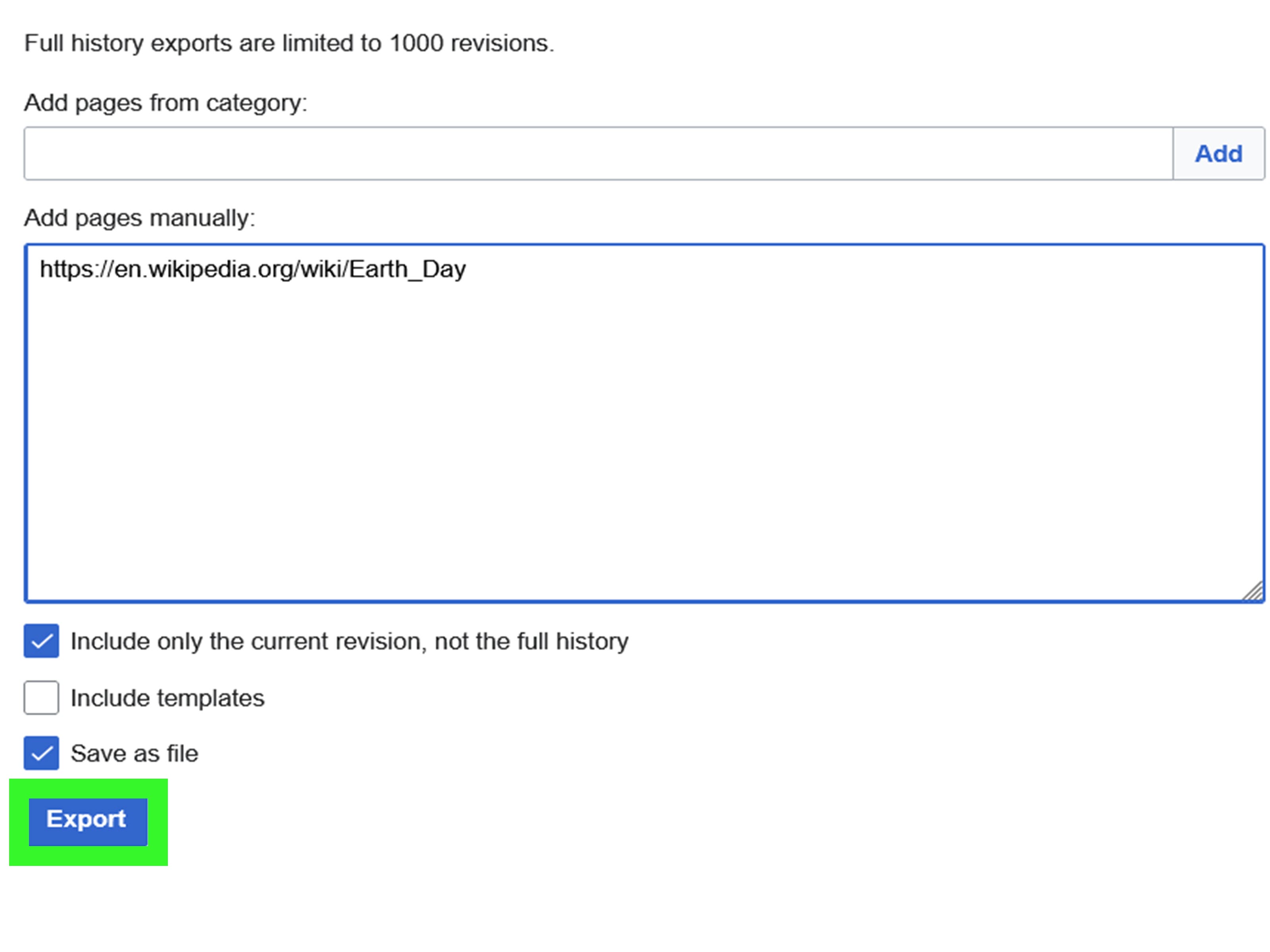
For larger offline research projects, consider using Wikipedia’s reading lists in the official app or an offline reader such as Kiwix. Those tools are not exactly the same as PDF saving, but they are better when you want many articles available without an internet connection.
Common Problems and Quick Fixes
The “Download as PDF” Option Is Missing
Try switching to the desktop version of Wikipedia. On mobile, many export tools are hidden or unavailable. You can also use your browser’s Print to PDF option instead.
The PDF Looks Messy
Use print preview, change orientation, reduce scale, or try another browser. Chrome, Safari, Edge, and Firefox may format the same page slightly differently.
Images Are Missing
Check whether background graphics are enabled in the print settings. Some browsers do not include certain images unless background printing is turned on.
The File Is Too Large
Long articles with many images can create large PDFs. Try saving without background graphics, reducing image-heavy sections, or saving only the pages you need.
The PDF Saved, but You Cannot Find It
Check your Downloads folder first. On phones, also check Files, Documents, iCloud Drive, Google Drive, or your browser’s download history.
Is It Legal to Save a Wikipedia Page as a PDF?
For personal use, study, offline reading, and research organization, saving a Wikipedia page as a PDF is generally fine. Wikipedia content is published under free licenses, but those licenses still have rules, especially around attribution and sharing modified versions. If you plan to republish, distribute, or reuse Wikipedia content publicly, review the licensing and attribution requirements carefully.
For school or work, it is also smart to cite the original Wikipedia page and access date if your assignment or project requires sources. A PDF is convenient, but the live page history and references may matter more for formal research.
Best File Naming Tips for Wikipedia PDFs
A good file name saves future-you from digital archaeology. Use simple, searchable names that include the article topic and date.
- good: climate-change-wikipedia-2026-04-29.pdf
- good: roman-empire-wikipedia-notes.pdf
- not ideal: download.pdf
- definitely cursed: asdfghjkl-new-new-2.pdf
If you save many Wikipedia PDFs, organize them by project, class, subject, or date. A clean folder system is boring in the best possible way.
Personal Experience: What Actually Works Best in Real Life
After saving plenty of Wikipedia-style pages across different devices, the biggest lesson is simple: the “best” method depends on what you plan to do with the PDF afterward. If you only need to read an article offline, the quickest method is usually the browser’s Save as PDF option. Open the article, press the print shortcut, choose Save as PDF, and move on with your life. It is fast, familiar, and works across most modern computers.
For school research, however, I prefer taking one extra minute to clean things up. I preview the PDF first, check whether the references are included, and make sure tables are not chopped off. Wikipedia pages can be long, and a bad PDF can turn a readable article into a 47-page scroll monster. If the article has big comparison tables, I switch to landscape. If the text looks too wide or cramped, I adjust margins. These tiny changes make the PDF much easier to use later.
On iPhone and iPad, Safari tends to be the smoothest route. The Share menu is not always obvious at first, but once you know where the PDF options live, the process feels natural. Saving directly to Files is especially helpful because you can create folders for classes, trips, writing projects, or personal reading. I also like using Markup for quick notes. It is perfect for circling a date, highlighting a definition, or adding a reminder like “check original source before citing.” That last reminder is important because Wikipedia is a starting point, not the final boss of research.
On Android, Chrome’s Save as PDF option is usually reliable, but file location can be the sneaky part. Many people save the PDF successfully and then think it vanished. It probably did not. It is likely sitting in Downloads, waiting patiently like a library book no one reshelved. Naming the file immediately helps avoid confusion, especially when saving multiple articles in one session.
For long-term research, I do not recommend saving random Wikipedia PDFs with generic names. A folder full of files called Wikipedia.pdf, Wikipedia(1).pdf, and Wikipedia-final.pdf is not a folder; it is a cry for help. Use descriptive names, add dates, and keep related files together. If the PDF is for a serious project, also save the live page URL in your notes so you can return to the article, check updates, and follow the references.
The most practical workflow is this: use Wikipedia to understand the topic, save a PDF if you need offline access, then use the article’s references to verify important claims. That gives you convenience without over-relying on one page. In everyday use, saving Wikipedia as a PDF is less about technology and more about building a small personal knowledge libraryone that does not disappear when the Wi-Fi does.
Conclusion
Saving a Wikipedia page as a PDF is one of those small digital skills that becomes useful again and again. Whether you are using Windows, Mac, iPhone, iPad, Android, Chromebook, Chrome, Safari, Edge, or Firefox, the basic idea is the same: open the article, use Wikipedia’s export tool or your browser’s print feature, choose PDF, preview the result, and save it somewhere you can actually find later.
For the cleanest results, start with Wikipedia’s built-in PDF download when available. If that does not work or the layout looks strange, use Print to PDF from your browser. For mobile users, the Share menu and Save to Files options are your best friends. And for everyone, a clear file name is the difference between “organized research” and “digital junk drawer with footnotes.”
Note: Menu names and layouts may vary slightly by browser version, operating system, device model, and Wikipedia interface updates. This article is based on current common workflows from official browser, device, and Wikipedia help resources, plus practical cross-device use.