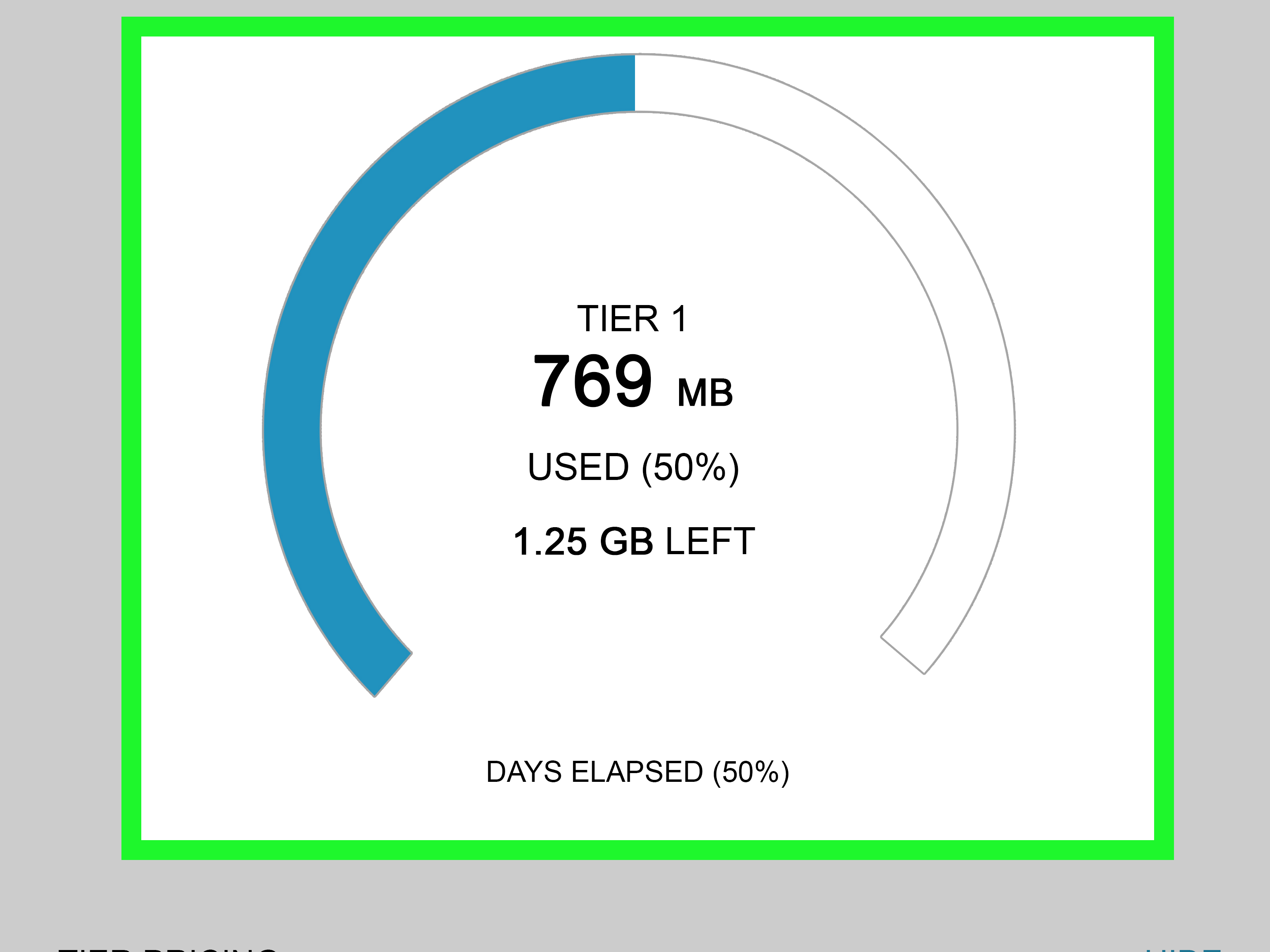
If you are trying to check your account balance on a Virgin Mobile phone, there is one tiny detail worth knowing before you start tapping buttons like a caffeinated raccoon: Virgin Mobile USA is a legacy brand. In other words, many of the classic Virgin Mobile balance-check steps still show up in older manuals, phone guides, and setup pages, but the U.S. service itself was folded into Boost Mobile years ago. That means the “right” method depends on whether you are using an older Virgin Mobile handset for reference, reviving an old device, or trying to manage a line that was transferred to Boost.
Still, the good news is that the process is not complicated. Historically, Virgin Mobile made it pretty easy to see your remaining balance, usage, or payment status. You could usually do it from the phone itself, through your online account, or by contacting customer support. Those three routes remain the most useful way to think about the topic today.
In this guide, we will walk through the three practical ways to check your account balance on a Virgin Mobile phone, explain how each option worked, and show what former Virgin Mobile users should do now. Along the way, we will keep the instructions clear, realistic, and free of robot-sounding nonsense. Your wallet deserves clarity, not mystery theater.
Why Checking Your Balance Matters
For prepaid users, your account balance is not just a random number floating around in digital space. It tells you whether your service will keep running, whether you have enough funds for your next cycle, and whether a Top-Up or payment is about to become your next personality trait.
Checking your balance can help you:
- avoid service interruptions before your next billing date,
- confirm that a payment or Top-Up actually posted,
- track how much data, talk, or text usage you have left,
- spot account problems before they become full-scale annoyance festivals,
- figure out whether your old Virgin Mobile account now needs to be managed through Boost Mobile.
With that out of the way, let’s get into the three most useful methods.
Method 1: Check Your Balance Directly on the Phone
The classic built-in My Account or Balance option
On many older Virgin Mobile phones, the fastest way to check your account balance was right on the handset. No laptop. No browser tabs multiplying like rabbits. No hunting for forgotten passwords from a decade ago.
Depending on the model, users could open a built-in My Account or Balance menu from the main screen or main menu. Some user guides describe scrolling up from the home screen, while others mention pressing and holding a menu key or selecting Menu > Balance or Menu > My Account. Once inside, the phone would display your remaining balance, account status, or usage information.
How to do it
- Unlock the phone and go to the home screen.
- Look for a shortcut labeled My Account, Balance, or something similar.
- If there is no shortcut on the home screen, open the main menu.
- Select My Account or Balance+Usage.
- Wait for the handset to connect and display your account details.
What you might see
Depending on the device and plan, the screen could show:
- current account balance,
- remaining funds before the next refill,
- minutes or usage details,
- alerts telling you your balance is low,
- options to Top-Up immediately.
Why this method was so popular
This was the most convenient option for people using basic phones and early prepaid handsets. It did not require a separate app store download, and it was friendly to users who just wanted a quick answer. Open menu, check balance, continue with life. Beautiful.
Things to keep in mind
Older manuals also noted that while you were accessing account information, some phones temporarily disabled other functions. Incoming calls might go straight to voicemail, and repeated balance checks in one day could sometimes trigger extra charges depending on the plan terms back then. That made quick checking convenient, but not something you wanted to do fifty times a day just for fun.
Method 2: Check Your Balance Online Through Your Account
Use the web account portal or the modern Boost equivalent
The second way to check your account balance was by signing in online. Back in the Virgin Mobile USA days, users could log in at the carrier’s website using their phone number and account PIN. From there, they could review account status, add money, change plans, and manage billing details.
Today, if your old Virgin Mobile USA service was transferred, this same idea still applies, except the active account-management portal is generally handled through Boost Mobile. So if you are dealing with a former Virgin account in the U.S., you should think in terms of a modern Boost login, not a living Virgin Mobile USA site.
How to do it
- Open the browser on your phone, tablet, or computer.
- Go to the appropriate account portal for your service.
- Sign in using your phone number, username, email, or account PIN.
- Open your dashboard, billing section, or account summary page.
- Review your balance, due date, payment history, plan details, or usage.
When this method is better than checking on the phone
This option is often easier when you want more than a one-line balance readout. The web dashboard typically gives you a better view of your plan, data usage, payment due date, add-ons, and billing history. That is helpful if you are trying to solve a problem instead of just peeking at your balance and moving on.
For example, imagine your phone says you are low on funds, but you already made a payment. The online dashboard is a much better place to confirm whether the payment posted, whether AutoPay failed, or whether you are looking at an old account cycle.
What former Virgin Mobile users should do now
If you were once on Virgin Mobile USA and your line was migrated, use the current Boost Mobile account tools. Boost’s online account area and app are designed to show billing information, due dates, usage details, and payment options. So even though the article title says Virgin Mobile phone, the real-world answer for many U.S. users in 2026 is: check the balance in the Boost dashboard tied to that number.
Method 3: Call Customer Care or Use Account Support From the Phone
The voice option for people who prefer humans, menus, or both
The third way to check your balance is old-school but effective: call customer care or use support access from the phone. Historical Virgin Mobile materials point users to Virgin Mobile Care and built-in account tools, and some devices also provided direct support shortcuts from the home screen.
This method is especially useful when:
- the phone menu is not loading,
- you forgot your web login,
- the account information looks wrong,
- your device is old enough to remember flip phones as “the future,”
- you just want a real person or automated system to confirm your balance.
How to do it
- Open the Phone app or dialer.
- Call the carrier’s support number or use the support shortcut shown on the device.
- Follow the automated prompts for account balance, billing, or usage.
- If needed, speak to a representative for account verification and help.
Why this still matters
Sometimes the simplest fix is not the flashiest one. If your phone will not sign into the account page, if your password reset is not working, or if your balance and usage do not seem to match reality, support can usually tell you what is happening faster than a guessing game.
For former Virgin Mobile customers, the same logic applies with Boost Mobile support today. A quick call can clarify whether the number was migrated, whether the account is active, and where the balance or due date is now displayed.
Which Method Is Best?
The best method depends on what you need.
Use the phone menu if:
- you want the quickest possible answer,
- you are using an older Virgin Mobile handset,
- you only need basic balance information.
Use the web portal or app if:
- you want full billing details,
- you need to confirm usage or payment history,
- your account is now handled through Boost Mobile.
Use customer support if:
- you are locked out of the account,
- the phone menu is broken,
- you suspect a payment, transfer, or billing issue.
Common Problems When Checking a Virgin Mobile Balance
The phone says “invalid” or won’t load account details
This can happen on older devices, especially if the original Virgin Mobile USA service is no longer active for that line. In that case, the account feature may fail because the legacy network path is gone.
You cannot log in online
Try the current carrier portal associated with the number. If the account was moved to Boost Mobile, a Virgin Mobile USA login page may not be the correct destination anymore.
Your balance looks wrong
Check payment history, AutoPay status, due date, and usage details. If something still looks off, contact support instead of assuming your phone has entered a dramatic phase.
You have an old Virgin Mobile handset and aren’t sure what still works
Some legacy screens and menus may still appear on the device, but that does not always mean the old backend service is active. Think of it like finding a vending machine from 2008: the buttons may still exist, but the snack situation is not guaranteed.
Real-World Tips for Former Virgin Mobile Users
- Keep your phone number, account PIN, and billing ZIP code handy before checking your balance online or by phone.
- If your line was transferred, look for account information under Boost Mobile rather than Virgin Mobile USA.
- Use the app or website when you need details; use the built-in menu when you want speed.
- Take a screenshot of your balance or due date after checking, especially if service is close to renewal.
- Do not rely on a single old instruction from a device manual without confirming the current carrier situation.
Experience Section: What Checking Your Balance Feels Like in Real Life
Checking your account balance on a Virgin Mobile phone sounds simple, and in many cases it is. But the real-life experience depends a lot on what kind of user you are and what kind of phone you have in your hand.
If you were the classic prepaid user, balance checking probably became a habit. You would glance at your remaining funds the same way other people check the weather, their coffee level, or whether they still have enough patience to sit through a long customer-service menu. A quick visit to My Account could tell you whether you were fine for another week or whether it was time to Top-Up before your phone turned into a very expensive alarm clock.
For users with older flip phones or entry-level devices, the built-in balance feature was honestly a lifesaver. It was fast, direct, and did not require an app update, a fancy operating system, or strong mobile data. That made it especially useful for students, budget-conscious families, and anyone who wanted simple service without a monthly surprise. There was something strangely satisfying about opening a tiny prepaid menu and getting a straight answer.
Then there were the moments when balance checking became part of a mini household drama. Maybe a parent wanted to know whether a teenager had burned through data. Maybe a traveler wanted to make sure the phone would stay active during a weekend trip. Maybe someone had just added money and needed proof that the account finally caught up with reality. In those cases, checking the balance was less about curiosity and more about peace of mind.
Of course, not every experience was smooth. Older users sometimes ran into confusing screens, forgotten account PINs, or menus that looked helpful but acted like moody houseplants. When that happened, the online account portal was the better option, because it gave a wider picture of what was actually going on. You could see usage, billing, payment status, and plan details in one place instead of playing detective with a tiny handset screen.
And now, for people who used to be on Virgin Mobile USA, the experience includes one extra twist: understanding that the brand changed. That can be confusing at first. You may search for Virgin Mobile instructions, find an old guide, and then realize your live account is actually managed somewhere else. Once you know that many former U.S. accounts moved to Boost Mobile, the confusion drops dramatically. Suddenly, the mystery is gone, and your balance is just another item on a dashboard.
The biggest lesson from all of this is simple: the easiest balance-check method is the one that matches your situation today, not the one that happened to be printed in a ten-year-old manual. If you have a legacy phone, use the on-device menu if it still works. If the number was migrated, use the modern account portal or app. If everything looks weird, call support and let a human help untangle the spaghetti.
That may not sound glamorous, but it is practical. And when it comes to prepaid service, practical is king. Nobody wakes up hoping for an exciting account-balance adventure. They just want their phone to work, their payment to post, and their usage to make sense. Fair enough.
Conclusion
The three best ways to check your account balance on a Virgin Mobile phone are straightforward: use the phone’s built-in My Account or Balance feature, sign in through your online account, or contact customer support from the phone. Historically, those were the main ways Virgin Mobile USA users kept tabs on their service, and they remain the most sensible framework for understanding the process.
For U.S. users today, the most important update is that Virgin Mobile USA is a legacy service. So if your account was transferred, the modern place to review your balance, due date, and usage is typically through Boost Mobile. That small detail can save a lot of confusion and keep you from chasing outdated instructions around the internet like a detective in a prepaid trench coat.
Use the built-in menu for speed, the online dashboard for detail, and support when the account starts acting mysterious. Simple, practical, and much better than waiting until your service disappears at the exact moment you need it most.