Deleting a Snap on Snapchat sounds like it should be simple: tap, delete, breathe again. But Snapchat has several different places where a Snap can liveyour Story, a Chat thread, Memories, Spotlight, Snap Map, public Stories, and even location-related features. That means the right delete button depends on where the Snap is hiding. Annoying? Slightly. Manageable? Absolutely.
This guide explains how to delete a Snap on Snapchat from a Story, Chat, Memories, and Snap Map. It also clears up a few common misunderstandings, such as whether deleting a conversation deletes saved Snaps, whether friends can tell when you delete something, and why “Clear from Chat Feed” is not the same thing as deleting a Snap. Think of this as a tiny digital cleanup crew for your Snapchat lifeminus the judgmental mop.
Before You Delete: Understand Where the Snap Is
On Snapchat, the word “Snap” can mean different things depending on where it was posted or sent. A Snap in your Story is different from a Snap sent in Chat. A Snap saved in Memories is different from a Snap submitted to Snap Map. The delete process changes because each feature stores and displays content differently.
Here is the quick rule: first identify the location, then delete from that location. If the Snap is in your Story, go to your Story. If it is in a conversation, open Chat. If it is saved privately, open Memories. If it was submitted publicly to Snap Map or Spotlight, check your Profile or Settings area for “Spotlight & Snap Map.”
How to Delete a Snap from Your Snapchat Story
Deleting a Snap from your Story is one of the most common Snapchat cleanup moves. Maybe you posted the wrong selfie, forgot to crop out your messy room, or realized your “funny” caption was only funny to you and possibly your sleep-deprived cat.
Steps to Delete a Snap from My Story
- Open Snapchat.
- Tap your Bitmoji or Story icon at the top of the Camera screen.
- Tap the Story that contains the Snap you want to remove.
- If your Story has multiple Snaps, tap through until you reach the one you want to delete.
- Swipe up on the Snap.
- Tap the trash can icon.
- Confirm by tapping “Delete.”
Once deleted, that Snap should no longer appear in your Story. If someone already viewed it before you deleted it, deletion will not erase their memory, screenshots, screen recordings, or dramatic group chat commentary. Snapchat can remove the content from your Story, but it cannot time-travel into someone’s eyeballs.
Does a Story Snap Delete Automatically?
Yes. A regular Snapchat Story typically disappears after 24 hours. Some Snapchat+ features may allow different Story timers, but deleting manually is still useful when you want the Snap gone now instead of waiting for the app to finish its little 24-hour shift.
How to Delete a Snap in Snapchat Chat
Deleting a Snap or message in Chat is a little different from deleting a Story. Chat involves at least one other person, so Snapchat may notify friends that something was deleted. This is normal. The app is basically saying, “Something happened here, but we shall not speak of it.”
Steps to Delete a Snap or Message in Chat
- Open Snapchat.
- Swipe right from the Camera screen to open the Chat screen.
- Open the conversation that contains the Snap or message.
- Press and hold the Snap, Chat message, sticker, or other item you sent.
- Tap “Delete.”
- Confirm the deletion when prompted.
After you delete something in Chat, friends in the conversation may see a notice that content was deleted. This is not a bug. It is Snapchat’s way of keeping the conversation transparent. Also, deleting a Snap in Chat does not guarantee the recipient did not already view it, screenshot it, replay it, or show it to their roommate while eating cereal.
Can You Delete a Saved Snap in Chat?
In many cases, yesif you sent it. Snapchat allows senders to delete Snaps they sent to Chat, even if those Snaps were saved in Chat. To do this, press and hold the saved Snap and choose “Delete.” This applies to Snaps you sent, not necessarily to every item saved in a conversation by someone else.
What If the Snap Was Already Opened?
If the recipient already opened the Snap, deleting it afterward may not undo the viewing. Snapchat is built around disappearing content, but “disappearing” does not mean “impossible to see.” People can still view content before you delete it. They may also use screenshots or another device to capture it. The safest Snap is still the one you would not panic about if your grandma, boss, or future self saw it.
Delete vs. Clear from Chat Feed: Important Difference
One of the biggest Snapchat mistakes is confusing “Delete” with “Clear from Chat Feed.” These two options are not twins. They are barely cousins.
Delete removes a specific Snap, message, or saved item from the conversation when Snapchat allows it. Clear from Chat Feed only removes the conversation shortcut from your Chat screen. It does not delete saved content, sent Snaps, or messages inside the thread.
How to Clear a Conversation from the Chat Feed
- Open Snapchat and tap your Profile icon.
- Tap the gear icon to open Settings.
- Go to “My Privacy & Data” or the related privacy/data section.
- Tap “Clear Conversation.”
- Select the conversation you want to clear.
Use this when you want a cleaner Chat list, not when you need to remove a specific Snap. Clearing the feed is like hiding a messy closet behind a door. Deleting a Snap is actually removing the questionable sweater from the closet.
How to Delete a Snap from Memories
Memories is Snapchat’s private storage area for saved Snaps and Stories. It is useful when you want to keep a cute photo, a travel clip, or a masterpiece of comedy involving a dog filter. But if your Memories section has become a museum of bad decisions, you can delete Snaps from there too.
Steps to Delete a Snap in Memories
- Open Snapchat.
- Swipe up from the Camera screen to open Memories.
- Find the Snap you want to delete.
- Press and hold the Snap.
- Tap “Delete.”
- Confirm that you want to remove it.
Deleting a Snap from Memories removes it from your saved Snapchat Memories. Before deleting, make sure you do not want to keep it. If the Snap is important, save it to your device’s camera roll first. Snapchat Memories are convenient, but they are not a substitute for thoughtful backups of photos you truly care about.
What About My Eyes Only?
If the Snap is stored in “My Eyes Only,” you need to enter your passcode before managing it. Once inside, you can delete Snaps much like you would in regular Memories. Be careful with your passcode. If you forget it, Snapchat may not be able to recover the hidden content without resetting that area, which can remove saved items.
How to Delete a Snap from Snap Map
Snap Map is where things get a little more public. If you submit a Snap to Snap Map, a public Story, or a location-based feature, the Snap may be visible beyond your friend list. Some Snap Map submissions can stay visible longer than a typical Story, so deleting them matters if you change your mind.
Steps to Delete a Snap Posted to Snap Map
- Open Snapchat.
- Tap your Profile icon.
- Tap the gear icon to open Settings.
- Find and tap “Spotlight & Snap Map.”
- Review the Snaps you posted publicly.
- Tap the trash can icon or press and hold the Snap and choose the delete option.
- Confirm deletion.
When you delete a Snap submitted to Snap Map, it should also be removed from related public discovery areas such as Search and Context Cards. However, if someone shared the Snap outside Snapchat before you deleted it, Snapchat may not be able to remove those outside copies. Public content is a little like glitter: once released, it may travel farther than expected.
How to Save Before Deleting from Snap Map
If you want to keep a copy before deleting a Snap from Snap Map, look for the download or save icon in the “Spotlight & Snap Map” area. Saving it to Memories first gives you a private copy before removing the public version. This is useful for travel videos, event clips, or anything you like personally but no longer want floating around publicly.
How to Delete a Snap from Spotlight
Spotlight is Snapchat’s short-form video area. If you posted a Snap to Spotlight and now regret itor simply want to refresh your public contentyou can remove it from your Profile area.
Steps to Delete a Spotlight Snap
- Open Snapchat.
- Go to your Profile.
- Scroll to “Spotlight & Snap Map.”
- Find the Spotlight Snap you want to remove.
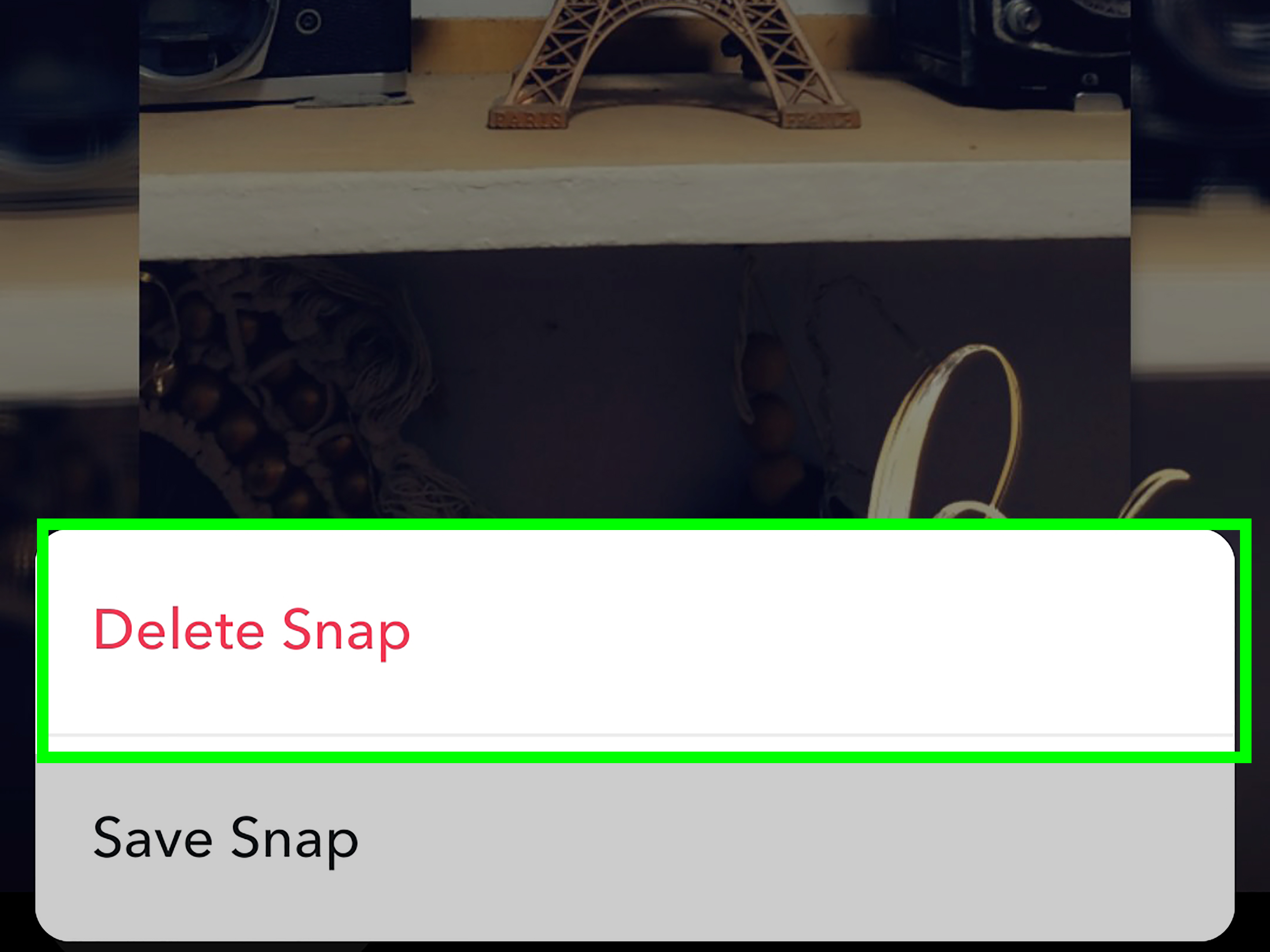
- Press and hold the Snap.
- Tap “Delete Snap.”
Remember that Spotlight content is public. Even after you delete it from Snapchat, a viewer may have shared, recorded, or copied it elsewhere. That does not mean you should avoid deleting it. It simply means deletion is a cleanup tool, not a magic eraser for the entire internet.
How to Remove Location Visibility on Snap Map
Deleting a Snap from Snap Map is not the same as hiding your live location. If your concern is location privacy, you should also review your Snap Map settings.
Use Ghost Mode
- Open Snapchat.
- Go to Snap Map.
- Tap the settings icon.
- Turn on “Ghost Mode.”
- Choose how long you want Ghost Mode to stay active.
Ghost Mode hides your location from other Snapchatters. It does not automatically delete Snaps you already submitted to Snap Map, so use both tools if needed: delete public Map Snaps and adjust location sharing.
Remove Visited Places
If your app shows a Visited Places feature, you may be able to remove individual place visits from the Map area. Press and hold a place in your visited list and choose the remove option. This helps reduce saved location history, especially if you prefer your phone not act like a tiny detective with a colorful interface.
What Snapchat Deletion Can and Cannot Do
Deleting a Snap is useful, but it has limits. A smart Snapchat privacy routine means knowing both sides.
Deletion Can Usually:
- Remove a Snap from your Story.
- Remove certain Snaps or messages you sent in Chat.
- Delete saved Snaps from Memories.
- Remove public Snaps from Snap Map, Spotlight, Search, and related discovery surfaces.
- Help clean up your profile, saved content, and public posts.
Deletion Cannot Always:
- Stop someone from seeing a Snap before you delete it.
- Erase screenshots or screen recordings taken by someone else.
- Remove copies shared outside Snapchat.
- Delete saved content that you did not send or do not control.
- Replace good judgment before posting. Tragic, but true.
Troubleshooting: Why Can’t I Delete a Snap?
If the delete option is missing, do not immediately assume Snapchat has personally betrayed you. Several things may be happening.
1. You Are Looking in the Wrong Place
A Snap posted to Story must be deleted from Story. A Snap saved in Memories must be deleted from Memories. A Snap submitted to Snap Map may need to be managed under “Spotlight & Snap Map.” Start by confirming where the Snap actually lives.
2. The Snap Was Sent by Someone Else
You generally have more control over content you created and sent. If someone else sent the Snap, your options may be limited to unsaving, hiding, reporting, blocking, or clearing the conversation from your feed.
3. Your App Is Outdated
Snapchat changes menus from time to time. If your screen does not match the steps above, update the app from the App Store or Google Play Store. After updating, close and reopen Snapchat.
4. The Snap Already Expired
If a Snap disappeared automatically, there may be nothing left to delete. In that case, check whether it was saved in Chat, Memories, Story archives, Spotlight, or Snap Map.
5. You Cleared the Chat Feed Instead of Deleting the Snap
If you cleared a conversation but still see saved content later, that is expected. Clearing the feed removes the chat from your list; it does not delete the actual saved Snaps or messages.
Best Practices Before Posting or Sending a Snap
The easiest Snap to delete is the one you never regret posting. Before sending or sharing, take three seconds to check the content, audience, and location settings. Three seconds is less time than it takes to panic-text “DO NOT OPEN THAT.”
Use This Quick Checklist
- Check the recipient: Make sure you are sending it to the right friend or group.
- Review the background: Look for addresses, documents, license plates, school names, or anything private.
- Think about screenshots: Assume anything important can be captured.
- Use private sharing carefully: “Friends only” is safer than public posting, but it is not the same as total privacy.
- Save intentionally: Keep meaningful Snaps in Memories or your camera roll, and delete clutter regularly.
- Review Snap Map: Public and location-based posts deserve extra caution.
Privacy Tips After Deleting a Snap
After deleting a Snap, take a moment to improve your Snapchat privacy settings. Set Story visibility to the audience you actually want. Review who can contact you. Turn on Ghost Mode if location sharing makes you uncomfortable. Check public content under Spotlight and Snap Map. And if a Snap involved sensitive personal information, consider changing related passwords, blocking users, or reporting misuse.
For younger users, parents and guardians should talk openly about Snap Map, screenshots, public posts, and location sharing. Snapchat can be fun, creative, and social, but the delete button should not be treated as a safety net for everything. It is more like a seatbelt: helpful, important, and much better when used with common sense.
Real-Life Experiences: What Deleting Snaps Actually Feels Like
Anyone who has used Snapchat long enough has probably had a “delete it, delete it now” moment. Maybe you posted a Story meant for close friends but forgot your coworker, cousin, and one mysterious person from high school still watch everything. Maybe you sent a Snap to the wrong Alex. There are always too many Alexes. Or maybe you submitted a cute city video to Snap Map, then realized your apartment building was visible in the corner. That tiny detail can turn a fun post into a privacy concern.
One common experience is deleting a Story right after posting. This usually feels simple and satisfying. You open your profile, tap the Story, swipe up, hit the trash can, and suddenly the world feels slightly less chaotic. The lesson is immediate: review before posting. Snapchat moves fast, but your thumb can move too fast. A caption that seemed hilarious at midnight may feel like a public relations incident by breakfast.
Deleting in Chat can feel more awkward because of the deletion notice. You might remove a message, but the other person can still see that something was deleted. This creates the classic Snapchat social puzzle: is the deletion less embarrassing than the original message? Sometimes yes. Sometimes the notice becomes its own tiny drama. Still, deleting is worth it when the Snap includes private information, the wrong context, or something you simply no longer want sitting in the conversation.
Memories cleanup is a different kind of experience. It is less urgent and more nostalgic. You scroll through old saved Snaps and rediscover vacations, bad haircuts, blurry concerts, and screenshots of jokes that no longer make sense. Deleting from Memories can feel like cleaning a digital attic. You keep the good stuff, remove duplicates, and wonder why you saved 19 nearly identical photos of iced coffee. The best approach is to save meaningful photos to your camera roll or cloud storage before deleting anything from Memories.
Snap Map deletion is the most privacy-focused experience. Public posts can travel beyond your usual audience, so removing a Map Snap feels less like tidying and more like locking a door. If you share public content often, it is smart to check “Spotlight & Snap Map” regularly. You may find posts you forgot about, especially event clips or travel Snaps. Deleting old public Snaps can make your Snapchat presence feel cleaner and safer.
The biggest lesson from all of these experiences is that Snapchat deletion is useful, but timing matters. The faster you delete, the better your chances of limiting views. But deletion is never a perfect undo button. People may have already watched, saved, screenshotted, or shared the content. That is why the healthiest Snapchat habit is a mix of quick cleanup, careful posting, and privacy settings that match your real comfort level.
In everyday use, deleting a Snap is not about being paranoid. It is about staying in control. Social apps encourage instant sharing, but your privacy deserves a pause button. Whether you are removing a Story, cleaning a Chat, clearing Memories, or pulling a public post from Snap Map, the delete option gives you a way to correct, organize, and protect your digital space. And honestly, everyone deserves a little grace when their thumb posts faster than their brain.
Conclusion
Learning how to delete a Snap on Snapchat is mostly about knowing where the Snap is located. Delete Story Snaps from your Story screen, Chat Snaps from the conversation, saved Snaps from Memories, and public Snaps from the “Spotlight & Snap Map” section. Just remember that deleting content does not guarantee nobody saw it first. Screenshots, recordings, and off-platform shares can still exist.
The best strategy is simple: post carefully, delete quickly when needed, and review your privacy settings often. Snapchat is designed for fast sharing, but you are still in charge of what you save, what you post, and what you remove. A clean Snapchat account is a happier Snapchat accountand probably one with fewer “oops” moments.
Note: Snapchat menus may vary slightly by app version, device, region, and account features. Update the app first if your screen does not match the steps in this guide.