LinkedIn notifications can be useful when a recruiter sends a serious message or someone responds to your carefully polished post. They become less charming when your phone announces every work anniversary, connection update, group recommendation, job suggestion, and professional thought from a person you met once at a conference.
Fortunately, you do not have to choose between deleting LinkedIn and letting it behave like an overenthusiastic office assistant. LinkedIn provides separate controls for in-app alerts, mobile push notifications, and email messages. You can turn off an entire notification category, silence one conversation, reduce job alerts, or block every LinkedIn alert at the device level.
This guide explains how to turn off LinkedIn notifications on desktop, iPhone, Android, and mobile browsers. It also covers email alerts, messages, groups, job recommendations, browser pop-ups, and notifications that refuse to take a hint.
Quick Answer: How to Turn Off LinkedIn Notifications
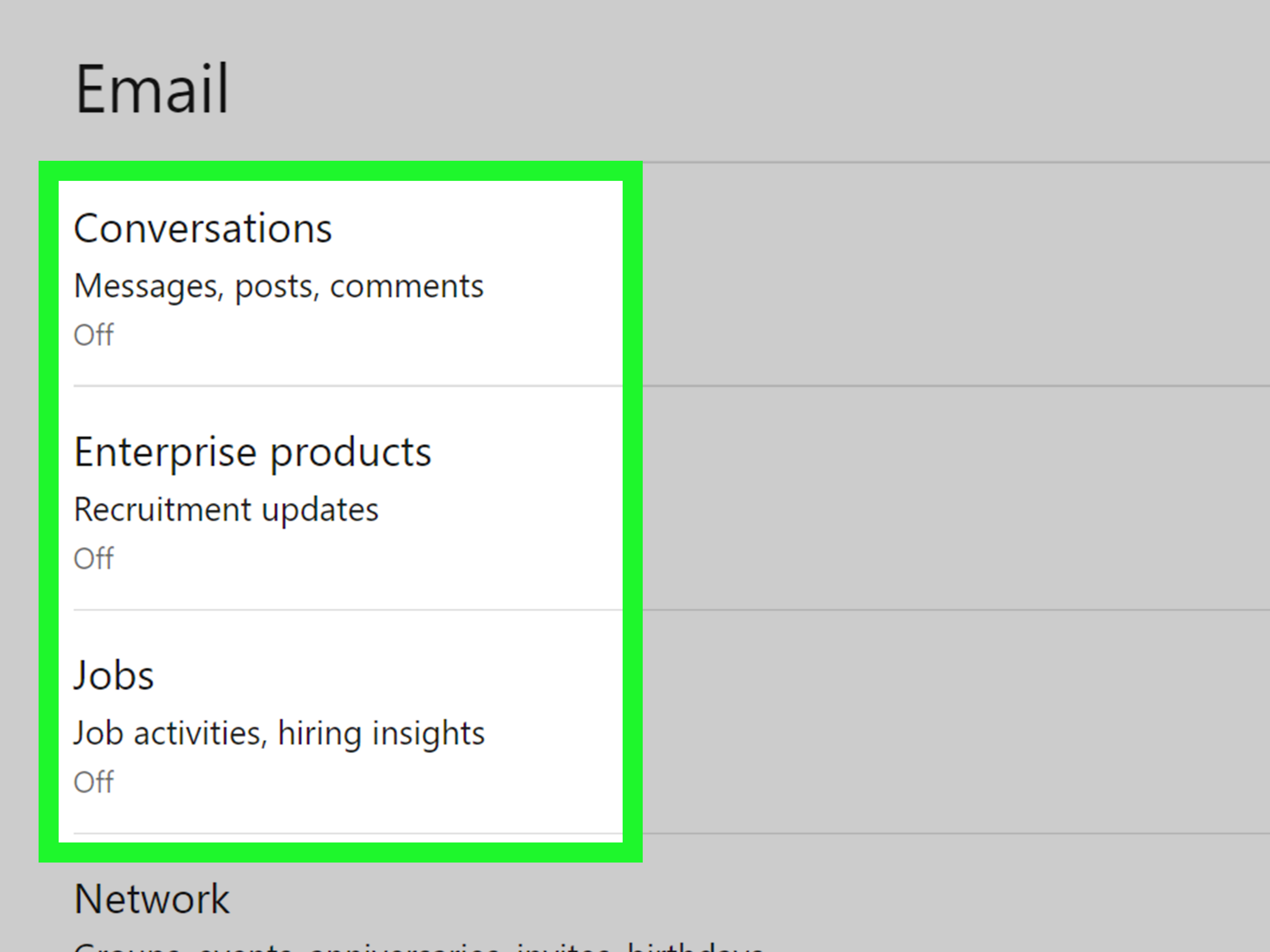
On a desktop computer, open LinkedIn and select Me > Settings & Privacy > Notifications. Choose a notification category, open the specific alert type, and turn off the channels you no longer want.
In the LinkedIn mobile app, tap your profile picture, open Settings, and select Notifications. Choose a category and disable its push, email, or in-app options.
To stop every mobile push alert immediately, use your phone’s system settings:
- iPhone: Settings > Apps > LinkedIn > Notifications > turn off Allow Notifications.
- Android: Settings > Notifications > App notifications > LinkedIn > turn notifications off.
Blocking notifications through your phone stops banners, sounds, lock-screen alerts, and notification-center entries. It does not necessarily stop LinkedIn emails or remove alerts displayed inside LinkedIn itself.
Understand the Three Types of LinkedIn Notifications
Before flipping switches like you are shutting down a spaceship, it helps to know where LinkedIn notifications come from. LinkedIn generally communicates through three separate channels.
In-App Notifications
These appear inside LinkedIn, including under the Notifications, Messaging, Jobs, and My Network areas. Turning off phone notifications does not automatically remove these alerts because they live inside your LinkedIn account.
Push Notifications
Push notifications appear on your phone or tablet even when LinkedIn is not open. They may include connection requests, new messages, reactions, job suggestions, group activity, or network updates.
Email Notifications
LinkedIn can send alerts to the primary email address associated with your account. Email preferences are managed separately, so silencing the mobile app may still leave your inbox hosting a daily LinkedIn convention.
How to Turn Off LinkedIn Notifications on Desktop
The desktop settings page offers the most comfortable way to review multiple notification categories. It is particularly useful when you want to reduce alerts without turning everything off.
Change Notifications Through Settings
- Sign in to LinkedIn using a desktop web browser.
- Click the Me icon or your profile picture near the top of the page.
- Select Settings & Privacy.
- Click Notifications in the settings menu.
- Under the notifications you receive, select a category.
- Open the specific type of update you want to change.
- Turn off the available In-app, Push, or Email option.
Changes are usually saved automatically. LinkedIn may organize alerts into categories such as connecting with others, jobs and opportunities, posting and commenting, messaging, network updates, groups, events, Pages, and news.
Turn Off One Notification Directly
You do not always need to dig through the full settings menu. LinkedIn allows you to manage many alerts from the Notifications page itself.
- Click the Notifications icon on the LinkedIn homepage.
- Find an unwanted notification.
- Click the three-dot More icon beside it.
- Select Turn off or Change notification preferences.
The available command depends on the notification. You may be able to stop alerts about a particular person, post, thread, work anniversary, job change, or entire type of update.
Deleting Is Not the Same as Turning Off
Selecting Delete removes an existing alert from your notification list. It does not necessarily prevent similar alerts from arriving later. Select Turn off or change the notification preference when you want lasting peace rather than temporary tidiness.
How to Turn Off LinkedIn Notifications in the Mobile App
The steps are similar on iPhone and Android, although icons may move slightly after an app update.
- Open the LinkedIn app.
- Tap your profile picture in the upper-left corner.
- Tap Settings.
- Select Notifications.
- Choose a notification category.
- Open the specific type of notification you want to manage.
- Turn off push notifications, email alerts, or other available channels.
You can also manage an alert directly from the mobile Notifications tab. Tap the three-dot icon beside the alert and choose Change notification preferences, Turn off, or a similar option.
This direct method is useful when one repeated notification is bothering you but you do not know which settings category contains it. Let the annoying alert lead you directly to its own eviction notice.
How to Block All LinkedIn Notifications on iPhone
LinkedIn’s internal settings provide precise controls. The iPhone settings provide the large red emergency button, metaphorically speaking.
- Open the iPhone Settings app.
- Tap Apps.
- Find and select LinkedIn.
- Tap Notifications.
- Turn off Allow Notifications.
On some iOS versions, the path may appear as Settings > Notifications > LinkedIn.
If you do not want total silence, keep Allow Notifications enabled and customize the individual options. For example, you can disable sounds and lock-screen alerts while keeping quiet entries in Notification Center. You may also remove badges if the little red number makes you feel as though you have failed a professional exam.
How to Block All LinkedIn Notifications on Android
Android menu names vary among Google Pixel, Samsung Galaxy, Motorola, and other devices, but the general process is consistent.
- Open your phone’s Settings app.
- Tap Notifications.
- Select App notifications or Recently sent.
- Find and tap LinkedIn.
- Turn off all LinkedIn notifications or disable individual notification categories.
An alternative route is Settings > Apps > LinkedIn > Notifications.
Many Android phones provide notification channels. These may let you silence selected types of LinkedIn alerts without blocking everything. The categories available depend on your phone, Android version, and LinkedIn app version.
Use an Incoming Notification as a Shortcut
When a LinkedIn notification appears, press and hold it. Android may display options to silence that category, change its settings, or turn it off. This is often faster than searching through several menus while wondering why every phone manufacturer named the same setting differently.
How to Turn Off LinkedIn Email Notifications
Stopping push alerts will not stop email. To reduce LinkedIn messages in your inbox, update the email channel within LinkedIn.
- Open LinkedIn and go to Settings & Privacy.
- Select Notifications.
- Choose the relevant notification category.
- Open a specific notification type.
- Turn off the Email option.
- If available, change the frequency instead of disabling the email completely.
LinkedIn may offer frequency choices for certain messages. A weekly summary can be a reasonable compromise when immediate emails are unnecessary but you still want an occasional overview.
Can You Use the Unsubscribe Link?
Many LinkedIn emails include an unsubscribe or preference link near the bottom. That link can take you to the relevant settings page. However, unsubscribing from one email category does not automatically disable every LinkedIn email.
Account security messages, privacy notices, purchase receipts, and other essential service communications may continue even after promotional or activity-based emails are disabled.
How to Turn Off LinkedIn Job Alerts
Job alerts deserve separate attention because they may be delivered through both email and app notifications.
On Desktop
- Click the Jobs icon.
- Open Preferences.
- Select Job alerts.
- Edit or delete the alert you no longer need.
- Adjust its frequency and delivery methods when those options are available.
On Mobile
- Tap Jobs.
- Open the additional options or preferences menu.
- Select Job alerts.
- Tap the edit icon beside an alert.
- Edit its settings or delete it.
Deleting an old search alert is often better than merely muting it. For example, if you are no longer looking for an “entry-level senior director” position 900 miles away, there is little reason to keep that search alive.
How to Mute LinkedIn Message Notifications
You can mute one conversation without disabling every LinkedIn message alert.
Mute a Conversation on Desktop
- Open Messaging.
- Select the conversation.
- Click the three-dot More icon in the conversation window.
- Select Mute.
Mute a Conversation on Mobile
- Open Messaging.
- Swipe left on the conversation.
- Tap More.
- Select Mute.
Muting can stop notifications for new messages, reactions, and mentions in that thread while preserving the conversation. You can return to the same menu later and select Unmute.
Control a LinkedIn Group Chat
In supported mobile app versions, open the group chat, tap the three-dot menu, and select Notification settings. You may be able to choose:
- All activity for every message.
- Only mentions when someone directly tags you.
- Mute notifications for complete silence.
Only mentions is often the most practical option. It keeps you reachable without forcing your phone to report every “Thanks!” and thumbs-up reaction.
How to Reduce LinkedIn Group Notifications
LinkedIn groups can generate invitations, recommendations, administrator announcements, and post updates. To manage these alerts, go to Settings > Notifications > Groups and turn off the categories you do not need.
You can also adjust notifications for an individual group:
- Open the LinkedIn group.
- Select the notification or bell icon near the group name.
- Choose All new posts, Highlights, or No new posts.
- Save the preference if prompted.
Highlights is a useful middle setting. No new posts is better for a group you want to remain in without receiving a breaking-news alert every time someone shares a webinar.
How to Stop LinkedIn Browser Notifications
If alerts appear in the corner of your computer even when you are not actively viewing LinkedIn, your browser may have permission to display website notifications. Changing LinkedIn’s internal settings may not be enough; you may also need to revoke the browser permission.
Block LinkedIn Notifications in Google Chrome
- Open Chrome.
- Click the three-dot menu and select Settings.
- Choose Privacy and security.
- Open Site settings.
- Select Notifications.
- Find LinkedIn under sites allowed to send notifications.
- Change its permission to Block or remove the permission.
You can also open LinkedIn, click the site-information icon beside the address bar, and change the notification permission for that site.
Block LinkedIn Notifications in Firefox
- Open the Firefox menu and select Settings.
- Choose Privacy & Security.
- Scroll to the Permissions section.
- Click Settings beside Notifications.
- Find LinkedIn.
- Set its status to Block or remove the website permission.
- Save your changes.
Removing the permission allows LinkedIn to ask again later. Selecting Block generally prevents the site from immediately requesting notification access again.
What to Do When LinkedIn Notifications Will Not Turn Off
Notification controls occasionally become stuck or appear to ignore a saved preference. Work through these checks before launching your phone into a decorative fountain.
Confirm the Correct Delivery Channel
Check whether the unwanted alert is an in-app notification, push notification, browser alert, or email. Turning off one channel does not automatically disable the others.
Toggle the Setting Off and On Again
Open the relevant LinkedIn notification category. Change the setting, wait briefly, and return it to your preferred position. This can refresh a preference that did not synchronize correctly.
Check the Phone’s App Permissions
Even when a LinkedIn category is enabled, iOS or Android can block its delivery. The reverse can also create confusion: LinkedIn may stop one category while the operating system continues allowing other categories.
Update and Restart the App
Install the latest LinkedIn app update, close the app completely, and restart your phone. If the problem continues, sign out and sign back in.
Reinstall LinkedIn
As a final app-level step, uninstall and reinstall LinkedIn. Review the notification permission prompt carefully when reopening the app rather than tapping Allow with the reflexes of someone dismissing a cookie banner.
Allow In-App Alerts When Troubleshooting Push Alerts
Some LinkedIn push settings depend on the related in-app notification being enabled. If you are trying to restore an important push alert, verify both the in-app and push controls for that category.
A Practical Notification Setup That Preserves Important Alerts
Turning off everything is fast, but selective control is usually more useful. A practical setup might keep direct messages, connection invitations, mentions, comments on your posts, and highly relevant job alerts while disabling birthdays, work anniversaries, general news, group recommendations, network activity, and promotional emails.
Start by asking one question about each category: Would I take action on this notification today? If the answer is no, the alert probably does not need to interrupt you in real time.
For lower-priority information, use weekly email summaries or in-app notifications. Reserve push notifications for events that genuinely require attention. Your lock screen is expensive mental real estate; it does not need to become a scrolling résumé convention.
Experience Report: What Happens After Cleaning Up LinkedIn Notifications
A realistic LinkedIn notification cleanup usually begins with the intention to turn off one annoying alert. Ten minutes later, the user discovers that the platform has been communicating through several separate channels. The phone is producing push notifications, the browser is displaying desktop alerts, the inbox is receiving summaries, and LinkedIn itself still has a red notification badge. The first useful lesson is that “LinkedIn notifications” are not one setting.
Consider a common scenario involving a professional who uses LinkedIn for networking and job research. The account receives useful recruiter messages, but those messages are buried among work anniversaries, suggested posts, group recommendations, connection activity, course promotions, and jobs located several states away. Blocking every alert would solve the noise problem, but it could also delay a valuable opportunity.
The more effective approach is to start with the loudest channel: mobile push notifications. The user opens LinkedIn’s notification settings and disables general network updates, birthdays, anniversaries, recommendations, news, and promotional activity. Direct messages, mentions, comments, and a small number of relevant job alerts remain enabled.
The immediate result is noticeable. The phone stops lighting up throughout the workday, yet important messages still arrive. That difference matters because frequent alerts do more than make noise. Each notification creates a tiny decision: open it, dismiss it, remember it, or feel vaguely guilty about ignoring it. Removing low-value alerts reduces those decisions.
The next surprise often appears in the email inbox. Even though the phone is quiet, LinkedIn continues sending job summaries and network updates. The user returns to the notification settings and turns off the email channel for categories that no longer deserve inbox space. A weekly summary is kept for one job search, while outdated search alerts are deleted completely.
Browser notifications may require a third round of cleanup. If LinkedIn was previously allowed to send website alerts through Chrome or Firefox, desktop pop-ups can continue independently of the mobile app. Revoking the browser’s site permission finally creates consistent behavior across devices.
Message conversations present a different challenge. A busy group chat may be useful, but receiving a notification for every reply is unnecessary. Switching the chat from all activity to only mentions allows the user to remain available without monitoring every exchange. For one-to-one conversations that are no longer urgent, muting the thread produces the same benefit without deleting the conversation.
After several days, the best measure of success is not the total number of disabled settings. It is whether the remaining alerts feel meaningful. When the phone displays a LinkedIn notification, the user should have a reasonable expectation that it involves a direct message, a response, a mention, or another event worth checking.
The experience also shows why a gradual cleanup works better than a notification blackout. Turning off categories individually reveals which alerts are useful and which ones were being opened only from habit. If an important update disappears, it can be restored without rebuilding every preference.
A good long-term routine is to review notification settings every few months. Old job alerts, inactive groups, completed hiring projects, and outdated professional interests tend to accumulate quietly. A five-minute review keeps LinkedIn useful without allowing it to become the digital equivalent of a colleague who schedules a meeting for every thought.
Conclusion
To turn off LinkedIn notifications, begin with Settings & Privacy > Notifications on desktop or Profile picture > Settings > Notifications in the mobile app. Adjust each category and choose whether to disable its in-app, push, or email delivery.
For immediate silence, block LinkedIn through the notification settings on your iPhone or Android device. Then review email preferences, browser permissions, job alerts, groups, and message conversations to catch any remaining sources.
The goal does not have to be complete silence. A carefully trimmed notification setup can preserve recruiter messages, direct replies, and relevant opportunities while removing the stream of updates that turns professional networking into professional whack-a-mole.