When Life360 stops updating location, it can turn a perfectly normal afternoon into a full-blown family detective movie. One person swears they are “literally in the driveway,” another person sees them frozen at a gas station from 47 minutes ago, and suddenly everyone is acting like the app has betrayed civilization.
The good news is that most Life360 location problems are not mysterious. In most cases, the issue comes down to one of a few usual suspects: location permissions, battery-saving settings, weak signal, background restrictions, or an app that simply needs a refresh. In other words, your phone is usually the drama queen here, not Life360 itself.
This guide breaks down 10 simple fixes to help when Life360 is not updating location. You will also learn why the problem happens, how to tell whether it is your phone or someone else’s, and what to do before you start blaming the app, the Wi-Fi, or Mercury in retrograde.
Why Life360 Stops Updating Location in the First Place
If your Life360 location is stuck, delayed, or flat-out wrong, the issue usually falls into one of these buckets:
- Location permission is too limited, such as “While Using the App” instead of background access.
- Precise location or high-accuracy mode is off, which makes your phone guess instead of know.
- Battery saver is interfering, because phones love “helping” by shutting down background activity.
- Background app refresh or background data is blocked, so Life360 cannot report regularly.
- Wi-Fi, mobile data, or GPS signal is weak, especially indoors, underground, or in rural areas.
- The app needs a refresh, or the device needs a quick restart.
- The other person’s phone is the real problem, which is always a fun twist.
A stale location does not always mean the person is hiding something dramatic. Sometimes it simply means the phone is in low power mode, the app was background-restricted, or the signal got lousy in a parking garage. Technology is amazing right up until it is not.
10 Simple Fixes for Life360 Not Updating Location
1. Check Life360 Location Permission First
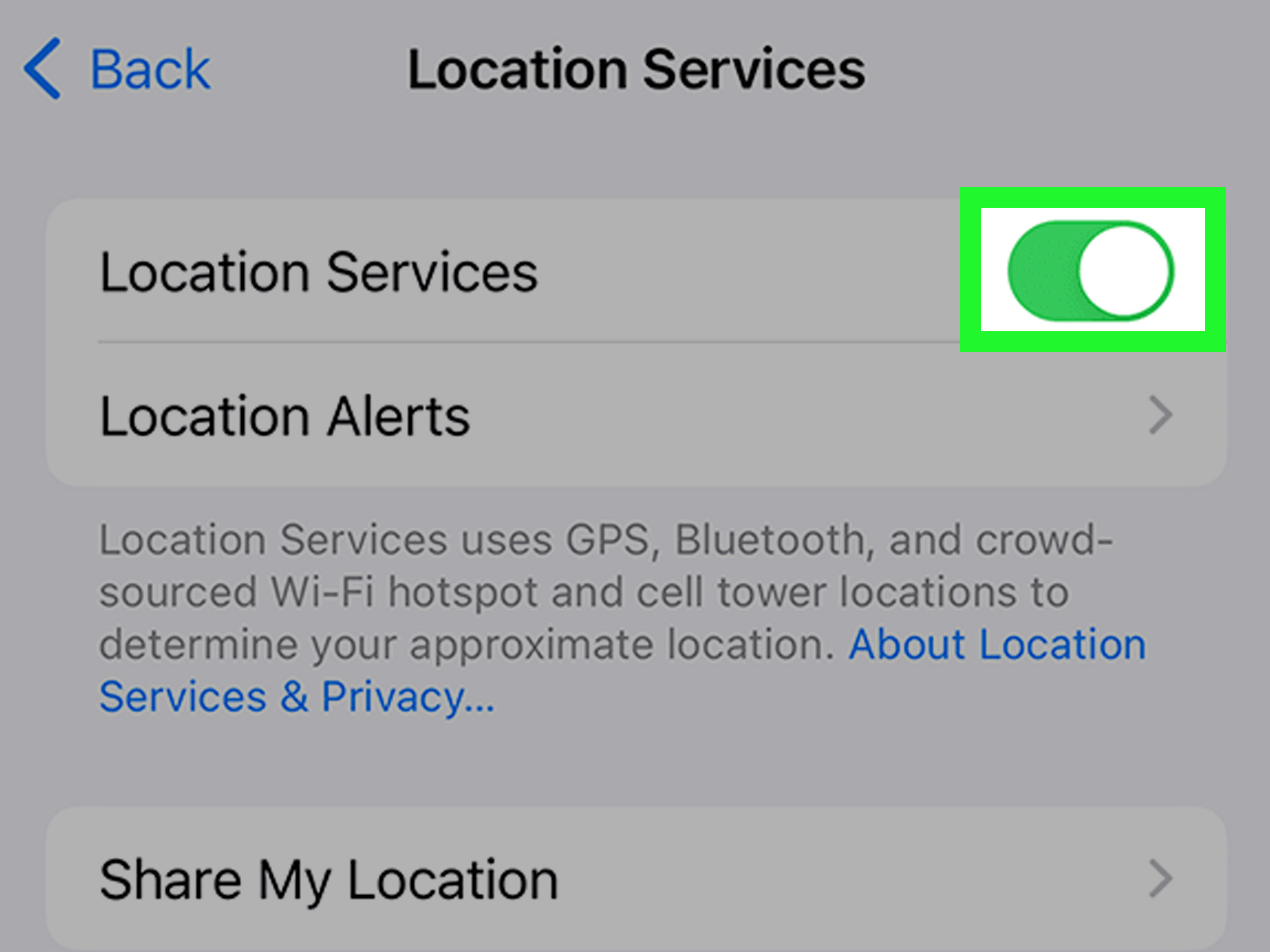
This is the big one. If Life360 does not have full location access, it cannot reliably update in the background. On iPhone, the app generally works best when Location is set to Always and Precise Location is turned on. On Android, you want Allow all the time plus precise location enabled if your phone offers that option.
If the permission is set to Ask Next Time, Only While Using, or anything similarly stingy, your phone may stop reporting your location once the app is no longer on screen. That is great for privacy in some situations, but terrible when you are trying to share real-time location with family members.
2. Turn On Precise Location or High Accuracy Mode
If Life360 is updating, but the location looks wrong, vague, or delayed, your phone may be using a lower-accuracy method. That usually means it is relying too heavily on rough network estimates instead of a stronger mix of GPS, Wi-Fi, Bluetooth, and sensors.
On iPhone, check that Precise Location is enabled for Life360. On Android, turn on the highest accuracy location setting available and enable helpful scanning features when available. This matters a lot in apartment buildings, malls, schools, and other places where GPS alone can get confused and start making bad decisions.
3. Disable Battery Saver, Low Power Mode, or App Optimization
Battery-saving tools are wonderful until they decide your location-sharing app is a luxury item. If your phone is in Low Power Mode, Power Saving Mode, or has aggressive app optimization turned on, Life360 may update less often or stop working properly in the background.
On Android, set Life360’s battery usage to Unrestricted if that option exists. On iPhone, turn off Low Power Mode while troubleshooting. Yes, this may use a little more battery, but that is the trade-off for accurate location sharing. You cannot ask a phone to save every drop of battery and also behave like a 24/7 mission control center.
4. Allow Background App Refresh or Background Data
Life360 needs permission to stay useful even when you are not staring at it. If background activity is blocked, the app may only update when you open it manually. That is less “live location” and more “surprise postcard from 20 minutes ago.”
On iPhone, make sure Background App Refresh is enabled. On Android, check that background data is allowed and that the app is not restricted when running in the background. This setting is often buried in battery or app management menus, where phones hide the important stuff like a mischievous raccoon.
5. Make Sure Wi-Fi, Mobile Data, and GPS Are Actually Working
Life360 cannot send what your phone cannot find. If Wi-Fi is weak, mobile data is flaky, GPS is struggling, or Airplane Mode is on, location updates may freeze or become wildly inaccurate.
Try toggling Airplane Mode off, reconnecting to Wi-Fi, or switching briefly between Wi-Fi and cellular data to test the connection. If you are indoors, move near a window or step outside. GPS works best with a clearer view of the sky, which is unfortunate for anyone currently inside a giant concrete building or a parking garage that looks like a bunker.
6. Refresh the App and Restart the Phone
Sometimes Life360 is not broken. It is just tired. A simple refresh can wake it up. Open the app, pull to refresh if available, check the map again, and then fully close and reopen the app.
If that does not help, restart the phone. This clears temporary glitches, reconnects services, and gives your device a chance to remember that it is supposed to be helping you. It is the classic tech solution because, annoyingly, it works a lot of the time.
7. Update Life360 and Your Phone’s Software
Old app versions and outdated system software can cause weird behavior, especially after an operating system update changes how permissions or background activity are handled. Check for updates in the App Store or Google Play, and install any pending system updates too.
This is especially important if Life360 stopped updating right after your phone updated, or right after you changed devices. New software sometimes resets permission settings, tweaks battery rules, or quietly disables things you definitely did not mean to disable.
8. Log Out and Back In if the App Seems Stuck
If the location has gone stale and nothing else is working, try logging out of Life360 and logging back in. In some cases, this helps re-establish the app’s connection and refresh account-related issues.
If you recently switched phones, logged into multiple devices, or changed something major in your account setup, a fresh sign-in can help clear network-related hiccups. It is not glamorous, but neither is watching someone appear stuck at a grocery store for an hour when they are already home eating chips.
9. Check Whether Location Sharing Is Paused or the Other Person Is Logged Out
Here is the plot twist many people miss: the problem may not be on your phone at all. Life360 location issues often happen because the other person’s device has location sharing paused, permissions turned off, battery saver on, or the user got logged out.
If one member of the circle is not updating, ask them to check their settings too. Have them confirm Location is on, Life360 has proper access, background permissions are allowed, and the app is still logged in. This saves a lot of time and prevents unnecessary blaming of innocent phones.
10. Reinstall Life360 as a Last Resort
If you have tried everything above and the app still refuses to behave, uninstalling and reinstalling Life360 may help. This can clear out corrupted app data or settings that are not obvious from the menu.
Before reinstalling, make sure you know your login details. After reinstalling, go through all permissions carefully. Do not rush through setup by tapping “Don’t Allow” ten times in a row like you are swatting flies. A fresh install only helps if you set it up correctly afterward.
How to Tell Whether the Problem Is the App, the Phone, or the Signal
If you want to troubleshoot faster, use this quick logic:
- If everyone in the circle looks normal except one person, the issue is probably on that person’s phone.
- If the location is close but not exact, the problem is usually accuracy settings or weak GPS.
- If the app updates only when opened, the issue is usually background restrictions.
- If the location is frozen for a long time, think network loss, Airplane Mode, battery saver, or logged out status.
In plain English: if Life360 seems late, your phone may be sleepy; if it seems wrong, your phone may be guessing; if it seems dead, something important is probably turned off.
Common Mistakes People Make When Fixing Life360
- They only check their own phone and forget to check the other person’s settings.
- They allow location “while using the app” and assume that is enough.
- They leave battery saver on and expect real-time tracking anyway.
- They test GPS accuracy from inside a concrete building.
- They reinstall the app before checking simple things like Airplane Mode or mobile data.
If you avoid those mistakes, you will solve the problem faster and with fewer dramatic sighs.
Real-World Experiences With Life360 Not Updating Location
One of the most common experiences people have with Life360 is seeing a family member “stuck” somewhere they clearly are not. A parent may think their teenager is still at school, while the teenager is already halfway home. A spouse may appear frozen at the gym, even though they are standing in the kitchen looking for a snack. In most of these situations, the issue is not dishonesty or bad intent. It is usually a settings problem quietly happening in the background.
A very typical example is the overnight battery saver problem. Someone turns on Low Power Mode before bed, forgets about it the next morning, and then Life360 suddenly starts behaving like it is working on a part-time contract. The app may update slowly, miss movement, or show a stale location until the phone is actively used again. People often assume the app has crashed, but the real culprit is a battery feature trying a little too hard to be “helpful.”
Another common experience happens in apartment buildings, hospitals, airports, or giant retail stores. Indoors, GPS can become less reliable, and if high-accuracy settings are not enabled, the phone may bounce between rough location estimates. That is why someone can look like they are in the parking lot, then near the road, then mysteriously inside a neighboring building. It is not magic. It is just location data having a rough day.
Road trips create a different kind of confusion. Families often notice that Life360 works beautifully on highways, then suddenly stops updating in mountain areas, rural zones, or long stretches with poor cellular service. In those situations, the phone may still know roughly where it is, but it cannot always send frequent updates. Once the device reconnects to stronger service, the location usually starts behaving again. That delay can feel dramatic in the moment, especially when someone texts, “Why are you still at the gas station?” while the other person is already two exits away.
There are also plenty of cases where the issue lives on the other person’s phone and nobody realizes it. Maybe they upgraded phones and forgot to allow “Always” location access. Maybe Android set the app to optimized battery mode. Maybe they logged out during a password reset and never logged back in. From the outside, it looks like Life360 is randomly failing. In reality, one tiny setting is doing all the damage.
The funniest experience is probably when people spend twenty minutes troubleshooting the app, only to discover Airplane Mode was on the whole time. That one deserves a small, respectful moment of silence.
The larger lesson is simple: when Life360 is not updating location, the experience usually feels bigger than the problem really is. Once you check permissions, battery restrictions, signal strength, and app status, the mystery tends to disappear. The app may not be perfect, but most of the time it is not plotting against you. Your phone is just being a little too clever for its own good.
Final Thoughts
If you have been wondering, “Why is Life360 not updating location?”, the answer is usually refreshingly boring: a setting got turned off, restricted, limited, or optimized within an inch of its life.
Start with permissions, then check precise location, battery saver, background refresh, and network signal. After that, update the app, restart the phone, and make sure the other person in your circle checks their device too. Most Life360 issues can be fixed in a few minutes once you stop treating the app like a haunted object.
In short: give Life360 the access it needs, keep your signal stable, let it run in the background, and do not let your phone “save battery” so aggressively that it forgets how to function. Problem solved, family panic avoided, snacks preserved.