Windows 10 is full of useful tools, but some of them like to hide in places that make you feel like you are searching for a secret door in a video game. Task Scheduler is one of those tools. It is powerful, practical, and already built into Windows, yet many users only discover it when a guide tells them, “Open Task Scheduler,” and then politely refuses to explain where it lives.
This guide fixes that. Whether you want to schedule a program to run automatically, check what is starting in the background, manage maintenance tasks, or simply follow troubleshooting instructions, learning how to open Task Scheduler in Windows 10 is a small skill that can save you a surprising amount of time.
Below, you will find multiple ways to launch Task Scheduler, including the Start menu, Run command, Control Panel, Computer Management, Command Prompt, PowerShell, File Explorer, and desktop shortcuts. Some methods are fast. Some are old-school. One or two feel like Windows is wearing a tiny administrator hat. All of them work.
What Is Task Scheduler in Windows 10?
Task Scheduler is a built-in Windows utility that lets the operating system and users run programs, scripts, commands, or system actions automatically. A scheduled task can run at a certain time, when you log in, when the computer starts, when the system is idle, or when a specific event occurs.
For example, Task Scheduler can help run backup scripts, start maintenance tools, launch apps, trigger Microsoft Defender scans, clean temporary files, or automate repetitive work. In short, it is Windows’ way of saying, “I can do that later so you do not have to remember.” Very considerate, for a machine that also updates itself at the worst possible moment.
Fastest Way: Open Task Scheduler from Windows Search
The easiest way to open Task Scheduler in Windows 10 is through Windows Search. This is the best method for beginners because it does not require commands, special folders, or detective work.
Steps to Open Task Scheduler Using Search
- Click the Start button or click inside the search box on the taskbar.
- Type Task Scheduler.
- Click Task Scheduler under the best match results.
That is it. The Task Scheduler window should open, showing the Task Scheduler Library on the left, task details in the center, and available actions on the right.
This method is ideal when Windows Search is working normally. If Search is slow, missing, or acting like it had too much coffee, use one of the command-based methods below.
Open Task Scheduler with the Run Command
If you like keyboard shortcuts, the Run dialog is one of the quickest ways to launch Task Scheduler. It is clean, direct, and wonderfully free of menus.
Steps to Open Task Scheduler Using Run
- Press Windows + R on your keyboard.
- Type taskschd.msc.
- Press Enter or click OK.
The command taskschd.msc opens the Microsoft Management Console file for Task Scheduler. This method is especially useful for power users, IT support, and anyone who enjoys launching Windows tools like they are entering cheat codes.
Open Task Scheduler from Control Panel
Control Panel is older than the modern Settings app, but it still contains many classic Windows tools. Task Scheduler can be reached from there, although the path takes a few more clicks.
Steps to Open Task Scheduler Through Control Panel
- Open the Start menu.
- Type Control Panel and open it.
- Set View by to Large icons or Small icons.
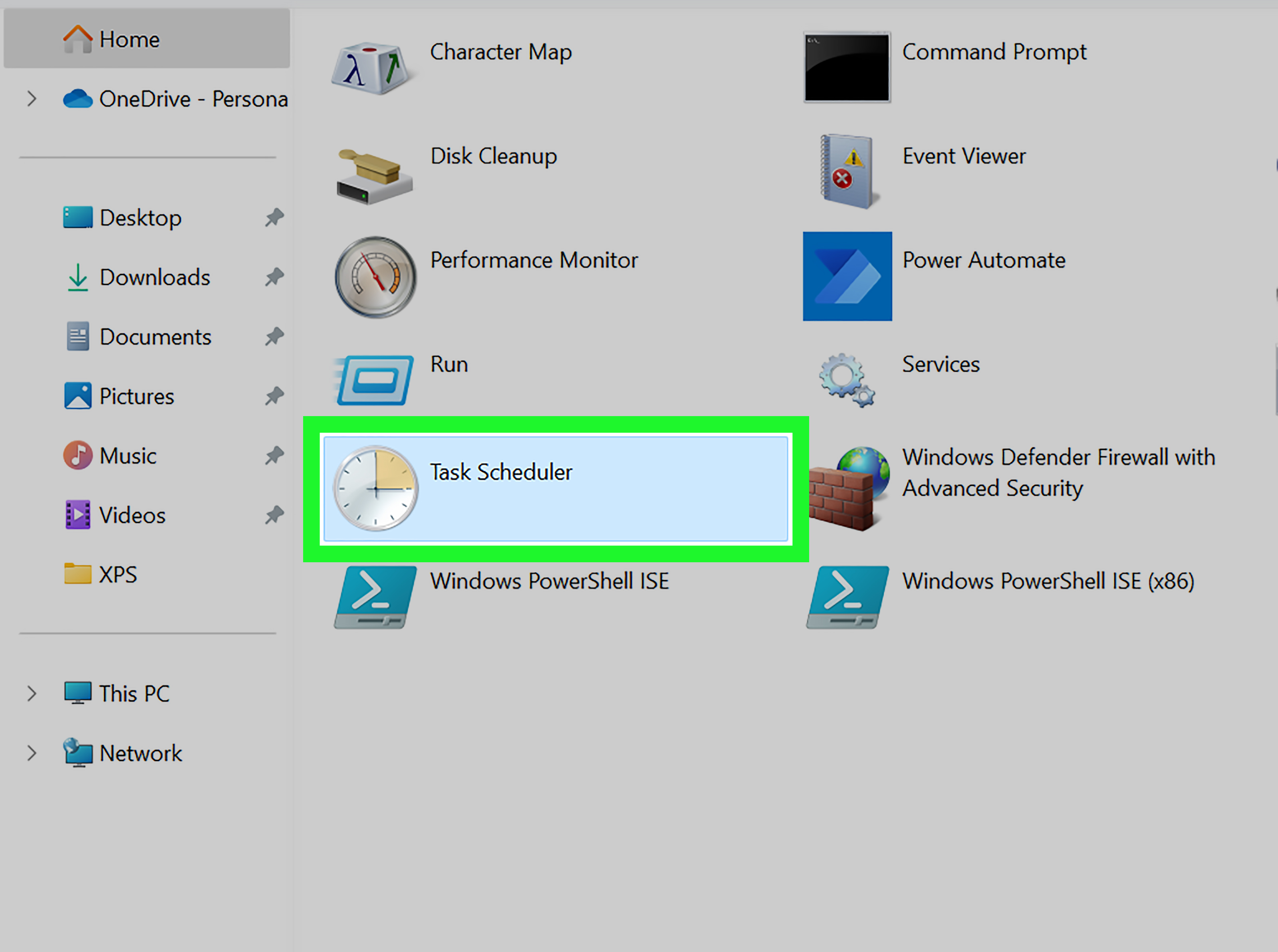
- Click Administrative Tools or Windows Administrative Tools.
- Double-click Task Scheduler.
This route is helpful if you are already browsing administrative utilities such as Event Viewer, Services, System Configuration, or Computer Management. It is not the fastest option, but it gives you a broader view of Windows management tools.
Open Task Scheduler from Computer Management
Computer Management is another built-in console that groups several administrative tools in one place. If you are managing disks, services, users, or system logs, you can also access Task Scheduler from the same window.
Steps to Open Task Scheduler in Computer Management
- Right-click the Start button.
- Select Computer Management.
- In the left pane, expand System Tools.
- Click Task Scheduler.
This method is excellent for administrators because it keeps several troubleshooting tools together. Think of Computer Management as the toolbox, and Task Scheduler as the wrench you reach for when something needs to happen automatically.
Open Task Scheduler Using Command Prompt
Command Prompt is a reliable way to open Windows utilities, especially when the Start menu is not cooperating. You do not need administrator rights just to open Task Scheduler, although some tasks may require elevated permissions to create, edit, or run.
Steps to Open Task Scheduler from Command Prompt
- Open the Start menu.
- Type cmd.
- Click Command Prompt.
- Type taskschd.msc and press Enter.
You can also use Command Prompt to work with scheduled tasks through the schtasks command. For example, advanced users can query, create, change, run, or delete scheduled tasks from the command line. However, if your goal is simply to open the graphical Task Scheduler window, taskschd.msc is the command you want.
Open Task Scheduler Using PowerShell
PowerShell is another command-line option. It is more modern than Command Prompt and often preferred by system administrators, automation fans, and people who enjoy blue windows with serious energy.
Steps to Open Task Scheduler from PowerShell
- Right-click the Start button.
- Select Windows PowerShell or Windows PowerShell (Admin).
- Type taskschd.msc.
- Press Enter.
Opening PowerShell as administrator is not required just to launch the tool, but it may help if you plan to manage tasks that require elevated privileges. Be careful when editing system tasks. Windows uses scheduled tasks for many behind-the-scenes operations, and deleting random entries is not a productivity strategy. It is more like poking a sleeping bear with a USB stick.
Open Task Scheduler from File Explorer
You can also launch Task Scheduler directly from its system location. This is useful if shortcuts are missing or you want to verify the actual console file.
Steps to Open Task Scheduler from File Explorer
- Open File Explorer.
- Go to C:\Windows\System32.
- Find taskschd.msc.
- Double-click it.
If you do not want to scroll through the System32 folder, click the address bar in File Explorer, type C:\Windows\System32\taskschd.msc, and press Enter. Windows will open Task Scheduler directly.
Create a Desktop Shortcut for Task Scheduler
If you use Task Scheduler often, creating a desktop shortcut can save time. This is a practical choice for users who manage automation tasks, run scripts, test scheduled jobs, or help maintain several Windows 10 computers.
Steps to Create a Task Scheduler Shortcut
- Right-click an empty area of the desktop.
- Select New, then choose Shortcut.
- In the location field, type taskschd.msc.
- Click Next.
- Name the shortcut Task Scheduler.
- Click Finish.
Now you can open Task Scheduler by double-clicking the shortcut. For extra convenience, right-click the shortcut and select Pin to taskbar or Pin to Start.
Open Task Scheduler from Windows Administrative Tools
Windows 10 includes a folder called Windows Administrative Tools in the Start menu. Depending on your version and layout, this folder may contain shortcuts to Task Scheduler and other system utilities.
Steps to Open It from Administrative Tools
- Click the Start button.
- Scroll through the app list.
- Open Windows Administrative Tools.
- Select Task Scheduler.
This method is easy to overlook because the Start menu can become crowded. Still, it is useful when you prefer clicking through built-in Windows folders instead of typing commands.
Which Method Should You Use?
The best method depends on your situation. For most users, Windows Search is the simplest way to open Task Scheduler. For faster access, the Run command is hard to beat. For troubleshooting, Command Prompt or PowerShell is more dependable. For administrators, Computer Management offers a convenient all-in-one workspace.
Quick Recommendation
- Beginner-friendly: Use Windows Search.
- Fastest keyboard method: Press Windows + R and type taskschd.msc.
- Best for administrators: Open it through Computer Management.
- Best for repeated use: Create a desktop or taskbar shortcut.
- Best when Search is broken: Use Command Prompt, PowerShell, or File Explorer.
What You See After Opening Task Scheduler
When Task Scheduler opens, the window may look a little intimidating at first. Do not panic. It is not judging you. The left side contains the Task Scheduler Library, where scheduled tasks are organized into folders. The middle area shows task details, status, triggers, actions, and history. The right side contains the Actions pane, where you can create, import, run, disable, or delete tasks.
Many Windows and Microsoft services create their own scheduled tasks. You may see folders for Microsoft, Windows, Office, Defender, update services, and third-party applications. This is normal. Scheduled tasks are commonly used to check for updates, run scans, perform maintenance, collect diagnostics, or launch background services.
Common Reasons to Open Task Scheduler
People usually open Task Scheduler in Windows 10 for one of several reasons. You might want to automate a program, schedule a script, troubleshoot startup behavior, disable an unwanted updater, check why a computer wakes from sleep, or confirm whether a maintenance task is running correctly.
For example, Microsoft Defender can use scheduled tasks to run scans at selected times. Software updaters may use Task Scheduler to check for new versions. Businesses often use scheduled tasks to run scripts, map drives, clean folders, or trigger reports. Home users may use it for backups, reminders, cleanup routines, or launching apps automatically.
Troubleshooting: Task Scheduler Will Not Open
If Task Scheduler does not open, try a few basic fixes before assuming Windows has joined a secret rebellion.
Try a Different Opening Method
If Search does not work, open it with Windows + R and type taskschd.msc. If that fails, try Command Prompt, PowerShell, File Explorer, or Computer Management.
Restart the Computer
A restart can fix temporary issues with Windows services, console snap-ins, or background processes. It is simple, boring, and surprisingly effective.
Check for System File Problems
If Task Scheduler shows an error such as “MMC could not create the snap-in,” Windows system files or management console settings may be damaged. Advanced users can run system repair tools such as System File Checker from an elevated Command Prompt.
Make Sure You Have Permission
Standard users may be able to open Task Scheduler but may not be able to view or change every task. To manage certain scheduled tasks, sign in with an administrator account or open the tool with elevated permissions.
Safety Tips Before Editing Scheduled Tasks
Opening Task Scheduler is safe. Editing tasks requires more care. Before changing or disabling anything, read the task name, author, trigger, and action. If the task belongs to Windows, Microsoft, security software, backup software, or device drivers, research it before making changes.
A good rule is simple: if you did not create the task and you do not know what it does, do not delete it just because it looks mysterious. Windows contains many tasks with technical names. Some sound like rejected robot villains, but they may be important for updates, diagnostics, or system maintenance.
Experience Notes: Real-World Lessons from Opening Task Scheduler in Windows 10
After using Task Scheduler on many Windows 10 machines, one practical lesson becomes clear: the fastest method is not always the best method for the situation. When everything is working normally, opening Task Scheduler through Windows Search is perfect. It is quick, clear, and easy to explain to someone over the phone. You can say, “Click Start, type Task Scheduler, and open it,” and most users can follow along without feeling like they have entered a secret IT bunker.
However, the Run command becomes the hero when Windows Search is slow, disabled, or simply not behaving. Pressing Windows + R, typing taskschd.msc, and pressing Enter is the method I trust most when troubleshooting. It avoids unnecessary menus and opens the exact console directly. If you manage multiple computers, that muscle memory becomes valuable very quickly.
Another useful habit is checking Task Scheduler through Computer Management when you are already diagnosing a broader issue. For example, if a Windows 10 computer wakes up overnight, runs unexpected update checks, or starts a program at login, Computer Management gives you nearby access to Event Viewer and Services. That combination can help you connect the dots. Task Scheduler may show what was supposed to run, Event Viewer may show what actually happened, and Services may reveal whether a required background service was available.
For everyday users, the most common surprise is how many tasks already exist. Opening Task Scheduler for the first time can feel like finding a hidden basement under your house, fully furnished by Microsoft and every app you have ever installed. This is normal. Windows uses scheduled tasks for maintenance, updates, scans, telemetry, cleanup, and system checks. Third-party programs may also add tasks for update checks or background helpers.
The biggest mistake is deleting tasks too quickly. It is tempting to remove anything unfamiliar, especially when you are trying to speed up a PC. But scheduled tasks are not automatically bad. A better approach is to inspect the task first. Check the Triggers tab to see when it runs. Check the Actions tab to see what program or script it launches. Check the History tab if task history is enabled. If the task points to software you no longer use, uninstalling that software properly is usually safer than randomly deleting the task.
For people who automate work, creating a shortcut to Task Scheduler is worth it. Pinning it to the taskbar saves time when testing scripts, backups, or startup routines. It also reduces the chance of mistyping commands. If you frequently create scheduled jobs, consider making your own folder inside Task Scheduler Library. Keeping personal or business tasks separate from Microsoft and Windows folders makes future maintenance much easier.
One final experience-based tip: always test a task manually before trusting it to run automatically. Open Task Scheduler, select the task, and use Run from the Actions pane. Then confirm the expected result. A scheduled task that looks perfect but points to the wrong file path is like an alarm clock set for the correct time in the wrong time zone. Technically impressive, practically useless.
Conclusion
Learning how to open Task Scheduler in Windows 10 is simple once you know where to look. You can launch it from Windows Search, the Run dialog, Control Panel, Computer Management, Command Prompt, PowerShell, File Explorer, or a custom shortcut. The quickest all-purpose method is usually Windows + R, then taskschd.msc, but Windows Search is the easiest for most users.
Task Scheduler is more than just another administrative tool. It is the control center for automation in Windows 10. Whether you want to schedule scans, run scripts, manage startup tasks, troubleshoot background activity, or automate routine work, knowing how to open it is the first step. Use it carefully, read before editing, and remember: automation is wonderful when it worksand hilarious when you accidentally schedule Notepad to open every morning at 6:00.