Is the Twitter appyes, the app now officially called Xquietly eating your phone storage like a raccoon in a pantry? You are not imagining it. Social media apps are excellent at collecting temporary files: photos, videos, GIFs, web pages, profile images, ads, previews, and bits of content you scrolled past once at 1:13 a.m. and never asked to keep forever.
The good news is that clearing the Twitter app cache can free up space, refresh glitchy behavior, and sometimes make the app feel less like it is running through wet cement. The even better news: you do not need to delete your account, sacrifice your memes, or become “the person who only uses social media on desktop.”
This guide explains how to clear the Twitter cache on iPhone and Android, what the cache actually does, when to clear it, what not to delete by accident, and how to keep the app from ballooning again. Think of it as spring cleaning for your phone, minus the dust bunnies and with slightly more screenshots you wish existed in real life.
What Is the Twitter App Cache?
The Twitter app cache is a collection of temporary files stored on your device to make the app load faster. Instead of downloading the same profile photos, thumbnails, videos, link previews, and web content again and again, the app saves some of that material locally. In theory, this is clever. In practice, it can turn into a digital junk drawer.
For example, when you open a post with a video, the app may temporarily save parts of that video. When you tap a news article inside the app, Twitter/X may store web data from that page. When you scroll through a media-heavy timeline, cached images and preview files can pile up quickly.
Cache is not automatically bad. It helps pages load faster, reduces repeated downloads, and makes the app feel smoother. But when it grows too large, you may notice problems such as:
- The Twitter app takes up several gigabytes of storage.
- Your phone warns that storage is almost full.
- Images, videos, or posts load slowly or appear outdated.
- The app freezes, crashes, or behaves oddly.
- Your device feels sluggish when switching between apps.
Clearing the cache removes temporary files, not your Twitter account, posts, followers, direct messages, or saved login on the platform itself. However, some optionsespecially clearing all web storage or app datacan sign you out or reset app preferences. That is why choosing the right button matters.
Before You Start: Cache vs. Data vs. Storage
Before tapping buttons like a contestant on a game show, it helps to understand three common storage terms.
Cache
Cache means temporary files. Clearing cache usually removes stored images, videos, thumbnails, and other files the app can download again later. This is the safest first step when you want to free up space.
App Data
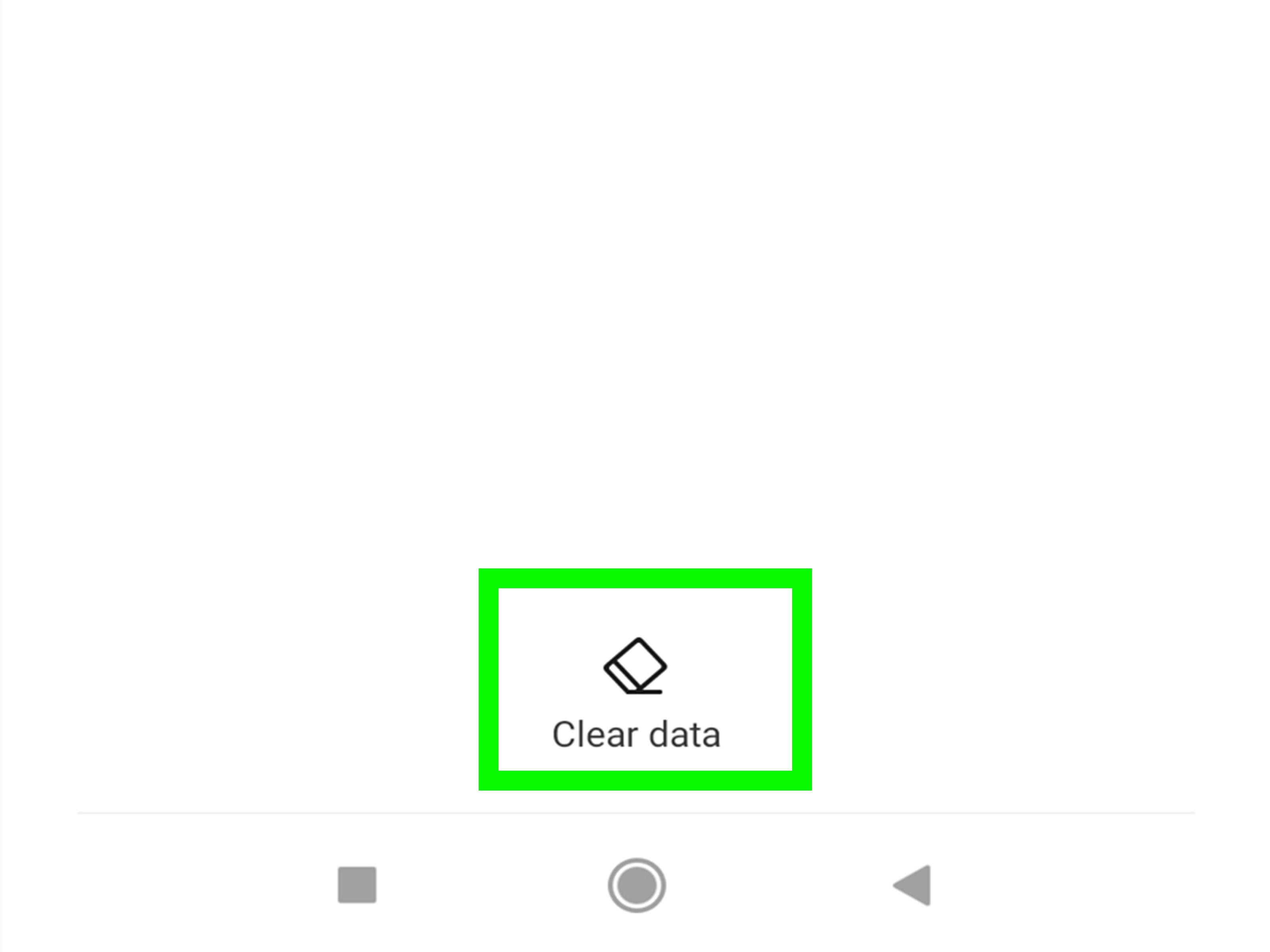
App data includes settings, login information, preferences, downloaded files, and sometimes local account details. On Android, the button labeled Clear storage or Clear data is more aggressive than Clear cache. It can reset the app as if you just installed it.
Media Storage and Web Storage
On iPhone, Twitter/X provides built-in options for clearing Media storage and Web storage. Media storage covers cached photos, GIFs, and videos. Web storage covers data from websites opened inside the app, including web page files and cookies.
In plain English: clear media storage when Twitter is hoarding images and videos. Clear web storage when links opened inside the app are acting weird or taking up space. Delete or reinstall the app only when the normal cleanup steps are not enough.
How to Check How Much Space Twitter Is Using
Before cleaning, check the damage. Sometimes Twitter/X is only using a few hundred megabytes. Other times, it has quietly moved in, unpacked boxes, and started paying rent in gigabytes.
On iPhone
- Open Settings.
- Tap General.
- Tap iPhone Storage.
- Scroll down and tap X or Twitter, depending on how it appears on your device.
- Review the app size and related documents and data.
On Android
- Open Settings.
- Tap Apps or Applications.
- Select X or Twitter.
- Tap Storage or Storage & cache.
- Review the app size, user data, and cache size.
If the app is using far more space than expected, clearing cache is a smart first move. If your phone has less than 2 GB of free space, you may also want to delete old downloads, large videos, unused apps, and duplicate photos. Twitter may be guilty, but it is rarely the only suspect in the storage lineup.
How to Clear the Twitter App Cache on iPhone
The iPhone version of Twitter/X has built-in storage controls inside the app. This makes cleanup easier than hunting through hidden iOS menus. Follow these steps carefully.
Clear Media Storage on iPhone
- Open the X app.
- Tap your profile icon in the top-left corner.
- Tap Settings and support.
- Select Settings and privacy.
- Tap Accessibility, display, and languages.
- Tap Data usage.
- Under Storage, tap Media storage.
- Tap Clear media storage.
- Confirm by tapping Clear media storage again.
This removes cached photos, GIFs, and videos stored by the app. The next time you scroll, Twitter may need to reload media again, so things might feel slightly slower for a moment. That is normal. Your posts, likes, bookmarks, DMs, and account are not deleted.
Clear Web Storage on iPhone
- Open the X app.
- Tap your profile icon.
- Go to Settings and support.
- Tap Settings and privacy.
- Choose Accessibility, display, and languages.
- Tap Data usage.
- Under Storage, tap Web storage.
- Choose Clear web page storage or Clear all web storage.
- Confirm your choice.
Clear web page storage is the gentler option. It removes cached web pages opened inside the app. Clear all web storage is more thorough and may remove cookies or sign you out of web sessions opened inside Twitter/X. If you are not sure which to choose, start with web page storage first.
What If Twitter Still Takes Up Too Much Space on iPhone?
If the app still occupies a huge amount of storage after clearing media and web storage, you have two stronger options: offload the app or delete and reinstall it.
To offload the app:
- Open Settings.
- Tap General.
- Tap iPhone Storage.
- Select X.
- Tap Offload App.
- Reinstall the app when you want to use it again.
Offloading removes the app itself while preserving its documents and data. It can help if the app file is large, but it may not remove every bit of cached data. For the cleanest reset, delete the app completely and reinstall it from the App Store. Just make sure you know your login details before doing that. Nothing ruins a quick cleanup like discovering your password memory is powered entirely by vibes.
How to Clear the Twitter App Cache on Android
Android usually makes app cache clearing more direct than iPhone. You can clear the Twitter/X cache from your device settings without opening the app.
Clear Twitter Cache on Android
- Open Settings.
- Tap Apps, Applications, or App management.
- Find and select X or Twitter.
- Tap Storage or Storage & cache.
- Tap Clear cache.
This removes temporary files while keeping your login, settings, and account data intact in most cases. It is the best first step if the app is slow, bloated, or misbehaving.
Do Not Tap Clear Data Unless You Mean It
On many Android phones, you will see two buttons: Clear cache and Clear data or Clear storage. These are not twins. They are more like cousins with very different personalities.
Clear cache removes temporary files. Clear data resets the app’s local data, which can sign you out, remove preferences, and make the app behave like a fresh installation. Your Twitter account still exists online, but you may need to log in again and reconfigure settings.
Use Clear data only if the app is seriously broken, cache clearing did not help, or you want a full reset. For everyday storage cleanup, stick with Clear cache.
Samsung Galaxy Note
On Samsung Galaxy phones, the path is usually Settings > Apps > X > Storage > Clear cache. Samsung also offers Device Care tools that can help identify storage problems, unused apps, and background behavior. If your phone keeps complaining about storage, Device Care is worth checking after you clear the Twitter cache.
How to Reduce Twitter Cache Build-Up in the Future
Clearing cache once is helpful. Preventing it from returning like a sequel nobody requested is even better. You cannot stop Twitter/X from caching entirely, but you can slow down the buildup.
Turn On Data Saver
Data Saver reduces how much media loads automatically. Images may load in lower quality, and videos may not autoplay. That means less data used and potentially less media cached.
- Open the X app.
- Tap your profile icon.
- Go to Settings and privacy.
- Tap Accessibility, display, and languages.
- Select Data usage.
- Turn on Data saver.
Limit Video Autoplay
Autoplaying videos are storage goblins wearing tiny director hats. If you watch a lot of video-heavy content, cache can grow quickly. In the Data usage settings, adjust video autoplay so videos play only on Wi-Fi or not automatically at all.
Use Wi-Fi for Heavy Browsing
If you follow sports, entertainment, news, crypto, gaming, or meme-heavy accounts, your timeline may be packed with video clips and high-resolution images. Using Wi-Fi does not directly shrink cache, but it prevents your mobile data from taking a hit when the app reloads media after a cleanup.
Clear Cache Monthly
For casual users, clearing the Twitter app cache every month or two is enough. Heavy users may want to do it every two weeks. If you frequently open links inside Twitter/X, clear web storage as well.
Will Clearing Twitter Cache Delete My Account?
No. Clearing the Twitter cache does not delete your account. It does not remove your posts, followers, following list, bookmarks, direct messages, or profile information from the platform. Those are stored online with your account.
What it does remove are temporary files stored locally on your phone. The app can download those files again as needed. After clearing cache, you may notice that images and videos reload when you scroll. That is expected.
The only time you may need to log back in is when you clear all web storage, clear app data, delete the app, or reinstall it. Even then, your account is still safe as long as you can access your login credentials.
When Should You Clear the Twitter App Cache?
You do not need to clear cache every day. In fact, doing so too often can make the app load media repeatedly, which defeats the purpose of caching. Clear it when there is a reason.
Good times to clear the Twitter app cache include:
- Your phone storage is almost full.
- The X app is using several gigabytes of space.
- Videos or images are not loading correctly.
- The app crashes, freezes, or lags.
- Links opened inside the app show old or broken pages.
- You recently installed a major app or system update.
- You want to troubleshoot without deleting the app.
If the app is working normally and storage is fine, leave the cache alone. Cache is not clutter by default; it becomes clutter when it overstays its welcome.
Common Problems After Clearing Twitter Cache
Images Load Slowly
This is normal immediately after clearing media storage or cache. The app has to download images again. After a few minutes of use, performance usually stabilizes.
You Were Logged Out
This can happen if you cleared all web storage, cleared app data, or deleted and reinstalled the app. Log back in with your username, email, phone number, and password. If you use two-factor authentication, keep your authentication method nearby.
The App Still Uses Too Much Space
Restart your phone and check storage again. If the number remains unusually high, delete and reinstall the app. On iPhone, this is often the most complete way to remove stubborn app storage. On Android, clear cache first, then consider clear data only if you are comfortable signing in again.
Nothing Changed
Some storage menus take time to update. Close the Settings app, reopen it, and check again. If needed, restart your device. Phones occasionally need a tiny nap before admitting you fixed the problem.
Extra Ways to Free Up Space on Your Phone
Clearing the Twitter app cache helps, but if your phone is gasping for storage, look beyond one app. A healthy cleanup routine can recover much more space.
Delete Unused Apps
If you have apps you have not opened since the last time you promised yourself you would “get organized,” delete or offload them. Games, video editors, shopping apps, and navigation apps can take up a surprising amount of storage.
Review Downloaded Videos
Streaming apps, podcast apps, and messaging apps often store downloaded media. A few offline videos can consume more storage than Twitter’s cache ever dreamed of.
Clean Up Photos and Screenshots
Duplicate photos, blurry pictures, and ancient screenshots of restaurant menus can pile up fast. Back up what matters, then delete what does not.
Clear Browser Cache
If you often open x.com or other social platforms in Chrome, Safari, Edge, or Firefox, clear your browser cache too. Browser cache is separate from the Twitter app cache.
Conclusion
Clearing the Twitter app cache is one of the easiest ways to free up space and fix small performance problems without touching your actual account. On iPhone, use the X app’s built-in Media storage and Web storage tools. On Android, go through your phone’s app settings and choose Clear cache. Avoid Clear data unless you are ready for a more complete reset.
The best approach is simple: check how much space Twitter/X is using, clear media or app cache first, restart the app, and only reinstall if the storage problem remains. Add Data Saver and limited autoplay, and your phone may stop acting like every meme you have ever scrolled past is a precious family heirloom.
Real-World Experience: What Clearing the Twitter Cache Actually Feels Like
The first time someone checks how much storage Twitter is using, the reaction is usually a mix of disbelief and betrayal. You expect photos, videos, or maybe that one enormous game app to be the villain. Then there is Twitter/X, sitting in storage settings with several gigabytes attached to it, looking innocent. “Me? I would never.” Except it absolutely would.
In everyday use, the cache grows because Twitter is a media-heavy app. A quick five-minute scroll can include news clips, sports highlights, reaction GIFs, screenshots, profile photos, ads, article previews, and videos that autoplay before you even decide whether you care. Multiply that by weeks or months, and the app may collect a large pile of temporary files. It is not always obvious because the app still opens normally. The warning sign is usually your phone saying storage is almost full right when you are trying to take a photo, install an update, or download an important file.
After clearing the cache, the first thing you may notice is that the storage number drops immediately, especially on Android. On iPhone, clearing media storage inside the app can also make a visible difference, though stubborn storage sometimes requires deleting and reinstalling the app. The second thing you may notice is that images and videos reload as you scroll. That can feel like a slowdown, but it is temporary. The app is rebuilding only what it needs instead of carrying around a giant suitcase of old media.
For people who use Twitter mostly for text updates, the cache may not return too aggressively. For people who live in video-heavy timelinessports fans, entertainment watchers, tech reviewers, breaking-news followers, and meme collectorsthe cache can come back faster. That does not mean anything is broken. It simply means the app is doing what modern social apps do: saving temporary content to make the next scroll feel instant.
A practical routine works best. Check Twitter storage once a month. If it is small, ignore it. If it has grown into gigabytes, clear media storage or app cache. Turn on Data Saver if you do not need every video to autoplay in full glory. If your phone is older or has limited storage, be more aggressive about clearing cache and deleting unused apps. If your phone has plenty of storage, clearing cache is more of a troubleshooting tool than a weekly chore.
The biggest lesson is this: clearing cache is not dangerous when you choose the right option. It is more like emptying a backpack than moving out of the house. Your account stays online, your posts remain in place, and your followers do not vanish into the digital mist. You are simply telling the app, “Thanks for trying to be helpful, but I do not need three months of thumbnails living rent-free on my phone.”
Note: This article is based on current real-world guidance from X/Twitter app settings, iPhone and Android storage behavior, major device-support documentation, and reputable technology publications. It has been fully rewritten for original web publication without inserted source links or citation markup.