Windows has a lot of doors. Some are big friendly doors labeled Documents, Downloads, and Pictures. Others are tiny secret doors hidden behind paths like C:\Users\YourName\AppData\Roaming, which looks less like a folder and more like a wizard’s mailing address. Learning how to navigate the Windows directory is one of those skills that seems small until the day you need it. Then suddenly it becomes the difference between calmly fixing a problem and shouting “Where did that file go?” at your monitor.
The good news: you do not need to be a programmer, IT technician, or keyboard shortcut collector to move around Windows confidently. Windows gives you several practical ways to browse folders, open paths, move between drives, and find files quickly. The four most useful methods are File Explorer, the address bar and direct folder paths, Command Prompt, and PowerShell or Windows Terminal. Each has its own personality. File Explorer is the friendly tour guide. The address bar is the express elevator. Command Prompt is the old-school mechanic. PowerShell is the power tool with a safety manual and a cape.
In this guide, we will break down four ways to navigate the Windows directory, explain when to use each one, and show real examples you can copy, adapt, and actually understand. No mystical tech fog. No “just type this and hope.” Let’s open the folder maze and put up some road signs.
What Is the Windows Directory?
Before we start moving around, let’s define the playground. A directory is another word for a folder. In Windows, folders are arranged in a hierarchy, starting from a drive such as C:, D:, or an external USB drive. The main system drive is usually C:, and inside it you will find folders such as Windows, Program Files, and Users.
A full folder location is called a path. For example:
This path means: start on the C: drive, open Users, open Alex, open Documents, then open Invoices. Think of it like a street address, except instead of “Apartment 4B,” Windows says, “Please enjoy this backslash buffet.”
1. Navigate the Windows Directory with File Explorer
File Explorer is the most visual and beginner-friendly way to navigate the Windows directory. You can open it by clicking the folder icon on the taskbar, right-clicking the Start button and choosing File Explorer, or pressing Windows + E. That shortcut alone can save you thousands of tiny mouse miles over a lifetime.
Use the left navigation pane
The left side of File Explorer acts like a map. You may see areas such as Home, Desktop, Documents, Downloads, Pictures, This PC, OneDrive, and connected drives. Click This PC when you want to see your drives and common folders. Click Downloads when you are hunting for that file you definitely downloaded and absolutely did not name “final_FINAL_reallyfinal.pdf.”
Folders can be expanded in the navigation pane. If a folder has a small arrow beside it, click the arrow to reveal its subfolders. This is useful when you want to move through a directory tree without opening a new view every time.
Use double-clicking, back, and forward
Inside File Explorer, double-click a folder to open it. Use the Back and Forward buttons near the top-left corner to move through locations you recently visited. This works much like a web browser. If you accidentally dive seven folders deep into a digital cave, Back is your rope.
Sort and view folders clearly
Navigation becomes easier when you change how files are displayed. In File Explorer, you can switch between details, list, icons, and other views. The Details view is especially useful because it shows columns such as name, date modified, type, and size. Sorting by Date modified can quickly reveal the newest file in a folder. Sorting by Type can group documents, images, and applications together.
When File Explorer is the best choice
Use File Explorer when you want to browse visually, move files by dragging and dropping, preview folder contents, rename files, copy photos, organize downloads, or help someone who breaks into a cold sweat at the sight of a command line. It is the everyday method for most Windows users, and it is still the easiest way to understand where your files live.
2. Navigate Faster with the Address Bar and Direct Paths
The File Explorer address bar is one of the most underrated tools in Windows. It sits near the top of the window and shows your current location. Many users treat it like decoration. That is a mistake. The address bar is not wallpaper; it is a teleportation device.
Click the address bar and type a path
Click the address bar, type or paste a folder path, and press Enter. For example:
If the path exists and you have permission to access it, File Explorer opens that location immediately. This is much faster than clicking through five folders one by one while wondering why you chose a career involving computers.
Use environment shortcuts
Windows also supports helpful shortcuts that open common locations. Try typing these into the File Explorer address bar:
This opens your user folder, usually something like C:\Users\YourName.
This opens the Roaming AppData folder, a common place where applications store settings.
This opens your temporary files folder. Be careful here; it is useful, but it is also where forgotten installer crumbs go to hold a family reunion.
Use breadcrumb navigation
When you are inside a folder, File Explorer may show the path as clickable breadcrumb segments, such as:
You can click any segment to jump back to that level. You can also click small arrows between segments to see nearby folders. This is perfect when you want to move sideways in the directory tree, such as jumping from Documents to Pictures within the same user profile.
Copy a file or folder path
Sometimes you need the exact location of a file, especially when installing software, troubleshooting, editing configuration files, or telling someone where a document is. In File Explorer, right-click a file or folder and choose Copy as path. Windows copies the full path, often wrapped in quotation marks if spaces are included.
For example:
The quotation marks matter when a path contains spaces. Without quotes, command-line tools may think Project and Files are separate arguments, because computers are powerful but occasionally very literal toddlers.
3. Navigate the Windows Directory with Command Prompt
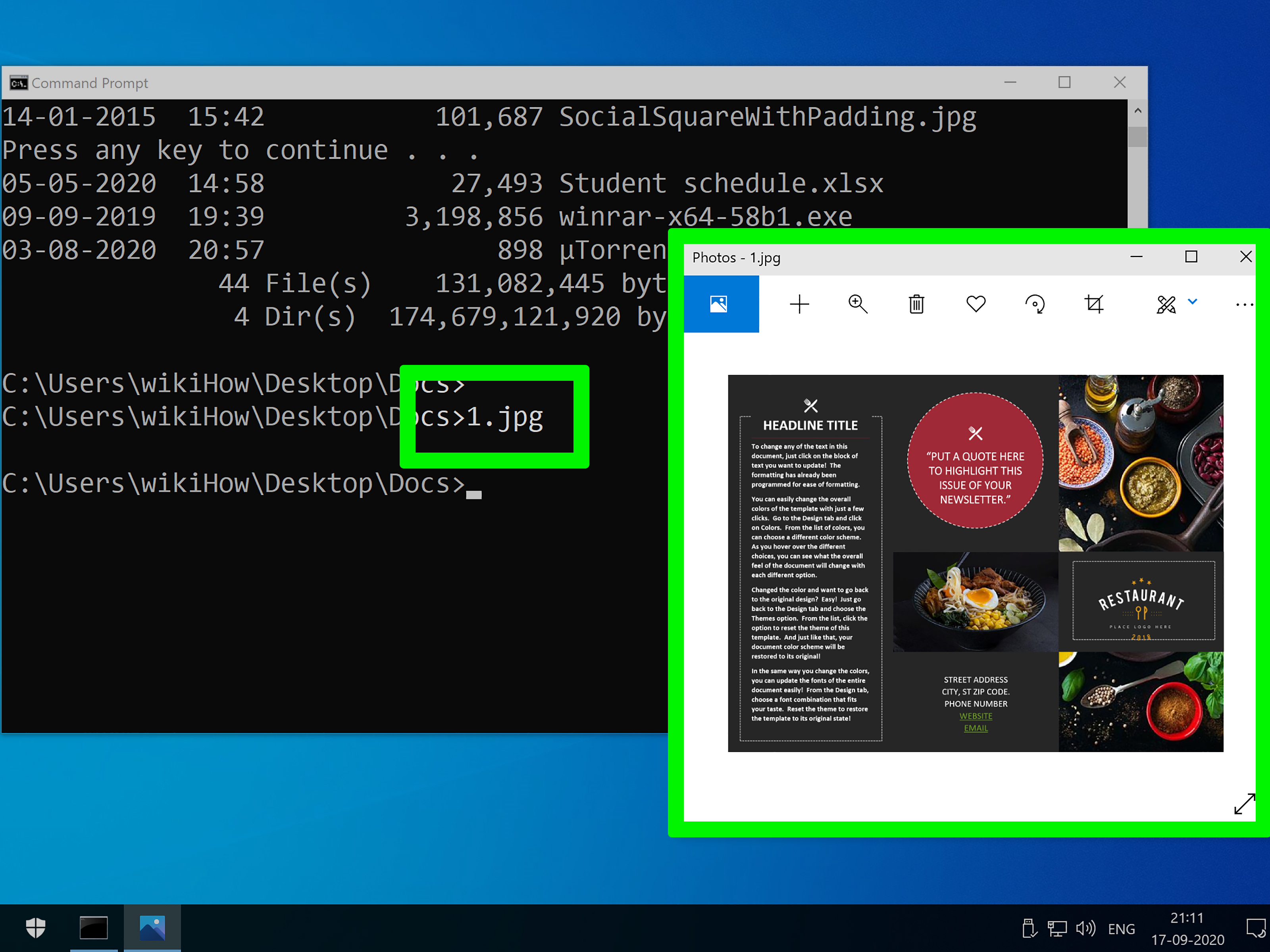
Command Prompt, also known as cmd, is one of the classic ways to navigate Windows folders. It is text-based, fast, and still useful for troubleshooting, scripting, network tasks, and working with older tools. To open it, press Windows, type cmd, and press Enter.
Check your current directory
When Command Prompt opens, it shows your current location. It might look like this:
This means you are currently in the Alex user folder on the C: drive.
List files and folders with dir
To see what is inside the current directory, type:
The dir command lists folders, files, dates, sizes, and other information. If you are not sure where to go next, dir is your flashlight.
Change directories with cd
The main command for moving between folders is cd, short for “change directory.” To move into a folder inside your current location, type:
To move into a folder with spaces in its name, use quotation marks:
To move up one level, type:
To jump to the root of the current drive, type:
If you want to go directly to a full path on the same drive, type:
Switch drives correctly
One common beginner trap is trying to move from the C: drive to the D: drive with only cd. In Command Prompt, this may not switch the active drive the way you expect. The simple method is to type the drive letter first:
Then change directories:
Or use the /d switch to change both drive and directory at once:
This tiny /d switch is the kind of thing that makes Windows veterans nod knowingly, like they survived a haunted printer incident in 2009.
Use Tab completion
Command Prompt supports Tab completion. Type part of a folder name and press Tab. Windows will try to complete the folder or file name for you. Press Tab again to cycle through matches. This helps avoid spelling errors and saves time, especially with long directory names.
When Command Prompt is the best choice
Use Command Prompt when you are following technical instructions, running older utilities, troubleshooting network or system issues, using batch files, or working on machines where PowerShell is restricted. It is simple, predictable, and excellent for basic directory navigation.
4. Navigate with PowerShell and Windows Terminal
PowerShell is a modern command-line shell and scripting environment. It can do everything from basic folder navigation to serious automation. Windows Terminal is an app that can host PowerShell, Command Prompt, and other shells in tabs. If Command Prompt is a pocket knife, PowerShell is the tool chest.
Open PowerShell or Windows Terminal
You can right-click the Start button and choose Terminal or Windows Terminal, depending on your Windows version and configuration. You can also press Windows, type PowerShell, and open it from the search results.
Use pwd to see your current location
In PowerShell, type:
This shows your present working directory. It answers the very important question, “Where am I, and why am I in a folder called System32?”
Use Get-ChildItem or ls to list contents
To list files and folders, type:
PowerShell also supports aliases, so you can often type:
or:
These commands show the contents of the current location. For everyday navigation, aliases make PowerShell feel familiar whether you come from Windows Command Prompt, Linux, or macOS.
Move with Set-Location or cd
The formal PowerShell command for changing directories is:
But you can also use the shorter alias:
To move up one level:
To switch to another drive:
PowerShell handles many directory tasks smoothly, and it is especially useful when combined with filters, scripts, and automation.
Find folders and files from PowerShell
PowerShell can search through directories with more control than basic browsing. For example, this command searches your Documents folder for PDF files:
To search subfolders too, add -Recurse:
Use recursive searches carefully in large folders. Searching an entire drive can take time, especially if your PC contains years of screenshots, mystery downloads, and at least one folder named “New Folder (12).”
When PowerShell is the best choice
Use PowerShell when you want advanced control, repeatable commands, automation, filtering, scripting, or modern Windows administration. It is ideal for developers, system administrators, power users, and anyone who wants to stop doing the same folder task by hand every Tuesday like a spreadsheet goblin.
Bonus Tips for Easier Windows Directory Navigation
Pin important folders
If you use a folder every day, pin it to Quick Access or Home in File Explorer. Right-click the folder and choose the pin option. This keeps important locations within easy reach and prevents the classic “I know it is somewhere under Work, Clients, 2024, Final, Real Final” adventure.
Use search wisely
File Explorer search works best when you search from the most specific folder possible. If you know a file is somewhere in Documents, search Documents instead of This PC. A smaller search area usually means faster results and less digital haystack.
Learn a few essential shortcuts
You do not need to memorize every Windows shortcut ever invented. Start with these:
- Windows + E: Open File Explorer.
- Alt + Up Arrow: Go up one folder level in File Explorer.
- Alt + Left Arrow: Go back.
- Alt + Right Arrow: Go forward.
- Ctrl + L: Select the address bar.
- F2: Rename the selected file or folder.
These shortcuts are small, but they add up. After a week, your mouse may file a complaint about reduced working hours.
Common Windows Directory Problems and Fixes
“The system cannot find the path specified”
This usually means the path is wrong, the folder was moved, or there is a typo. Check spelling, spaces, drive letters, and quotation marks. If a path contains spaces, wrap it in quotes.
“Access is denied”
This means your user account does not have permission to open that location or perform that action. Some system folders require administrator rights. Be careful before changing protected folders, because Windows is not being dramatic for fun; some directories are important for system stability.
The folder is hidden
Some folders, such as AppData, may be hidden by default. In File Explorer, use the view options to show hidden items when needed. Only change hidden files when you understand why they are hidden. Windows hides certain things because the average Tuesday does not need extra chaos.
Real-World Experiences: What Navigating Windows Directories Teaches You
After years of helping people with Windows problems, one thing becomes obvious: most “computer issues” are partly navigation issues. The file is not missing; it is in the wrong folder. The program is not broken; the configuration file is hiding in AppData. The download did not vanish; it landed in Downloads while the user was staring suspiciously at Desktop. Knowing how to navigate the Windows directory turns a confusing machine into a manageable workspace.
One common experience is the “lost attachment” situation. Someone downloads a document from email, edits it, and later cannot find the edited version. Usually, the file is sitting in Downloads, a temporary folder, or a cloud-synced location. A confident Windows user checks the browser download history, opens File Explorer with Windows + E, sorts Downloads by date modified, and finds the file in under a minute. A less confident user may download the same file six more times and create a small civilization of duplicates.
Another practical lesson comes from software troubleshooting. Many apps store settings in hidden folders, especially under AppData. If a program refuses to reset, crashes at startup, or keeps loading an old profile, the fix may involve navigating to %APPDATA% or %LOCALAPPDATA%. The first time you do this, it feels like entering the engine room of Windows. The tenth time, it feels normal. You learn to move carefully, back up files before deleting anything, and avoid treating system folders like a junk drawer.
For developers and website owners, directory navigation becomes even more important. A project may contain folders for images, scripts, stylesheets, logs, backups, and configuration files. Using File Explorer is fine for visual organization, but Command Prompt or PowerShell can be faster for repeated tasks. For example, jumping to a project folder with cd /d D:\Projects\SiteName is quicker than clicking through multiple folders. Running dir, ls, or Get-ChildItem helps confirm that the files are where they should be before uploading, editing, or deploying them.
PowerShell adds another layer of experience because it rewards precision. You can search for file types, list recent files, or inspect subfolders without manually opening every directory. Imagine needing to find every .log file in a project. File Explorer can do it, but PowerShell can do it with a clean command and repeat the task later. That repeatability is the big advantage. Once you learn the pattern, you stop doing boring work by hand and start giving Windows polite instructions.
There is also a confidence benefit. Many users fear the command line because it looks serious, as if one wrong command will launch the toaster into orbit. In reality, basic navigation commands such as cd, dir, pwd, and ls are safe when used for browsing. They help you understand structure. They show where you are, what is nearby, and how to move. Once you understand that, the command line becomes less like a dark cave and more like a fast hallway with fewer decorative buttons.
The biggest personal productivity improvement comes from combining methods. Use File Explorer when you need visual context. Use the address bar when you already know the path. Use Command Prompt when following a classic technical guide. Use PowerShell when you want filtering, searching, or automation. The best Windows users are not loyal to one method. They choose the tool that makes the current task easier. That is the secret. Not memorizing everything. Not becoming a keyboard wizard. Just knowing enough paths through the maze to avoid getting stuck.
Over time, directory navigation also improves file organization habits. When you constantly see messy folder structures, you start naming files better. You create clearer project folders. You stop saving everything to Desktop, which is not a filing system; it is a cry for help with icons. Good navigation and good organization support each other. The easier it is to find files, the less time you waste recreating work, downloading duplicates, or wondering whether “report-new-2-fixed-use-this-one.docx” is legally considered a document title.
Conclusion
Learning how to navigate the Windows directory is not just a technical trick. It is a practical skill that makes everyday computing faster, calmer, and less mysterious. File Explorer gives you a visual way to browse folders. The address bar lets you jump directly to exact paths. Command Prompt offers reliable classic navigation with commands like cd and dir. PowerShell provides modern control with commands such as Set-Location and Get-ChildItem.
You do not need to master all four methods immediately. Start with File Explorer and the address bar, then learn a few Command Prompt basics, and finally explore PowerShell when you want more speed and control. Once you understand paths, drives, folders, and commands, Windows becomes much easier to manage. The directory system stops looking like a maze and starts looking like a map. A slightly weird map, yes, but one you can read without needing a rescue team.
Note: This article is written for web publishing in standard American English and is based on current Windows directory navigation practices, including File Explorer, direct paths, Command Prompt, and PowerShell usage.